|
VOOZH | about |
|
VOOZH | about |
When working with npm packages, you might encounter bugs or issues with a package, and finding the appropriate place to report or view existing bugs can be crucial. In this article, we will explore how to use the npm bugs command and its configuration options.
The npm bugs command helps users quickly find and open the bug tracker page of a specific npm package. This command is particularly useful when you're working with third-party packages and need to report an issue or check whether a problem you're encountering has already been reported.
The command works by trying to guess the location of the package's bug tracker URL or support email, usually from the bugs field in the package's package.json. If no package name is provided, the command will search for a package.json in the current directory and use the package name from there.
Official Synopsis:
npm bugs [<pkgname> [<pkgname> ...]]Alias: The npm bugs command can also be called using its alias issues:
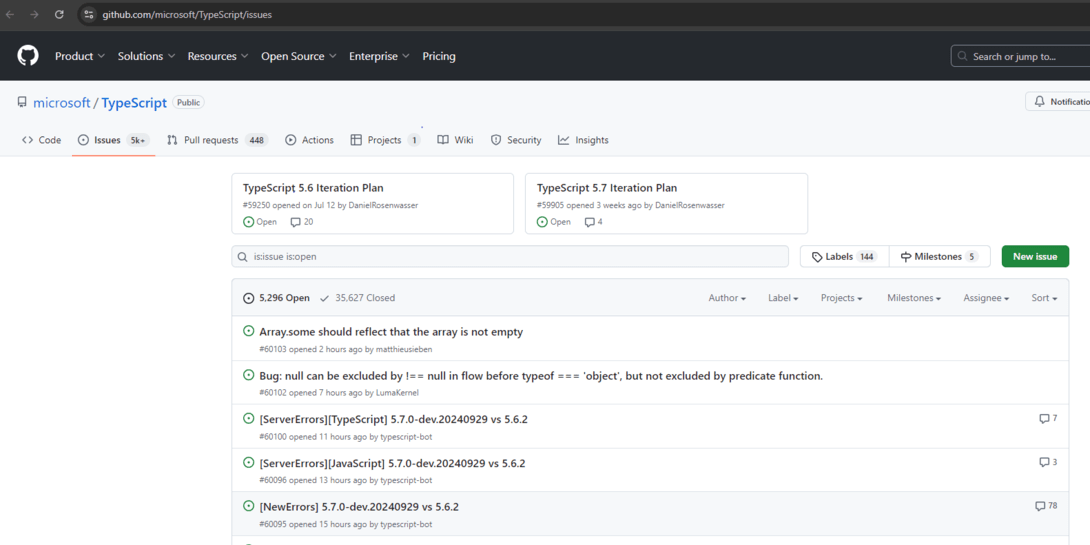
npm issues [<pkgname> [<pkgname> ...]]npm bugs [<package-name>]npm bugs typescriptThis command would open the bug tracker for the typescript package in your default web browser. The command checks the package.json of typescript to find the bugs field, which contains a URL to the issue tracker, often on GitHub or another platform.
If you run the command without specifying a package name, such as:
npm bugsThe command will check for a package.json file in the current working directory and open the bug tracker URL for the package listed there.
The npm bugs command has several configuration options that can modify its behavior.
The browser configuration determines which browser or application is used by npm to open websites, such as the bug tracker page. It can be set to:
Example: Set the browser config in your npm configuration:
npm config set browser chromeThis will open all URLs (including those from npm bugs) in Google Chrome.
If you prefer not to open URLs automatically in a browser and would rather just print the URLs in your terminal:
npm config set browser falseThe registry configuration allows you to specify the base URL of the npm registry. This is typically not changed unless you're using a private npm registry.
The workspace configuration enables running commands in the context of the configured workspaces of the current project. You can specify individual workspaces by name or by path.
When used with npm bugs, this option can help locate bugs for specific workspaces in a monorepo.
When set to true, this flag runs the command in the context of all configured workspaces. This can be useful when working with monorepos or multi-package projects where you need to check bugs for multiple packages.
npm bugs --workspacesWhen include-workspace-root is set to true, the root of the workspace is included when running the npm bugs command, allowing it to search for bugs in both the root project and its workspaces.
npm bugs reactThis command opens the bug tracker page for the react package in your default browser.
npm config set browser false
npm bugs lodash
This will print the URL of the bug tracker to the terminal, allowing you to manually open it if needed.
npm bugs to find bug trackers for packages in specific workspaces:npm bugs --workspace workspace-nameThis is particularly helpful when managing multiple projects within a monorepo, as it enables you to quickly locate the issue tracker for each project.
When using npm bugs to report an issue, it's important to follow best practices to ensure that your report is useful to the maintainers of the package: