|
VOOZH | about |
|
VOOZH | about |
Creating and publishing an npm package involves preparing your project, configuring it properly, and publishing it to the npm registry for public use.
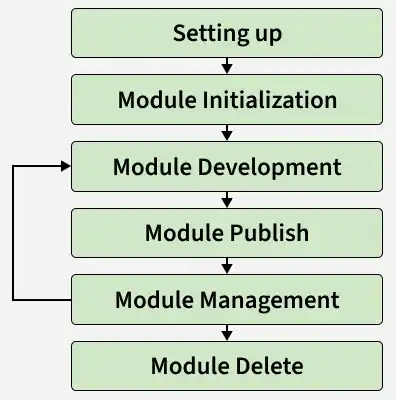
It explains the complete lifecycle of an npm package, from initial setup and module creation to publishing, version management, and maintenance.
Setting up a project is required before doing anything.
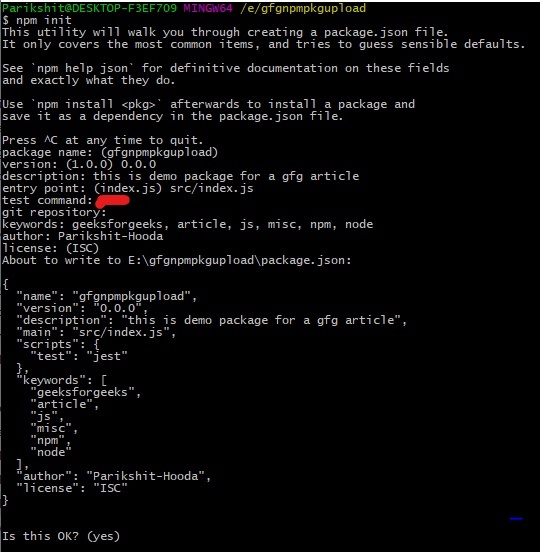
To initialize a module, go to the terminal/command-line and type npm init and answer the prompts.
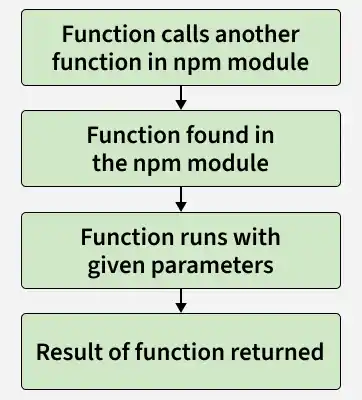
This phase is the coding phase. If you have any experience in using NPM modules, you would know that NPM modules expose methods that are then used by the project. A typical control flow is:
Implement a simple function that adds two numbers in the npm module.
File Name: index.js
After completing the module, publish it using npm publish. Before publishing, check if the package name is available by running npm search packagename, as duplicate names cannot be published.
npm search packagenameIf your package name is usable, it should show something like the image below.
If your module name already exists, go to the package.json file of the npm module project and change the module name to something else.
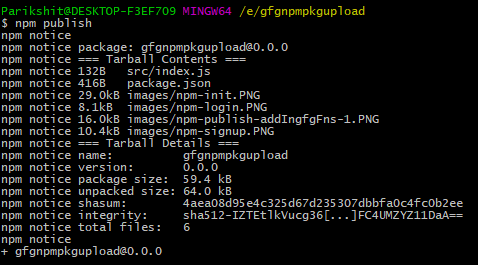
Now after checking the name availability, go to command-line/terminal and do the following:
npm publishAs a package evolves, versioning is required to track bug fixes, minor updates, and major releases; npm supports semantic versioning through controlled version increments (patch, minor, and major).
Versioning and publishing code: NPM allows us to version our module on the basis of semantic-versioning. There are three types of version bumps that we can do, ie, patch, minor, and major. For example, if the current module version is 0.4.5:
# Minor version increments reset the patch version to 0
# Major version increments reset both minor and patch versions to 0

# 0.4.5 to 0.4.6
npm version patch
# 0.4.5 to 0.5.0
npm version minor
 # 0.4.5 to 1.0.0
npm version major
When we run the above command, the version number in the package.json file is automatically updated as well.
Note: If the module is being re-published without bumping up the version, the NPM command line will throw an error. For example, look at the below image.
A package dependent on other packages: During npm package development, it is common to include external dependencies required for functionality, which are installed and managed through npm and recorded in the dependencies section of package.json.
npm install packagename1[ packagename2]> npm version minor
npm publish
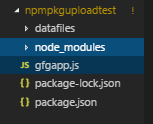
Building a more complex module: Develop an npm module that reads a text file, extracts numerical values, computes their sum, and outputs the result to the console.
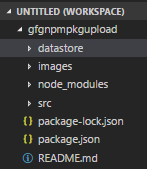
npm init -ynpm install gfgnpmpkguploadThe datafiles should contain a numFile.txt that has the numbers that have to be added and displayed in the console.
// numFile.txt - sum = 55
1 2 3 4 5 6 7 8 9 10
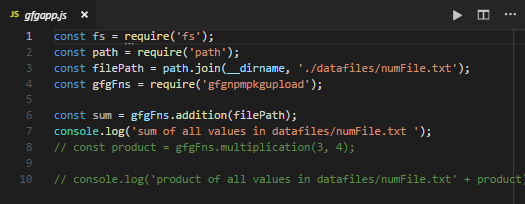
To consume this numFile.txt, we will have a gfgapp.js that will do the actual addition.
To test this, go to command-line and run
node gfgapp.jsNPM module boilerplate: Preconfigured npm module boilerplates can be generated using Yeoman to streamline project scaffolding.
Unpublishing an NPM package: An npm package can be unpublished within 72 hours of its initial release using npm unpublish <package-name> and after 72 hours removal requires contacting the npm registry support.
npm unpublish packageNameExample: Use the published package to add two numbers.
Filename: app.js
Output: