|
VOOZH | about |
|
VOOZH | about |
Building an Express.js application is the foundation of server-side development in Node.js.
Firstly, install Node.js on your system. Follow this article for a step-by-step Node.js installation.
Open your terminal/command prompt and create a new folder for your project:
mkdir my-express-app
cd my-express-appInitialize a new Node.js project using npm:
npm init or npm init -yInstall Express.js as a dependency:
npm install expressSomething like this will be shown on successful installation.
Create an app.js (or server.js) file. This will serve as the main entry point for your application.
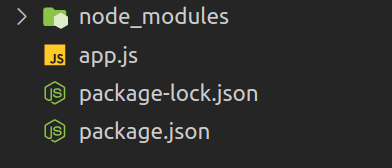
Project Structure:
The updated dependencies in package.json file will look like:
"dependencies": {
 "express": "^4.19.2",
 "mongoose": "^8.4.0"
}Example: Implementation to setup the express application.
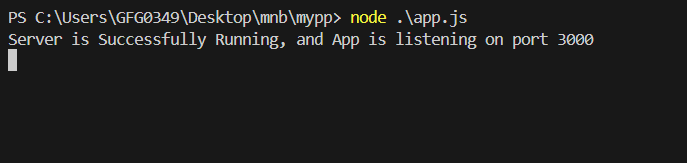
Step to Run Application: Run the application using the following command from the root directory of the project
node app.jsOutput: You will see something like this on the terminal.
In this example:
Routes are server endpoints that respond to client requests. You can think of a route as a function that runs when someone accesses a specific path. Express supports routes for various HTTP methods like GET, POST, PUT, and more.
Syntax:
app.anyMethod(path, function) Example: Implementation to set up a basic request route on the root URL.
Step to run the application: Save the code, restart the server, and open localhost:<port>. A GET request to / will return the plain text response, which you can also inspect in Chrome DevTools under the Network tab.
Output:
Example: Implementation to setup the one more route.
Step to run the application: Save this code, restart the server, and open the localhost on the given port. Now access the '/hello' route from the browser, The h1 text inside HTML will be shown as a response.
Output:
Sometimes we need to send data to the server (e.g., login details). This is done using the request object with methods like POST. Since browsers can only send GET requests via the address bar, tools like Postman or a frontend form are needed to send data.
Example: Implementation to Setup route to be accessed by users to send data with post requests.
Step to run the application: We test the route using Postman (or any tool like Axios, fetch, or cURL). Sending JSON data in the request body returns a response from the server, confirming the data was received successfully.
Output:
To send files from the server, we can either serve static files using middleware or send a single file via a route. For example, serve all files in a Static Files folder and send image.jpg through a separate route.
In Express, we use the middleware express.static() function, which takes two arguments. The first argument is the absolute root path of the directory containing the files we want to serve. We can easily serve static files by using app.use() and providing the express.static() middleware.
Syntax:
app.use(path, express.static(root, [options])); Example: Implementation to show the use of middleware in Express.
Step to run the application: This will be the returned response when we request some static file from the directory that we are serving as static. Here you can see we have received an HTML file as a response for '/static/random.html'. The same things happen when we request for '/static/1.jpg'.
Output:
In this example:
This function accepts an absolute URL of the file and whenever the route path is being accessed the server provides the file as an HTTP response. This process can be thought of as a single endpoint of the express.static(). It can be useful when we have to do some kind of processing before sending the file.
Syntax:
res.sendFile(fileUrl)Example: Implementation to show Sending a single file on a route with the sendFile() function.
Output: After running the server, When we request the route '/file' the server sends the image.jpg file as a response.
In this example: