|
VOOZH | about |
|
VOOZH | about |
When it comes to modern web development, automation and package management play an important role in speeding up the development process and ensuring code consistency across projects. Two common tools in the developer's toolbox for handling tasks related to automation and dependency management are Gulp and npm.
However, they serve different purposes, and understanding the difference between them helps to choose when and why to use each. In this article, we'll explore the fundamental differences between Gulp and npm, their respective use cases, and how they can be used together in your projects.
Gulp is a task runner that automates repetitive tasks in your development workflow. It is commonly used to automate processes like:
Gulp uses a series of plugins to handle these tasks, allowing you to set up automated workflows for handling various build steps. It is designed to be fast and efficient, using a streaming build system where files are passed through different Gulp tasks without needing to be written to the disk until the final step.
Here’s a simple example of how you might use Gulp to automate the process of compiling Sass to CSS and minifying JavaScript files:
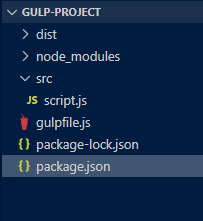
npm install -g gulp-climkdir gulp-project
cd gulp-project
npm init -y
npm install gulp gulp-uglify --save-dev
"devDependencies": {
 "gulp": "^5.0.0",
 "gulp-uglify": "^3.0.2"
 }
Run gulp minify-js in the terminal to minify src/script.js into dist/.
gulp minify-jsOutput: There will be a dist folder created
npm (Node Package Manager) is a package manager for JavaScript. It’s primarily used for managing dependencies in your project—these could be third-party libraries, frameworks, or tools. npm also provides scripts that allow you to automate tasks within your project, such as running build commands, starting a development server, or running tests.
The primary use case of npm is to manage the packages required by your project. Here’s a basic example of how npm is used to install a package and run a task.
Installing a Package:
npm install lodash --saveThis installs the lodash library into your project and adds it to the dependencies section of your package.json.
Defining Scripts: You can define custom scripts in your package.json file to automate tasks. Here’s an example:
{
 "name": "my-project",
 "version": "1.0.0",
 "scripts": {
 "build": "node build.js",
 "start": "node server.js",
 "test": "jest"
 },
 "dependencies": {
 "lodash": "^4.17.21"
 }
}
Now, running npm run build will execute the build.js script in your project. You can also use npm scripts to start servers, run linters, or perform other development-related tasks.
| Feature | Gulp | npm |
|---|---|---|
| Primary Purpose | Task runner for automating build tasks. | Dependency manager for installing and running packages. |
| Task Automation | Handles complex task automation via Gulp plugins (e.g., minification, Sass compilation). | Basic task automation via npm scripts for running commands. |
| Plugin Ecosystem | Rich ecosystem of plugins for automating tasks (e.g., gulp-uglify, gulp-sass). | Runs external tools or commands like uglify-js through npm scripts. |
| Setup | Requires a gulpfile.js to define tasks. | Requires only modifications to package.json scripts section. |
| File Streaming | Supports file streaming, allowing faster and more efficient file processing. | Does not support streaming; processes files via commands executed through CLI. |
| Complexity | More complex setup and configuration for larger projects. | Simpler for small tasks but can be limited for complex build systems. |
| Example Task | gulp minify-js | npm run minify-js |
| Output Location | Defined in gulp.dest() inside the gulpfile.js. | Defined directly in the command under package.json scripts. |
| Use Cases | Best suited for complex workflows and multiple tasks in parallel (e.g., watching files, running Sass, minification). | Suitable for simple tasks such as running build commands, minification, or tests. |