|
VOOZH | about |
|
VOOZH | about |
Creating a database in PostgreSQL allows users to store, organize and manage related data in a separate database environment.
Follow the steps below to create a database in PostgreSQL.
Execute the following meta-command to display all users (roles) available on the PostgreSQL server:
\duThis command lists all PostgreSQL users along with their roles and privileges.
After checking the available users, connect using a user that has database creation privileges and execute the following command:
CREATE DATABASE mydatabase;To verify that the database was created successfully, run:
\lThis command displays all databases on the PostgreSQL server, including the newly created one.
\c mydatabaseThis command connects to the specified database.
To create a database using the PostgreSQL psql shell, connect to the PostgreSQL server and execute the CREATE DATABASE command.
CREATE DATABASE mydatabase;Replace mydatabase with the desired database name. After creating the database, use the \l command to verify that it has been created successfully.
The following table lists the parameters used by the createdb command.
| Parameter | Description |
|---|---|
| dbname | Name of the database to be created. |
| description | Comment associated with the new database. |
| options | Additional command-line options accepted by createdb. |
The following table lists the options supported by the createdb command.
| Option | Description |
|---|---|
| -D tablespace | Sets the database tablespace. |
| -e | Displays executed commands. |
| -E encoding | Sets the database encoding. |
| -l locale | Sets the database locale. |
| -T template | Uses a template database. |
| --help | Shows help information. |
| -h host | Specifies the server host. |
| -p port | Specifies the server port. |
| -U username | Specifies the user name. |
| -w | Disables password prompts. |
| -W | Forces a password prompt |
The following examples demonstrate how to create PostgreSQL databases using default settings and custom parameters such as owner, encoding and connection limits.
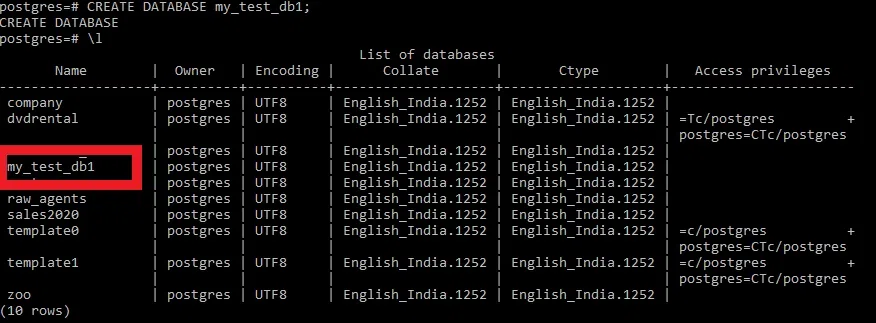
In this example, we create a database using PostgreSQL's default settings, including the default encoding, tablespace and connection limits.
Query:
CREATE DATABASE my_test_db1;Output:
CREATE DATABASE sales_dbOWNER = sales_admin;This creates a database owned by sales_admin.
CREATE DATABASE project_db
WITH ENCODING = 'UTF8'
LC_COLLATE = 'en_US.UTF-8'
LC_CTYPE = 'en_US.UTF-8';
This creates a database with custom encoding and locale settings.
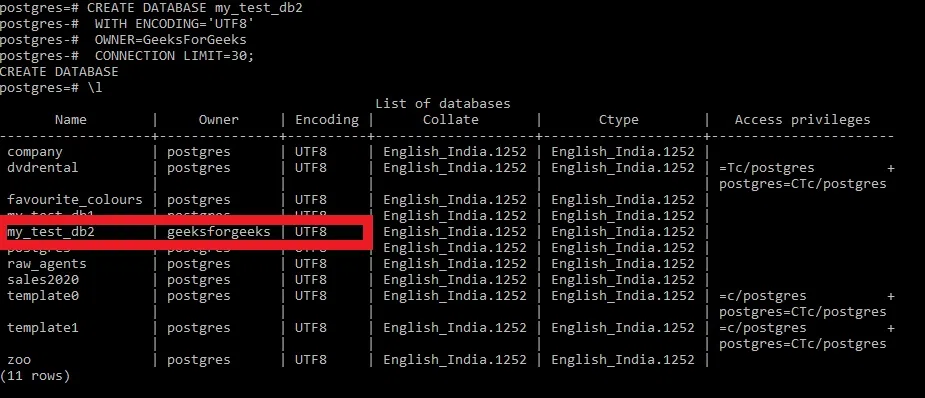
In this example, we create a database with UTF-8 encoding, GeeksForGeeks as the owner and a maximum of 30 concurrent connections.
Query:
CREATE DATABASE my_test_db2
 WITH ENCODING='UTF8'
 OWNER=GeeksForGeeks
 CONNECTION LIMIT=30;
Output:
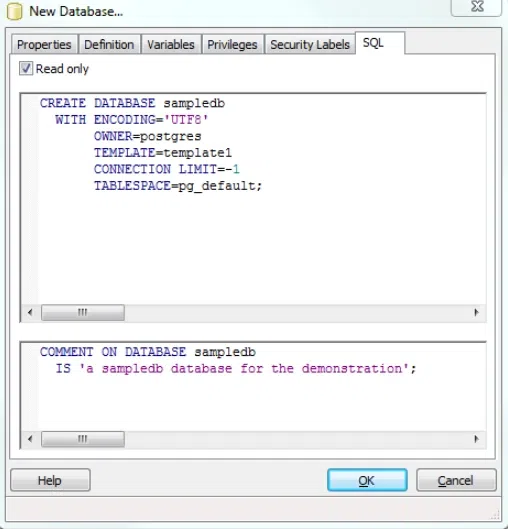
pgAdmin provides a graphical interface for managing PostgreSQL databases.
Open pgAdmin and connect to the PostgreSQL server.
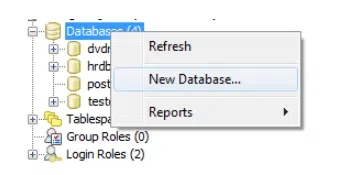
In the Object Explorer, right-click Databases and select Create → Database.
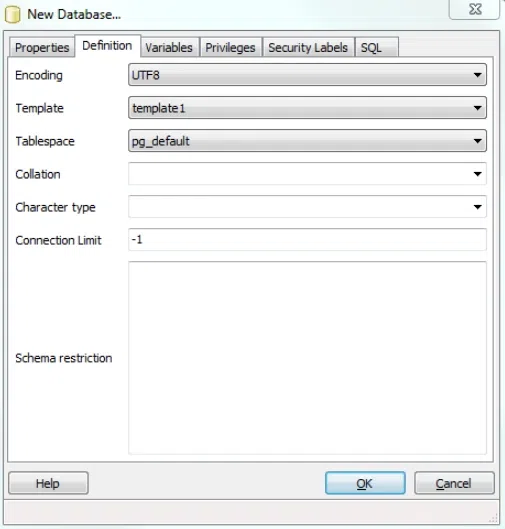
In the New Database dialog, enter the new database name, owner and configure other parameters. Click the OK button to create the database.
Connection Limit
Open the Create Database dialog from the Databases menu in pgAdmin.
Enter the database details and configure the connection limit. Set the connection limit to -1 to allow unlimited connections.
Click OK to create the database and verify that it appears in the Databases list.
👁 output