|
VOOZH | about |
|
VOOZH | about |
Here, we have a task to create a chess game in Python. In this article, we will see how to create a chess game in Python.
Chess Game, Played by two players on an 8x8 grid board with alternate light and dark squares, chess is a time-honored board game of strategy and cunning. Each player deploys 16 pieces at the beginning of the game, placing them in the rows closest to them. Pawns are arranged on the second row, and the first row is occupied by other pieces. The goal of the game is to advance your pieces to a position from which you can capture the king of your opponent and force a "checkmate," winning the game for you. Every piece has certain movement rules that players must stick to.
Below are the step-by-step procedure and explanation of how to create a Chess Game in Python:
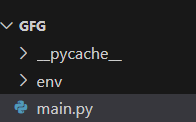
First, create the virtual environment using the below commands
python -m venv env
.\env\Scripts\activate.ps1
First, we need to install the Pygame library, which is used for creating games. We are utilizing it to create a chess game. To install Pygame, use the following command:
pip install pygame
Below are the step-by-step explanation of the main.py code that we have used to create a chess game in Python:
Importing necessary modules for the code, including pygame for game development, requests for making HTTP requests, rembg for removing image backgrounds, and BytesIO for handling byte data.
Here, the code initializes the Pygame module using pygame.init(). This step is crucial for setting up the Pygame environment and enabling the use of its functionalities throughout the script.
In below code initializes three different fonts of varying sizes using the pygame.font.Font() function. These fonts are likely to be used for rendering text within the game. Additionally, the code creates a clock object using pygame.time.Clock() to control the frame rate of the game.
Below, code defines variables related to the game, such as lists representing the locations and types of chess pieces. URLs for chess piece images are stored in image_urls. These variables play a crucial role in managing the game state, including the positions of pieces and the URLs required to fetch their corresponding images.
In below code we are Using the pygame.image.load() function, the code loads chess piece images from URLs. The rembg library is employed to remove image backgrounds, enhancing the visual appearance of the pieces. Each image is then scaled using pygame.transform.scale() to ensure a consistent size within the game.
In below code , section organizes the loaded piece images into lists for convenient access and manipulation. Two lists, white_images and small_white_images, contain the original and scaled versions of white chess pieces, respectively. Similar lists are created for black pieces. Grouping the images simplifies the process of drawing pieces onto the game board.
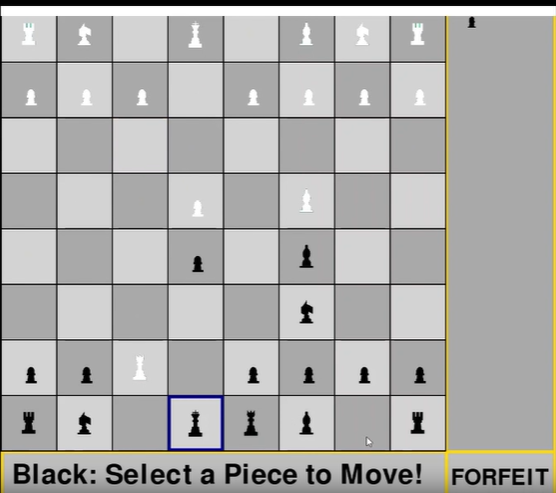
below code code defines functions responsible for drawing the game board. The draw_board() function uses Pygame's drawing functions to create a chessboard with alternating light gray and gray squares. Additionally, lines are drawn to delineate the squares, and status text is displayed at the bottom of the window, indicating the current player's turn and actions
Below, are the explanation of Piece Drawing Functions for create a chess game in Python.
Piece Rendering on the Board
In below code draw_pieces function is responsible for visually representing chess pieces on the board. It iterates through both white and black pieces, displaying them at their respective locations. The function adjusts the position for pawn images and outlines the selected piece with a red rectangle during white's turn and a blue rectangle during black's turn
Piece Movement Validator
In below code the function, check_options, validates and gathers all possible moves for each piece on the chessboard, distinguishing between different piece types and their respective movements.
King's Valid Moves Checker
In below code function check_king focuses on determining and returning the valid moves for a king, considering its ability to move one square in any direction and distinguishing between friendly and enemy pieces.
Queen's Moves Aggregator
In below code check_queen function combines the valid moves of a queen by integrating the results from both the bishop and rook functions, providing a comprehensive list of valid moves for a queen at a given position and color.
Bishop's Diagonal Path Explorer
In below code check_bishop function calculates and returns the valid moves for a bishop by traversing diagonal paths in all four directions, considering board boundaries and avoiding friendly pieces.
Rook's Horizontal and Vertical Navigator
In below code the function, check_rook, determines the valid moves for a rook by exploring horizontal and vertical paths in all four directions, ensuring the moves stay within the board boundaries and avoid friendly pieces.
Pawn's Valid Move Detector
The check_pawn function identifies and returns the valid moves for a pawn, considering different scenarios such as initial double moves, single moves, and diagonal captures based on the color of the pawn.
Knight's L-Shaped Move Generator
The check_knight function calculates and returns the valid moves for a knight by exploring eight possible positions in an "L" shape, ensuring the moves are within the board boundaries and avoid friendly pieces.
Current Piece's Valid Moves Enumerator
The function check_valid_moves determines the valid moves for the currently selected piece based on the game's current turn, providing a list of possible moves.
Valid Moves Visualizer
The draw_valid function visually represents valid moves on the screen by drawing small circles, using red circles for white's turn and blue circles for black's turn.
Captured Pieces Display
The draw_captured function visually displays captured pieces on the side of the screen, utilizing lists of captured pieces for both white and black.
Check Indicator
The draw_check function visually indicates a check condition by drawing a flashing square around the king, with the color and conditions dependent on the current turn.
Game Over Display
The draw_game_over function displays a message on the screen declaring the winner of the game and instructs the player to press ENTER to restart, utilizing the winner variable to determine the winner displayed on the screen.
Initialization and Rendering
The game loop begins by calculating valid move options for both black and white pieces using the check_options function. Subsequently, a counter is incremented, and the screen is filled with a dark gray color, providing a clean canvas for rendering. Functions like draw_board, draw_pieces, draw_captured, and draw_check are then called to visually represent the chessboard, pieces, captured pieces, and check conditions.
Event Handling - Mouse Clicks
The code utilizes a loop to handle pygame events, primarily focusing on mouse clicks (`pygame.MOUSEBUTTONDOWN`). It checks for the left button click (`event.button == 1`) and ensures the game is not over (`not game_over`). The coordinates of the click are determined and translated to grid coordinates. Depending on the turn step, it processes player input for moving pieces, capturing opponents, and updating the game state accordingly.
Event Handling - Key Press
Within the event loop, the code checks for a key press (`pygame.KEYDOWN`) when the game is over. Specifically, it looks for the "Enter" key (`event.key == pygame.K_RETURN`). Upon detecting this key press, the game resets to its initial state, including piece positions, captured pieces, turn steps, and valid move lists. This functionality allows players to restart the game seamlessly.
Winner Determination and Game Over Display
If a winner is determined, the code sets the `game_over` flag to true and calls the `draw_game_over` function to display a game-over message on the screen. The winner variable influences this decision, considering factors like capturing the opponent's king or pressing forfeit squares. This aspect enhances the user experience by providing clear feedback on the game's outcome.
Below is the complete code implementation of main.py file that we have used to create a chess game in Python.
main.py