|
VOOZH | about |
|
VOOZH | about |
We will build a simple e-commerce product catalog using Django. You'll learn how to create a product model, display product listings and details with dynamic templates, handle images, and configure URLs and media files all step-by-step to help you create a solid foundation for an online store.
Prerequisites:
Open a terminal and run:
django-admin startproject ecommerce
cd ecommerce
python manage.py startapp catalog
Open ecommerce/settings.py, find the INSTALLED_APPS list, and add 'catalog':
INSTALLED_APPS = [
# other installed apps
'catalog',
]
Note: An e-commerce product catalog is a great Django project to work on. To master building complex web applications like this, the Django Web Development Course can guide you step-by-step.
In catalog/models.py, define the Product model:
To manage products easily through Django's admin panel, register your model in catalog/admin.py:
In catalog/views.py, add views:
Create catalog/urls.py and set URLs:
In your main project ecommerce/urls.py, include these:
Inside the catalog app folder, create a templates/catalog directory and add the following HTML files.
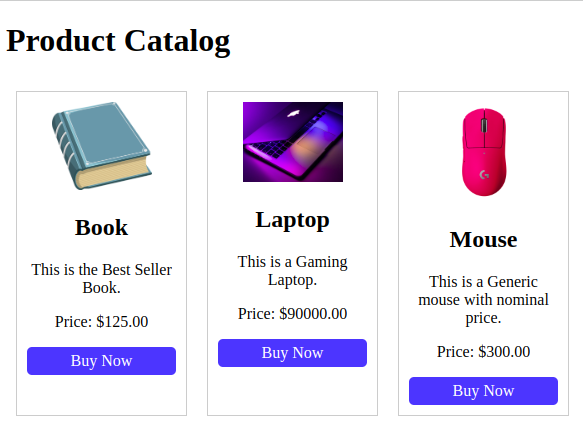
index.html (Product List)
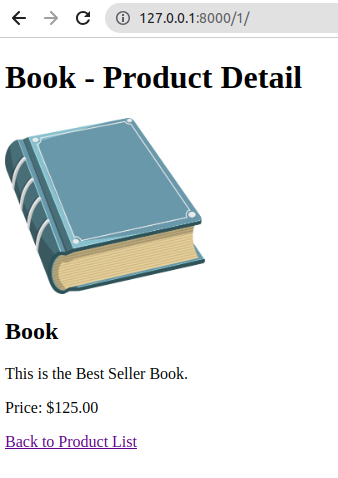
index2.html (Product Detail)
This HTML file is used to view the particular product on the page.
Configure ecommerce/settings.py to serve static and media files during development:
Apply migrations to create the Product table:
python manage.py makemigrations
python manage.py migrate
Create a superuser to access the admin:
python manage.py createsuperuser
Run the development server:
python manage.py runserver
Output
👁 p1
When we click on particular Product: