|
VOOZH | about |
|
VOOZH | about |
When it comes to managing Excel files programmatically, Python offers a powerful tool in the form of the openpyxl library. This library not only allows us to read and write Excel documents but also provides extensive support for cell formatting. From fonts and colors to alignment and borders, openpyxl makes it easy to customize our Excel sheets to fit our needs precisely. In this article, we will learn how to format cells using OpenPyxl
Formatting cells in Excel using the openpyxl library involves several steps that allow us to customize the appearance and functionality of our spreadsheets programmatically. Here's a step-by-step guide to help us get started:
First, we need to install the openpyxl library in our Python environment.
pip install openpyxlWe can create a work book by creating an instance of Workbook class.
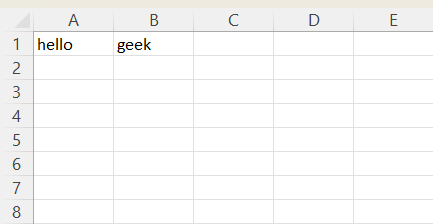
Each work book is created with at least one work sheet that we can get using the Workbook.active property. Here, we are modifying the value in the A1 and B1 cell. Lastly saving the file to get the excel file named "hello_geek.xlsx".
Output
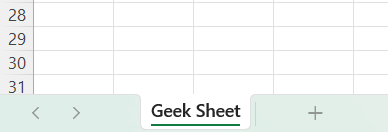
Output
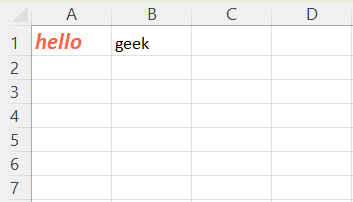
To format the font, we need to import Font class from openpyxl.styles. The Font class provides all the functionality to format cell. Let us customize the font style, size, color, and more to enhance text appearance.
Output
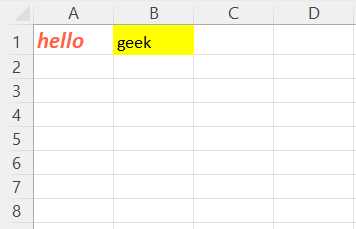
We can fill color using the PatternFill class from the openpyxl.styles. Here, we are changing the background color of cells to Yellow.
Output
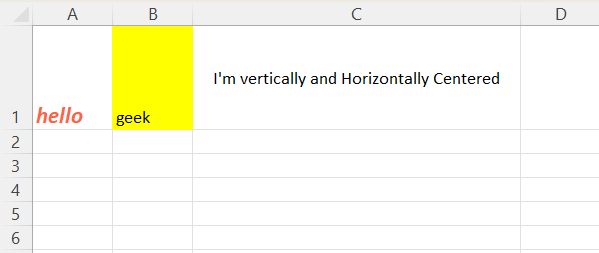
We can adjust the alignment of the text within cells using the Alignment class from openpyxl.styles
Output
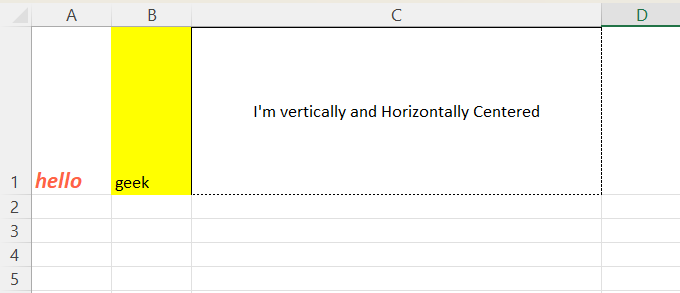
We can modify borders of cells to define areas clearly by using the Border and Side classes from the openpyxl.styles.
Output
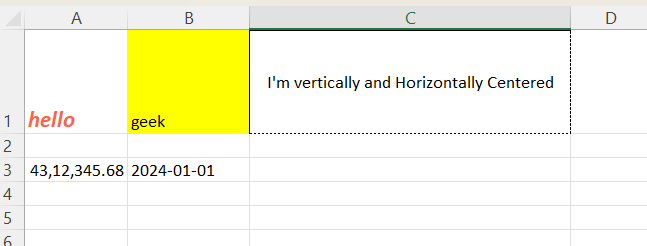
Apply number formats for displaying financial figures, dates, or other formatted numbers.
Output
We can use the Workbook.save() method to save the workbook with a custom name.
The code demonstrates how to use openpyxl to create and format an Excel sheet. We can enhance this by adding more complex data analysis, charts, or additional formatting to meet specific business needs. This example serves as a foundational guide to creating professional, formatted reports with Python.
Output
By following these steps, we can fully customize our Excel files using Python. This process not only enhances the presentation of the data but also allows for better readability and professional-quality reports. openpyxl is a powerful tool for anyone looking to automate or enhance their Excel-related tasks programmatically.