|
VOOZH | about |
|
VOOZH | about |
In this article, we will discuss how to add a timestamp to an excel file using Python.
pip install datetime
pip install openpyxl
Step 1: Create the workbook object and select the active sheet:
wb = Workbook()
ws = wb.active
Step 2 (Optional): Write the heading in cell A1.
# Here column=1 represents column A and row=1 represents first row.
ws.cell(row=1, column=1).value = "Current Date and Time"
Step 3: Use the following command to get the current DateTime from the system.
time = datetime.datetime.now().strftime('%Y-%m-%d %H:%M:%S')
The strftime() function is used to convert date and time objects to their string representation. It takes one or more inputs of formatted code and returns the string representation.
Step 4: Write the DateTime in cell A2.
ws.cell(row=2, column=1).value = time
Step 5: Initiate a sleep of 2 seconds using time.sleep(2)
Step 6: Similarly, get the current datetime again and write it in cell A3. Here you will notice a difference of 2 seconds from the previous DateTime since there was a sleep of 2 seconds in between.
Step 7: Finally, Save the excel workbook with a file name and close the workbook
wb.save('gfg.xlsx')
wb.close()
Below is the full implementation:
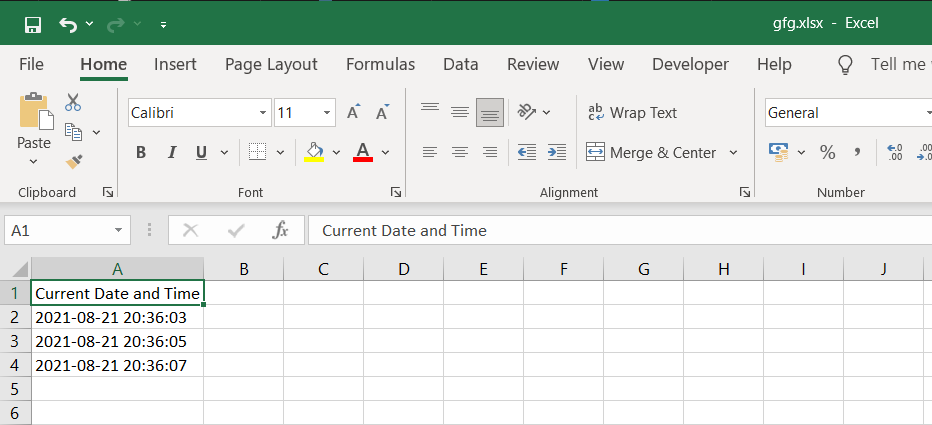
Output:
👁 Image