|
VOOZH | about |
|
VOOZH | about |
Auto-clickers are tools that simulate mouse clicks automatically at a given location and interval. Whether you're automating repetitive tasks in games, productivity applications, or testing graphical user interfaces (GUIs), creating an auto-clicker in Python is both a fun and practical project. In this article, we’ll walk you through building a fully functional auto-clicker using the pynput module to monitor keyboard input and simulate mouse clicks.
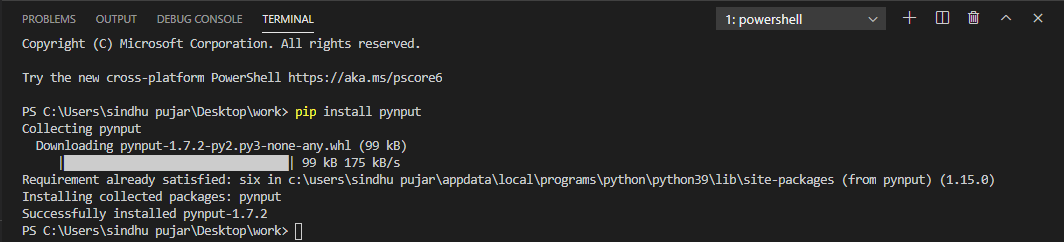
We’ll be using the pynput module, a cross-platform library for controlling and monitoring input devices (mouse/keyboard). To install pynput, run the following command in your terminal or command prompt:
pip install pynput
Note: If you're stuck on how to set up python-pip package on your system then click here
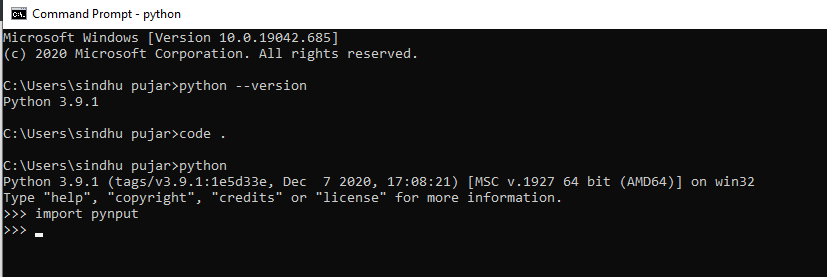
After installing this module, we need to verify whether it has been installed correctly. Open your Python shell or IDLE and type:
Let's now proceed with the code that is required to build an Auto-clicker using Python. Follow the below steps to create an auto-clicker:
Step 1: Start by importing the necessary modules. These allow us to work with time delays, threads for background execution and to control keyboard and mouse inputs.
Step 2: We set up key variables that determine how the clicker behaves:
Step 3: We use Python’s threading.Thread to run the auto-clicker in the background so it doesn't block keyboard input.
Step 4: We create a Controller instance to simulate mouse actions, and then start the thread we just defined.
Step 5: This function listens for key presses. If the user presses a, the clicker toggles on or off. Pressing b exits the application.
Step 6: Creating an instance for the mouse controller, then create ClickMouse thread. Start the instance to move into the loop inside the run method.
Step 7: Now we start the keyboard listener, which keeps the program running and listens for hotkey presses.
Now let's execute the python program we've written and then press the start (a) and stop (a) keys in order to initiate the auto clicker.
Output: