|
VOOZH | about |
|
VOOZH | about |
In this article, we will learn how to analyze an image using histograms with OpenCV and Matplotlib in Python. A histogram represents the distribution of pixel intensity values in an image, helping us understand brightness, contrast and overall image composition.
Before getting started, make sure you have the following installed:
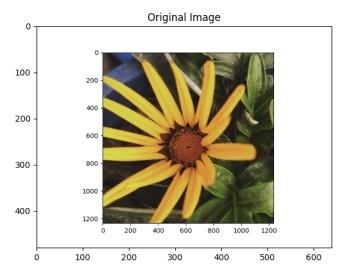
For demonstration, we will use a 24-bit RGB PNG image (8 bits for each of R, G, B channels). Matplotlib supports image arrays in float32 and uint8 formats.
Output
Explanation: plt.imread() loads the image as an array, plt.imshow() displays it, plt.title() adds a title, and plt.show() renders the output.
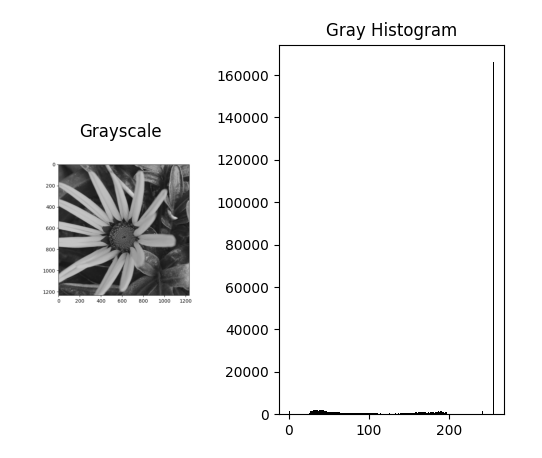
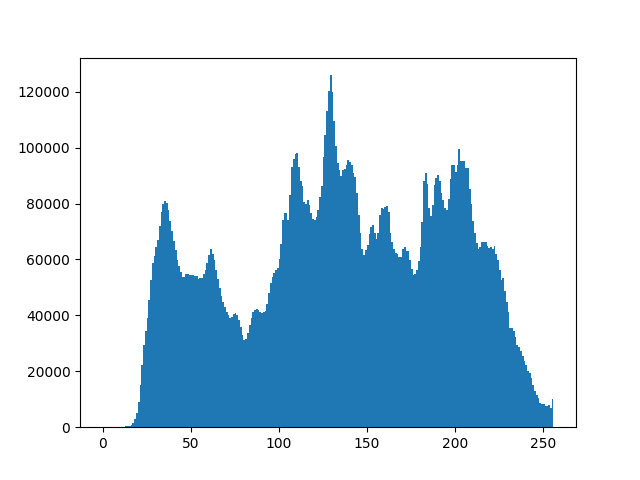
To analyze intensity distribution, we can flatten (ravel()) the image into a 1D array and use plt.hist() to compute the histogram.
Output
Explanation:
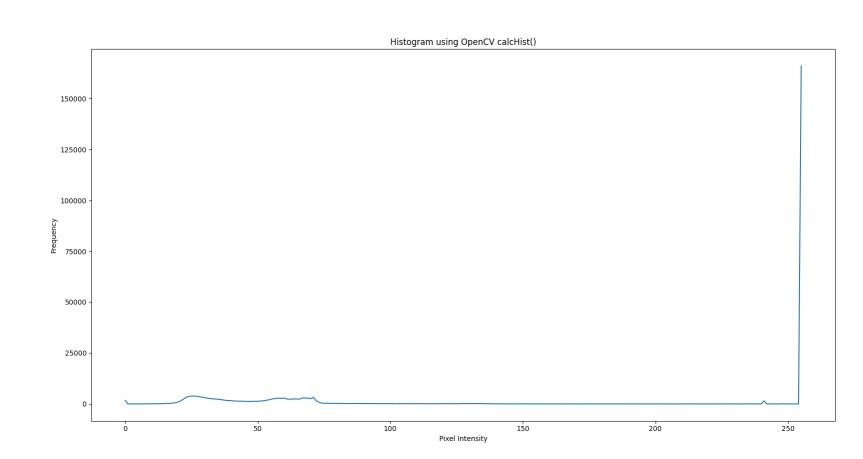
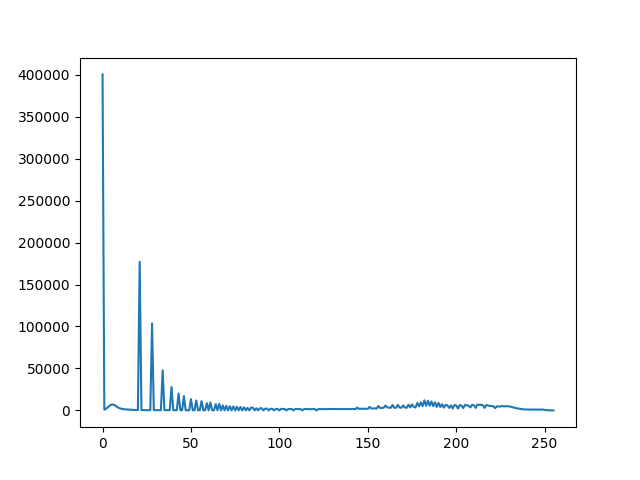
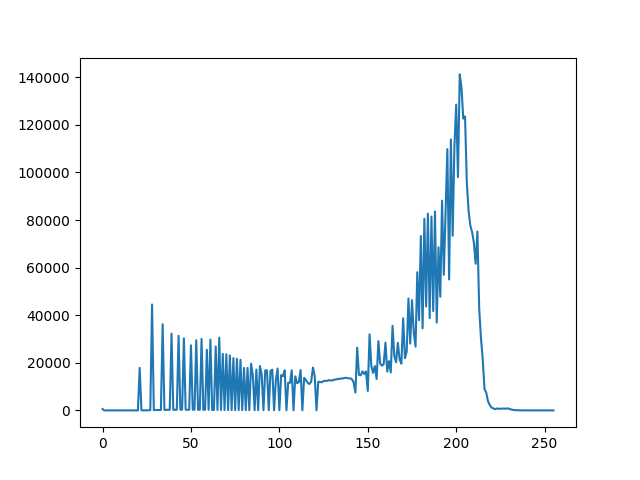
OpenCV provides an in-built function cv2.calcHist() for histogram calculation. It is more efficient and widely used in image processing tasks.
Output
Explanation: cv2.imread() loads the grayscale image, cv2.calcHist() computes its histogram and plt.plot() displays it with title and labels.
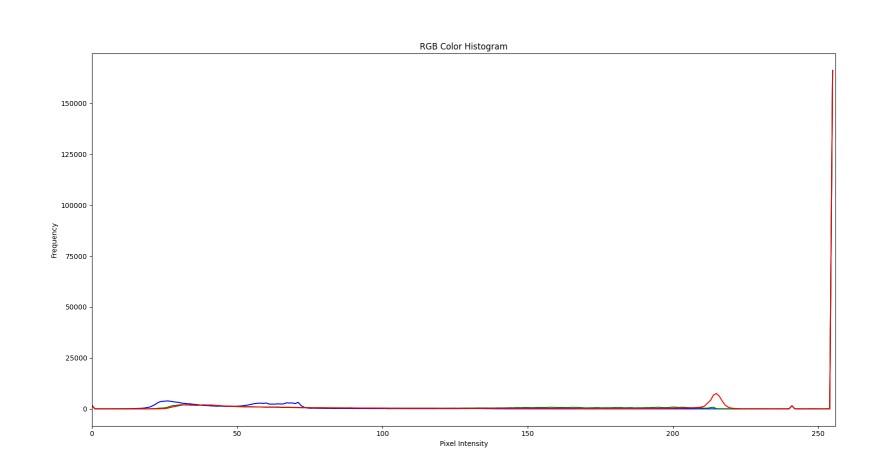
For color images, histograms can be calculated separately for Blue, Green and Red channels.
Output
Explanation: cv2.imread() loads the image, a loop over ('b','g','r') uses cv2.calcHist() to compute each channel’s histogram and plt.plot() displays them with axis labels and title.
Apart from analyzing images with NumPy and OpenCV, we can also plot histograms using two common methods:
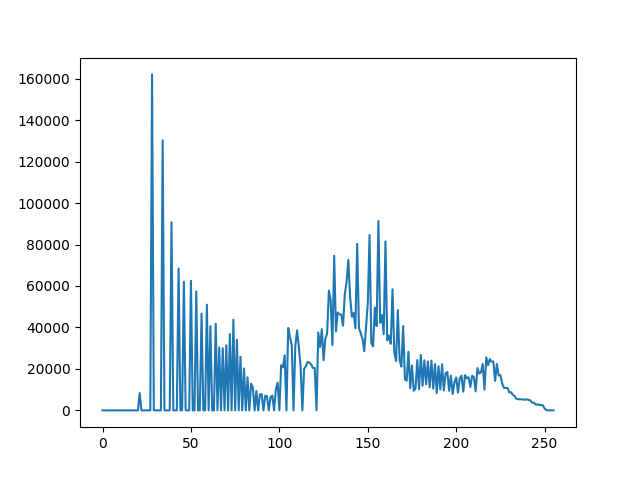
cv2.calcHist() calculate histograms efficiently. It gives full control over the number of bins, intensity range and even allows applying masks for region-based histogram analysis.
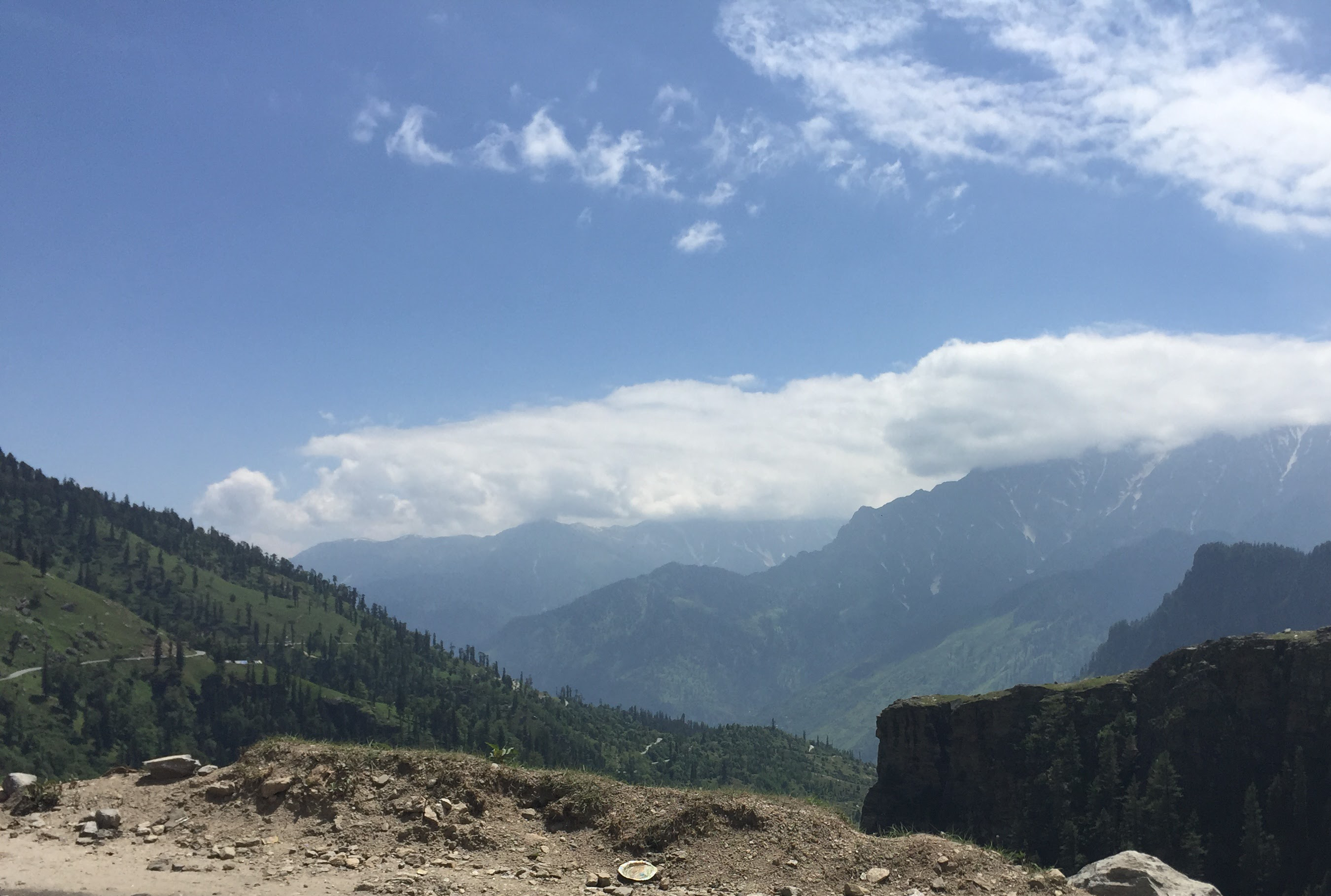
Input:
👁 nature2Output:
👁 n2Explanation: cv2.imread() loads the image in grayscale, cv2.calcHist() computes its intensity histogram and plt.plot() displays it.
plt.hist(), an image is flattened into a 1D array and its pixel intensity distribution is quickly visualized, making it ideal for simple exploration tasks.
Output:
👁 f1Explanation: Here, img.ravel() flattens the image into a 1D array and plt.hist() plots its pixel intensity distribution as a histogram.