|
VOOZH | about |
|
VOOZH | about |
In this article, we will learn to make a bouncing game using Pygame. Pygame is a set of Python modules designed for writing video games. It adds functionality on top of the excellent SDL library. This allows you to create fully featured games and multimedia programs in the Python language. It is free and runs on nearly every platform and operating system. To install Pygame we will use pip.
Required Module
Open the terminal and type the following command:
pip install pygame
Step 1: Import Pygame and initialize it.
Step 2: Define the width and height of the window and create a game window.
Step 3: Define colors in RGB format. We will use these colors in our game.
Step 4: Define the ball and the speed by which it will move
This ball object will be used to move the ball in our game, and it will be used to get new coordinates of the ball and we will use these coordinates to draw the ball. Speed has 2 things, speed in the x direction and speed in the y direction. when speed in the x direction and speed in the y direction is equal in magnitude, then the ball will move in a diagonal way. Initially center of the ball is (100,100) and the speed is (1,1). Now after 1 unit of time, the center of the ball will be (101,101) and again after 1 unit of time, the center of the ball will be (102,102). In this way, our ball will move.
Step 5: Define the game loop.
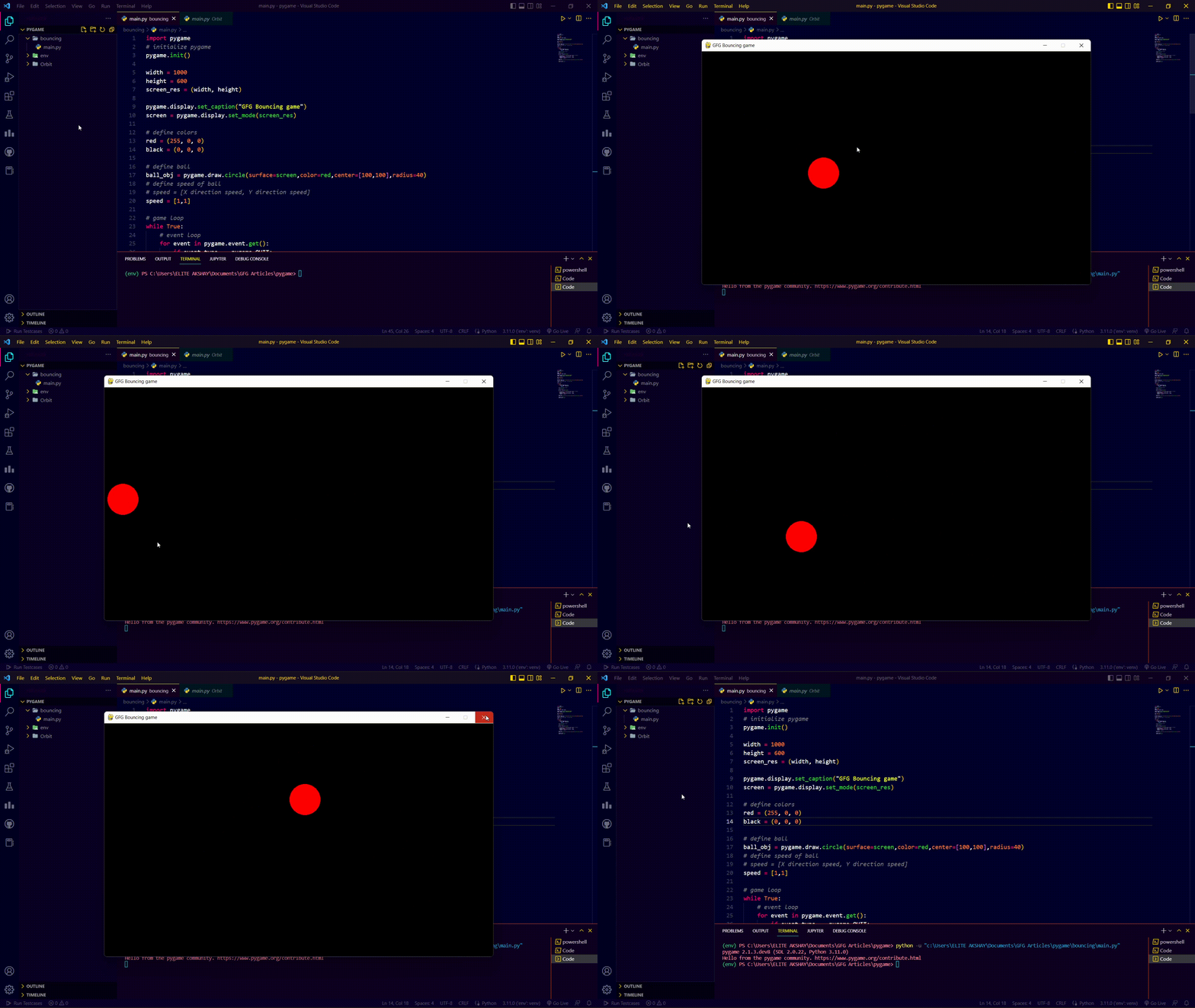
Output: