|
VOOZH | about |
|
VOOZH | about |
This article covers the sentiment analysis of by parsing the tweets fetched from Twitter using the streamlit Python framework.
Sentiment Analysis is the process of ‘computationally’ determining whether a piece of writing is positive, negative or neutral. It’s also known as opinion mining, deriving the opinion or attitude of a speaker.
Below, is the guide on how to create Tweet Sentiment Analysis using Streamlit in Python:
First, create the virtual environment using the below commands
python -m venv env
.\env\Scripts\activate.ps1
Before creating the Tweet Sentiment Analysis using Streamlit, it's essential to install several libraries. Execute the following commands to install Streamlit, Pandas, Matplotlib, Plotly, and NumPy:
pip install streamlit
pip install pandas
pip install numpy
pip install matplotlib
pip install plotly
Below, are the step-by-step explanation of the Tweet Sentiment Analysis code.
Below, code imports the necessary libraries for building the Streamlit app. Streamlit for app creation, Pandas for data manipulation, Matplotlib for basic plotting, Plotly Express for interactive visualizations, and NumPy for numerical operations.
Below, code set up the title and a brief description of the Streamlit application, indicating its purpose of analyzing tweet sentiments of airlines.
Below, code Configures the sidebar title and description. Then, it loads the dataset from a provided URL into a Pandas DataFrame for further analysis.
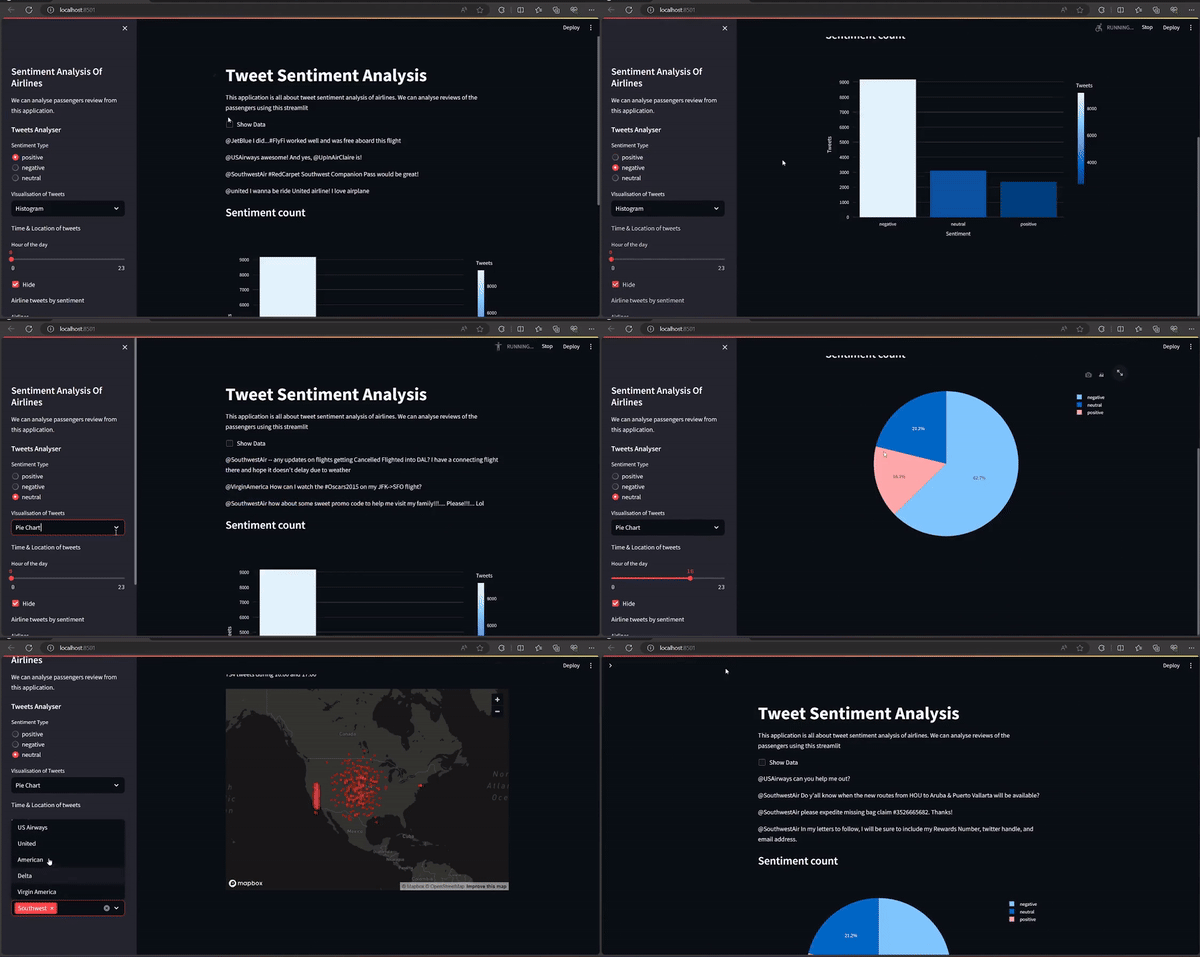
Below, code Allows users to choose the sentiment type (positive, negative, or neutral) from the sidebar. Displays a random tweet corresponding to the selected sentiment type.
Below, code Provides options to visualize tweet sentiment distribution either through a histogram or a pie chart. It prepares the data for visualization by counting the occurrences of each sentiment type.
Below, code Displays the selected visualization (either histogram or pie chart) of tweet sentiments. Additionally, it allows users to explore tweet location based on the selected hour of the day using an interactive map.
Below, are the complete code of Tweet Sentiment Analysis using streamlit which we write in main.py file
Download the Data.csv File by Click Here
main.py
python main.pyOutput
👁 2024-03-2500-57-15online-video-cuttercom-ezgifcom-video-to-gif-converter