|
VOOZH | about |
|
VOOZH | about |
Your Gmail profile picture is a key part of your online identity, appearing in your emails, Google account, and other Google services. Changing your Gmail profile picture is a simple process that allows you to personalize your account and keep your online presence up to date. In this guide, we will walk you through the steps to change your Gmail profile picture, ensuring a smooth and straightforward experience.
👁 Change Your Gmail Profile PictureFirstly, we will explain via step guidance how you can change photos in Gmail from your smartphone. Let's find out:
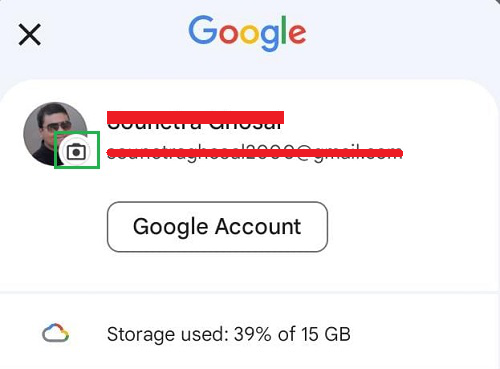
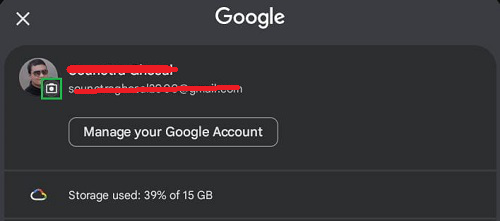
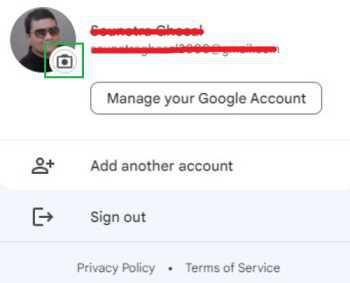
Step 1: Open the Gmail Application & click on the Profile Image. You will then find a Camera Sign on the left-hand side of the profile picture. Simply click on that.
👁 Change-Your-Gmail-Profile-Picture-using-Smartphone
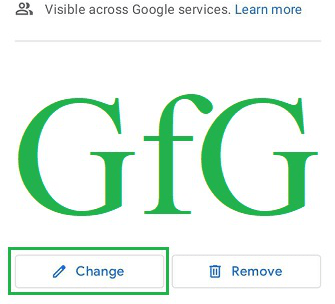
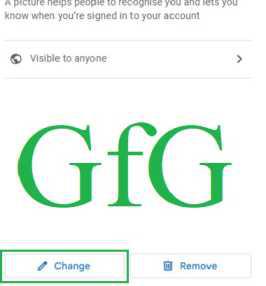
Step 2: On the next section, click on the Change button to move ahead.
Note: The Remove button will be used to remove image from Gmail account. In this case, our target is not to click on that.
👁 Change-Your-Gmail-Profile-Picture-using-Smartphone002
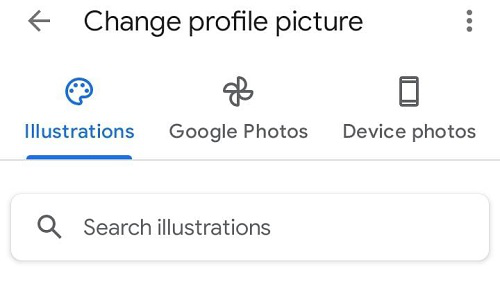
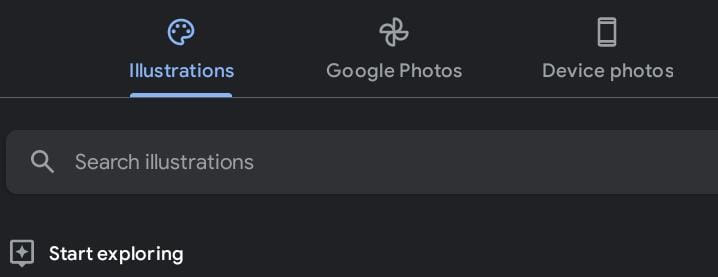
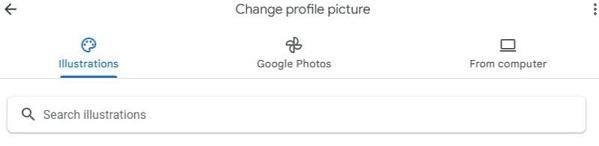
Step 3: Now, a list of options will be present to choose photos. You can choose from Google Photos or your local device. Also, there is a special illustration tab to use AI images.
👁 Change-Your-Gmail-Profile-Picture-using-Smartphone03
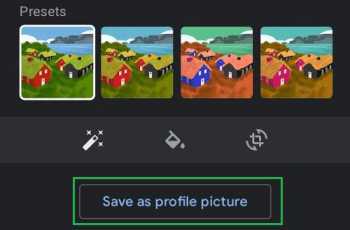
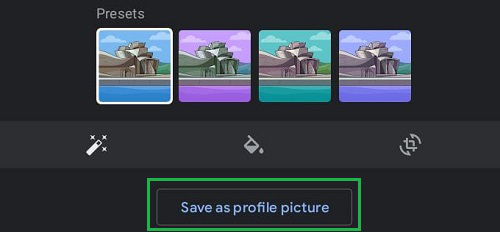
Step 4: After you select & align your image, the button Save As Profile Picture will be available. Click on that to save changes.
👁 Change-Your-Gmail-Profile-Picture-using-Smartphone04
Hence, we have successfully changed the profile picture of Gmail using Android Smartphones.
Step 1: In this case also, open the Gmail Application on the iOS device & click on the Camera Signature present in the profile section.
👁 Change-Your-Gmail-Profile-Picture-using-Smartphone05
Step 2: Now same as the Android method, click on the Change button to move ahead.
👁 Change-Your-Gmail-Profile-Picture-using-Smartphone06
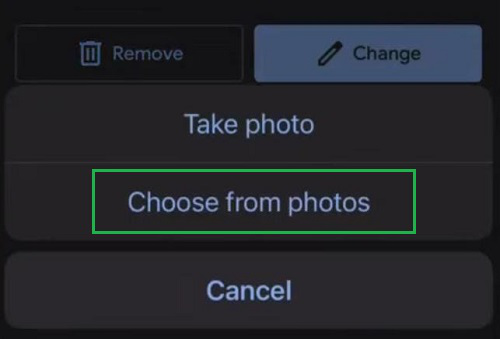
Step 3: Now one additional message will arrive. Depending upon the choice, the option needs to be chosen. For getting images from the device or Photos click on the Choose From Photos section.
👁 Change-Your-Gmail-Profile-Picture-using-Smartphone07
Step 4: In this case also, choose the section or tab from where the images need to be picked up. And click on the image as per choice.
👁 Change-Your-Gmail-Profile-Picture-using-Smartphone09
Step 5: At last click on Save As Profile Picture after making optional editing changes in the photo.
👁 Change-Your-Gmail-Profile-Picture-using-Smartphone10
Hence, we have successfully changed the profile picture of Gmail using iOS Smartphones.
Step 1: On any computer, you can browse the Gmail Account or you will find one profile section just on the Chrome Home Page (If you are already logged in). Click on that section to get the same Camera option. Click on it to move ahead.
👁 Change-Your-Gmail-Profile-Picture-from-PC
Step 2: Now, the same window will arrive on the computer. Click on the Change button.
👁 Change-Your-Gmail-Profile-Picture-from-PC02
Step 3: The image options will be present on the Desktop to choose the preferred profile picture. Google Photos can also be accessed from the computers.
👁 Change-Your-Gmail-Profile-Picture-from-PC03
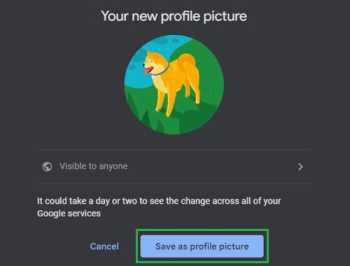
Step 4: Select the desired image & click on the Save As Profile Picture to save the changes.
👁 Change-Your-Gmail-Profile-Picture-from-PC04
Hence, we have successfully changed the profile picture of Gmail using Computers.
Changing your Gmail profile picture is a quick and easy way to personalize your Google account. By following the steps outlined in this guide, you can update your profile photo in just a few minutes. Keeping your profile picture current helps maintain a professional online presence and ensures your contacts can easily recognize you.
Also Read: