|
VOOZH | about |
|
VOOZH | about |
Bluetooth is key in today's tech world for easy device connections. From wireless headphones to keyboards and mice, Bluetooth technology allows you to enjoy a clutter-free setup.
Connecting and managing Bluetooth devices in Windows 10 is a straightforward process that enhances your computing experience. In this guide, we’ll walk you through the steps to easily connect your Bluetooth devices and manage your Bluetooth settings in Windows 10.
Table of Content
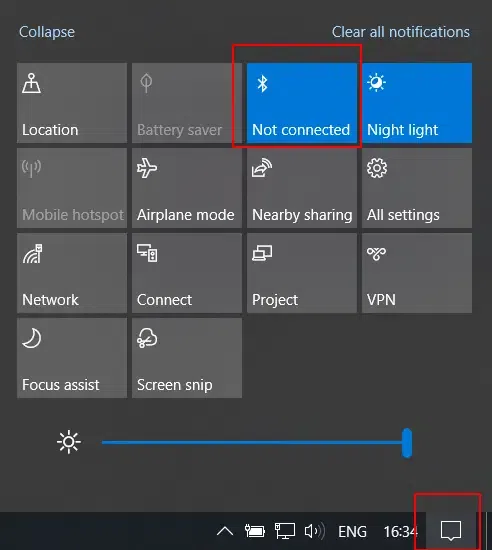
Getting Bluetooth turned on is as simple and fast as it gets in Windows 10 if you use the Action Center:
This is appropriate for users who want to enable Bluetooth with no further managing through Settings.
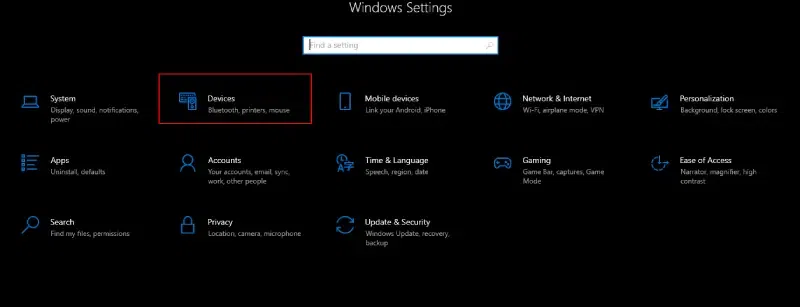
In case you have other options presented by Bluetooth and prefer a more detailed method, this way will be through Settings:
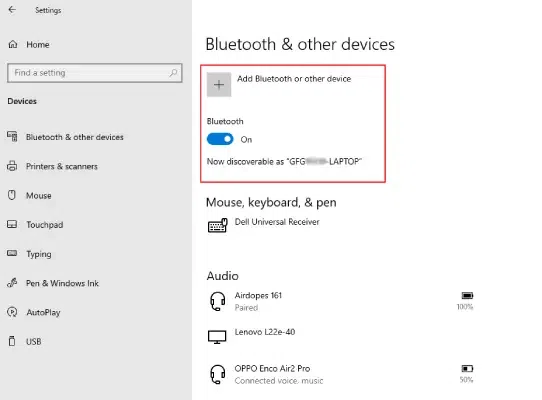
This method allows you to manage other Bluetooth settings, like adding new devices or managing existing connections, while ensuring Bluetooth is active.
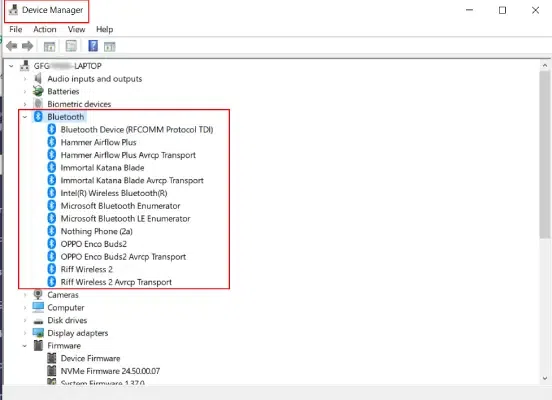
If your Action Center or settings fail to show Bluetooth, it is disabled. Hence, you can use Device Manager to activate it:
If the Bluetooth device is not present or is disabled, this method would assist you in getting it back and running Bluetooth again.
You could now connect your devices with Bluetooth as it has been activated when you go:
All are made possible now thanks to the Bluetooth-enabled devices for audio listening, mouse navigation, or probably any other gadget.
You can easily navigate the world of wireless connections in Windows 10. In this section, We will show you how to connect bluetooth devices and manage your Bluetooth settings actively, enabling you to turn the feature on for device connectivity and off to save power or protect your privacy.
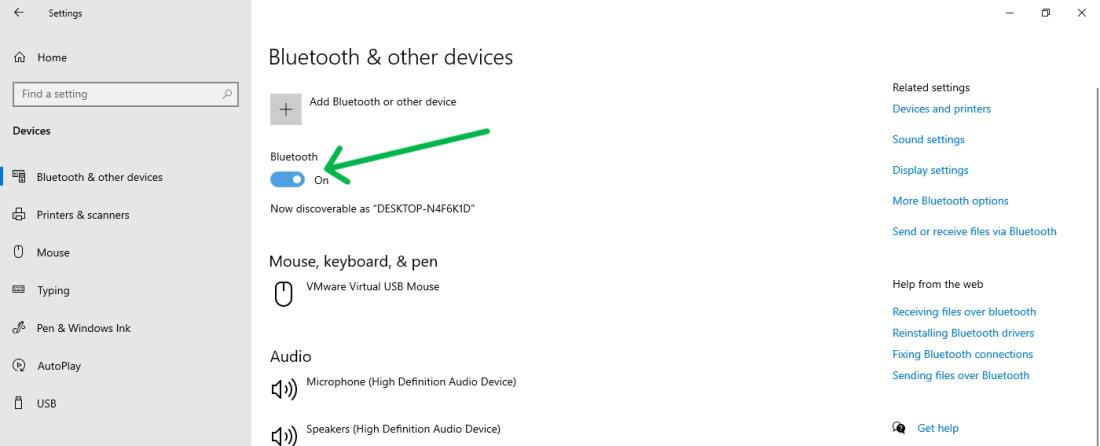
Step 1: Open Settings by pressing Windows Key + I then navigate to "Devices"
Step 2: Toggle the Bluetooth switch to On.
Similarly, Toggle the Bluetooth switch to Off.
👁 Connect and Manage Bluetooth Devices
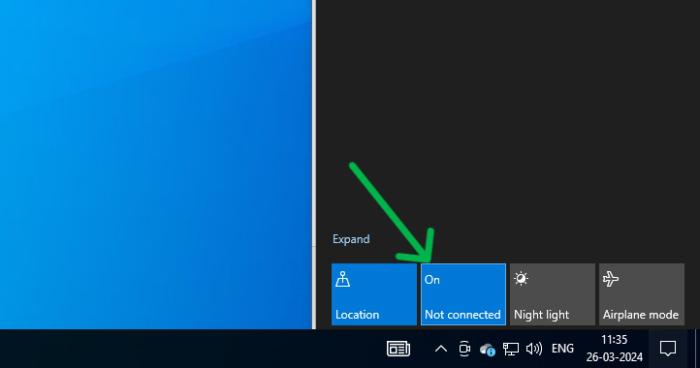
Step 1: Press Windows Key + A to open the action center
Step 2: Then, click on the Bluetooth icon to on or off
👁 Connect and Manage Bluetooth Devices
The ‘Settings’ app in Windows 10 controls device connectivity. In this section, We'll show you how to connect your Bluetooth devices seamlessly. Follow these given steps to pair Bluetooth Devices on windows.
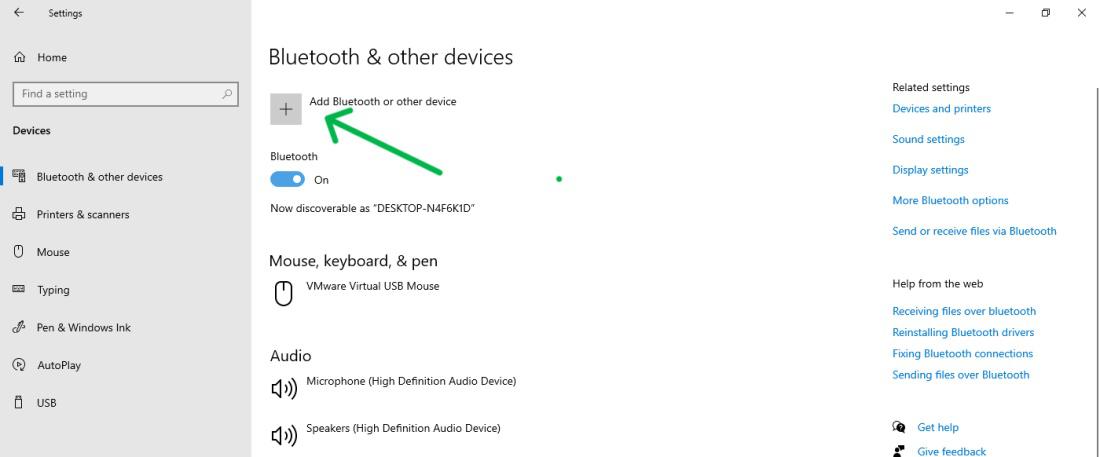
Step 1: Open Settings by pressing Windows Key + I then navigate to "Devices"
Step 2: Click on "Add Bluetooth or other device."
👁 Connect and Manage Bluetooth Devices
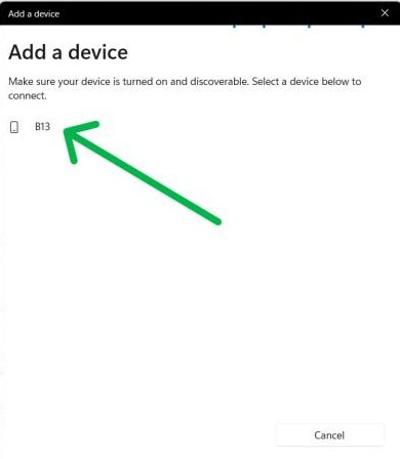
Step 3: Choose the method from the list like Bluetooth, Wireless display, or dock.
Step 4: Choose the device from the list and follow the on-screen instructions to complete the pairing process.
👁 Connect and Manage Bluetooth Devices
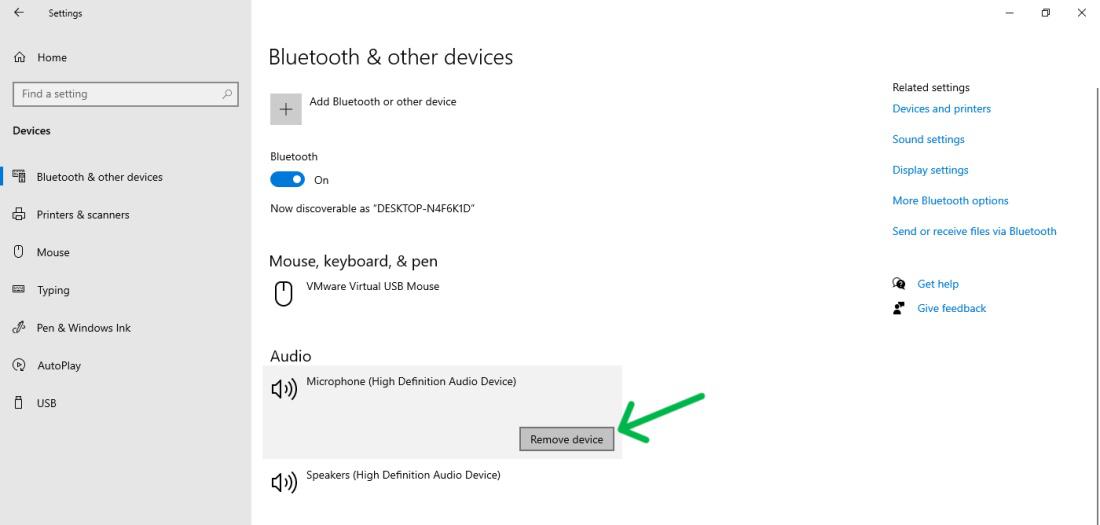
In this section, we will show a simple method to unpair/ remove Bluetooth devices from Windows 10 in the Settings app. Follow the given steps to remove a Bluetooth device on Windows.
Step 1: Open Settings by pressing Windows Key + I then navigate to "Devices"
Step 2: Find the device you want to unpair and click Remove device.
👁 Connect and Manage Bluetooth Devices
Issues with Bluetooth can bring in a lot of frustration. This section is all about pinpointing computer Bluetooth issues in Windows 10 and the respective resolutions to get you back on the go. These 4 things will definitely help you quickly troubleshoot and fix Bluetooth Problems.
However, before connecting your Bluetooth device to Windows 10 verify that the device is compatible.
You can find detailed instructions on fixing Bluetooth problems at the following link: Install and Fix Bluetooth Drivers in Windows
With the steps outlined above, you can seamlessly connect and manage your Bluetooth devicesin Windows 10. Whether you're pairing a new audio device or troubleshooting an existing connection, understanding how to navigate the Bluetooth settings will help you maintain an efficient and enjoyable workspace. Make the most of your Bluetooth technology to enhance your overall computing experience.
Also Read