|
VOOZH | about |
|
VOOZH | about |
Drivers are the essential elements of computers that help to make connections between computer software and the hardware connected to the devices. You will find numerous drivers in Windows for display, Bluetooth, WiFi, etc. Among them, the installation of a Bluetooth driver is a tricky one.
All of the Windows devices come up with one preinstalled Bluetooth driver to get connected with other wireless devices like another smartphone or headphones, etc. However, due to some circumstances or the latest Windows update, the Windows Bluetooth driver does not work or gets uninstalled. In such cases, we have to reinstall the missing Bluetooth driver on Windows.
In this article, we will discuss the steps to install Bluetooth Driver in Win 10 along with common Bluetooth driver issues and how to fix driver issues on Windows.
If your Bluetooth driver not working, there must be some Bluetooth drivers issues in Windows 10. These driver issues may occur due to outdated or corrupted drivers, software or hardware conflicts, or cause of malware.
To fix Bluetooth driver, try updating the driver in Device Manager, restarting your PC, or reinstalling the Bluetooth driver. If the problem remain same, check for Windows updates, and ensure your Bluetooth device is functioning correctly.
We will see these fixing methods in detail. First, let's see how to install Bluetooth drivers in Win 10 if not already installed.
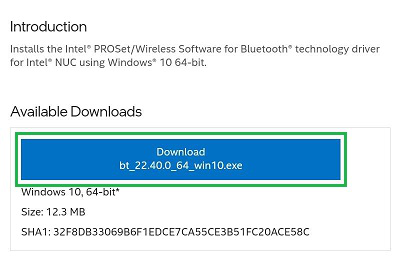
Step 1: Browse to the Intel Official Page. Download the file by clicking on it.
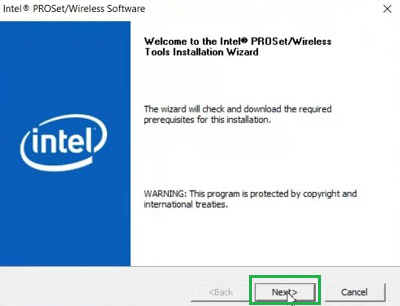
Step 2: Execute the downloaded file by opening it. Click on the Next to move ahead.
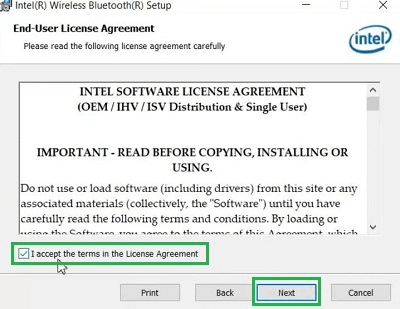
Step 3: Click on the Checkbox to Agree with Terms & Conditions. Click on the Next to move ahead.
Note: Do always read the Terms & Conditions before giving any kind of consent. If needed, you can click Cancel to close all the processes.
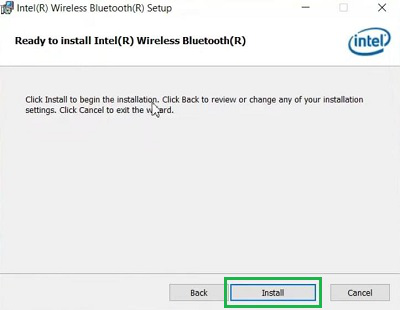
Step 4: Click on the Install the start the entire process.
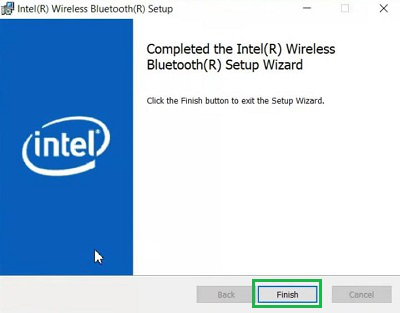
Step 5: Click on Finish to complete the Installation Process.
Congratulation! You have successfully installed Windows 10 Bluetooth Driver on your device without having any issues.
However, in the future, if you face any Common Issue with Bluetooth Drivers, there are some fixing methods present that will highly help you out. We are drafting the Fixing Process of Frequent Bluetooth Drivers Problems.
Quick Preview to Fix Bluetooth Drivers on Windows 10:
- Restart the Bluetooth Service in the Bluetooth Settings.
- Execute one single command in the Command Prompt to fix driver issues.
- In the Device Manager, Update the Bluetooth driver in case it becomes outdated.
- Find out Troubleshooter Settings & execute Bluetooth Troubleshooter option.
- Check for any pending Windows Update in Settings.
Bluetooth Version is important to identify Bluetooth drivers problem in Win 10. So check Bluetooth version on Win using following steps.
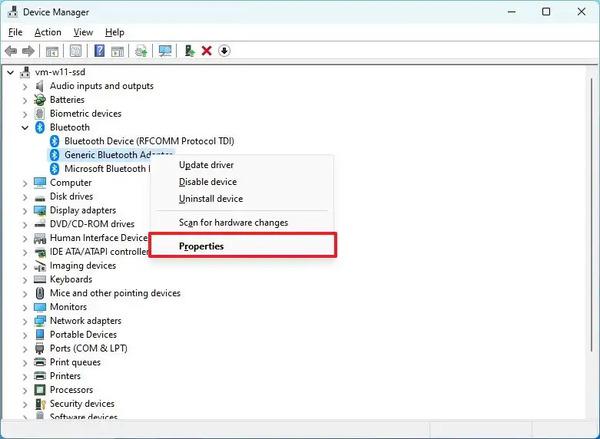
Step 1: Go to the search and type device manager, open it.
Step 2: Expand Bluetooth and right click on Bluetooth radio and select properties.
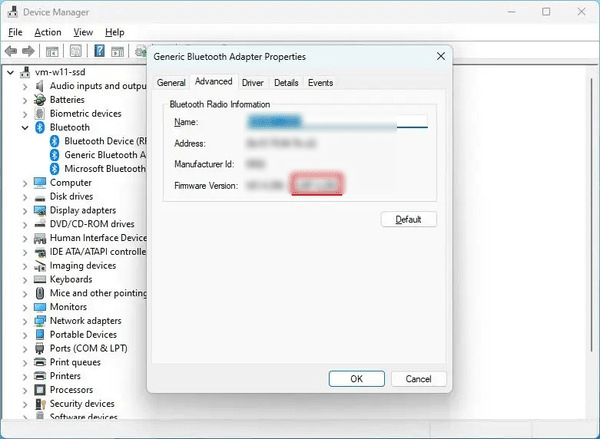
👁 Check-Bluetooth-Version-on-Win10_2Step 3: Navigate to Advanced tab, and check your Firmware version.
👁 Check-Bluetooth-Version-on-Win-10_3For Resolving Bluetooth Drivers Issues on Windows, the following methods should be expected. We will start with the very simple Restarting Process of Bluetooth.
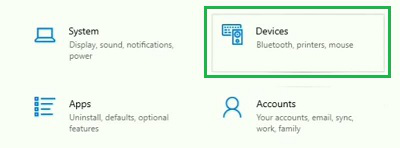
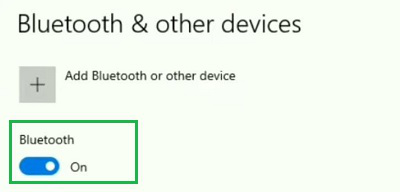
Step 1: Open Settings & move to the Device Section.
Step 2: Under the Bluetooth Option on the Left Hand Side, you will get a Button. Reenablethe Button after closing the service.
Hence, we have successfully fixed the Bluetooth Driver on Windows 10 by Reenabling the Bluetooth Service.
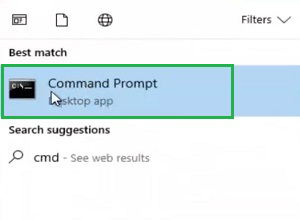
Step 1: Search for the Command Prompt in the Search Bar. Open it in the Administrative Format.
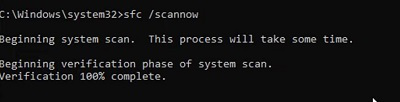
Step 2: In the Command Prompt & execute the following Command. It will take some time to complete the process. It will check the Driver Issues along with fixing it at that moment.
Command: sfc /scannow
Hence, the Bluetooth Drivers problem is now solved as the Driver Heath Checkup Method is completed.
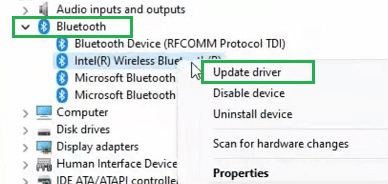
Step 1: Open Device Manager by Searching it on the Search Bar. Expand the Bluetooth Section & right-click to find the Update Driver option. Go for it.
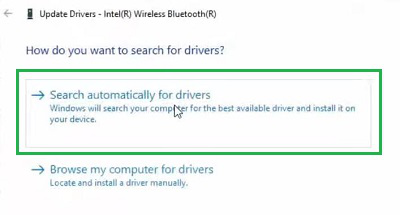
Step 2: On the next window, click on Search Automatically For Drivers.
So, the Bluetooth Issue that you were facing is now wiped out as a new Bluetooth Software Installed on Windows.
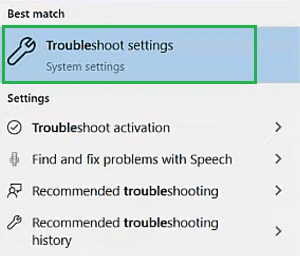
Step 1: Search for the Troubleshoot Settings in the Search Bar. Go for the best option.
👁 12-Find-Troubleshoot-Settings
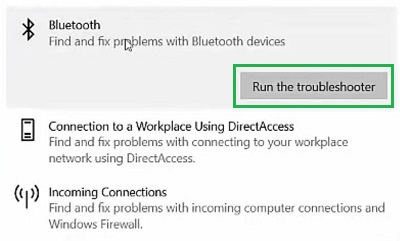
Step 2: Find out the Bluetooth Option & click on it. Get the option to Run the Troubleshooter to execute the process.
Hooray! You have successfully Corrected the Windows 10 Bluetooth Issue by running the Troubleshooter.
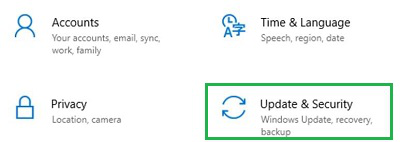
Step 1: Open Settings & go for the Update & Security option.
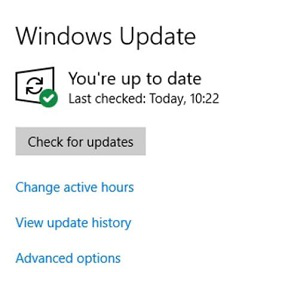
Step 2: If any Pending Windows 10 Update is available, it will be visible. Otherwise, it will say Up To Date Message.
So, these are the methods you have to perform to troubleshoot Bluetooth Driver Issue on Windows. We will recommend you perform all of these methods one by one to permanently address the issue. Otherwise, the problem might reappear on your device which will be another nightmare.
Also Read