|
VOOZH | about |
|
VOOZH | about |
Windows 11 doesn't have a feature to change the actions of keys or shortcuts, but using tools like Microsoft PowerToys allows users to customize their keyboard shortcuts, making work more efficient and productive. Keyboard shortcuts are key combinations that execute specific actions.
In this article, we will show you how to customize keyboard shortcuts
Table of Content
PowerToys is a suite of utilities created specifically for power users to enrich Windows functionality. It comes with a Keyboard Manager tool that lets users reconfigure keys and customize keyboard shortcuts.
To remap keys in Windows 11, follow these steps:
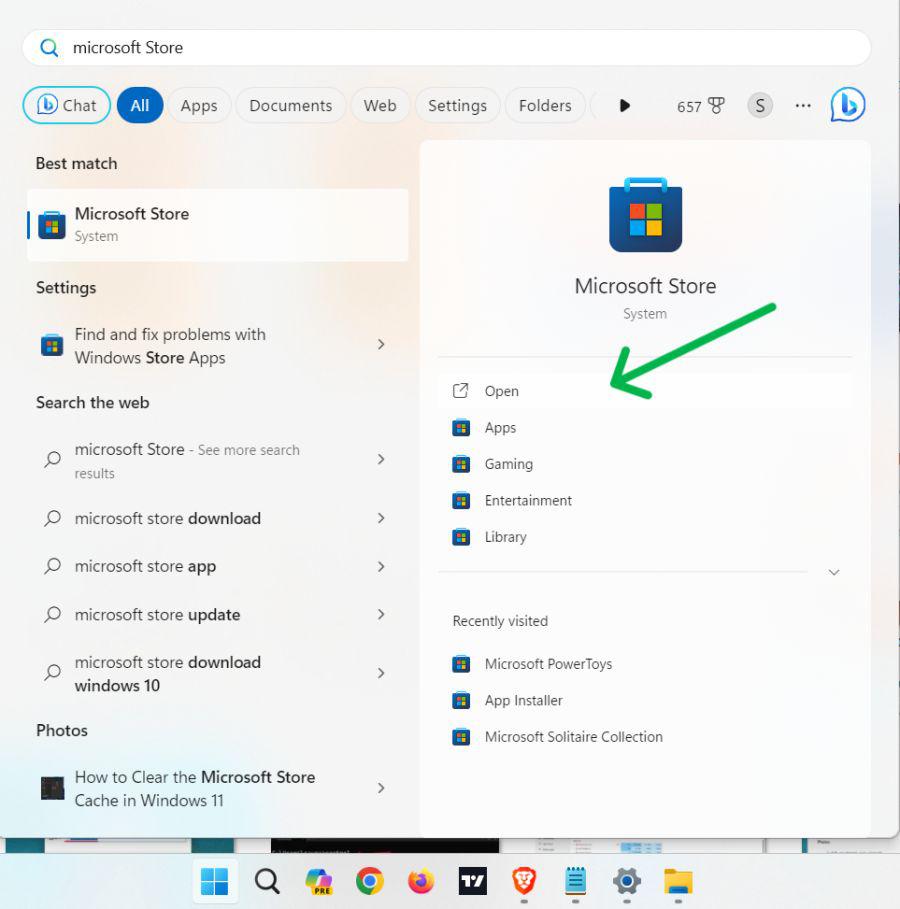
Step 1: Press Win + S then on the search bar type "Microsoft Store" then open it
Step 2: On the Microsoft Store search bar type "Microsoft PowerToys"
Step 3: In right side pane click on "Install" button
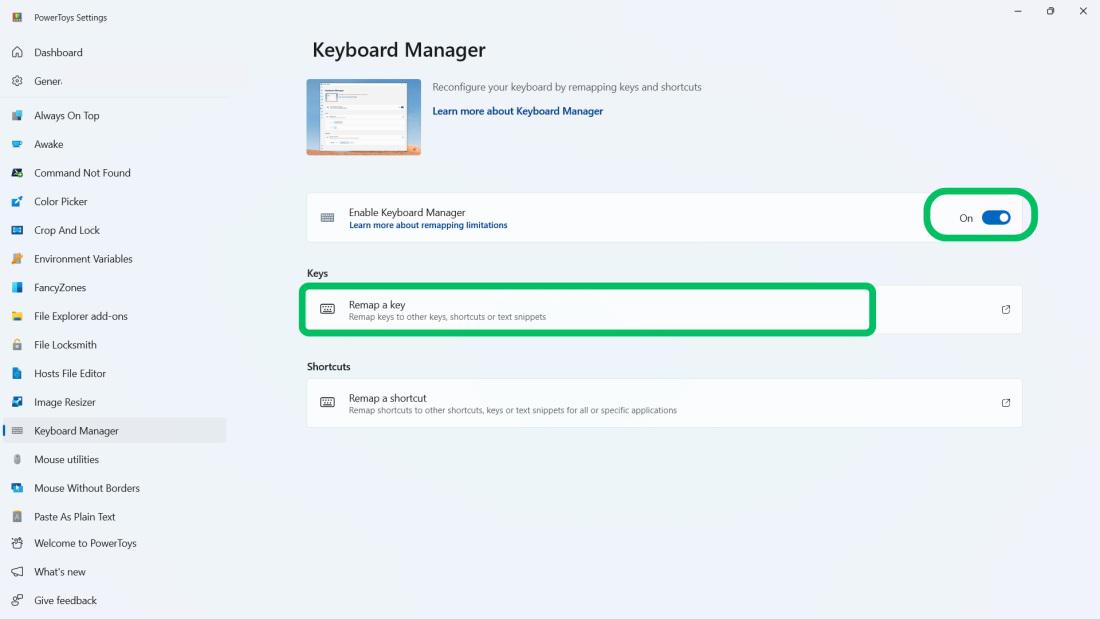
Step 4: Open Microsoft PowerToys and click on Keyboard Manager in the sidebar.
Step 5: Toggle on the “Enable Keyboard Manager”
Step 6: In under Key section, Click on "Remap a key" option
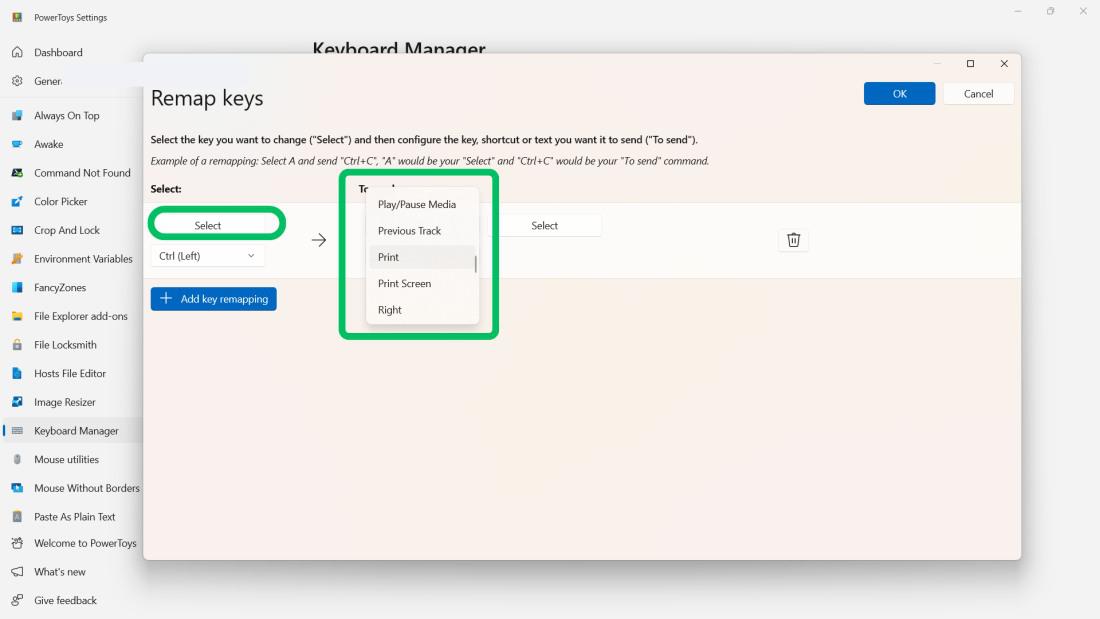
Step 7: Click on the "+ Add key remapping " button
Step 8: In the "Keyboard Manager" section of PowerToys, select the key you want to remap in the "Select" settings. Then, choose the key you want to map it to in the "Send to" setting.
Step 9: Click on "Ok" button to save changes
Step 1: Open Powertoys then navigate to Keyboard Manager
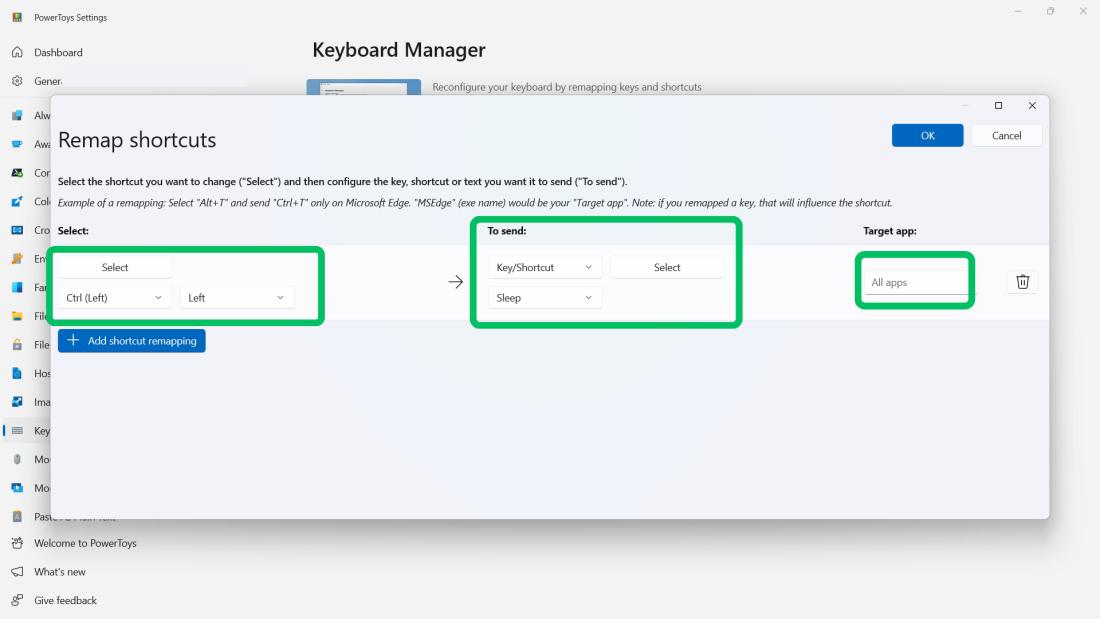
Step 2: Click on the “Remap a Shortcuts” option.
Step 3: Click on the "+ Add key remapping " button
Step 4: In select dropdown menu you can select any shortcut key. then from "Send to" dropdown select remap shortcut. You can select specific shortcut for specific application by targeting apps.
👁 remap-shortcuts-on-windows-11
In Conclusion, Using PowerToys, you can quickly adjust your keyboard shortcuts on Windows 11 and make work more comfortable and enjoyable. You can also use other options in PowerToys that include Color Picker, FancyZones, Image Resizer and so on. PowerToys is a free and open-source tool that can be downloaded Microsoft store. So This was all about How you can customize Keyboard Shortcuts in Windows 11.