|
VOOZH | about |
|
VOOZH | about |
Microsoft PowerToys is a set of utilities designed to empower users with advanced features and functionalities not readily available within the standard Windows operating system. From enhanced window management to productivity-boosting tools, PowerToys offers a plenty of options to tailor your Windows experience to your specific need. So, installing PowerToys on windows can be a beneficial add-on.
In this article, We will show you How to Install & Use PowerToys on Windows 11.
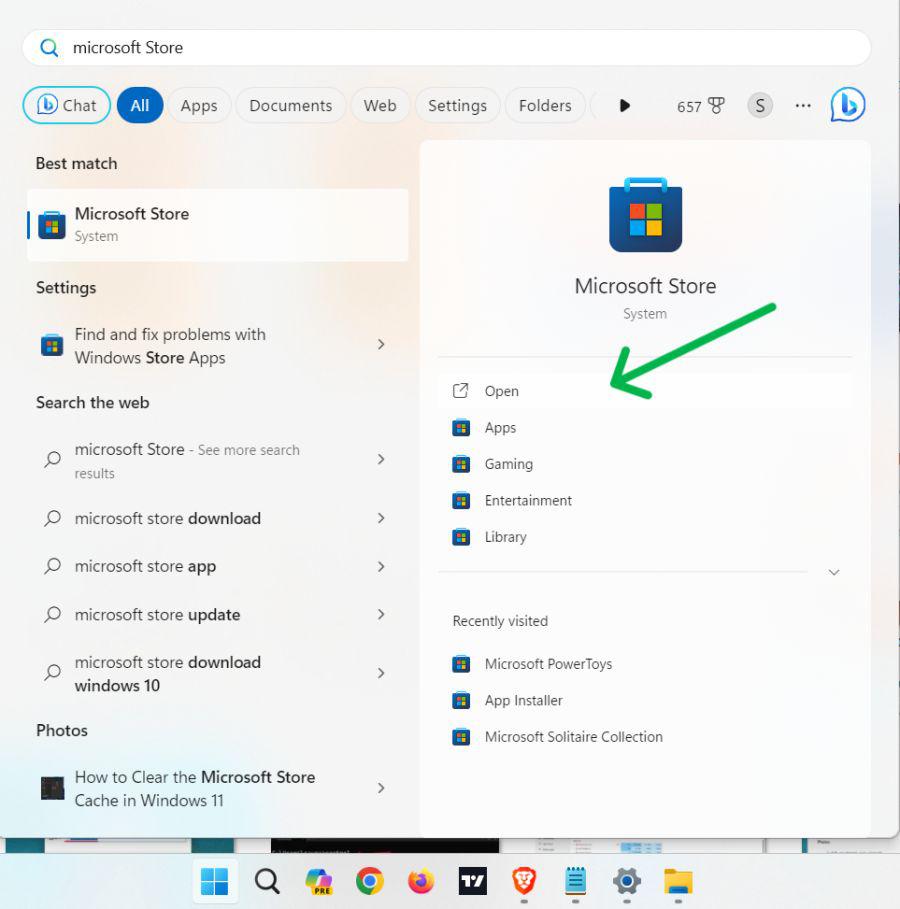
Step 1: To open Microsoft Store press Win + S then on search bar type "Microsoft Store"
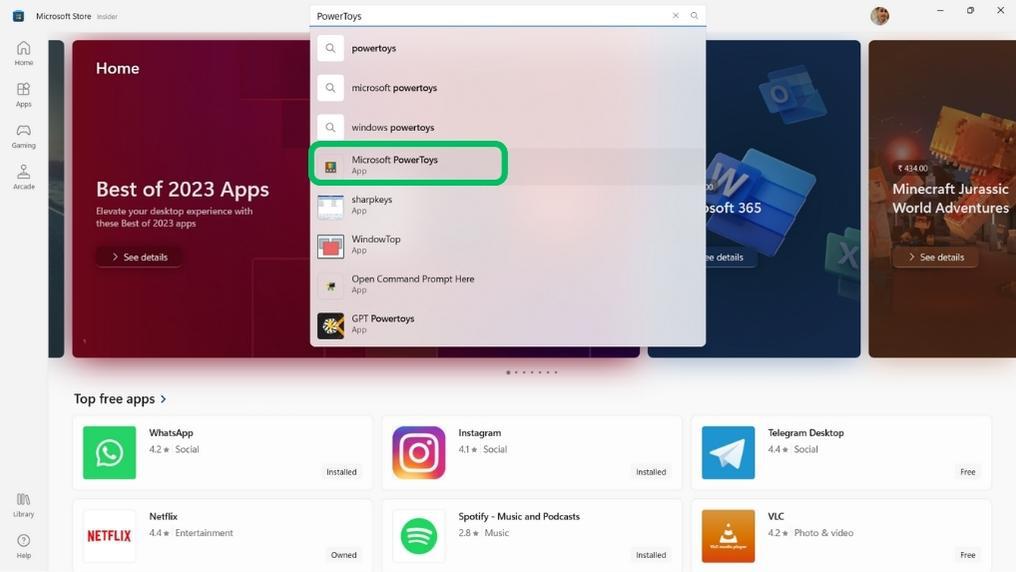
Step 2: Search for "PowerToys" in the store's search bar.
Step 3: Click on the PowerToys app from the search results.
👁 Install-Microsoft-PowerToys-From-the-Microsoft-Store
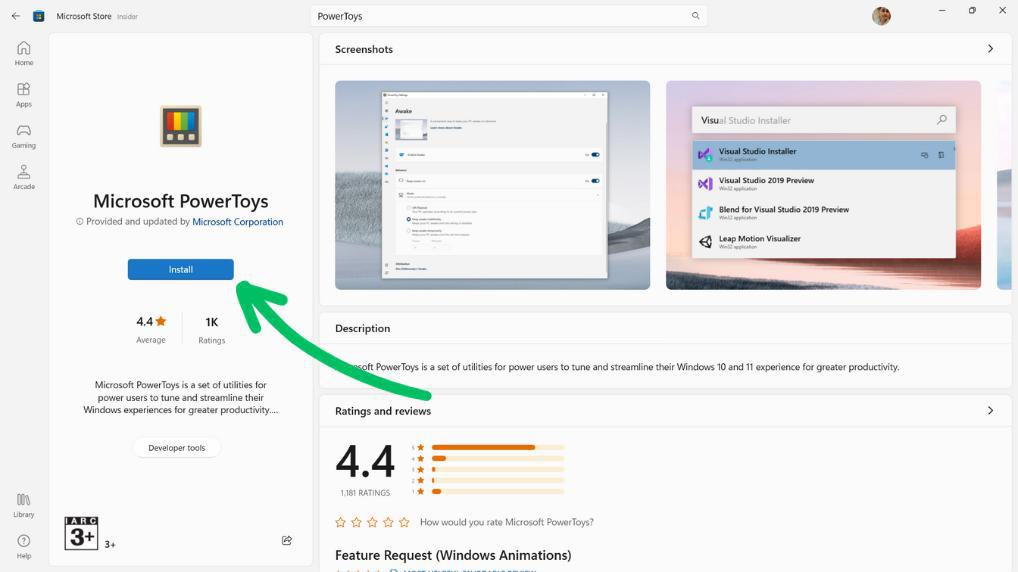
Step 4: Click on the "Install" button to begin the installation.
👁 Install-Microsoft-PowerToys-From-the-Microsoft-Store-1
For users who prefer manual installation, install Microsoft PowerToys on windows 11 from GitHub is an alternative option. here are the steps on how to install Microsoft PowerToys on Windows.
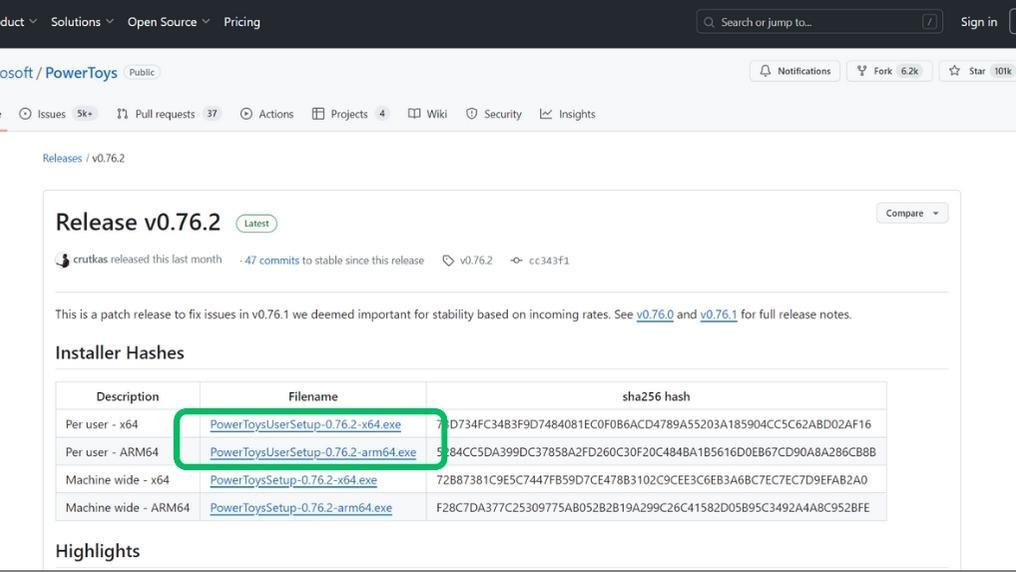
Step 1: Visit the PowerToys GitHub repository at https://github.com/microsoft/PowerToys/releases/tag/v0.76.2
Step 2: Choose the file matching your architecture (x64 or arm64) under "Assets."
👁 Install-Microsoft-PowerToys-from-GitHub
Step 3: Double-click the downloaded file and follow the on-screen instructions.
Step 4: Select which utilities you want to install during the setup process.
You can also install Microsoft Powertoys on Windows 11 from Command Prompt. Here are the list of steps:
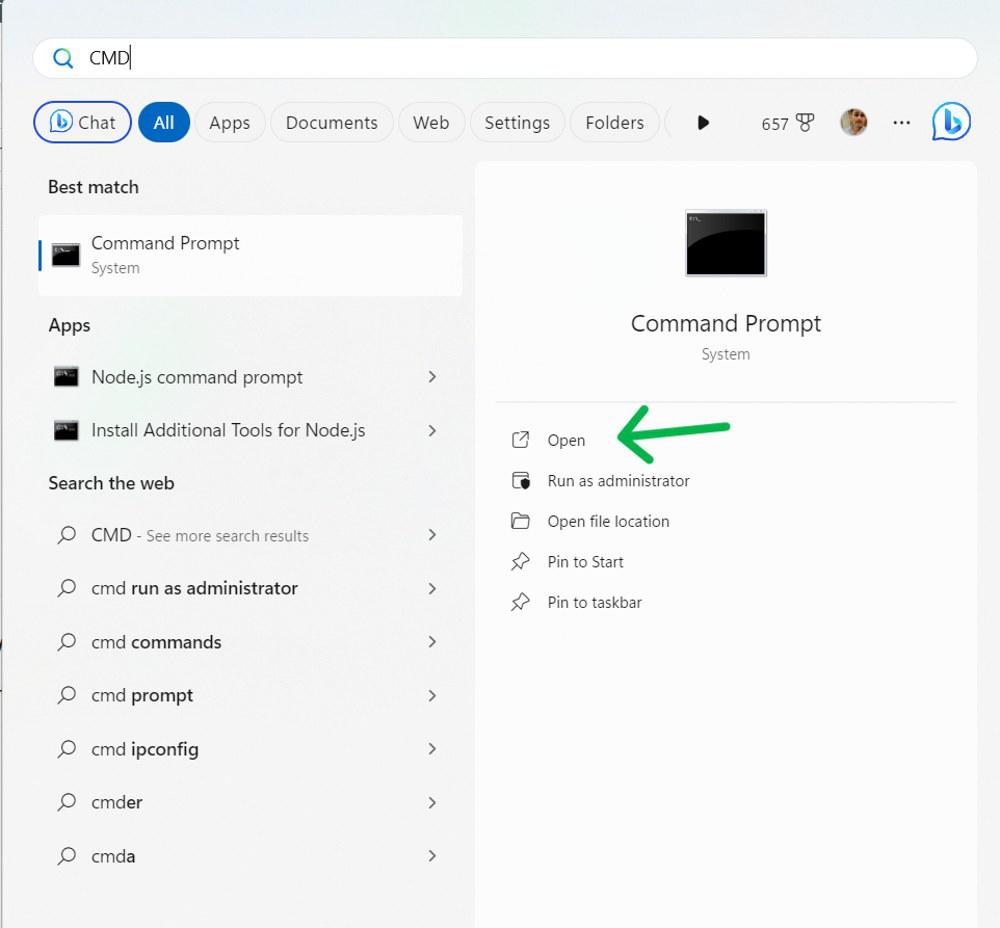
Step 1: Press Win + S then on search bar type "CMD" then click on "Run as administrator"
👁 Install-Microsoft-PowerToys-From-the-command-prompt
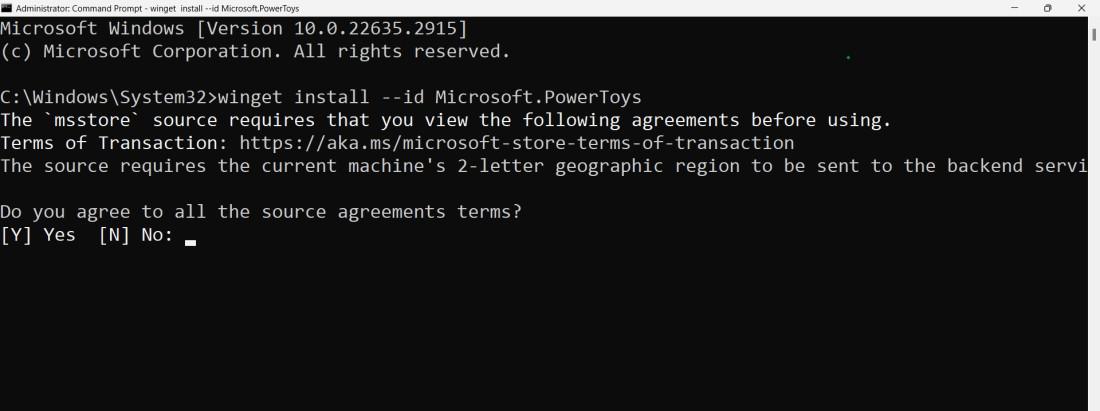
Step 2: Then, On CMD type this following command and hit Enter button then type "YES"
winget install --id Microsoft.PowerToys
👁 Install-Microsoft-PowerToys-Through-the-Command-Prompt
Installing PowerToys from PowerShell can be an alternative way to Install Microsoft PowerToys On Windows 11. Here are the list of the steps :
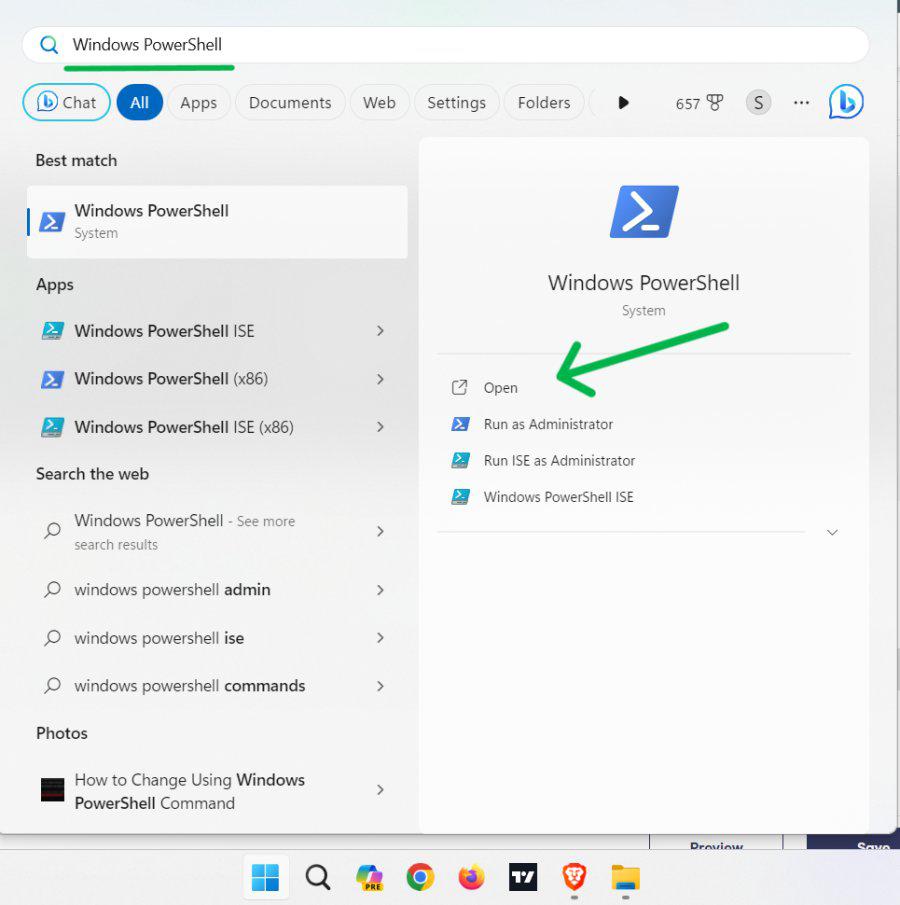
Step 1: Press Win + S then on search bar type "PowerShell" then click on "Run as administrator"
👁 Install-Microsoft-PowerToys-From-the-windows-powershell
Step 2: Type this following command and hit Enter button.
winget install Microsoft.PowerToys --source winget
Step 3: In UAC click on "YES" button
In conclusion, there are multiple methods available for installing Microsoft PowerToys on Windows 11, such as through the Microsoft Store, GitHub, Command Prompt, or PowerShell. Users can choose the installation method that best suits their preferences to access the various features offered by PowerToys.