|
VOOZH | about |
|
VOOZH | about |
Managing your MacBook applications and keeping them clean and clutter-free should be a habit for optimal performance. If you're still struggling to remove any unwanted software then you may try using these methods.
Table of Content
Launchpad is the easiest method to uninstall apps on Mac that are downloaded from the App Store.
By 2 simple clicks, you can successfully uninstalled any application on the MacBook using the Launchpad Method.
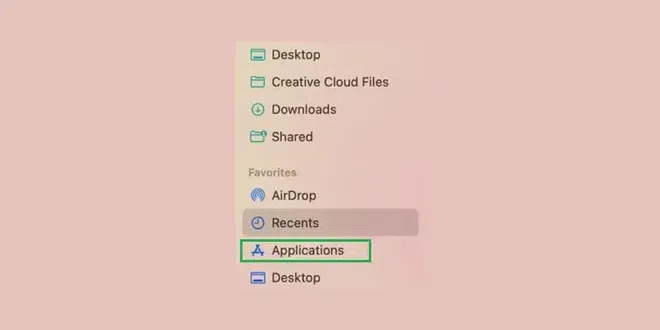
Finder is ideal to erase app from Mac that are specifically non-App Store applications.
Hence, we have successfully Uninstalled an App on MacBook Pro using the Finder.
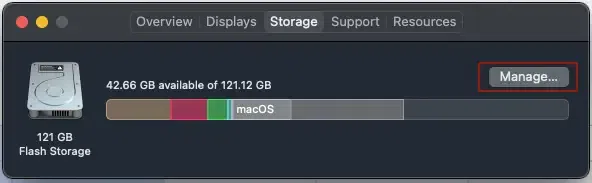
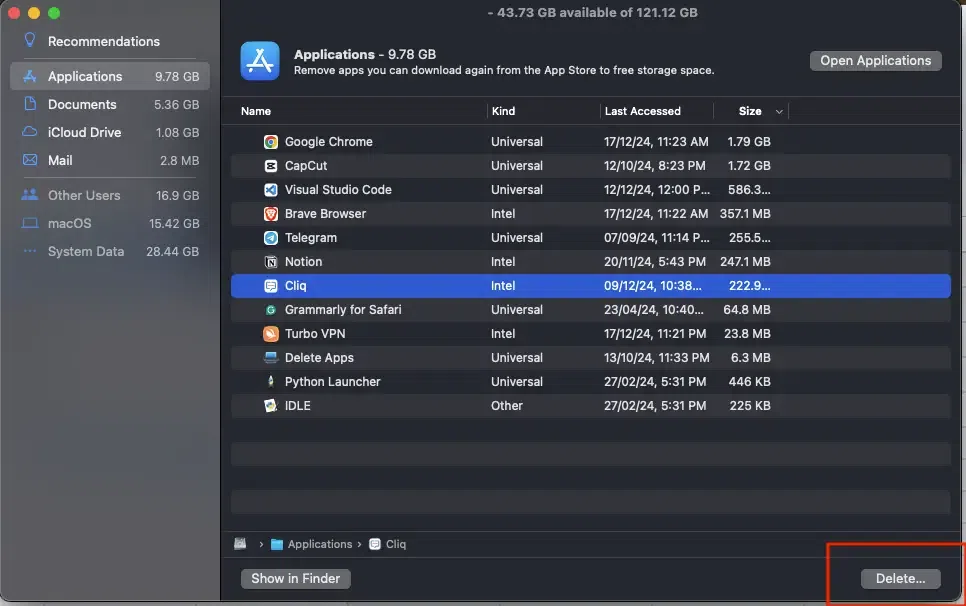
You can use Macbook's "Storage Settings" and choose to uninstall mac apps in 2 easy steps. Here's how you can do it:
Hence, we have successfully erased application on MacBook using the Storage.
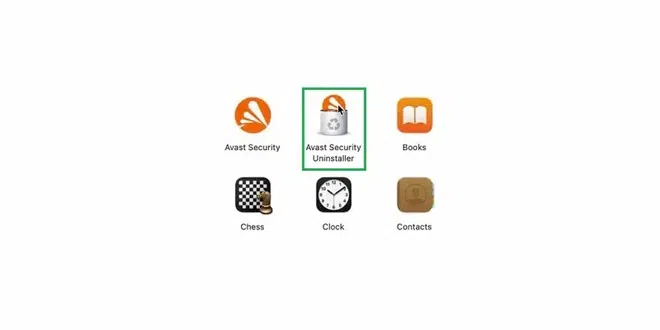
Certain applications (mainly the Antivirus) comes with their Native Uninstaller that can be used for the uninstallation process. Here's how to perform this action:
Hence, we have successfully uninstall apps on Mac using any Native Uninstaller of any application.
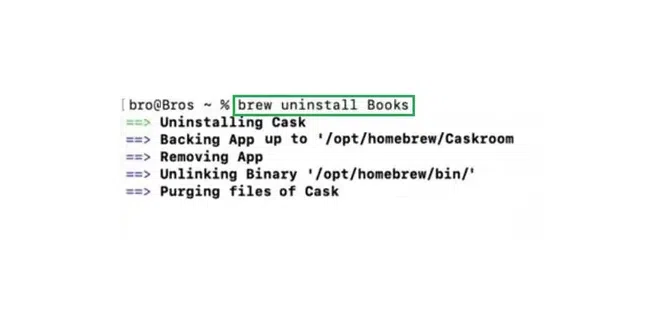
You can also delete any application using Terminal commands which is ideal for tech-savvy users.
Open the Terminal & execute the following command:
Command: brew uninstall application-nameHence, we have successfully uninstall apps on Mac using the Terminal Command.
The third-party uninstallers are an excellent solution to uninstall apps on Mac if you want to remove all it's leftover files. These tools not only remove the main app but also locate and delete leftover files.
You can use any recommended tool to use it as a app cleaner for Mac, some of them are:
Pro Tip: Using Third Party tool will ensure that it is erasing all the attributes of your uninstalled application and saves time.
Hence, these were the following 6 best methods to completely erase app from Mac.
~/Library/Application Support/
~/Library/Caches/
~/Library/Preferences/
By following these methods, you can easily remove any unwanted apps from your MacBook effectively. Depending upon your preference, you can choose any of the following methods to keep your MacBook clean and optimized.