|
VOOZH | about |
|
VOOZH | about |
Changing your MacBook password is an important step in maintaining the security of your device. Whether you're looking to update your MacBook password or need to reset your MacBook password for any reason, this article will walk you through the process. Understanding how to change your password on your MacBook and adjusting your MacBook security settings ensures that your device remains protected from unauthorized access.
We will provide various methods to Change your MacBook Password, you can use any of the methods presented here to secure your MacBook from unauthorized access.
Table of Content
Here's a step-by-step guide to changing your MacBook password to ensure your device safety:
Step 1: Login into the admin account and open system preferences.
Step 2: Click Users & Groups.
Step 3: Select the User's account whose password needs to be changed.
Step 4: Enter a new password and select the Change Password button.
To reset your MacBook password using your Apple ID, follow the steps:
Step 1: On the login screen, enter your username and click the question mark icon or "Forgot password?"
Step 2: Follow the prompts, and when asked for your Apple ID, enter it.
Step 3: You'll receive instructions via email or security questions to reset your password.
Step 4: Follow the provided steps to set a new password.
Step 5: Log in with your new password.
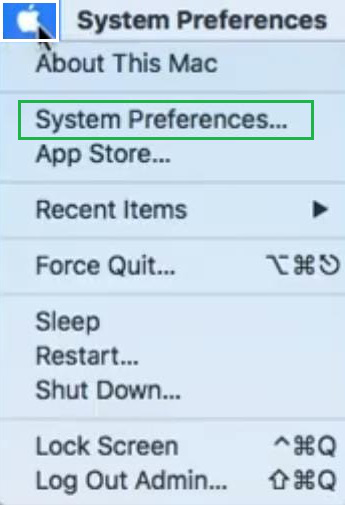
Step 1: First, find an Apple icon present on the Home Page of the MacBook & click on that icon. After that, click on System Preferences to get some more options.
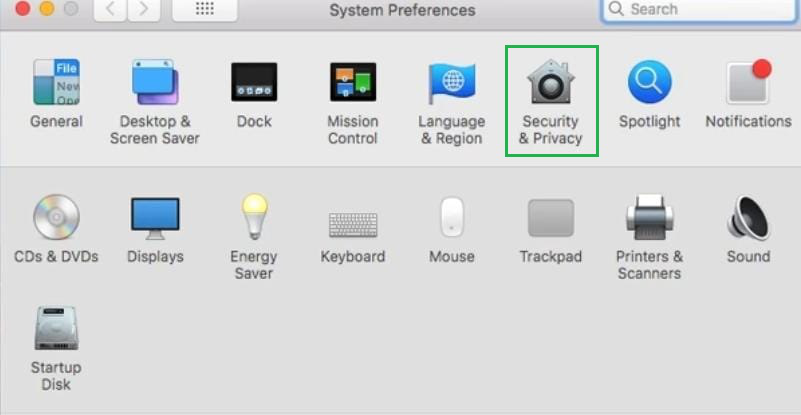
👁 How to change a MacBook password - step 1Step 2: In the newly opened tab, Click on the Security & Privacy option.
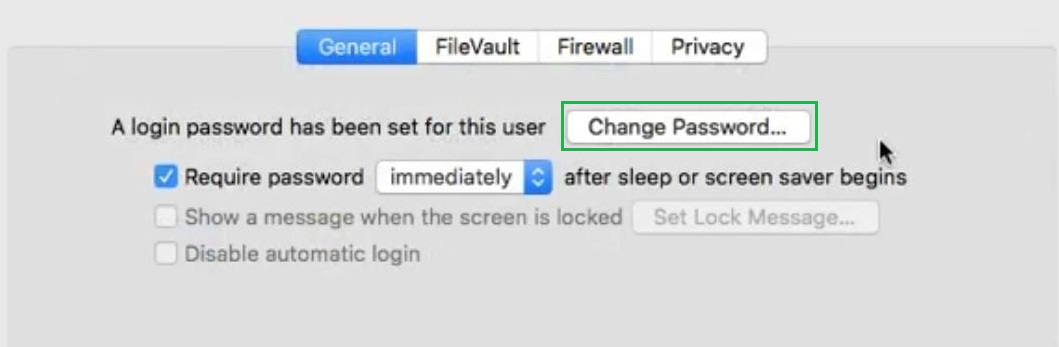
👁 How to change a MacBook password - step 2Step 3: Now, Click on the Change your Password button.
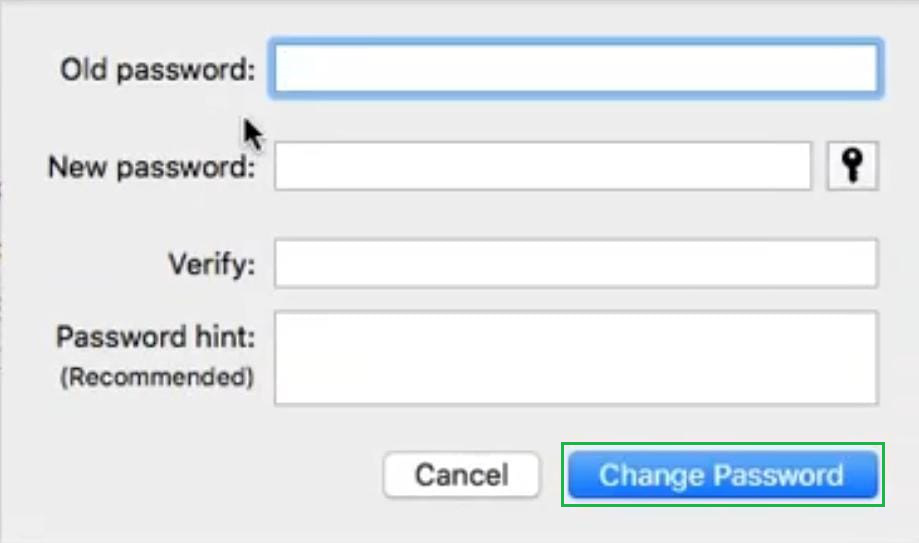
👁 How to change a MacBook password - step 3Step 4: After that, Enter your Old Password first, Then the New Password & verify it. Also, if required, you can provide a hint of the password that will help to unlock the device in some accidental situations. After that, click on the Change Password button.
👁 How to change a MacBook password - step 4To reset your MacBook password in Recovery Mode:
Step 1: Restart your Mac, then hold down Command + R until the Apple logo appears.
Step 2: In Recovery Mode, select "Utilities" > "Terminal" from the top menu.
Step 3: Type 'Reset Password' and Hit Enter.
Step 4: A Reset Password window will pop up. Follow the on-screen instructions to Reset your password.
Step 5: Restart your Mac. Your password is now changed.
To remove your MacBook password:
Hence you have learnt different methods to change your MacBook Password. Use any of the above methods and keep your MacBook Super Secure.
Regularly updating your MacBook password helps enhance your device's security and protect your personal information. By following the steps outlined to change the login password of your MacBook, you can ensure that your MacBook account security remains strong. Keep your MacBook password management practices up to date and make sure to use a strong, unique password to safeguard your device effectively.