|
VOOZH | about |
|
VOOZH | about |
Forgetting your Apple ID password can be a frustrating experience for users, especially considering how integral the Apple ID is to accessing various services like iCloud, the App Store, and Apple Music. Fortunately, recovering your Apple ID password is a straightforward process. This article will walk you through the steps to recover your Apple ID password, whether you have forgotten it or simply need to reset it for security reasons. By following these easy steps, you can regain access to your Apple account and continue enjoying the full range of Apple services.
👁 How-to-Recover-an-Apple-ID-Password
It is like a Google Account in any Android operating system. But god forbid, what happens if you Forget the Apple Password of your device? In such cases, you can't recover your Lost Apple Password, rather you have to set a new one. For setting the new password, you have to pass through some verification process.
In this article, we will discuss a few handful of methods to Retrieve Apple Passwords without any issues in no time.
Table of Content
To Regain the Apple ID Password, the following methods can be executed on different Apple Devices. We will start when you need to recover your Apple ID Password from an iPhone or iPad.
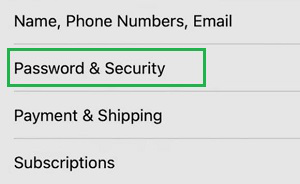
Step 1: Open Settings & tap on your Profile. You will get the option Password & Security. Go for it.
👁 1--Select-Password-&-Security
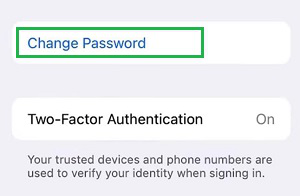
Step 2: Click on the Change Password option.
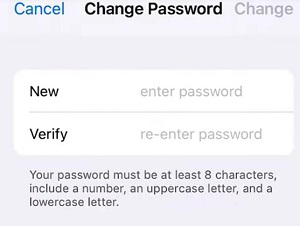
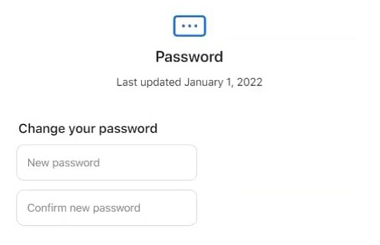
Step 3: After verifying your mobile number, the screen will be visible to reset the password. Provide a New Password & confirm it.
Hence, we have successfully recovered or reset the Apple ID Password on any iPad or iPhone.
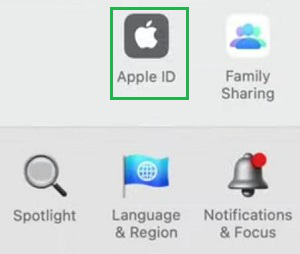
Step 1: Open System Settings & go for the Apple ID option present there.
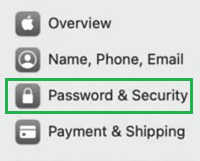
Step 2: Now, on the left-hand side click on the Password & Security option.
👁 5--Select-Password-&-Security
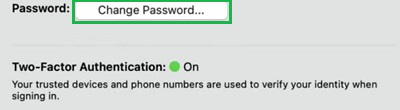
Step 3: Click on the Change Password option.
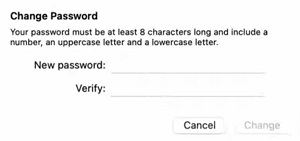
Step 4: After verifying the mobile number, enter the New Password. Confirm it to save the changes.
Hence, we have successfully recovered or reset the Apple ID Password on any Mac Desktop or Laptop.
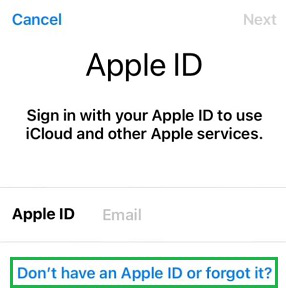
Step 1: Log out from the device & try to sign in to the device. Click on the I Don't Have Apple ID or Forgot It.
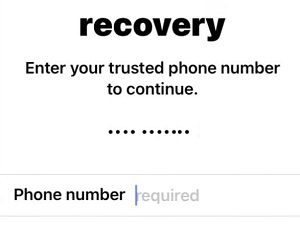
Step 2: Provide the Mobile Number that you use on your iPhone. That means the mobile number that is registered with your Apple ID. It will verify the mobile number with the code.
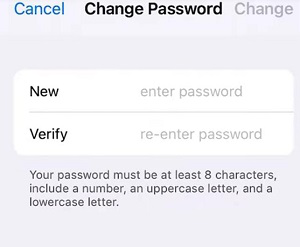
Step 3: Now, again the window to change password will appear. Provide a New Password & confirm it to make changes.
Hence, we have successfully recovered or reset the Apple ID Password using another iPhone or iPad.
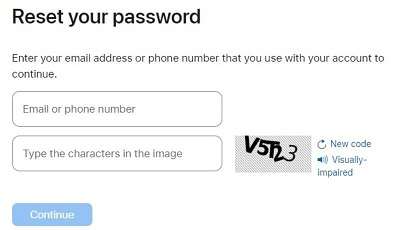
Step 1: Browse the Apple Website To Recover your Apple ID Password. You have to enter the Phone Number there. It will verify it with a message code.
Step 2: Now, enter the New Apple Password & confirm it by typing a second time.
Hence, we have successfully recovered or the reset Apple ID Password using the Other Device Browser.
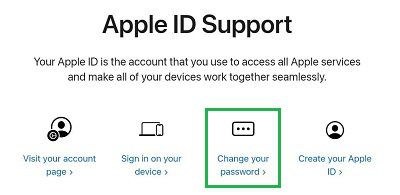
Step 1: Go to the Official Apple ID. Click on the Change your password option.
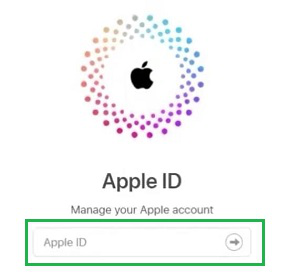
Step 2: Provide the Apple ID & login there with the Message Code.
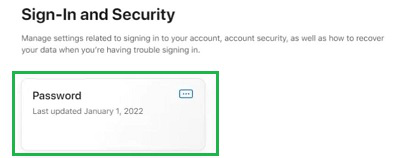
Step 3: Click on the Password Tile to move ahead.
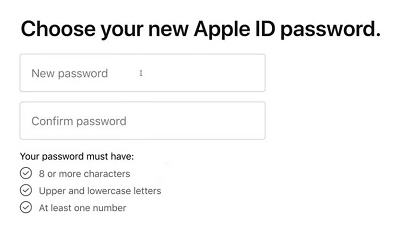
Step 4: Create a New Password by confirming it there.
Hence, we have successfully recovered or the reset Apple ID Password using the Web.
So, these are the simple methods you can execute to receive your Apple ID Password. Based on the device, you have to choose the method & move with the steps discussed there. For security reasons, you have to set the password strong. And try not to forget your Apple ID Password in the future.