|
VOOZH | about |
|
VOOZH | about |
If you find your start button not working on Windows 11, it can be frustrating since the Start button is a key part of your experience. It helps you access your apps, settings, and other essential functions. There can be many reasons for this issue, like software glitches or outdated drivers.
If your Start button is not working on Windows 11, it can be a major inconvenience since the Start button is essential for navigating your system. Fortunately, there are several methods you can try to resolve the issue.
Follow these easy steps to fix the problem and get your Start button working again:
Often, the Start Menu disappears due to accidental key presses, leading to the misconception that the Start Menu is not working. Therefore, it's better to first check if it's hidden or not.
Follow the below mentioned steps to check if Start Menu is hidden or not.
Step 1: Right-click on the taskbar.
Step 2: Select Taskbar settings.
Step 3: Under the Taskbar behaviors section, ensure Automatically hide the taskbar is turned off.
Restarting a PC can resolve seemingly unsolvable issues, especially if the Start Menu isn't functioning properly.
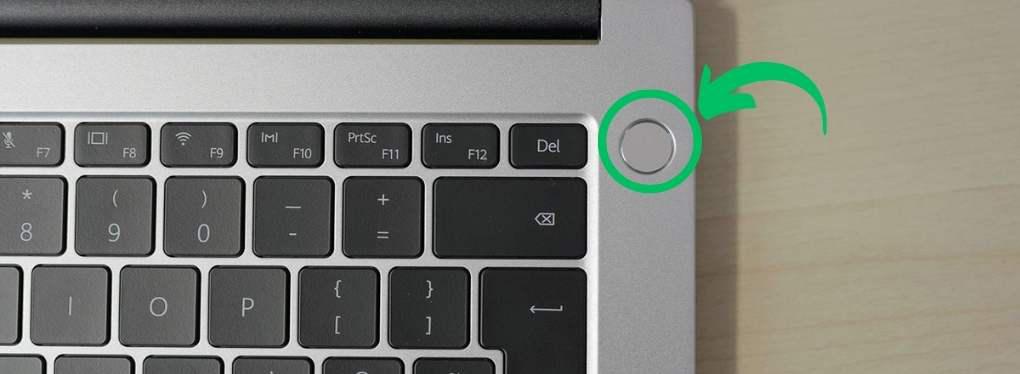
Step 1: Press and hold the power button for 5-10 seconds.
Step 2: Wait 30 seconds, then press the power button again.
Step 1: Press Alt + F4 to open the Shut Down Windows dialog box.
Step 2: Select Restart from the dropdown menu and click OK.
Windows Explorer manages your entire file system. Sometimes, the Start button stops working due to issues with Windows Explorer. Hence, restarting Windows Explorer will rectify this Start button issue if it is caused by Windows Explorer.
The step to restart Windows Explorer are as follows:
Step 1: Press Ctrl + Shift + Esc to open Task Manager.
Step 2: Find Windows Explorer in the list, right-click it, and select Restart.
Outdated Graphics Drivers can cause issues with the Start button. Updating them can resolve these issues.
The steps to update Graphics Drivers are:
Step 1: Press Win + S then on the search bar type "Device Manager" and open it
Step 2: Expand "Display adapters", right-click your graphics card, and select "Update driver".
Also Check: How To Fix Graphics Device Problems With Error Code 43
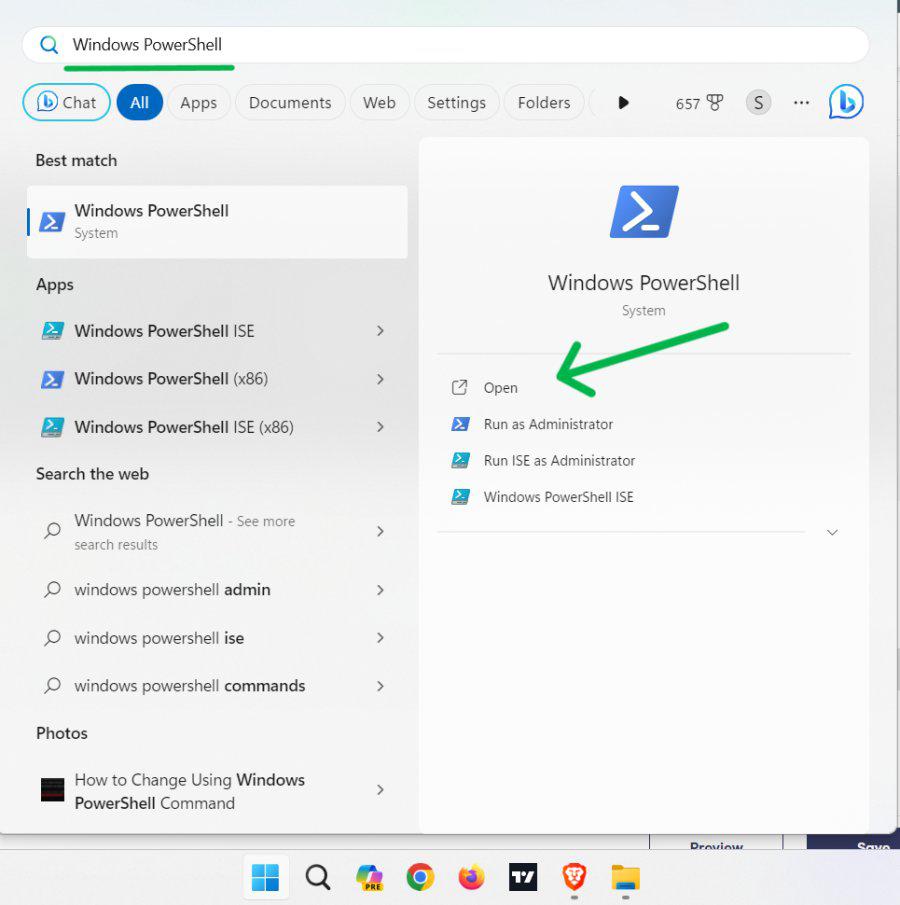
Re-registering the Start menu can fix issues caused by system updates. This can done using Windows Poweshell. Try these steps if your Start Button is not working.
Step 1: Press Win + S then on the search bar type "PowerShell" and open it
Step 2: In Powershell type the following command and hit enter:
Get-AppXPackage -AllUsers | Foreach {Add-AppxPackage -DisableDevelopmentMode -Register “$($_.InstallLocation)\AppXManifest.xml”}
Cortana, Microsoft's voice assistant, loses importance due to excessive system resource consumption and background tasks leading to decreased user interest. It often hinders Windows Explorer's proper functioning.
To fix this, disabling Cortana's temporary files is the ultimate option, follow these steps to disable Cortana's temp files.
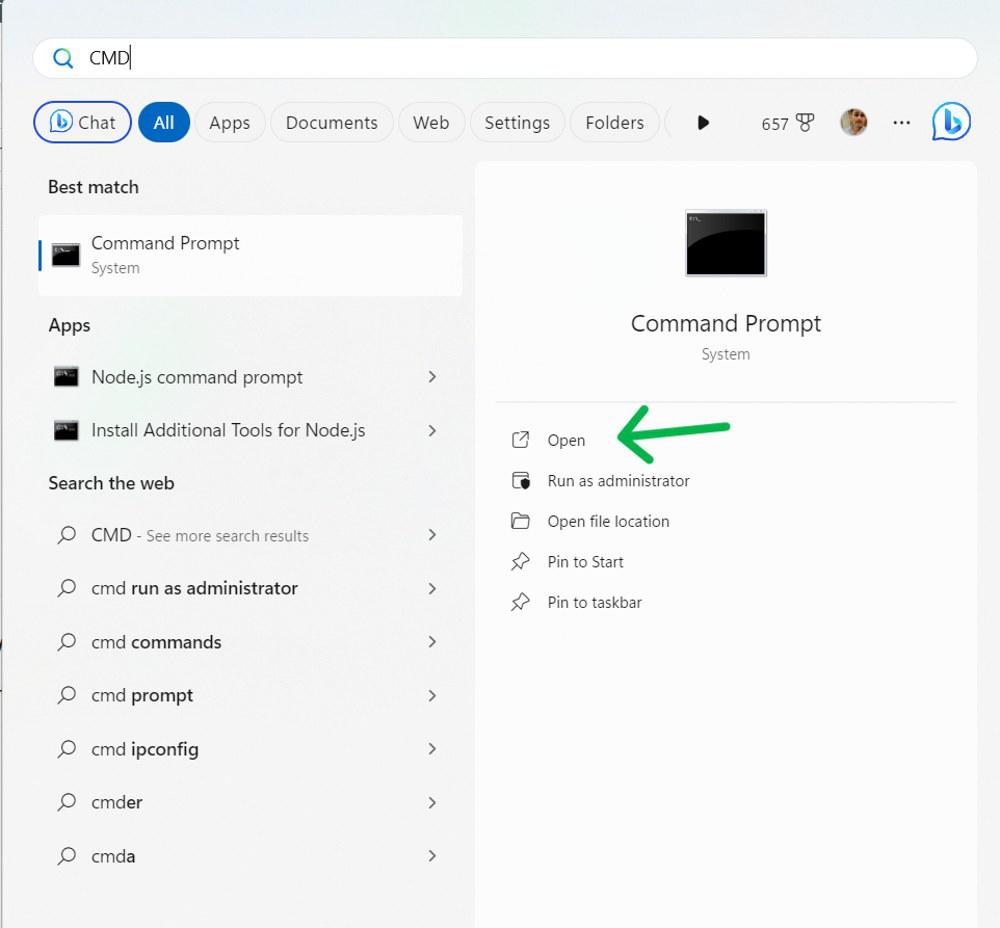
Step 1: Press Win + S then on the search bar type "CMD" and open it
Step 2: In the Command prompt type the following command and hit enter:
C:\Users\USER\AppData\Local\Packages\Microsoft.Windows.Cortana_cw5n1h2txyewy
Replace USER with your actual username
Also Check: How to disable Cortana Completely because of your privacy and personal preference.
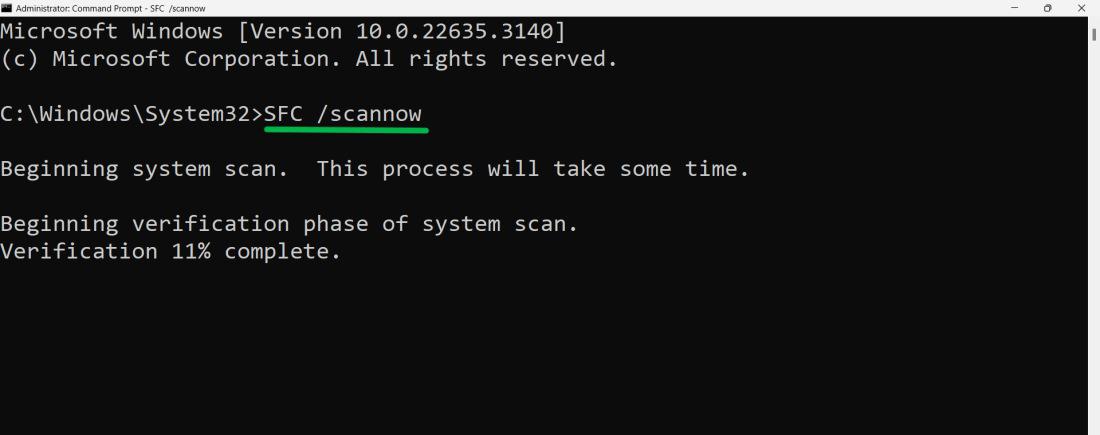
System File Check verifies and repairs corrupted system files. These files can affect the system, leading to malfunctions like the Start button not working. So to resolve this follow these steps.
Step 1: Press Win + S then on the search bar type "CMD" and click on "Run as administrator"
Step 2: In the Command prompt type the following command and hit enter:
If none of the above mentioned method work, then the last option is to factory reset your Windows 11. Factory resetting Windows 11 restores the operating system to its original state, eliminating software issues. This can fix Start button problems by removing conflicting settings or corrupted files.
Before factory resetting your PC, ensure to back up important files and create a recovery drive to give a fresh start to your system without losing important files. If in case, you looses your crucial data learn about 10 Data Recovery Software to Retrieve Lost Files.