|
VOOZH | about |
|
VOOZH | about |
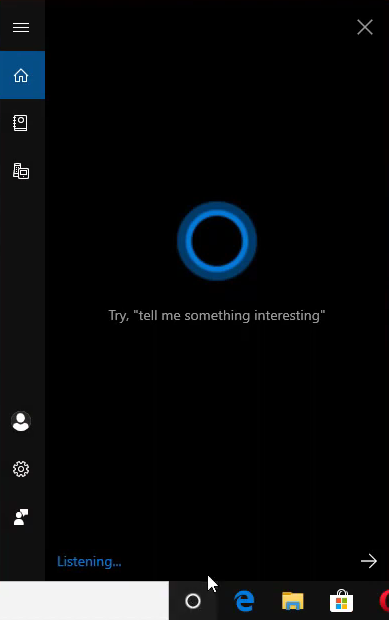
Cortana is Microsoft’s built-in digital assistant designed to help users perform tasks using voice commands—such as setting reminders, searching the web, and managing productivity. However, due to low usage, privacy concerns, and performance issues, many Windows 10 users now prefer to disable or remove it entirely.
Here are the main reasons users disable Cortana:
Do you know? Cortana was named after the AI character in the famous video game Halo where it served as an AI assistant to the protagonist in the game.
Rather than completely removing Cortana you can disable it temporarily and here is how:
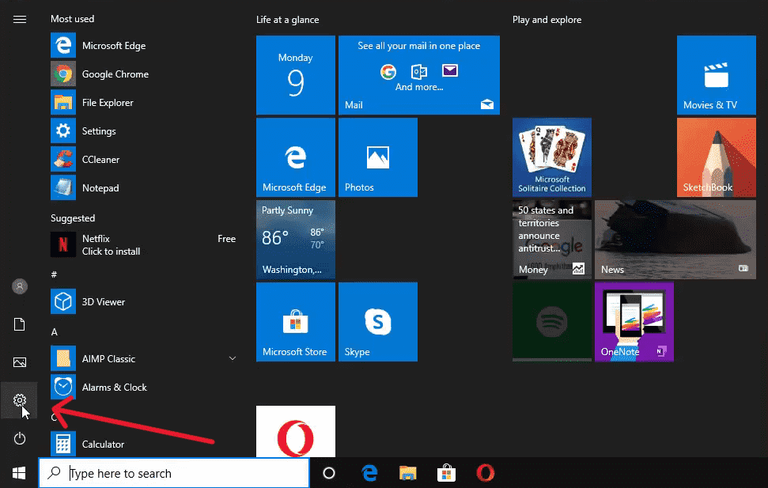
Step 1: Go to Windows Settings.
👁 Method1_Disable_Temporarily_Pic1
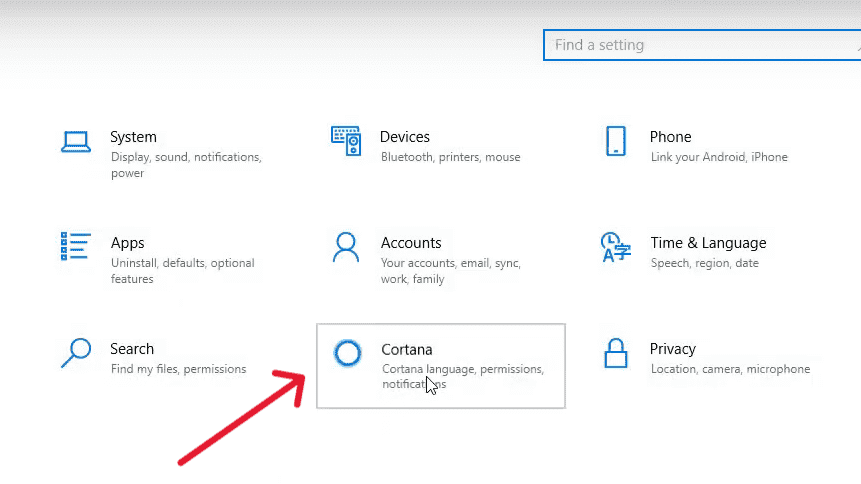
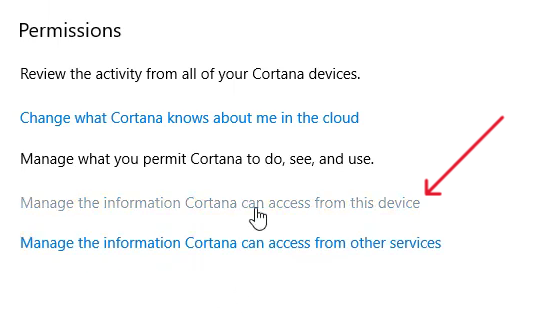
Step 2: Select Cortana.
👁 Method1_Disable_Temporarily_Pic2
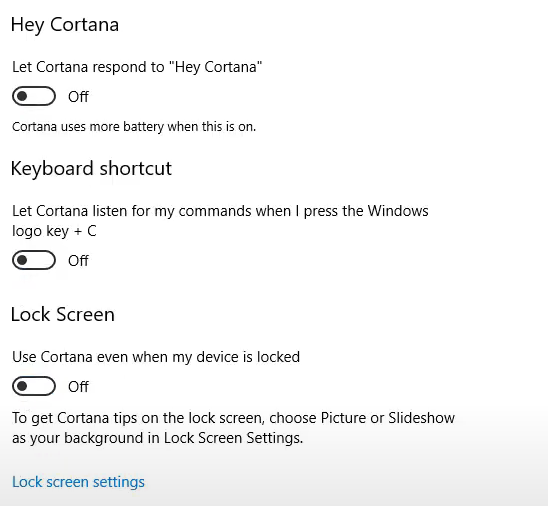
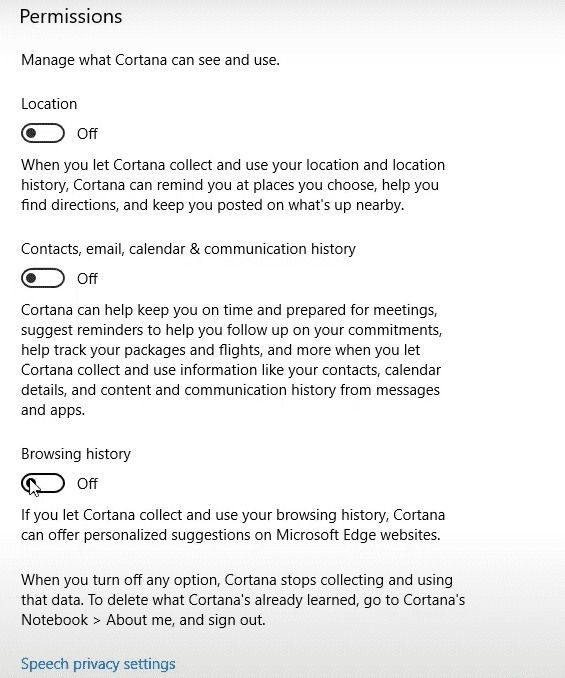
Step 3: Turn off all available toggles (permissions, voice activation, etc.).
👁 Method1_Disable_Temporarily_Pic3
👁 Method1_Disable_Temporarily_Pic4
Step 4: Disable Cortana's access to microphone, location, and notifications.
👁 Method1_Disable_Temporarily_Pic5
Step 6:Restart your PC
Note: Windows updates may re-enable some Cortana features automatically.
Important: Create a system restore point before editing the registry.
Step 1:
👁 Method2_Disable_Permanently_Pic1
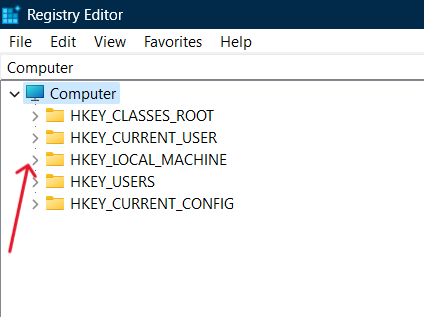
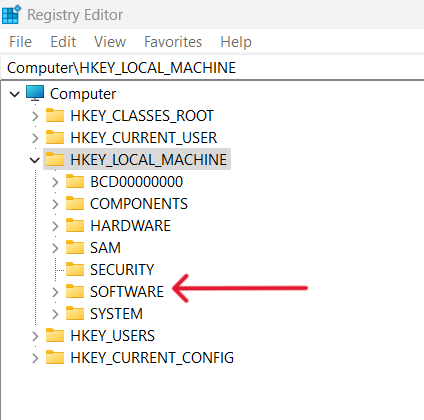
Step 2: Navigate to: HKEY_LOCAL_MACHINE to expand it.
👁 Method2_Disable_Permanently_Pic2
Step 3: Click on Software and expand it.
👁 Method2_Disable_Permanently_Pic3
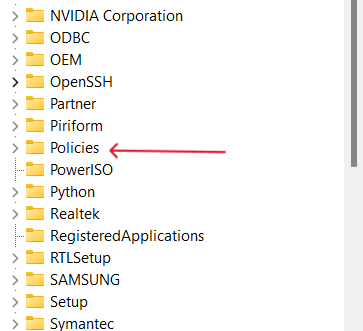
Step 4: Click on Policies and expand it.
👁 Method2_Disable_Permanently_Pic4
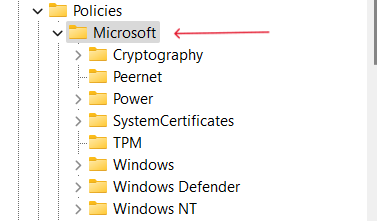
Step 5: Select Microsoft under Policies.
👁 Method2_Disable_Permanently_Pic5
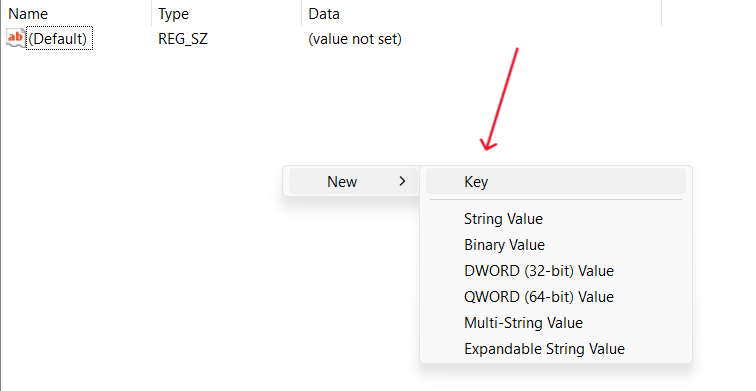
Step 6:Right-click named Right-click on the right side of the screen and create a New Key.
👁 Method2_Disable_Permanently_Pic6
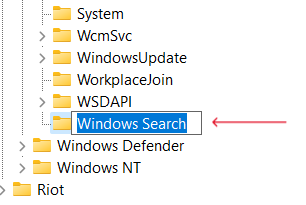
Step 7: create a folder named Windows Search.
👁 Method2_Disable_Permanently_Pic7
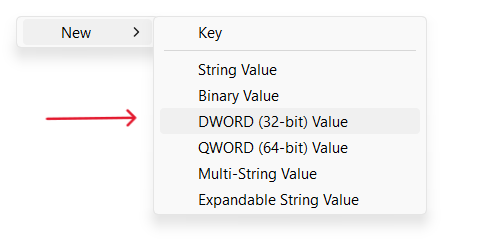
Step 8: Select the Windows Search folder and click on the right side of the screen again and now click on the DWORD (32-bitRight-click) value.
👁 Method2_Disable_Permanently_Pic8
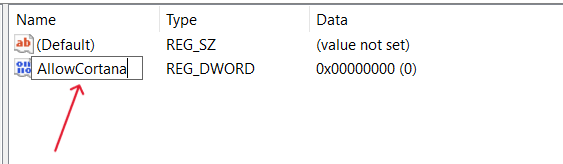
Step 9: You will be allowed to create a file name as AllowCortana. Make sure you don't make any typing mistakes or else this will not work.
👁 Method2_Disable_Permanently_Pic9
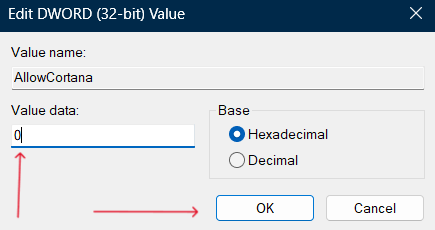
Step 10: Set the value data as 0 and click on ok. Here 0 = disabled and 1 = enabled.
👁 Method2_Disable_Permanently_Pic10
Step 11: Restart your PC
If you want Cortana back:
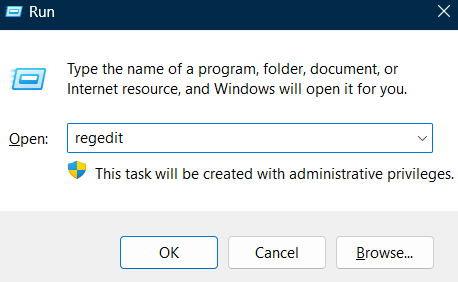
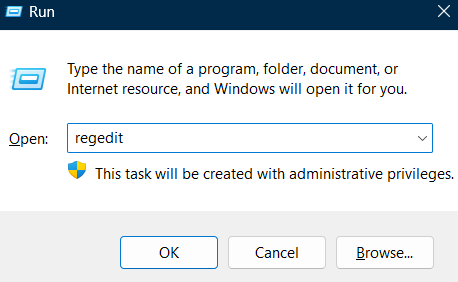
Step 1: Open regedit (Windows + R → type regedit).
Step 2: Go to:
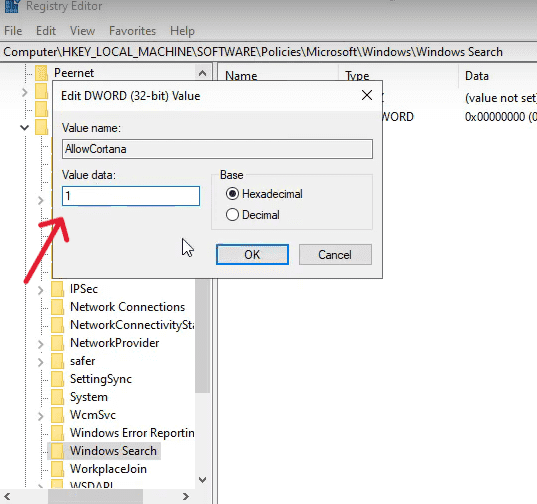
HKEY_LOCAL_MACHINE\Software\Policies\Microsoft\Windows SearchStep 3: Select the AllowCortana policy and set the value data as 1.Here, 1 denotes enabled and 0 denotes disabled.
Step 4: Restart your PC.
If you want to uninstall Cortana and remove it completely from your PC, then follow the below steps:
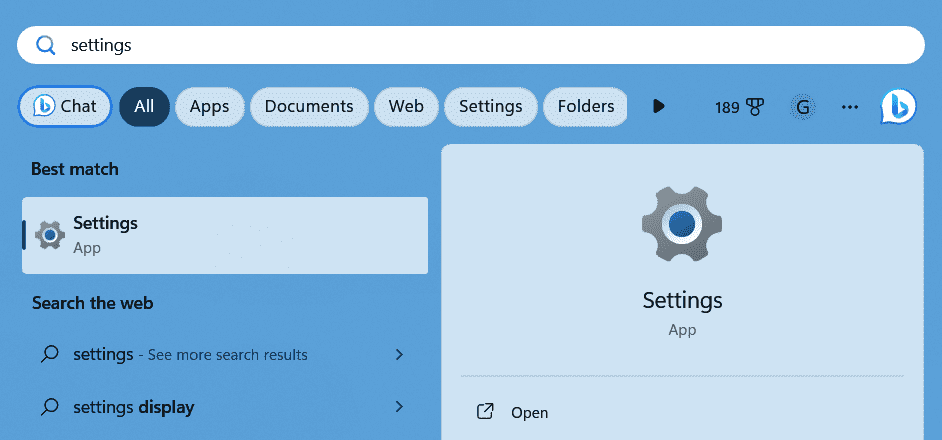
Step 1:Go to Start Windows search for settings and open it.
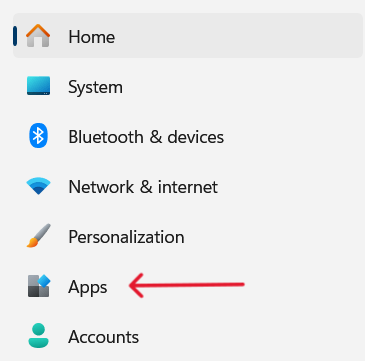
Step 2: Click on Apps.
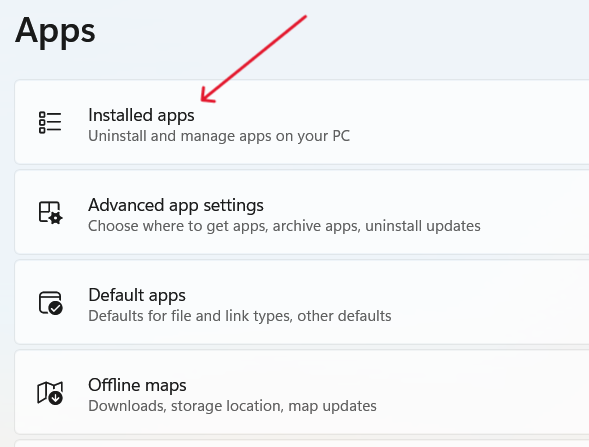
Step 3: Click on Installed apps.
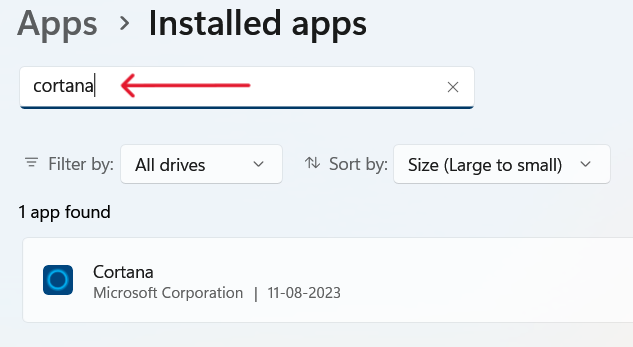
Step 4: In the search bar, search for Cortana.
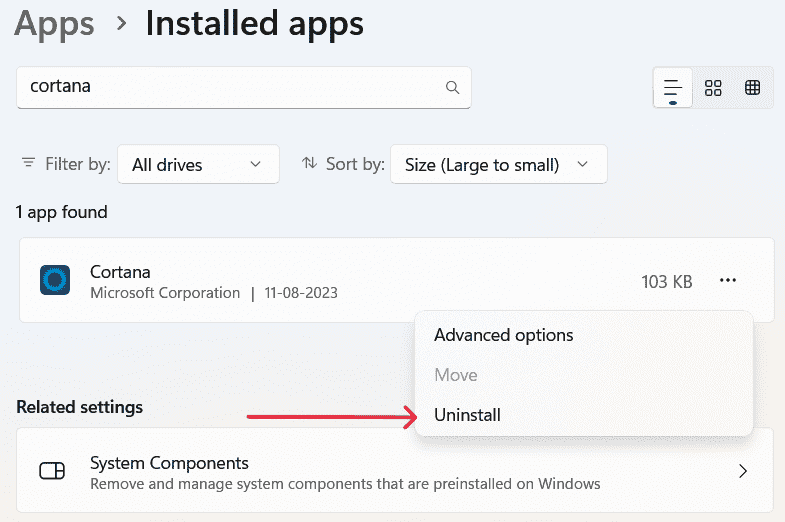
👁 Uninstall_Cortana_Pic4Step 5:Click on the three dots on Cortana, a drop-down will appear, and then click on uninstall.
Cortana never achieved the popularity Microsoft expected. Key reasons include:
By 2023, Microsoft ended support for Cortana as a standalone Windows app.