|
VOOZH | about |
|
VOOZH | about |
One of the latest technologies used in Windows 11 was the Overflowing Taskbar. But with the latest update released by Microsoft, this feature started malfunctioning. This caused massive discomfort to the users those are utilizing this feature beforehand. In this article, we will discuss a few handful methods that can be utilized to reenable the Overflowing Taskbar feature in Windows 11.
👁 How-To-Fix-Taskbar-Overflow-is-not-Working-on-Windows-11In normal scenarios, the Taskbar Overflow means in Windows 11 that a user can open an infinite number of applications on the device. And all the applications will be present in the taskbar, you need to just press three dots to check all the opened applications in the Windows 11 Taskbar. But this feature is not working on some devices due to the following reasons:
To Enable Taskbar Overflow, the following methods should be executed. We will start our operations by checking the Windows Update status on the device.
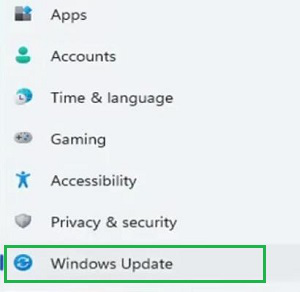
Step 1: Open the Settings & click on the Windows Update at the left-hand side.
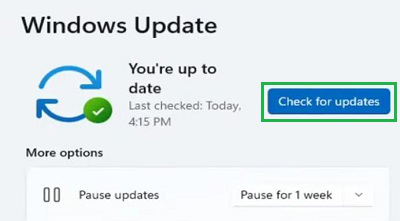
Step 2: On the right-hand side, a Check for Updates button will be available. Click on that to check & install the latest pending update to the system.
Hence, we have successfully fixed not working Taskbar Overflow in Windows 11 by updating to the latest version.
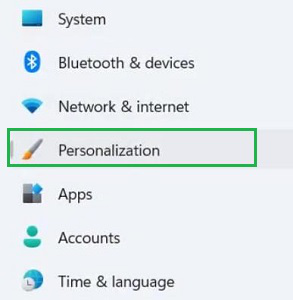
Step 1: Open Settings & on the left-hand side go to the Personalize section.
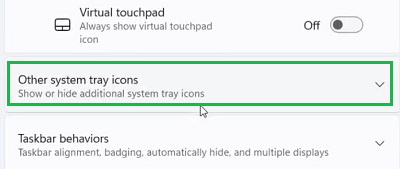
Step 2: In the new window, under the Taskbar section, find the Other System Tray Icons option & go for it.
👁 4--Click-Other-System-Tray-Icons
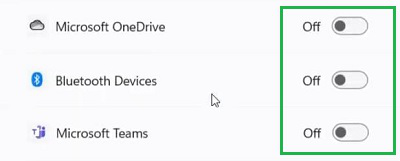
Step 3: You will find a lot of applications listed there. Enable all the respective buttons to grant permission for the application.
Hence, we have successfully fixed not working Taskbar Overflow in Windows 11 by enabling Overflow Settings.
Note: There are many third-party applications present that work on the Windows 11 OS externally. The main goal of such applications is to unleash all the hidden features of any new operating system. By downloading & installing such applications, the Taskbar Overflow feature might be enabled now on your system.
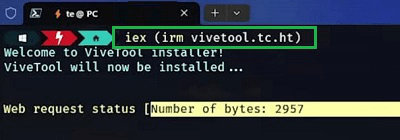
Step 1: Open the Terminal or Windows Powershell in the system & execute the following command. The command will install a third-party application on the system. It will take some time to complete the process.
Command: iex (irm vivetool.tc.ht)
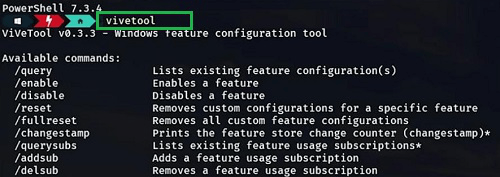
Step 2: After completion of the process, you can execute the following command to check the installation of the application. If you are getting a detailed view of the application, then the installation is right.
Command: vivetool
Hence, we have successfully fixed not working Taskbar Overflow in Windows 11 by installing a third-party application.
So, these are the few methods that can be used to enable the overflowing taskbar in Windows 11. Installation of the third-party application is the last hope to resolve such an issue. If you are still facing the problem, then you have to wait for another new update from Microsoft that will commit the solution.