|
VOOZH | about |
|
VOOZH | about |
Using the keyboard shortcuts is essential to increasing productivity and it's also the first for the users to press some keys and search for a feature through a list or menu. Users can use the keyboard shortcuts for multiple tasks like email account management, file folder management, image editing program execution, and many more. In this article, we'll discuss fixing the problem when the keyboard shortcut is not working in Windows.
Table of Content
Users need to follow the below-mentioned methods or ways to fix keyboard shortcuts not working in Windows.
Users can use a keyboard troubleshooter, a quick and easy process to fix the problem.
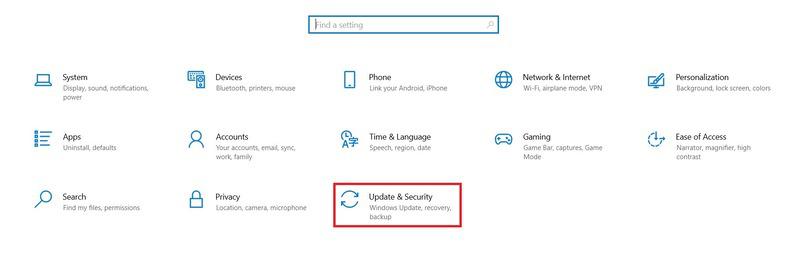
Step 1: Click on Start > Select Settings > Tap on System > then Update & Security.
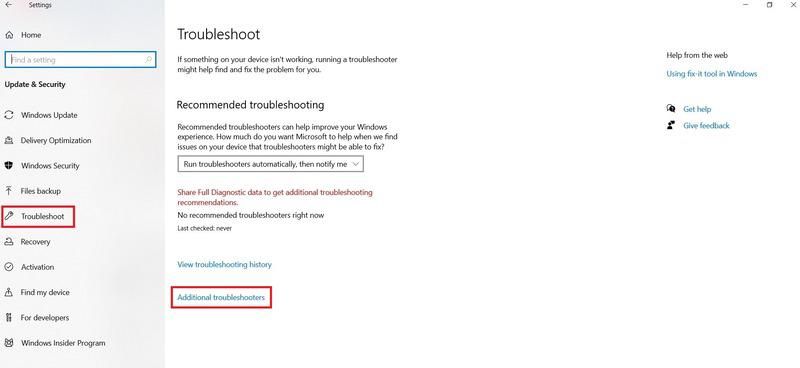
Step 2: Click on Troubleshoot > Additional Troubleshooter
👁 Troubleshoot_Additional-troubleshoot_002
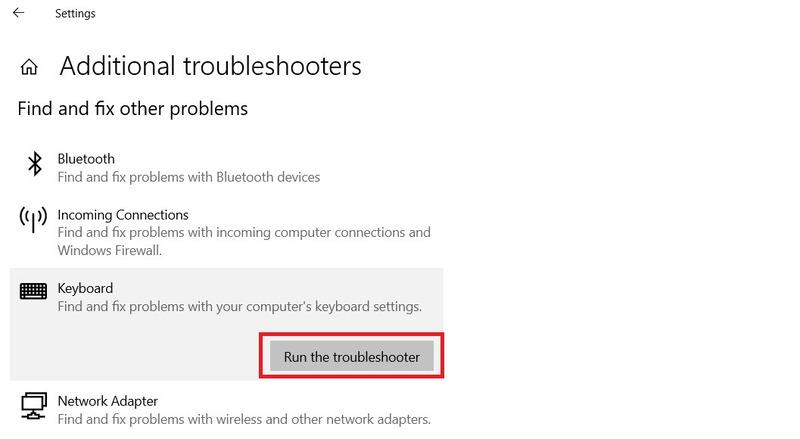
Step 3: Under Find and Fix problems > Select Keyboard > Tap on Run the Troubleshooter (to start the scan process)
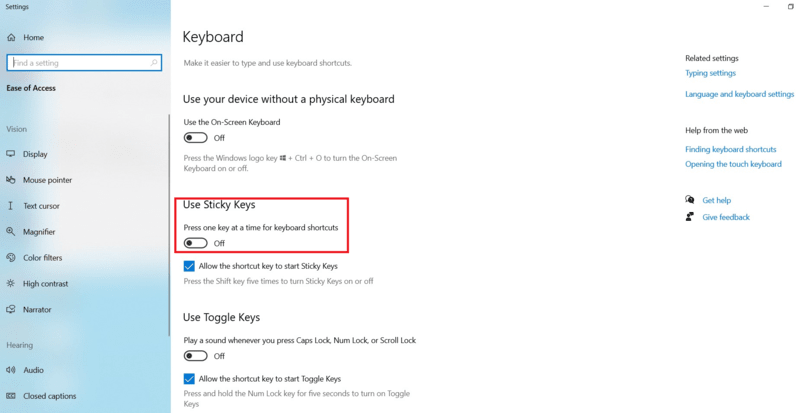
Keyboard shortcuts sometimes fail if users can't press the shortcut keys simultaneously. If users are facing difficulties in pressing the keys at the same time, they need to enable the Static Keys.
Step 1: Click on Start > Settings > Select Ease of Access.
Step 2: Go to the Interactionsection > Select Keyboard.
Step 3: Turn on the toggle which shows "Use Sticky Keys"
Users can resolve their problems by turning on the hotkeys of Windows 10.
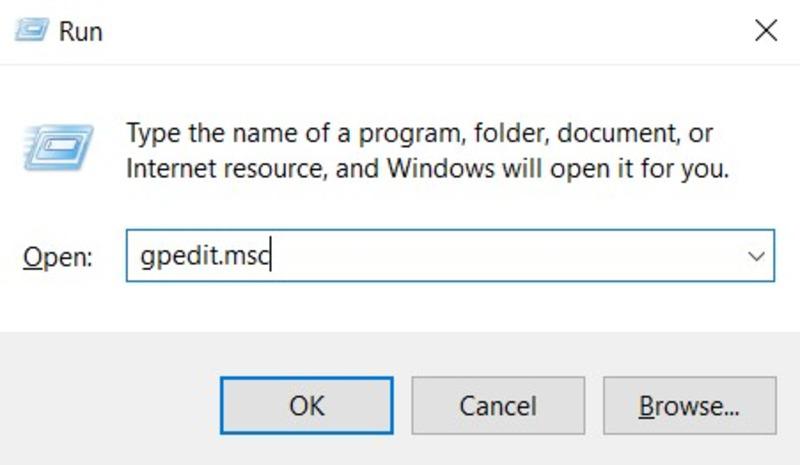
Step 1: Press Windows Key + R > type gpedit.msc into the dialog box > Press Enter.
Step 2: Press User Configuration > Administrative Templates > Windows Components > File Explorer
Step 3: Open Turn off Windows keys hotkeys > Select Disabled or Not Configured > Click on Apply.
Users can resolve the problem by resetting their internal system's keyboard settings.
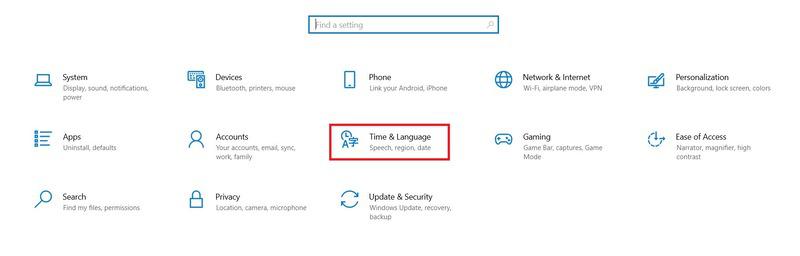
Step 1: Open Windows Settings > Go to Time & Language > Click on Language
Step 2: Click on Remove > Select Add a language
Users can check the human interface device service to resolve the problem and fix it.
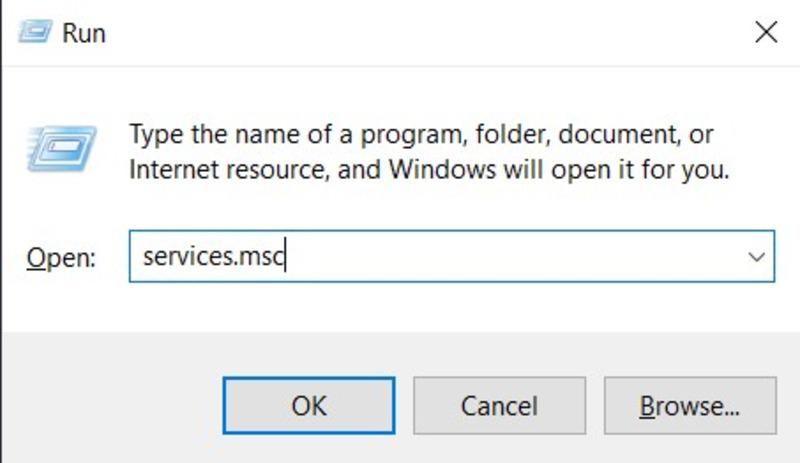
Step 1: Press Windows Key + R > Type services.msc > Press Enter.
Step 2: Right-click on Human Interface Device Services > Start.
Step 3: Click on Restart > Select Refresh
Keyboard shortcuts are a special technique to navigate and operate Windows efficiently. The biggest challenge is to find the actual issue in the system properly. However, users can discover and resolve all the initial problems by following the mentioned methods.