|
VOOZH | about |
|
VOOZH | about |
It is very annoying to run into the 0x80010002 Windows update error while attempting to keep your computer available for updates. The error often appears with issues associated with the components of Windows Update, corrupted files, or software conflicts. Luckily, various effective ways can help you troubleshoot this error and fix it. Follow along in this guide for a step-by-step instruction on how to troubleshoot the 0x80010002 error and put Windows Update back on track.
In the Error 0x80010002 problem, a device tries to download and install any certain patch of updates multiple times in a day. However, due to the problem with the services, the process never gets completed. In most cases, the problem is with two services that update a device. Those are the Windows Management Instrumentation (WMI) and Remote Procedure Call (RPC) services.
Along with that, there might be different reasons also present.
To Resolve the Windows 10 Update Error, we have to perform some methods one by one. Let us start with running a troubleshooter in Windows Update.
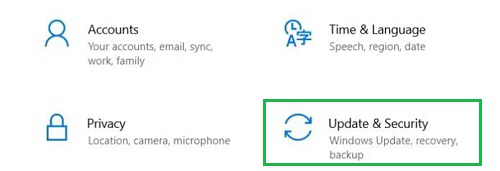
Step 1: Open Settings & go to the Update & Security section.
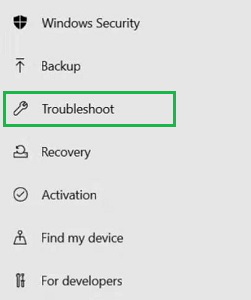
Step 2: From the left-hand side, click on the Troubleshoot option.
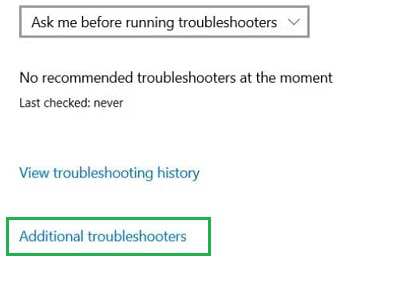
Step 3: Now, you will get the Additional Troubleshooter option on the right-hand side.
👁 3--Go-To-Additional-Troubleshooters
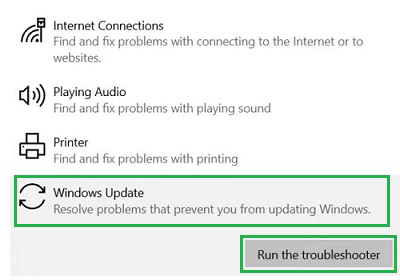
Step 4: From the list of applications, find the Windows Update and click on it. You will get the button Run the Troubleshooter. Click on it.
Hence, we have successfully fixed the Windows Update Error 0x80010002 by running Windows Update Troubleshooter.
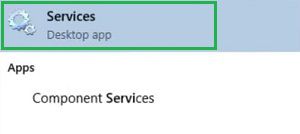
Step 1: Open the Search Bar & write down the Services. Go for the best available option.
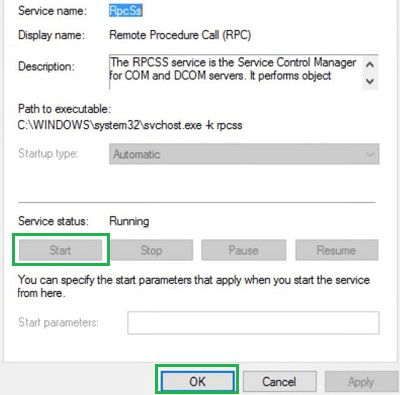
Step 2: Among the list of services find out the Remote Procedure Call Service & double-click there. Just click on the Start Button & click OK Button to close the windows.
Hence, we have successfully fixed the Windows Update Error 0x80010002 by running the Remote Procedure Call Service.
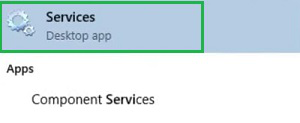
Step 1: We have to again open the Service by writing it in the Search Bar.
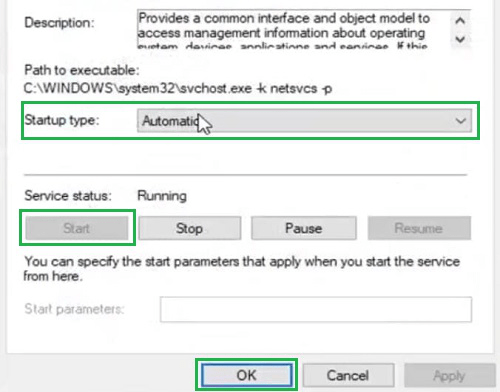
Step 2: Now, find the Windows Management Instrumentation Service & choose Start-up type as Automatic. Now, press Start to run the service. Click OK to close the Window.
Hence, we have successfully fixed the Windows Update Error 0x80010002 by running Windows Management Instrumentation Service.
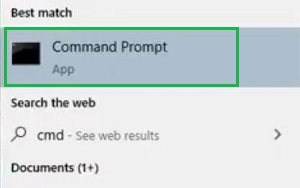
Step 1: Search for the Command Prompt in the Search bar & run it in the Administrative format.
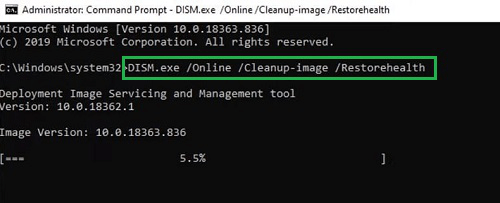
Step 2: Now, execute the following command in the CMD. Wait for the process to be completed. It will check & repair the drivers of the device.
Command: DISM /Online /Cleanup-Image /RestoreHealth
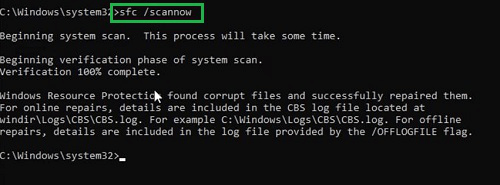
Step 3: Now, again run the following command. It will take some time to complete the overall process. It will mark any problem in the disk & start repairing it right there.
Command: sfc /scannow
Hence, we have successfully fixed the Windows Update Error 0x80010002 by checking the Disk and driver's conditions.
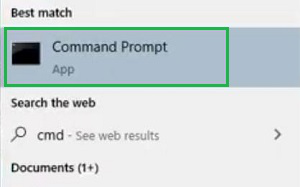
Step 1: Again we have to open the Command Prompt in the Administrative format by searching it in Search Bar.
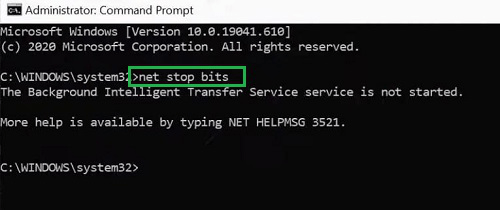
Step 2: Now, execute the following command in the Command Prompt. The command will stop the Windows Update Components in the system.
Command: net stop bits
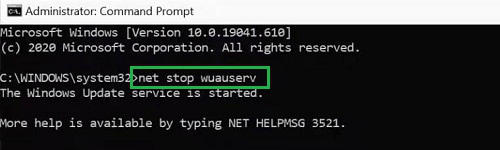
Step 3: Now, again we have to execute the following command. The command will now start the Windows Update in the device by stopping a few other unnecessary components.
Command: net stop wuauserv
Hence, we have successfully fixed the Windows Update Error 0x80010002 by restarting Windows Update Components.
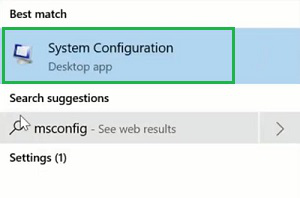
Step 1: In the search menu, Search for the System Configuration & go with the first available option.
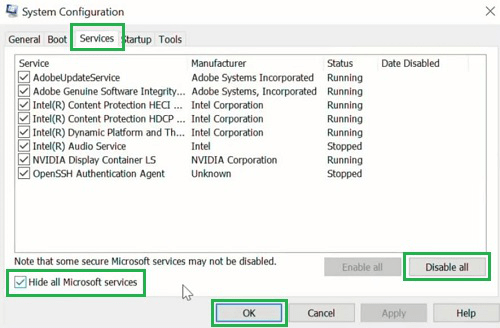
Step 2: In the new window, go to the Services Tab & mark the box Hide All Microsoft Services. You will get a few options listed there. Click on the Disable All button present there. Later, press the OK Button.
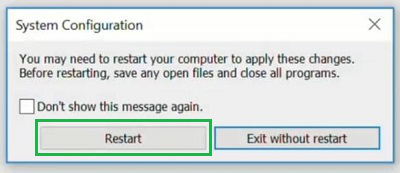
Step 3: You will get a small message on the device. Click on the Restart button to move ahead.
Hence, we have successfully fixed the Windows Update Error 0x80010002 by disabling Microsoft Applications.
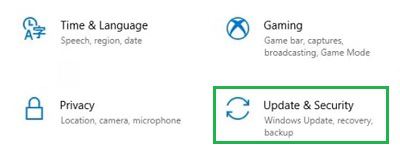
Step 1: Open Settings & go to the Update & Security section on the device.
👁 18--Go-For-Update-&-Security
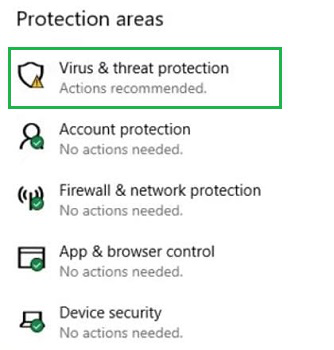
Step 2: On the Right-Hand side, you will get the option Virus & Threat Protection. Click on it to move ahead.
👁 19--Click-Virus-&-Threat-Protection
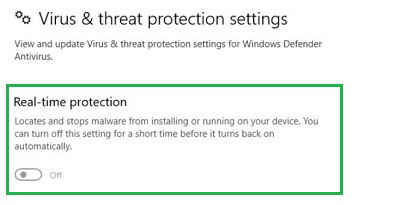
Step 3: Scroll down on the new window & you will get the option Real-Time Protection. Disable the button to stop the antivirus of the device.
👁 20--Stop-Real-Time-Protection
Hence, we have successfully fixed the Windows Update Error 0x80010002 by disabling Microsoft Antivirus.
Correcting the 0x80010002 Windows Update error is significant in ensuring the safety and performance of your system. You can easily identify and resolve the underlying issues causing this error by troubleshooting the above steps. Using whichever method you prefer, from Windows Update Troubleshooter to resetting Windows Update components to scanning through your system files, they will enable you to get your updates done. Make sure such update errors don't stay around to ruin your Windows experience; go ahead and fix those now.
Also Read