|
VOOZH | about |
|
VOOZH | about |
Hiding the Taskbar in Windows 11 is a simple process, with a few different ways to do it. Let’s explore each method step by step:
Table of Content
To hide the taskbar in Windows 11, you can follow these steps. However, some users may encounter an issue where the taskbar is not hiding in fullscreen Windows 11. Here's how you can fix it:
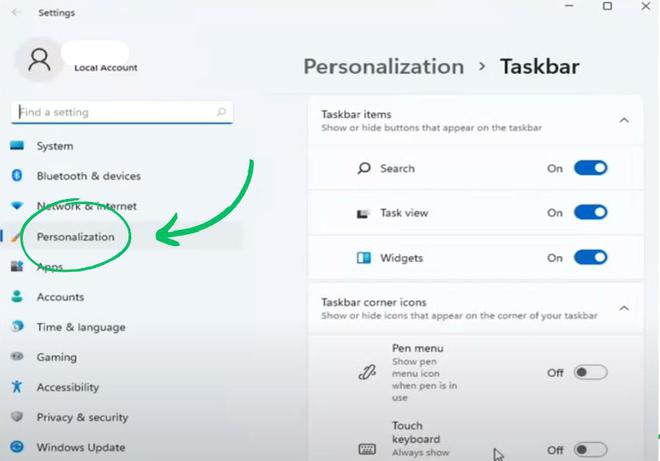
Step 1: Open Windows Settings directly from the start menu or by using the shortcut "Win + I" from your keyboard.
Step 2: Click on "Personalization" on the left side of settings.
Step 3: You'll find an option of "Taskbar" in the left pane of the window.
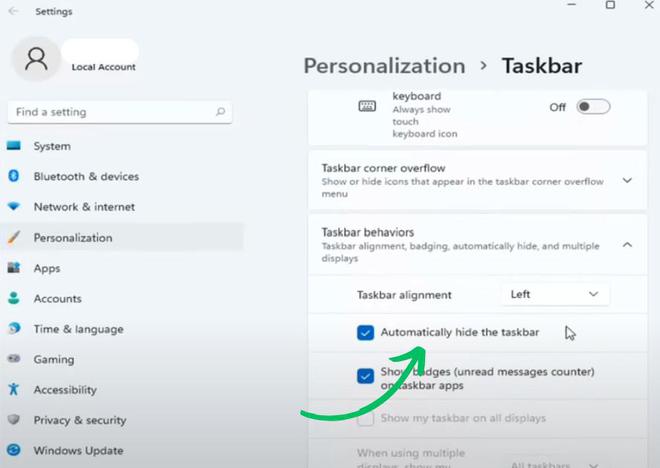
Step 4: Under Taskbar behavior, check the "Automatically hide the taskbar" option
After this setting change you should be able to use your screen in full screen mode. The taskbar will hide automatically and to use it again.
If the Taskbar is still there after trying the earlier steps, use the following method to hide it. It's an extra fix to make sure the Taskbar disappears like it should. Sometimes, users might encounter the issue of taskbar not hiding even after attempting the previous solutions. This method provides an additional workaround to ensure the Taskbar disappears as intended.
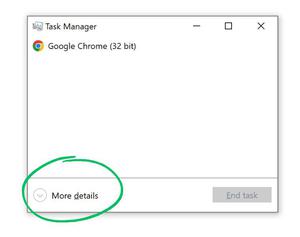
Step 1: Use short-cut key " Ctrl + shift + esc " to open Task Manager. If it is in Compact Mode, click on "More info" to enlarge the window.
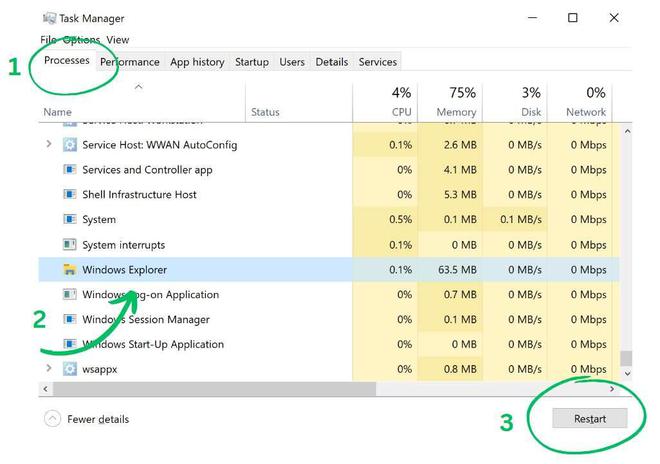
Step 2: In the "Processes" tab, scroll down and find Windows Explorer.
Step 3: Click on " Windows Explorer".
Step 4: Then, Click on the restart button at the bottom-right of task Manager window.
Step 5: Restart your PC after this step to ensure changes take place.
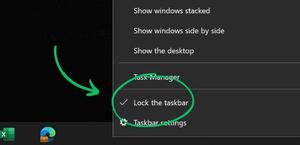
Step 1: Right click on the empty area of the Taskbar.
Step 2: Check if the "Lock the taskbar" option is checked.
Step 3: If it is, then click on it again to turn it off to hide the taskbar.
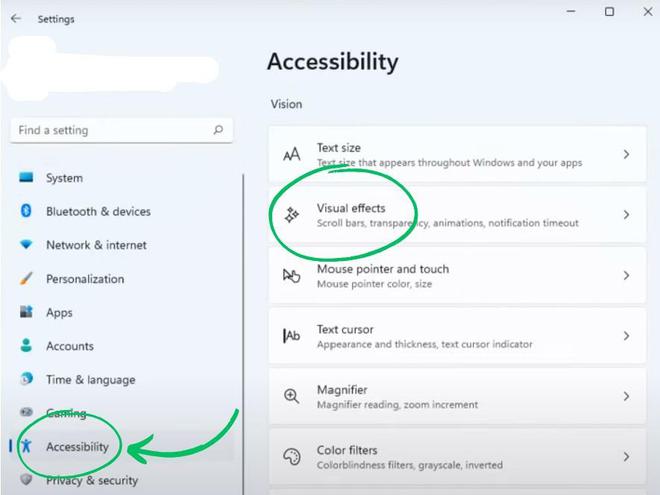
Step 1: Open Windows Settings directly from start menu or by using shortcut "Win + I" from your keyboard.
Step 2: Click on "Accessibility" on the left side of settings.
👁 turnOffVisualeffects_1Step 3: Then, Click on "Visual Effects".
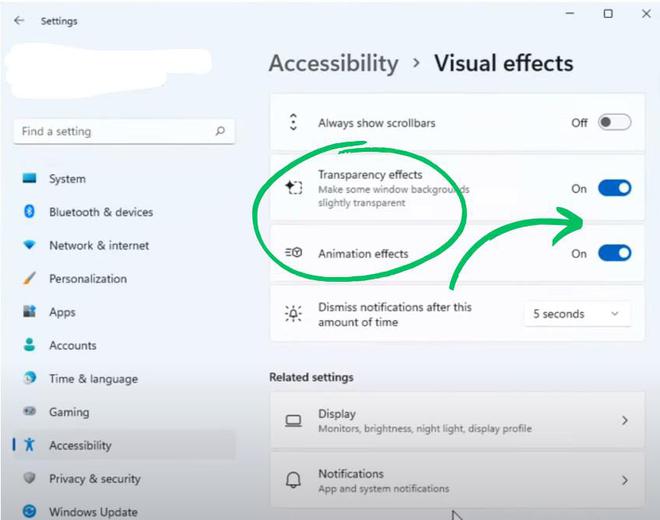
Step 4: Turn off both "Transparency effects" and "Animation effects".
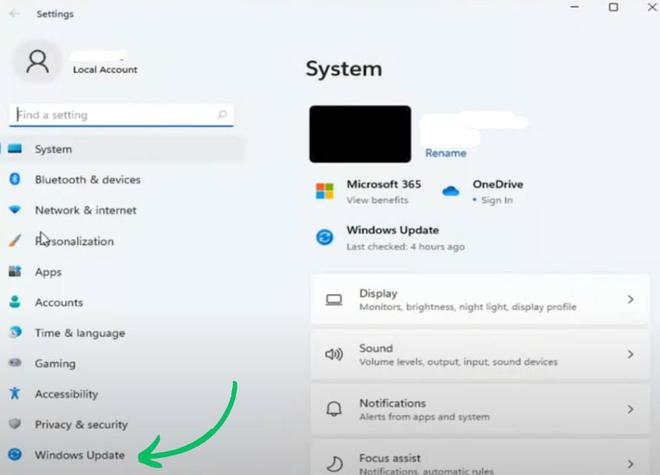
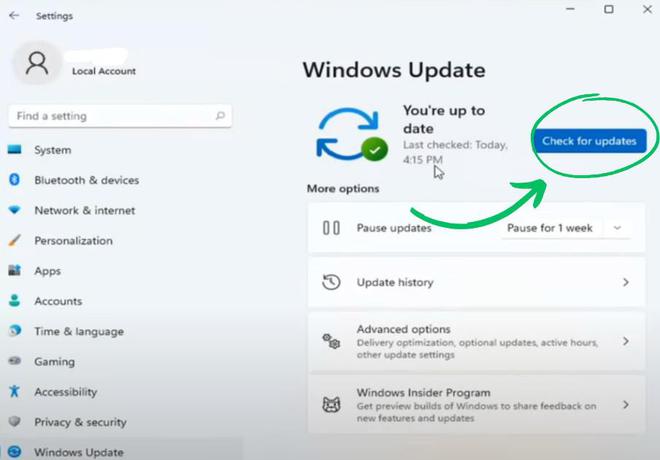
Step 1: Open Windows Settings directly from start menu or by using the shortcut "Win + I" from your keyboard.
Step 2: Click on "Windows Update" on the left side of settings.
Step 3: Then, Click on "Check for updates".
Step 4: If PC has updates, install them. Remember to Restart your PC after installing updates.
In conclusion, follow these methods to easily hide the taskbar. and can enjoy the fullscreen.