|
VOOZH | about |
|
VOOZH | about |
If you're looking to hide the taskbar in Windows 10, it's easy to do with just a few simple steps. Whether you prefer a cleaner desktop look or need more screen space, the auto-hide taskbar feature allows you to make the taskbar disappear until you hover over its location. In this guide, we'll walk you through how to hide the taskbar in Windows 10 and customize it according to your preferences using the Windows 10 taskbar settings.
Taskbar is a graphical tool kit present at the bottom of the screen in the Windows operating system. Whatever applications are running in the device will be present in the taskbar. There are some elements present in the taskbar & they are the following:
Now if you want to hide the Taskbar in Windows specifically for Windows 10, you can follow the following steps:
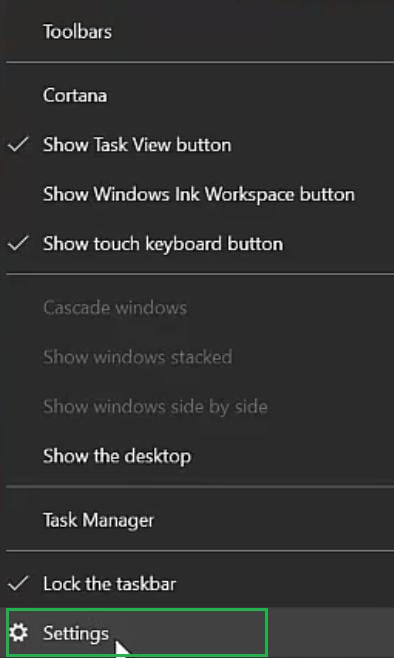
Step 1: Right-click on the Taskbar & it will provide a list of options. Among those options, click on the Settings option.
Step 2: A new settings window will be opened. Inside that window, find one option as automatically hide Taskbar In Desktop mode. Enable the button present under that portion & make it On.
These straightforward steps are all you need to hide the taskbar in the Windows 10 operating system.
Enabling the auto-hide taskbar in Windows 10gives you more control over your workspace and helps you reduce visual clutter. Whether you want to hide the taskbar automatically or customize other aspects of it, the Windows 10 taskbar settings provide easy options for making your desktop more functional. Try out the taskbar auto-hide feature in Windows 10 to create a more streamlined user experience.