|
VOOZH | about |
|
VOOZH | about |
Quick Solution!
Here is a quick solution for our active and speedy learners. Follow these steps to change a drive name on your Windows PC.
- Open File Explorer.
- Right-click on the drive you want to rename.
- Select "Rename."
- Type the new name and press Enter.
The drive name is now changed on Windows 11.
Windows 11 has an updated interface, enhanced performance, and improved security features. An interesting feature of Windows 11 is that it allows you to personalize the names of your drives – the partitions or storage devices where you store your files and programs. By changing the drive names you can effectively organize your data. Easily determine the purpose of each drive.
In this article, we will show you six different methods to change a drive name on Windows 11.
Table of Content
Step 1: Open File Explorer by pressing the Windows + E keys.
Step 2: In the left pane, Click on This PC
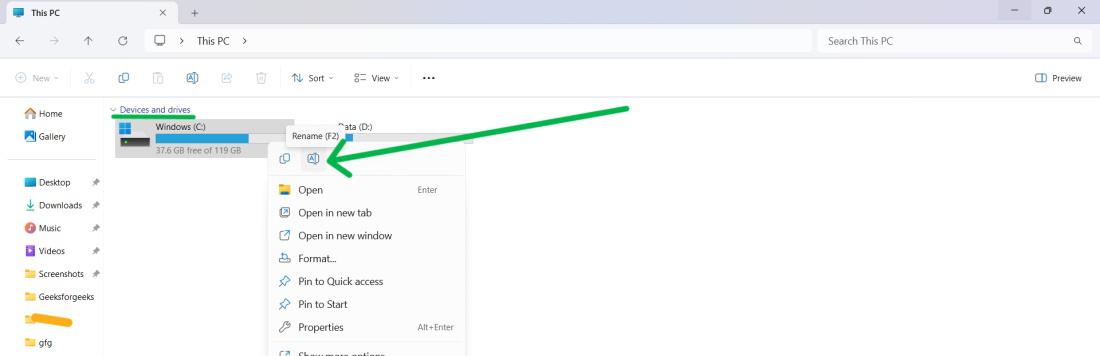
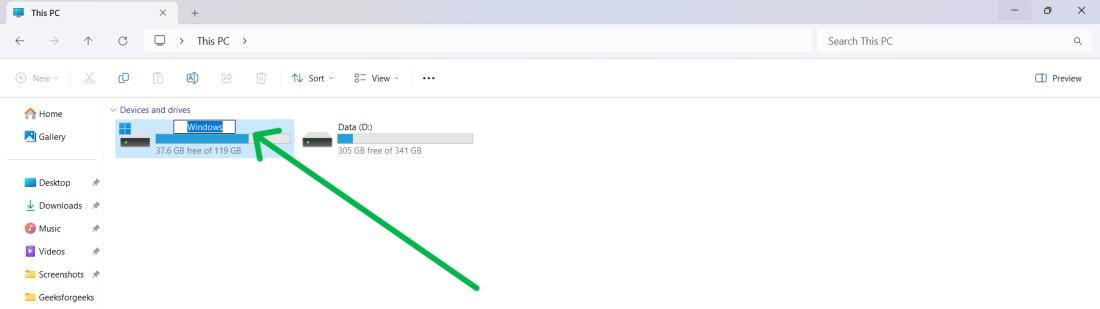
Step 3: Locate the drive that you want to rename, and right-click on it or select the drive then use shortcut F2. then click on Rename icon.
Step 4: Type the new name for the drive. Press Enter to confirm the change.
👁 How-to-Change-a-Drive-Name-on-Windows-11-Using-File-Explorer-2
Step 1: Open Settings by pressing Windows + I keys.
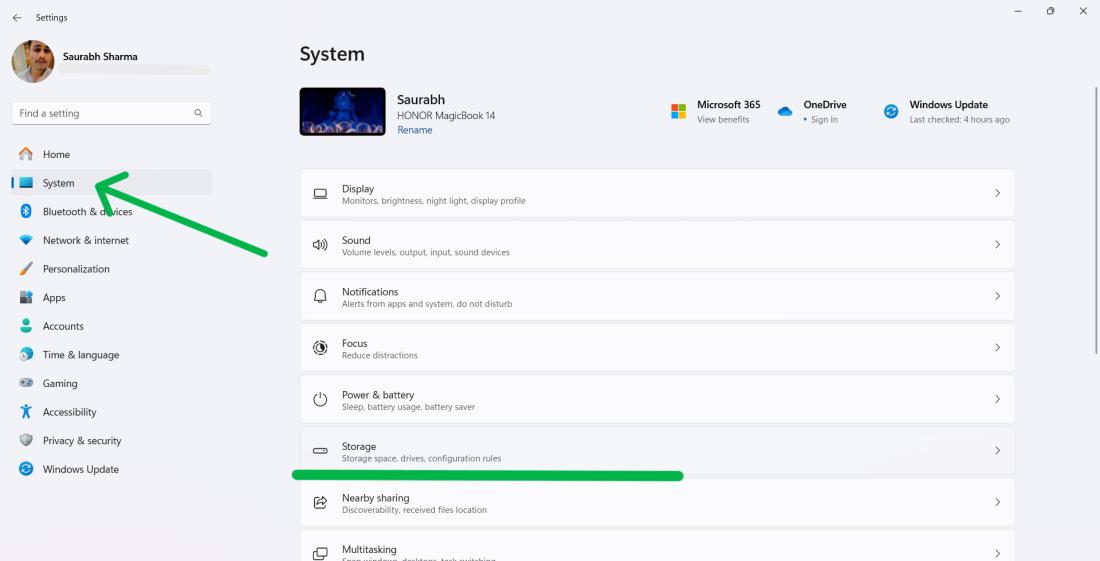
Step 2: Navigate to "System" and then click on "Storage."
👁 How-To-Change-Volume-Label-Using-the-Settings-App
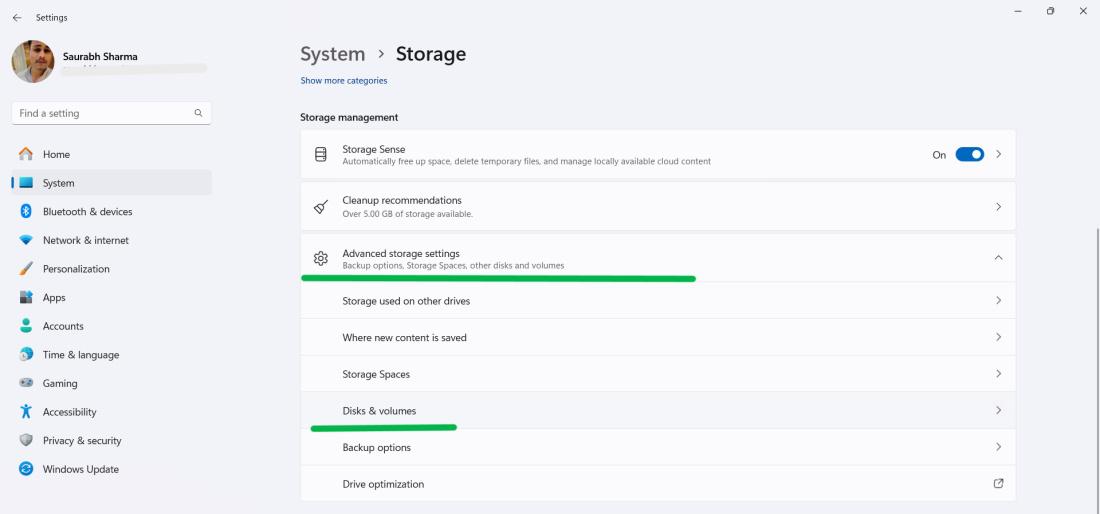
Step 3: Expand Advanced storage settings then, click Disks & volumes.
Step 4: Choose the drive you want to rename and click "Properties."
👁 How-To-Change-Volume-Label-Using-the-Settings-App-1
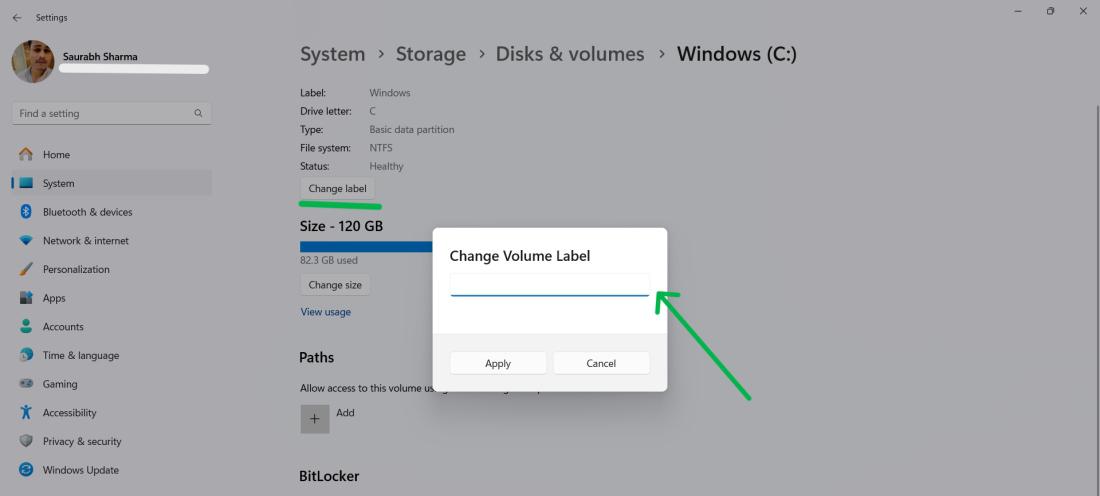
Step 5: Click the Change label button.
Step 6: Enter your desired name in the "Volume label" field.
👁 How-To-Change-Volume-Label-Using-the-Settings-App-2
Step 7: Click "Apply" and then "OK" to save the changes.
Step 1: Click the Start button and then select "Disk Management."
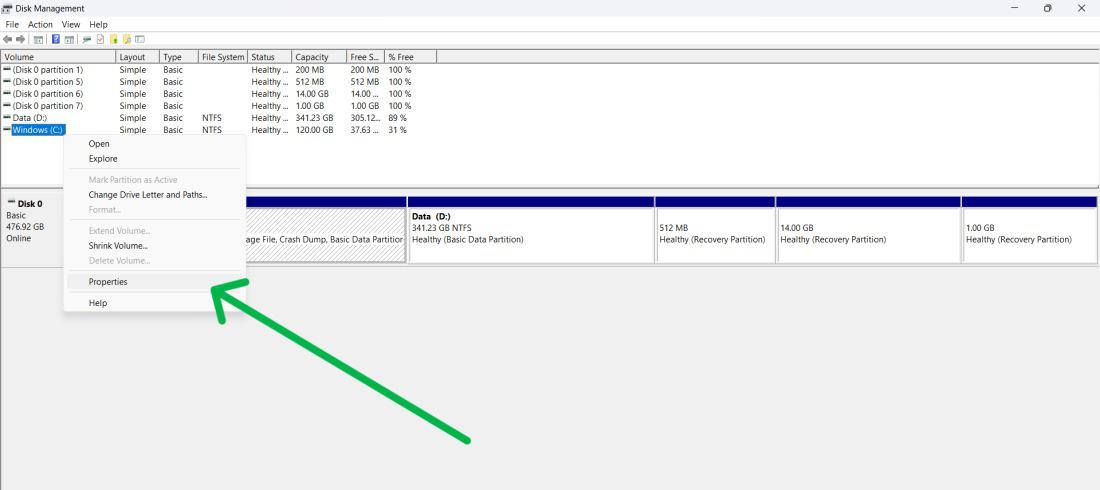
Step 2: Right-click the drive you want to rename and choose "Properties."
👁 How-To-Change-Volume-Label-via-the-Disk-Management-Tool
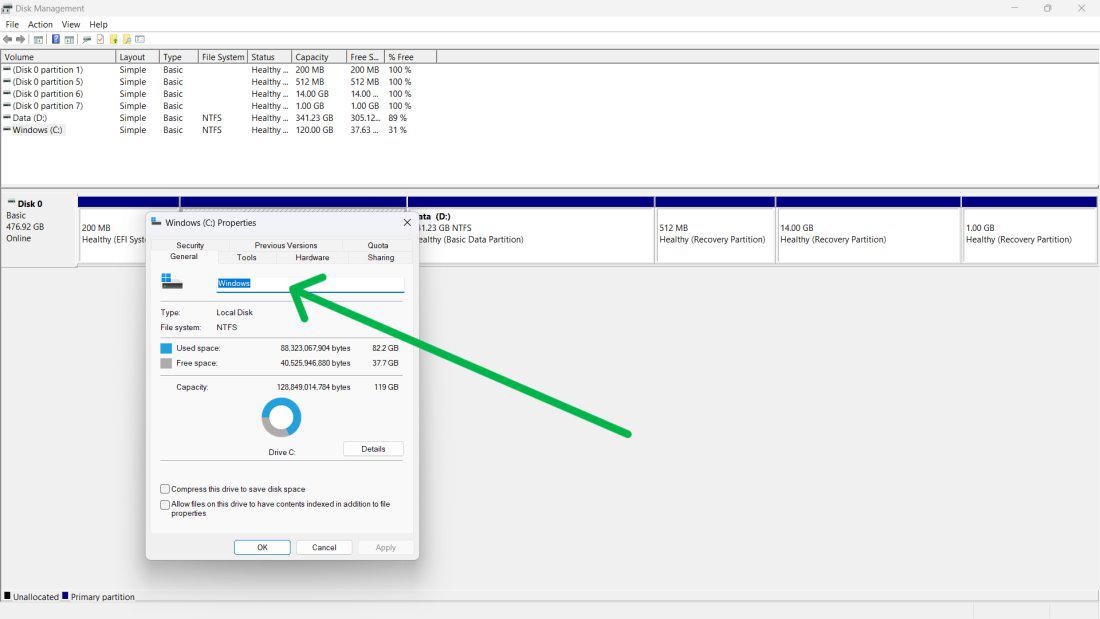
Step 3: In the window, go to the General tab, enter the new name in the top field
👁 How-To-Change-Volume-Label-via-the-Disk-Management-Tool-2
Step 4: Click on "Apply" and then "OK"
Step 1: Open File Explorer by pressing Windows + E keys.
Step 2: In the left pane, Click on This PC
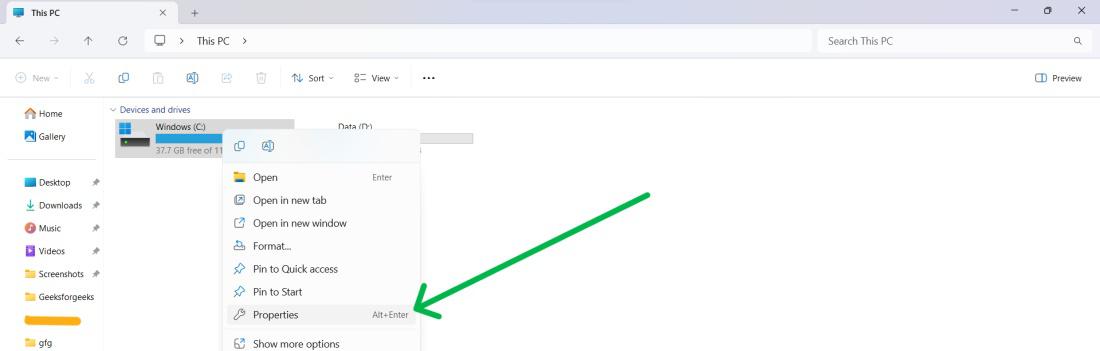
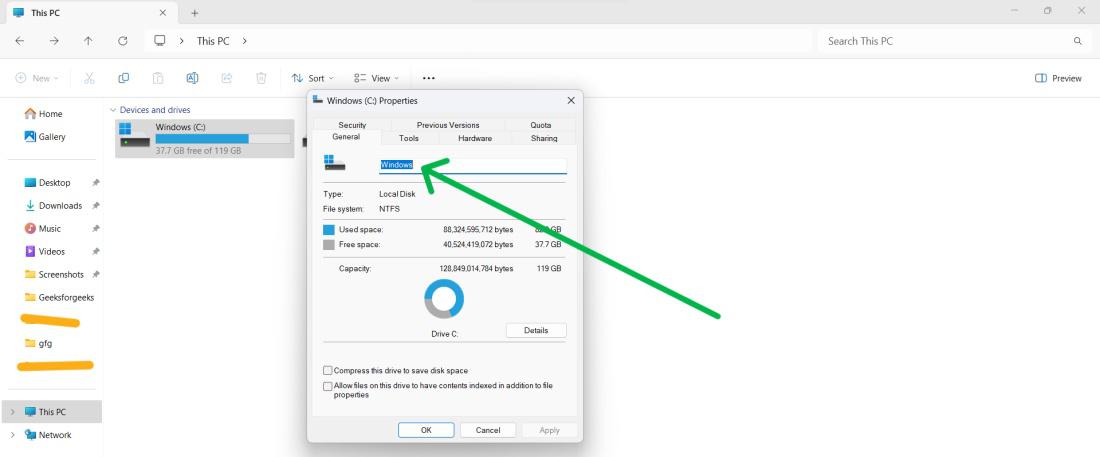
Step 3: Right-click the drive and choose "Properties" from the context menu.
👁 How-to-Rename-a-Drive-on-Windows-11-Using-the-Properties-Menu
Step 4: Under the "General" tab, type your desired name in the field.
👁 How-to-Rename-a-Drive-on-Windows-11-Using-the-Properties-Menu-1
Step 5: Click "Apply" and then "OK" to save the changes.
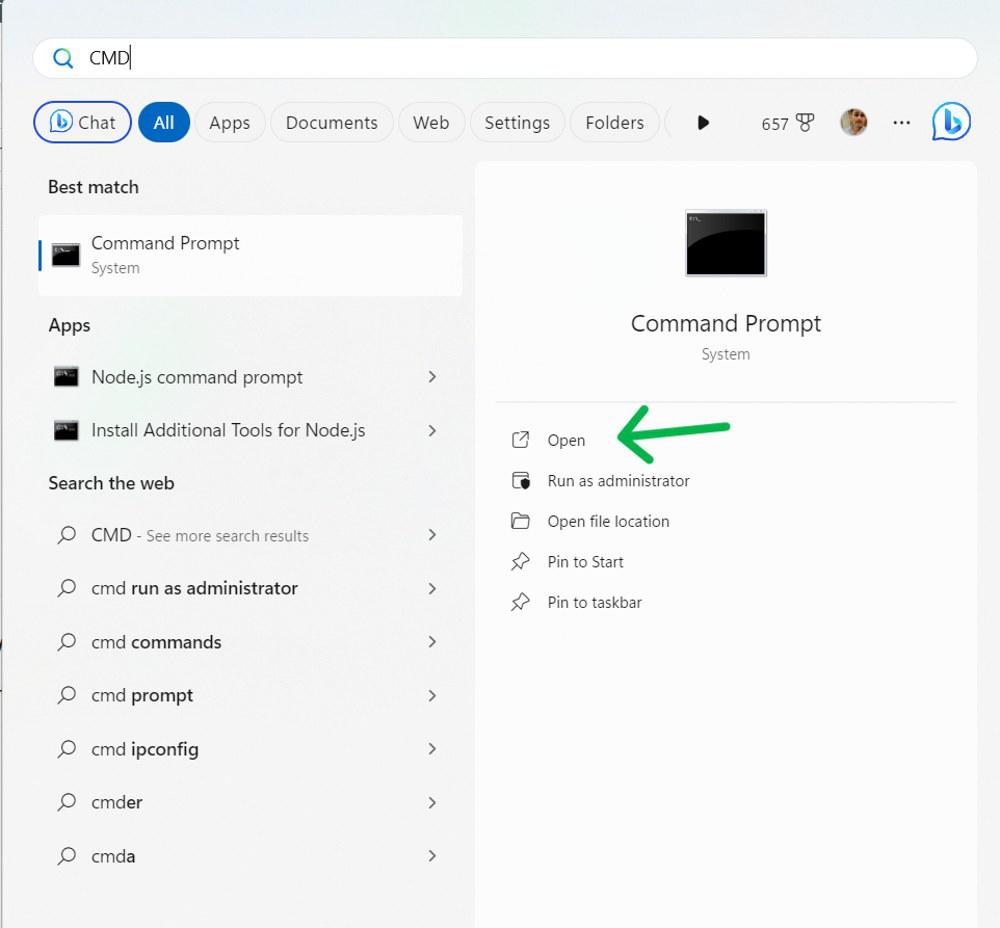
Step 1: To open command prompt. Press Win + S then on search bar type "CMD" then click on "Run as administrator"
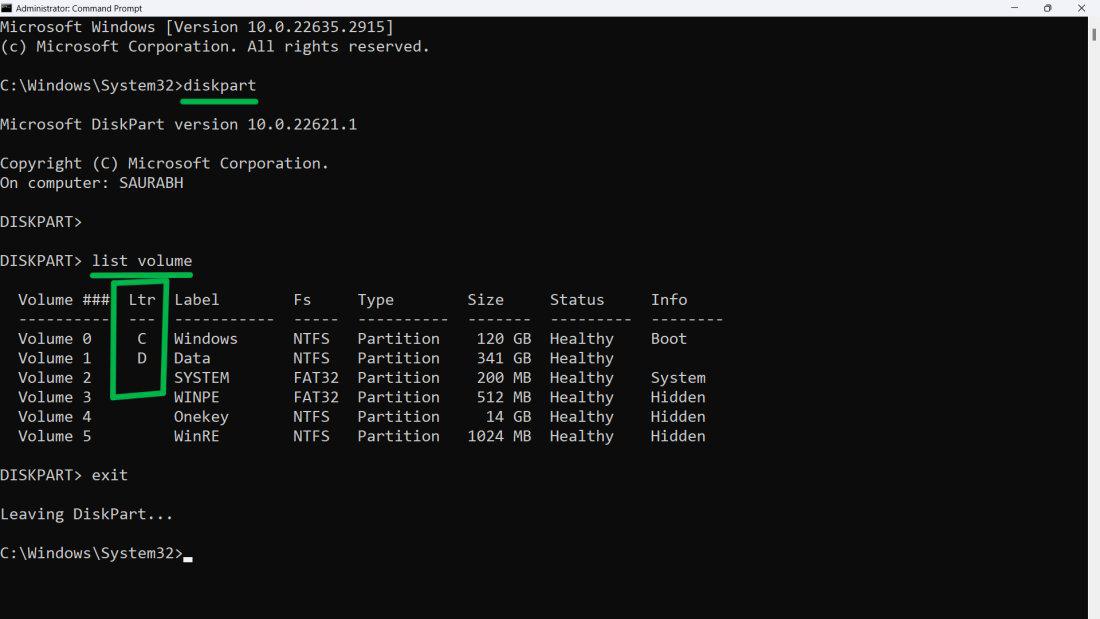
Step 2: Type these commands on CMD window
diskpartlist volumeStep 3: Take note of the letter assigned to your drive in the Ltr column.
Step 4: Type exit command to exit DiskPart.
👁 How-TO-Change-Volume-Label-Using-Command-Prompt
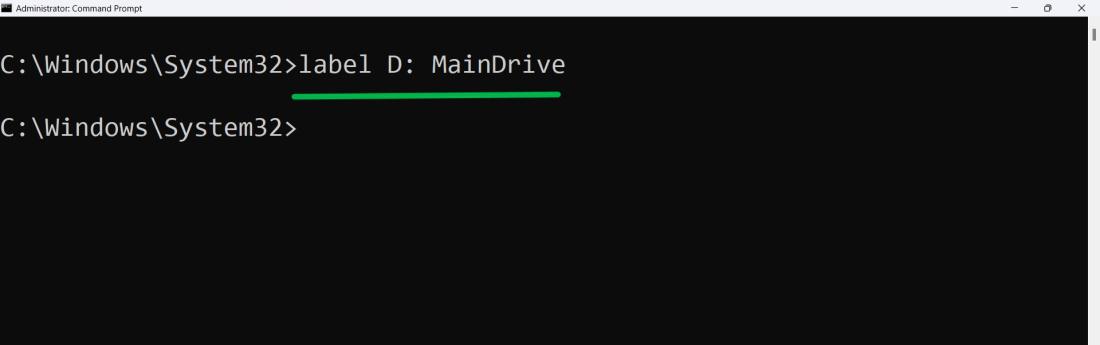
Step 5: Type this following command cmd
label <DriveLetter>: <DriveName>
Replace <DriveLetter> in the command with the previously noted drive letter. Similarly, substitute <DriveName> with your desired name.
👁 How-TO-Change-Volume-Label-Using-Command-Prompt-1
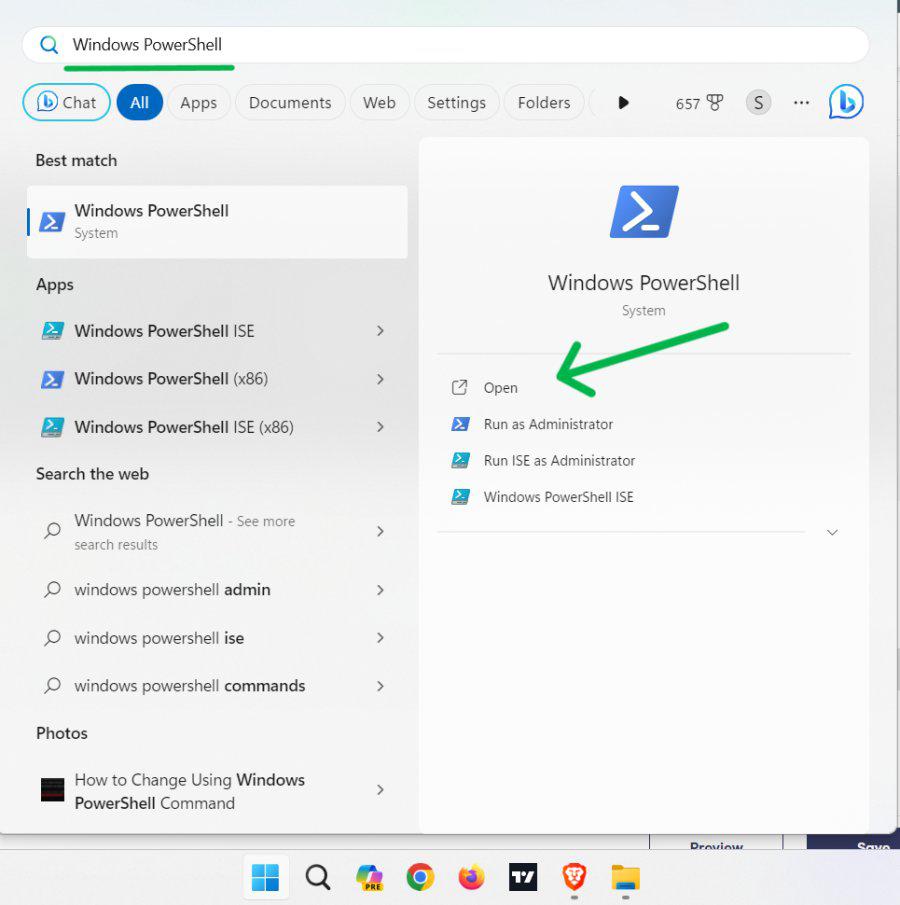
Step 1: To open Powershell. Press Win + S then on search bar type "PowerShell" then click on "Run as administrator"
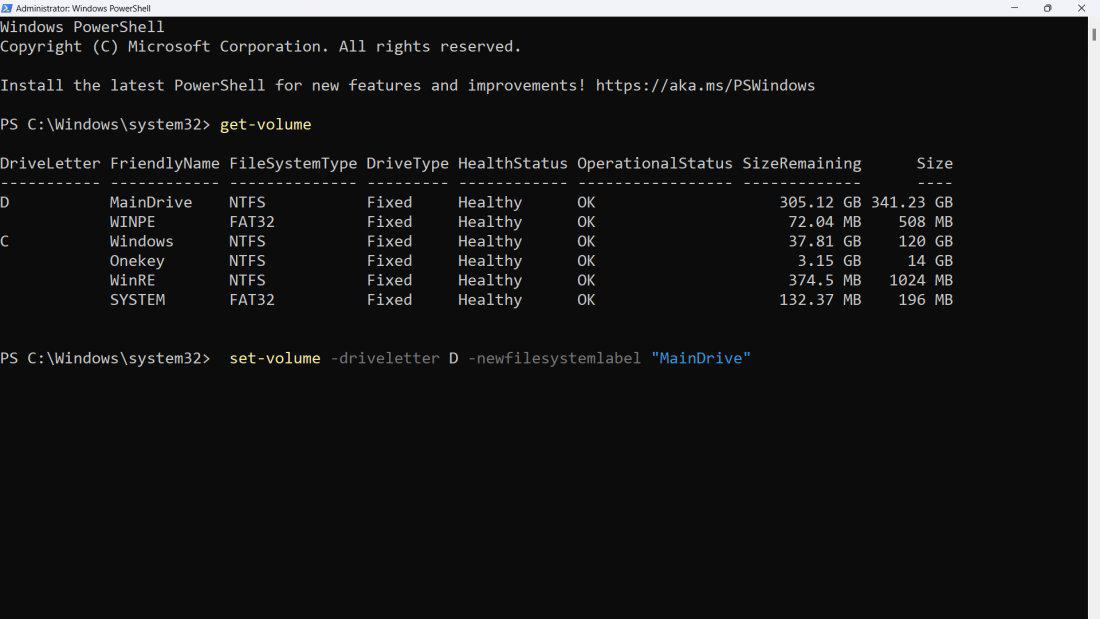
Step 2: Type these commands on Powershell
get-volumeset-volume -driveletter <DriveLetter> -newfilesystemlabel "<DriveName>"Replace <DriveLetter> in the command with the previously noted drive letter. Similarly, substitute <DriveName> with your desired name.
set-volume -driveletter D -newfilesystemlabel "MainDrive"👁 How-to-Change-a-Drive-Name-Using-PowerShell
In Conclusion, Here are six different methods we've shared for changing a drive name on Windows 11. These methods involve using tools and commands giving you the flexibility to choose the one that suits your preference and convenience. By customizing your drive names you can better organize your data. Easily identify the purpose of each drive.