|
VOOZH | about |
|
VOOZH | about |
The Command Prompt (CMD) in Windows is a powerful tool for executing commands, managing files, and navigating your system. One of the most common tasks you’ll perform in CMD is changing directories, which allows you to move between folders to access and manage files. But have you know how to change directories in CMD. This guide will walk you through the step-by-step process of changing directories in Windows 11 and Windows 10 using basic commands like cd (change directory) and dir (list contents).
Before moving towards the CD command let explore what exactly windows directory is? So, a directory, also known as a folder, is a container used to store and organize files and subdirectories on a computer. It's a way to categorize and structure your files, making it easier to locate and access them. Think of a directory as a physical file folder, where you can store related documents, images, or other files.
Before moving ahead with Changing Directories to Windows Folders, we have to understand Directory Changing to Different Levels. Let us discuss all the methods for Changing Directories in CMD at different levels in Windows 10 or 11.
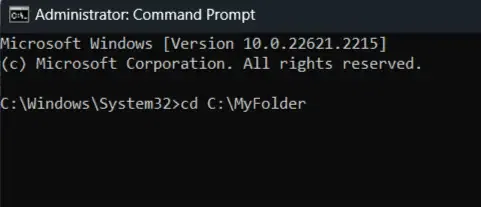
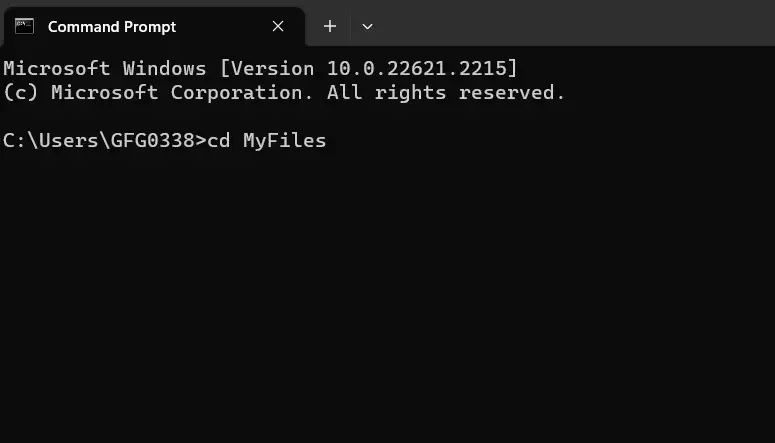
Open Command Prompt to change to a directory in the root directory (such as"C:\" on Windows), you can use the `cd` command followed by the directory name.
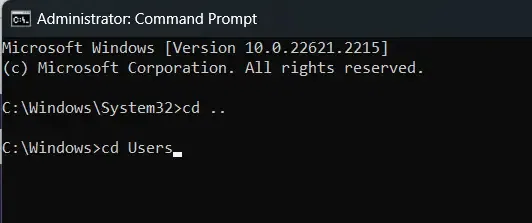
Open Command Prompt to move to a directory within the parent directory (like going from "Documents" to "Users"), simply use the `cd` command followed by `..` to go up one level, and then the name of the parent directory.
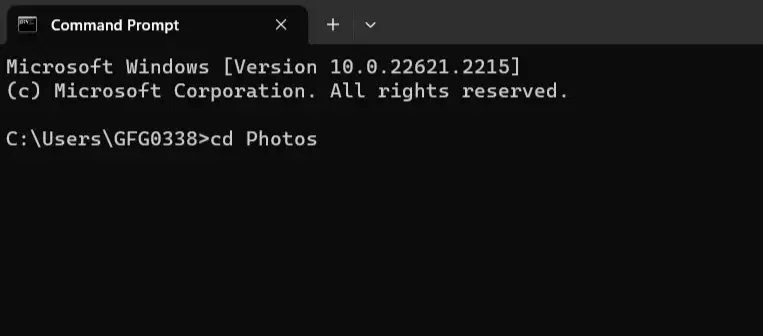
Open CMD or Command Prompt to enter a subdirectory within your current directory (such as going from "Documents" to "Photos"), use the `cd` command followed by the name of the subdirectory.
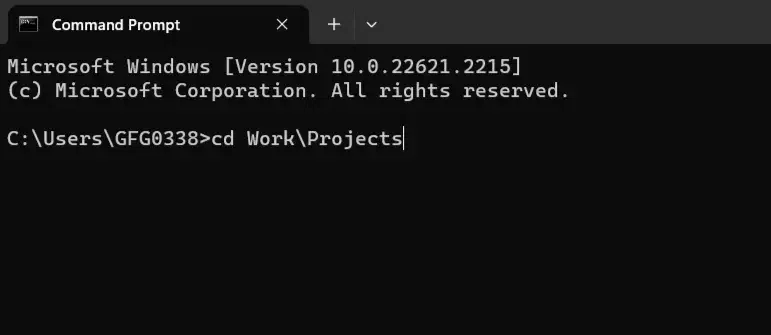
Open CMD to navigate to a deeply nested subdirectory (like going from "Documents" to "Work > Projects"), use the `cd` command with each subdirectory name, separated by a backslash (\).
Open Command Prompt in Windows 10 or 11 to enter a directory that doesn't contain any subdirectories (like going to a folder with just files), use the `cd` command followed by the leaf directory's name.
Note: Remember, you can always type `cd ..` to go up one level and explore different directories easily.
Now, after discussing Directory Change in Different Levels, we will discuss all the possible methods that are required to Change Directories to Folders in the Windows Command Line Tool.
For those who prefer a graphical approach, changing directories using drag and drop is simple. You can open File Explorer, locate the desired directory, and drag it to the Command Prompt window. This action automatically populates the Command Line with the directory path.
Changing directories using commands may seem tricky at first, but it's essential to get the hang of it in Command Prompt. Here are some easy methods to do it:
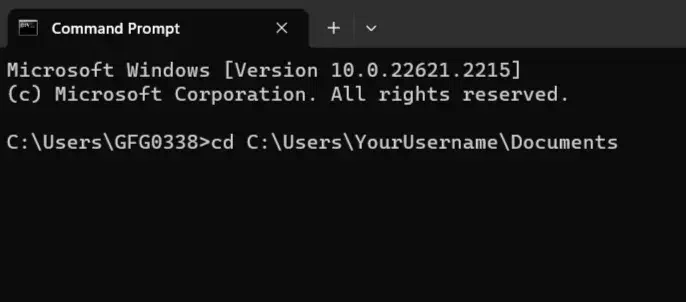
This is like using a full address to find a place. In Command Prompt, you can use the full path to a folder to get there directly. This will take you straight to your "Documents" folder. For instance:
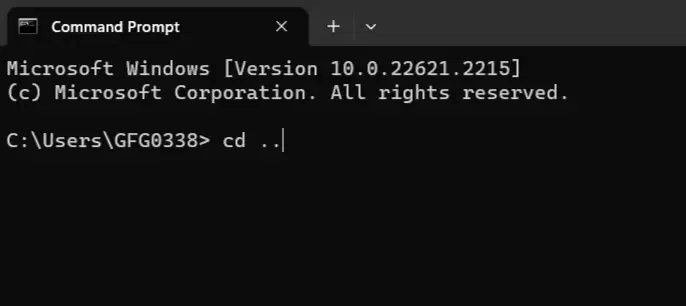
Think of this as giving directions from where you are. You can use `..` to move up one level and the folder name to go into a subfolder. This will take you up one level from where you are right now. For example:
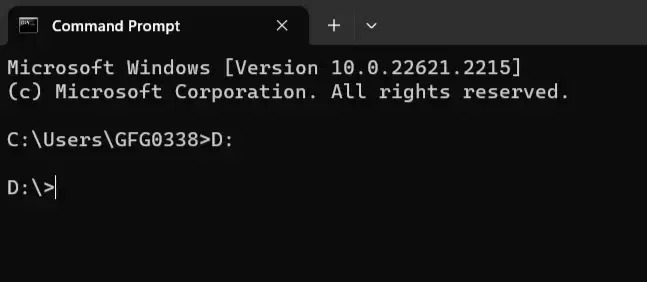
Imagine switching between different drives as changing streets. To switch to a different drive, just type its letter and a colon. This will take you to the D: drive. For example:
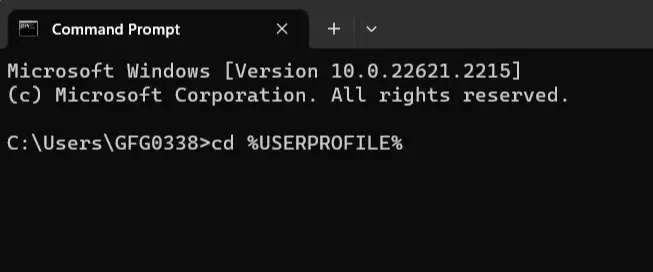
These are like shortcuts to important places. You can use names like `%USERPROFILE%` to go to common folders without typing the whole path. This will take you to your user profile folder. For example:
Think of this as your Command Prompt assistant. When you start typing a folder name and press Tab, Command Prompt will try to finish it for you. If there's more than one option, it will show you a list.
This is like having a "go back" button. If you want to return to the folder you were in before, just type `cd ..`. It's like a quick way to backtrack.
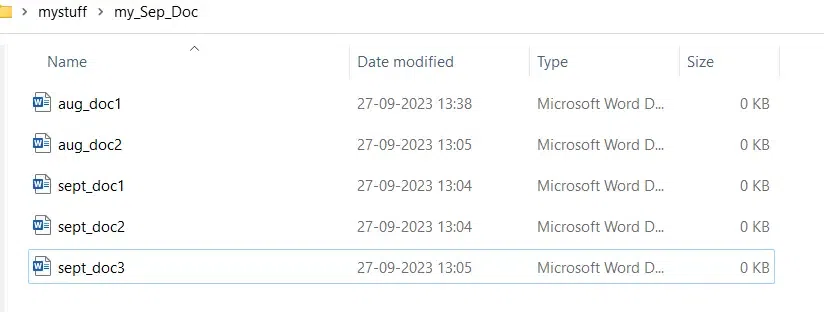
Wildcards are like search filters. You can use `*` to find folders based on patterns. This will take you to a folder with a name starting with "sep". For example:
cd C:\Users\GFG0338\Desktop\mystuff\my_Sep_Doc>dir sep*.*It lists all Windows Files and Directories (folders) in the current directories. This helps the users to quickly see what Files and Directories are present in a particular location
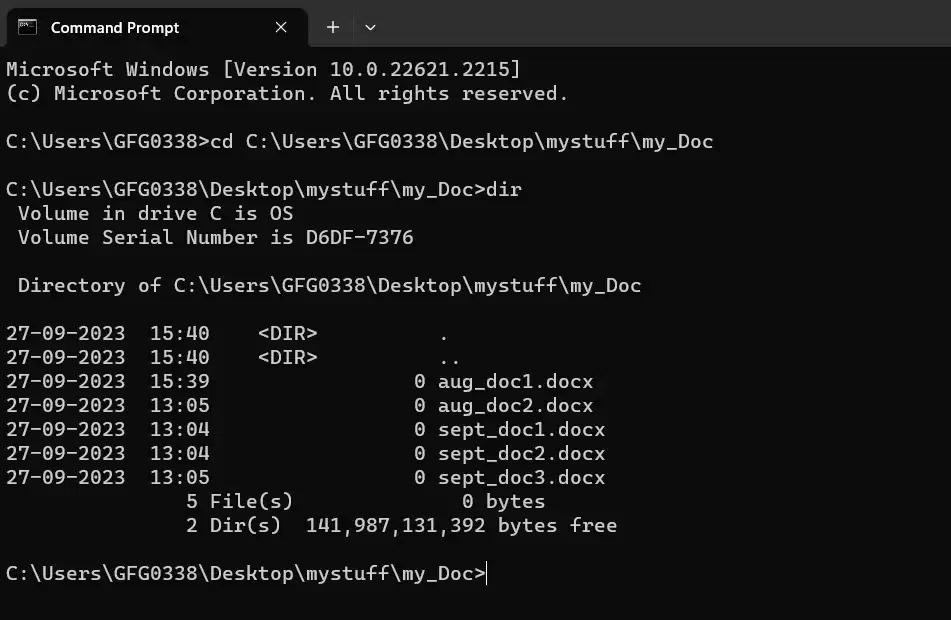
For example, if you want to list the content of " C:\Users\GFG0338\Desktop\mystuff\my_Doc ", you would type the following:
This will give you a list of Files and Directories in that folder along with respective attributes.
When you want to navigate to a different folder in the Command Prompt, it's like giving your computer directions. Here's how to do it in simple steps:
Note: Remember, you can always use the `cd ..` command to go up one level if you ever want to backtrack.
Below we have highlighted a few tips and tricks to make directory navigation in the Command Prompt much easier, let's check them out:
The dir command is being used in CMD to list down all the files and directories in the current folder, here's a quick example for this:
dirThe cd .. command helps in navigating back to the previous directory instantly, here's a quick example for this:
cd ..You can also choose to simply drag a folder from File Explorer into the Command Prompt. This woll automatically insert the entire path of that directory into CMD.
There could be five possible reasons if you're unable to change directory in CMD (command prompt). Let's identify them in segregated format:
If you are not using the correct command, it might led to throw Syntax error. For example,
cd C:\Path\To\Directory (no quotes unless the path contains spaces)Since, normal users have the limited access so there are high chances that you might not beable to access to certain directories. So, it's recommended to run CMD as an administrator.
Sometimes, we do try to access to a certain directory that might not exist. So, it's better to verify the path using dir to list down all the available directories.
If the path contains spaces or special characters, enclose the path in double quotes, For example,
cd "C:\My Folder"If you're trying to change to a directory on a different drive, make sure to switch drives first by typing the drive letter. For example D: before using cd.
D: cdTo ensure efficient directory management, follow these best practices:
Also Read