|
VOOZH | about |
|
VOOZH | about |
If you spend more than 6 hours on your computer, then you probably wouldn't have noticed that you need to adjust screen brightness. This will not just help you with discomfort in your eyes but also conserve a lot of battery as well. If you're a Windows user, you can change screen brightness in Windows 10 by using a few simple steps. Following this, we will walk you through various steps of changing and managing Windows 10 brightness settings. Let's find out:
Table of Content
Now, we will discuss a few better and easier options to adjust screen brightness on a Windows 10 PC. Let's get started:
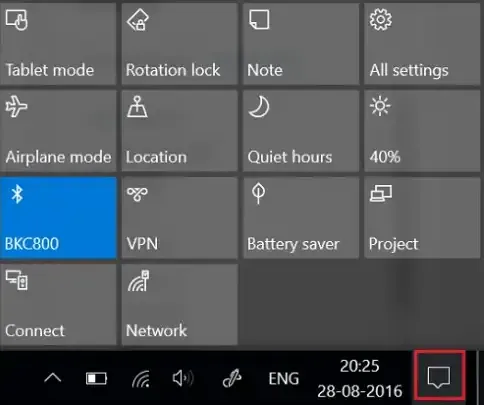
The Action Center of Windows is typically used to perform quick actions and check notifications. Let's see how does screen brightness control can work using the Action Center:
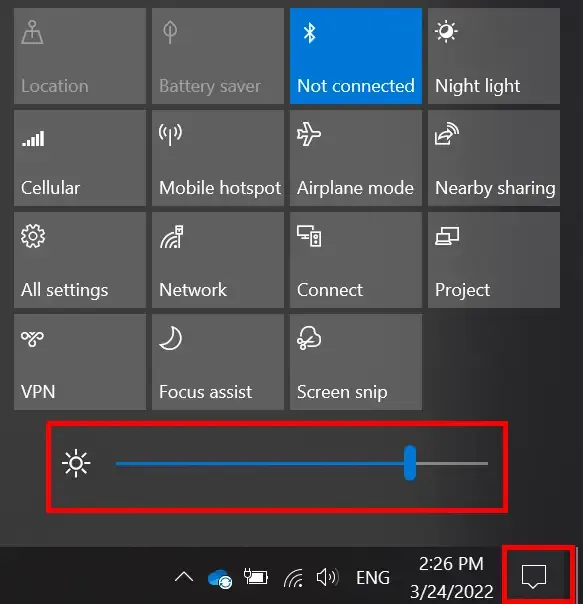
Click on the Notification icon (on the bottom right corner) or use Windows Shortcut Key Win + A to quickly access the Action Center Windows 10.
You will now notice a bunch of app icons, find the one with "sun" i.e. to change screen brightness in Windows 10 and change (increase/decrease) brightness accordingly.
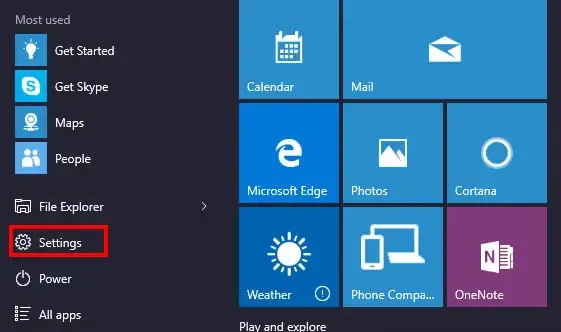
You can use the Windows 10 "Settings" to adjust the screen brightness as and when needed. This is the most suitable and easier way to perform this action. Let's find out te detailed steps to change screen brightness in Windows 10:
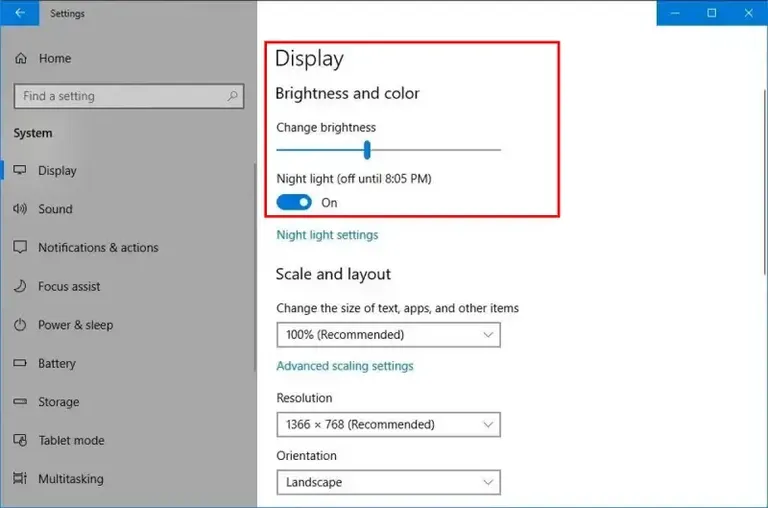
Click on the Start Menu and type "Settings" or simply press Windows button and select Settings and navigate to System and then Display.
Under Display, you'll find a toggle bar to adjust display brightness, so make changes by sliding it to set your preferred level.
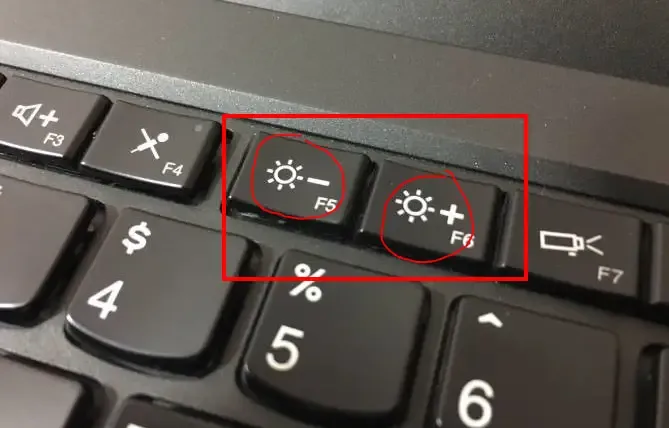
Most of the modern laptops are now having a dedicated key to control the screen brightness. Here's what you need to know about applying it:
Locate the F5 or F6 keys (may vary on brands) where you might find the "sun icon" to adjust screen brightness from low to high. You can use them by pressing along with the "Fn" key.
Now, upon your brand's brightness adjustment keys, press the combination of keys using "Fn" (may vary by the brand manufacturer) to adjust the brightness.
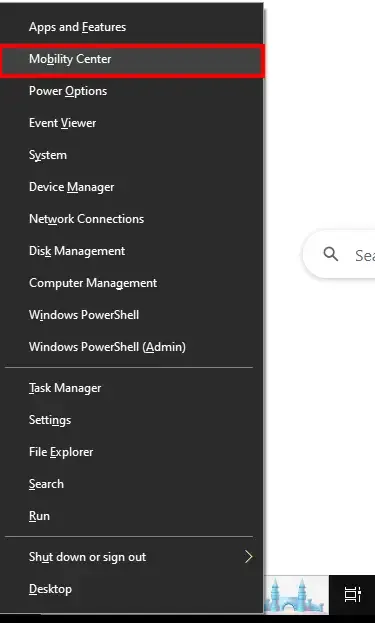
Mobility Center provides a quick access for Windows Settings, here's how you can use the Windows Mobility Center to change screen brightness in Windows 10.
Press Win + X and select Mobility Center
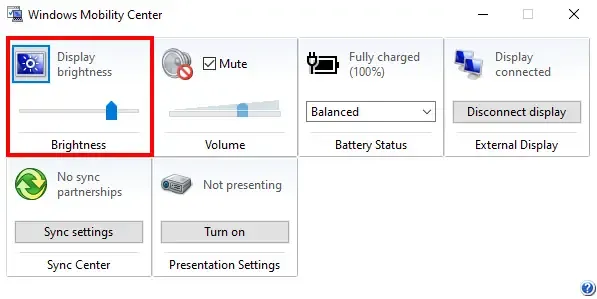
A pop-up window will open, check the slider on the brightness settings and adjust the display as per requirement.
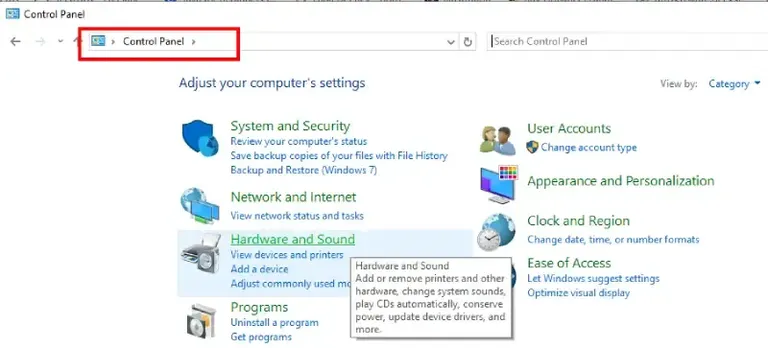
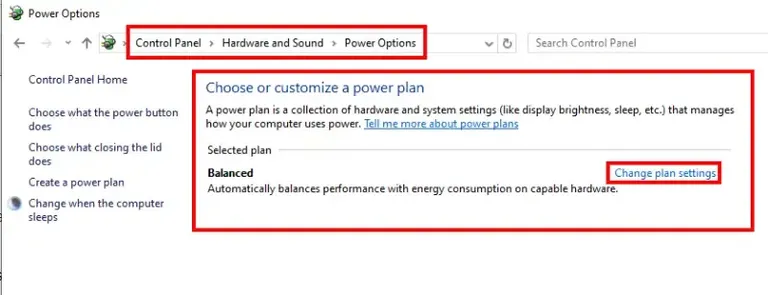
You can also use the Windows Control Panel to control screen brightness on your Windows 10 PC. Here's how you can perform this action:
Press Win + R and type "Control" and hit the enter button or click on the start menu and search for Control Panel and click to open it.
Navigate to Hardware and Sound > Power Options
You can change the screen brightness as per your need:
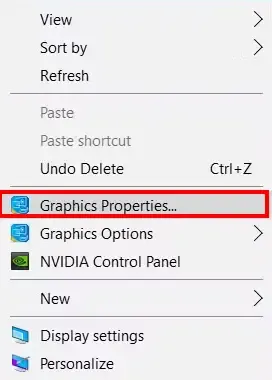
You can also choose your Graphics Control Panel to adjust the screen brightness. Here's how to perform this quick action:
Go to the desktop and make a right-click and select your Graphics Properties.
Navigate to the display section and adjust the brightness slider.
Adjusting your screen brightness on Windows 10 can be performed using six different methods as discussed in the above guide including Windows Action Center, Keyboard Shortcut, Mobility Center, Control Panel, GPU, and much more. Making regular updates within your Windows 10 computer will ensure that your system is running up and smooth.