|
VOOZH | about |
|
VOOZH | about |
If you are a Windows user, one of the easiest ways to change your password is through the Command Prompt (CMD). This is especially helpful for users who prefer command-line tools or face issues accessing the standard settings menu.
In this article, we’ll guide you through the steps to change your Windows password using CMD, along with a few troubleshooting tips.
Prerequisites:
1. Administrative Rights
2. Familiar with the existing User Accounts
3. Backup the unsaved data
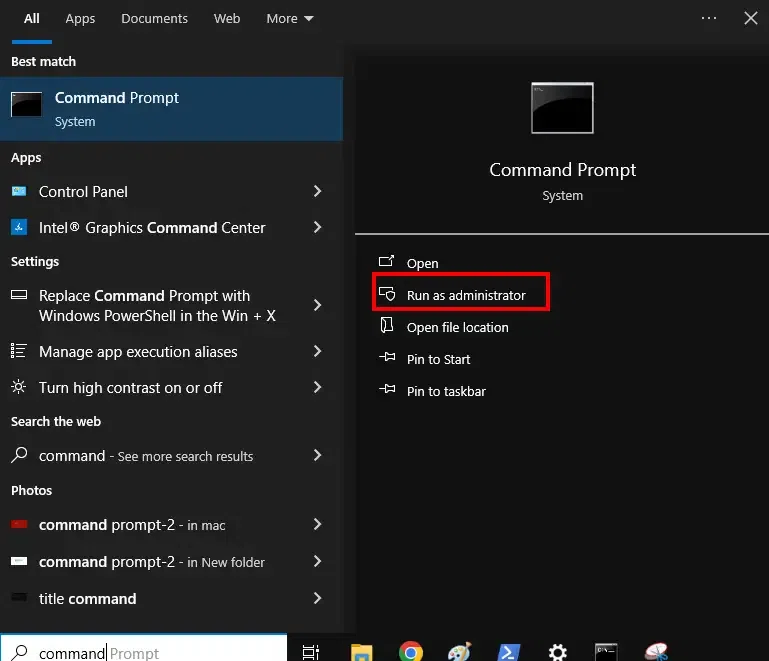
Go to the Search Menu, type CMD and select "Run as Administrator".
net user <username> <newpassword>net user [username] [newpassword]Replace "[username]" with the username of the account whose password you want to change, and "[newpassword]" with the new password you want to set.
Close the Command Prompt and log in with the new password.
Use this method to change the password for any particular user. Here's how you can do it:
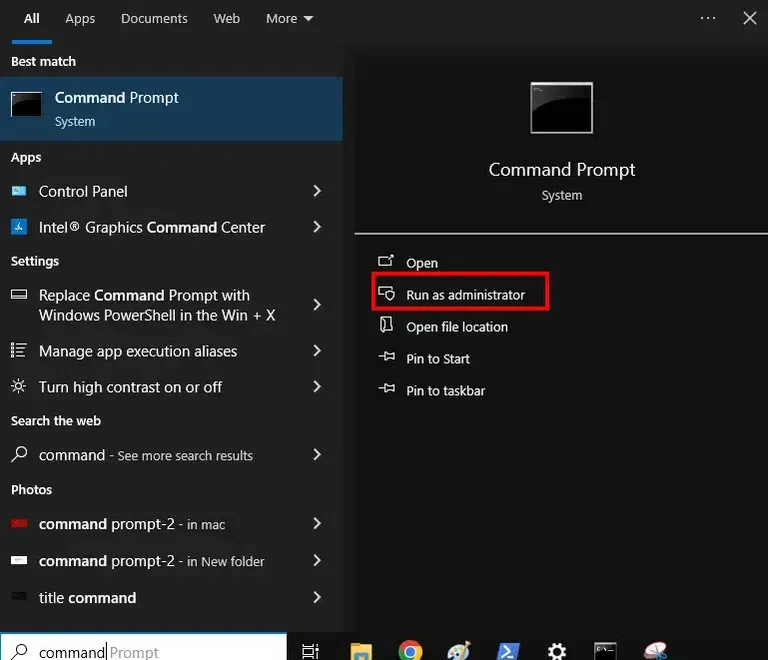
Go to the Search Menu, type CMD and select "Run as Administrator".
net usernet user USERNAME NEWPASSIf your desired user name has more tan one word then follow this pattern:
For Example: Username - ALPHA GTR
net user "ALPHA GTR" NEWPASS
Now, what if you're looking to remove a password using Command prompt? Let's see how you can get it done.
$username = 'UserNameHere'; $password = Read-Host -AsSecureString; net user $username $passwordNote: Replace UserNameHere with the desired user account.
net user <username> <newpassword>If you wish to remove the password for any particular account, you can set the password to blank by removing the password in the command line. Let's check it out:
Go to Search Menu > type CMD > select "Run as Administrator"
net user USERALPHA ""Hence, this will clear your previously saved password for the account - USERALPHA
While using CMD to change your password is usually a reliable method, there are a few common issues users may face:
Without administration access, you won't be able to perform any of the above-mentioned action.
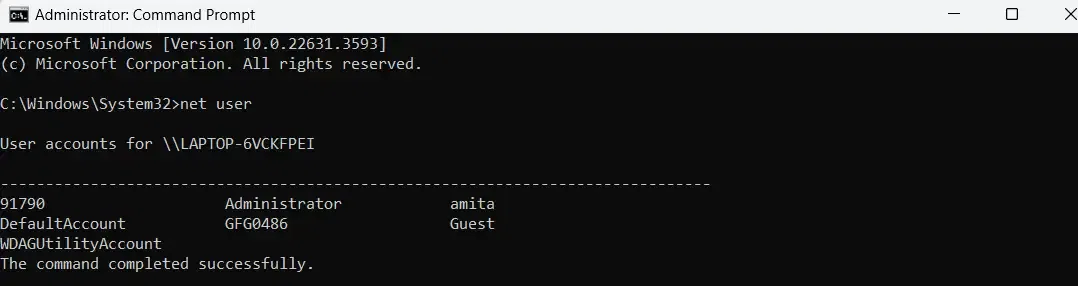
net user command to list all the exact username.Make sure the new password meets the system's password requirements.
Changing password in Windows helps in managing and maintaining privacy. By following the different methods and steps, you can easily reset your password or remove it from your Windows 10 or 11.
Also Read