|
VOOZH | about |
|
VOOZH | about |
Creating a bootable USB drive is the fastest and most reliable way to install, reinstall, or repair Windows 11—especially when your PC won’t boot normally. This guide covers the three best methods in 2025: Microsoft’s official Media Creation Tool, Rufus (with TPM/Secure Boot bypass options), and the advanced Command Prompt (Diskpart + manual copy) method.
Works on Windows 10/11 | No third-party sites needed | 100% free
A bootable USB contains the full Windows 11 installation files plus a tiny bootloader that tells your PC to start from the USB instead of the internal drive.
This is one of the safest and easiest method to start Windows 11 installation using USB from its official website. Here's how you can do it:
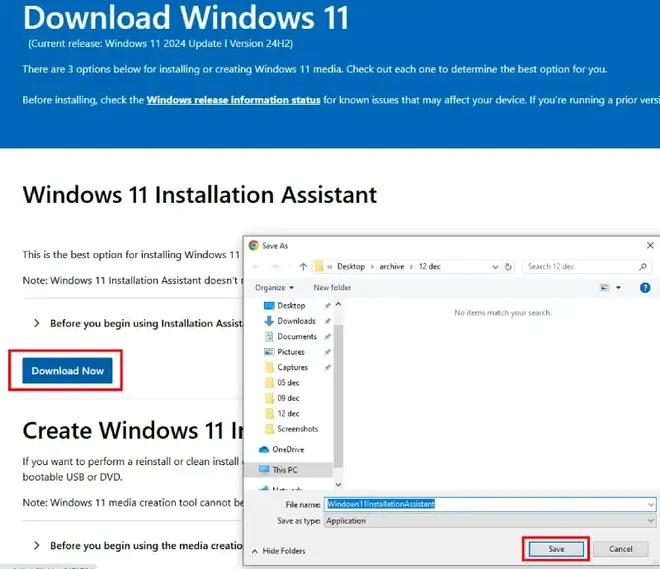
You can visit the official website and select "Create Windows 11 Installation Media" file to download in your Windows 11 PC.
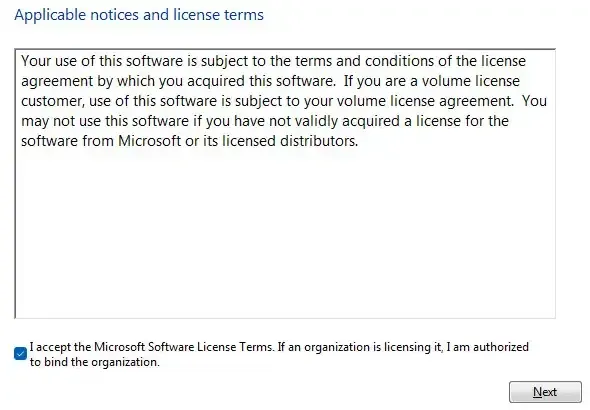
Once you select the path, click on "Save". Now, make a double-click to start the Windows 11 installer in your system. Start the Installation process and accept the License & Terms to proceed.
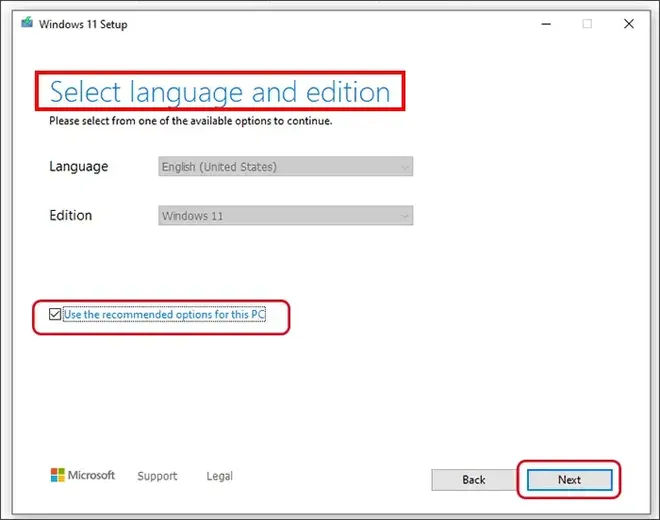
Once you click on "Next" after agreeing the License and terms, choose the language (English - United States), compatible Windows edition and architecture (32 or 64 bit).
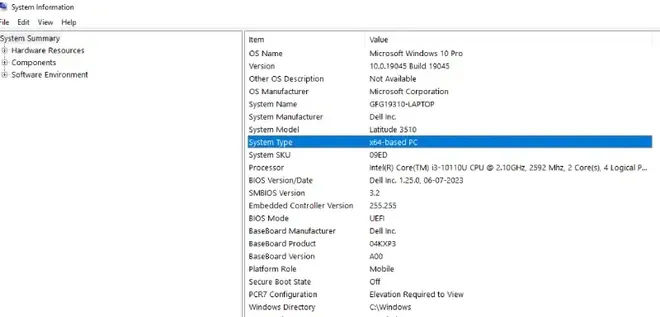
You can check the your device configuration by navigating through Win + S (to open Search menu) and type System Information, click to open it and from there you can check all your system configuration. (also if you choose not to select any version, your system might pick by default the compatible version.
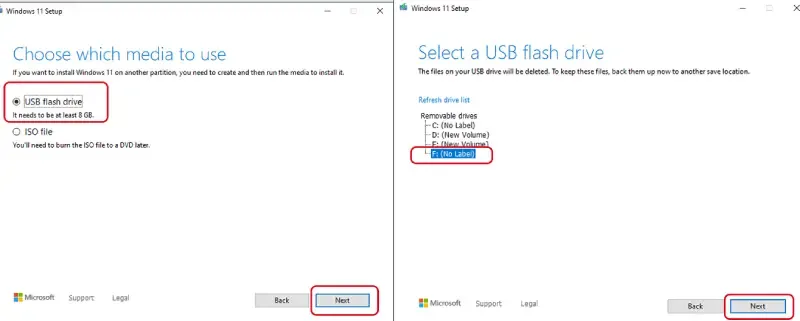
Plug in your USB drive in the computer and select "USB Flash Drive" as the media type to use. Click "Next" and wait till the download gets completed and create the bootable USB drive. Once finished, eject the USB drive.
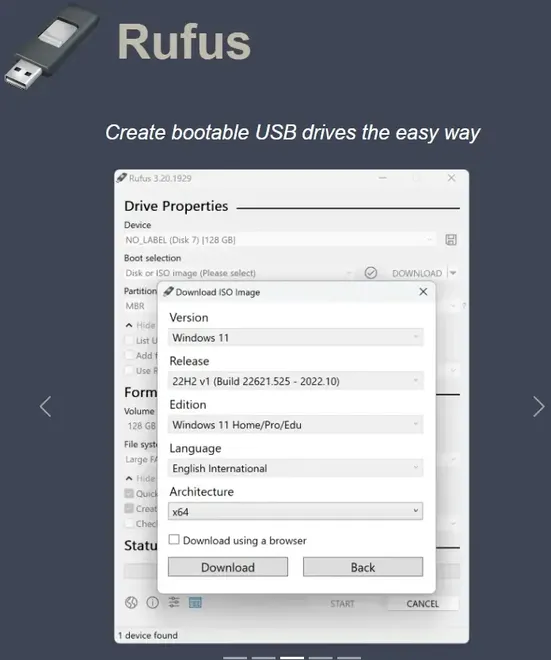
You can also create bootable USB drive using Rufus which is an open-source software, compatible for Windows, Linux, and other operating systems.
Visit the Official Rufus site to download the .exe file in your system or if you're a Windows 10 user then you can also visit the Microsoft Store to download Rufus.
Plug in the USB drive and select "USB Flash Drive" as the media type to use. Also, get the Windows 11 ISO file from it's official website.
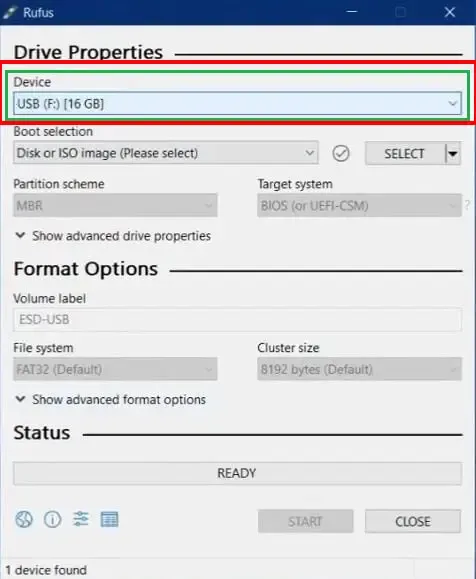
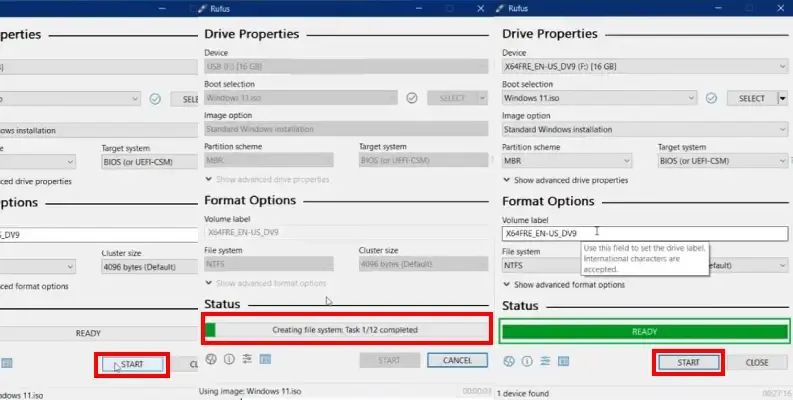
Start running the Rufus .EXE file, a pop-up will get open. Make a double-click and choose your USB device name under "Device".
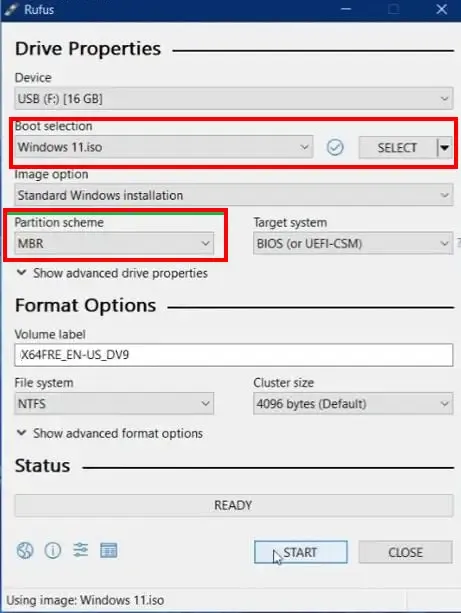
Go to "Boot Selection" and select the ISO file and click on partition scheme. A drop-drown will appear with MBR (for old BIOS-based system) and GPT (for modern PCs). Ensure to make the selection carefully to avoid any interruption.
Note: Do not Power-off or eject USB device during this process as this may cause failure.
Click on "Start" and wait for sometime. Once the installation gets completed. You'll see the status as GREEN "READY". Click on start and eject the device. Your USB is ready..!!
This method is for advance users who are comfortable with command-line tools. If you're looking for an alternative method to create a bootable USB, here's what you need to do:
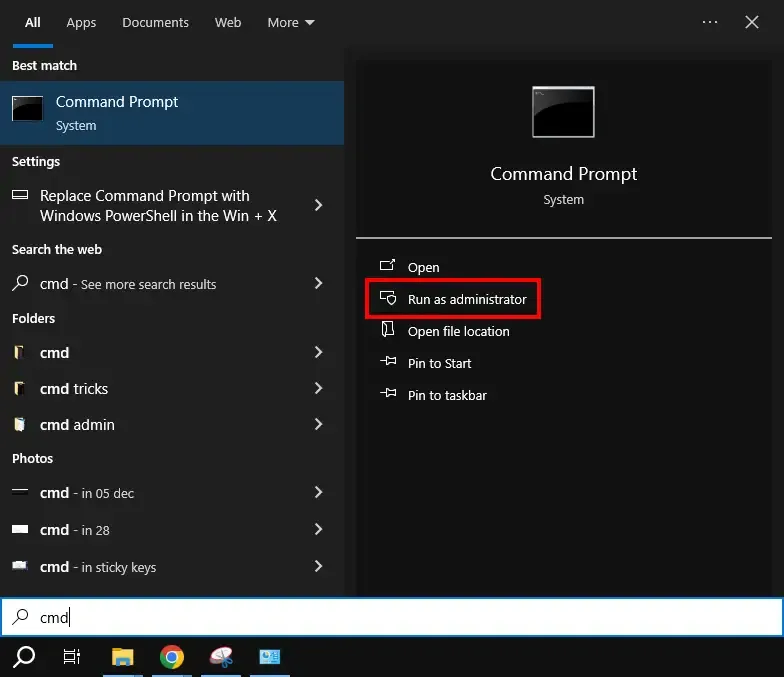
Press Win + S and type CMD and select "Run as Administrator". Alternatively, Press Win + X and select "Command Prompt as Administrator".
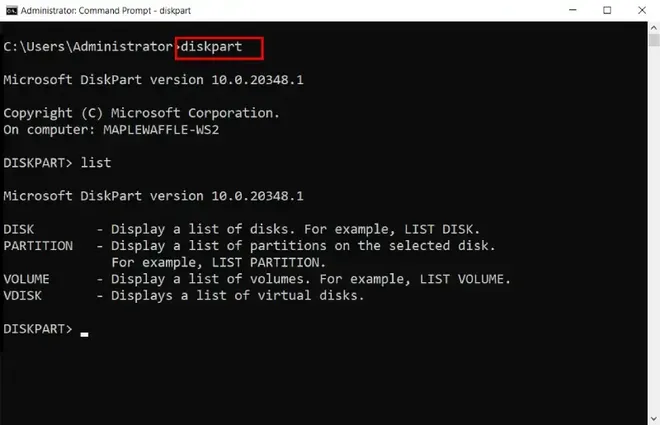
Now type and run the following command in CMD:
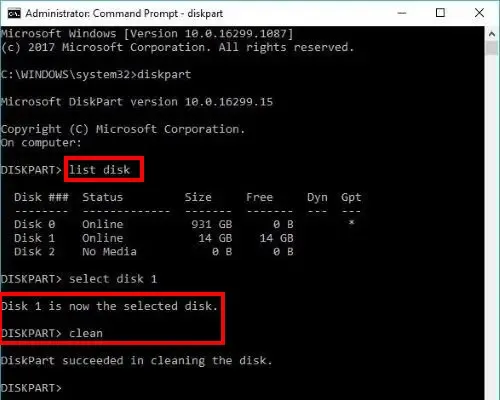
diskpartNow, type list disk (to check all the connected drives) and type select disk i ('i' is an external device here) and start formatting using the following command:
clean
create partition primary
select partition 1
format fs=ntfs quick
active
assign
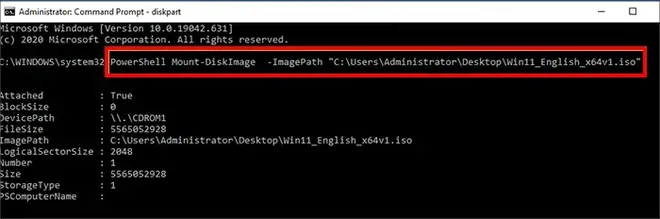
Mount the ISO file by making a right click and copy all the contents to the USB drive. The command line should look like this:
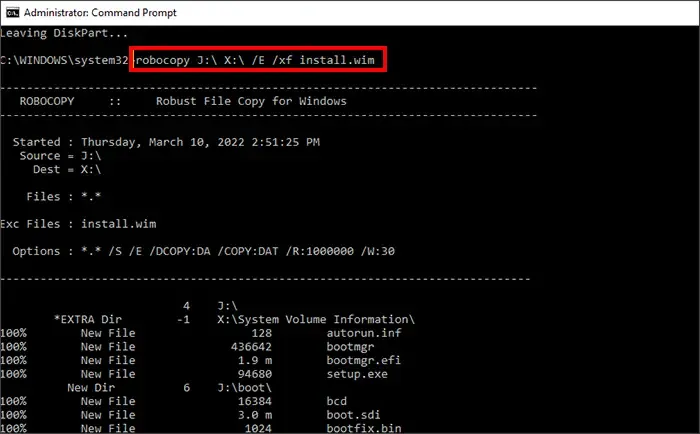
PowerShell Mount-DiskImage -ImagePath “C:\PATH\Windows 11.isoRun the following command to copy the ISO files to the USB drive and wait for the Installation to get completed.
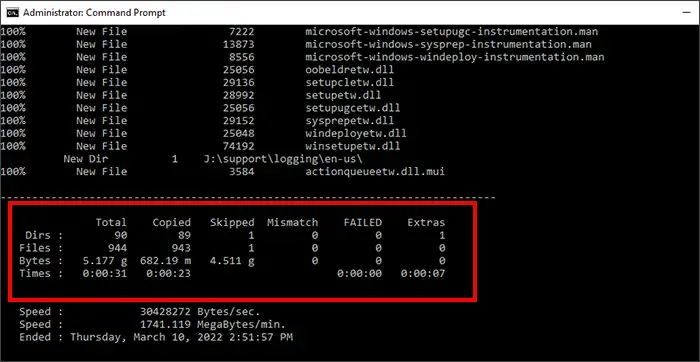
robocopy J:\ X:\ /E /xf install.wimOnce the process is complete, save and exit.
Alternate Methods:
You can also use Third-party applications to perform a clean and safe USB booting for Windows 11. Below are some of the well-known software to perform this action:
- MyRecover
- iSunshare
Once you create the bootable USB Drive in Windows from any of the provided method, you need to follow these steps to install Windows 11 in your system.