|
VOOZH | about |
|
VOOZH | about |
Editing PDFs after completion of the task includes more hassle and the more time-consuming it becomes, the more frustrating it appears. To make it quick, easy, and accessible at any time, let’s check out the different ways to edit PDFs on Mac and Android using different tools. Depending on the need users can decide whether they require a paid tool or use free tools.
Here are some ways to edit a PDF easily and quickly:
Online editors are the most frequently used and preferred editors. Users just need to type “Online PDF Editor” in their Google search to access these tools. They are unlimited and come with different plans or for free.
Though Android has no such in-built app, Mac comes with Preview, which helps in editing PDFs to a certain extent.
There are plenty of applications built to serve the purpose of PDF editing available on the App Store and Play Store. These may be free and paid or have premium plans for more exciting features.
Though PDF to Word editable content is limited due to the limitations of the platform it is not able to preserve all formats. Word is a reliable PDF editor at times of need that is easy and free to use.
To edit PDFs online free, use PDF editors like Smallpdf, PDFescape, and ILovePDF. They help users avoid the hassle of downloading and installing by allowing direct editing in the web browser.
To edit using a web-based application, follow these steps:
1. Visit the PDF editor website you wish to use.
2. Click on options like “Upload” or “Choose File” and select the PDF to edit.
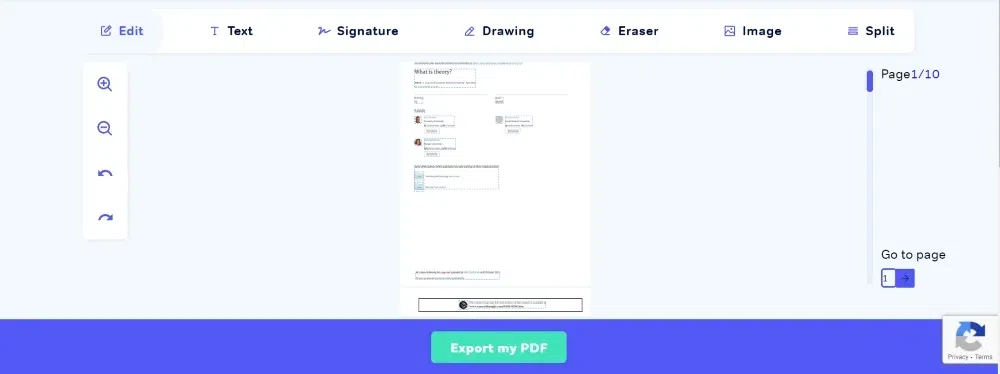
3. Once the file is uploaded you will enter the editing interface.
4. Use the provided tools on the website to make the needed changes.
5. Once you have completed the edits, download the file to the computer using the download button.
One of the easiest and most convenient platforms to edit files for free is online PDF websites as they allow users to directly edit through the platform without any download or installation requirements. To edit your PDF file for free follow the following steps:
Step 1:
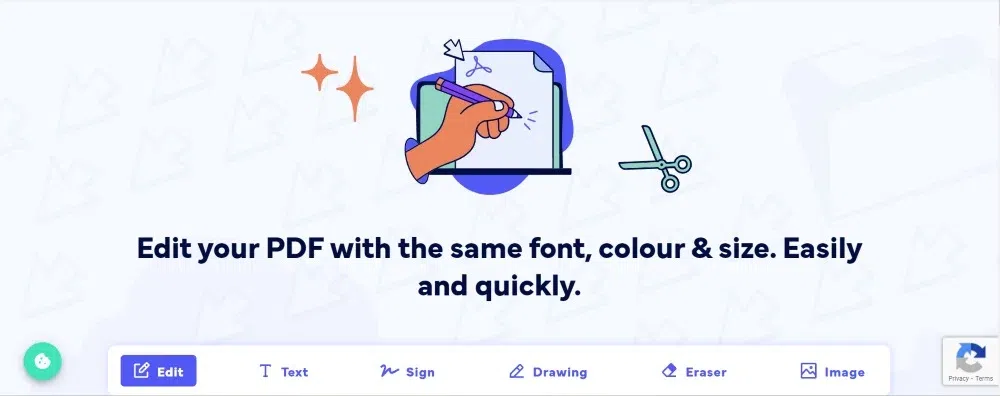
Search and visit an online PDF editor of your choice that you will use for editing.
Step 2:
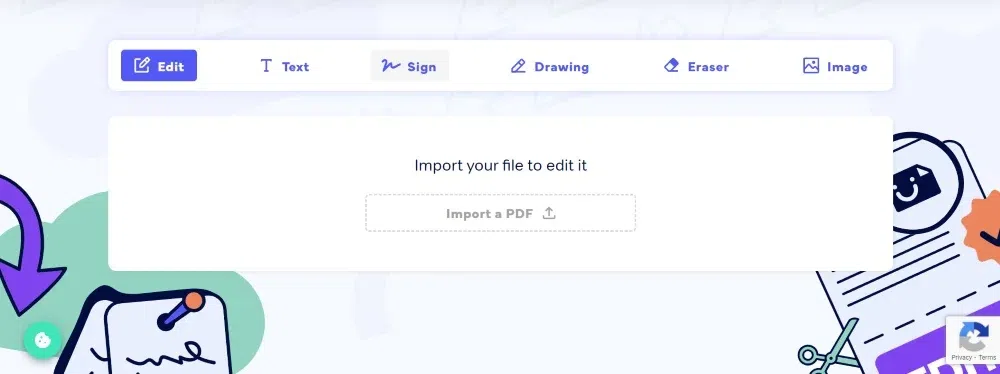
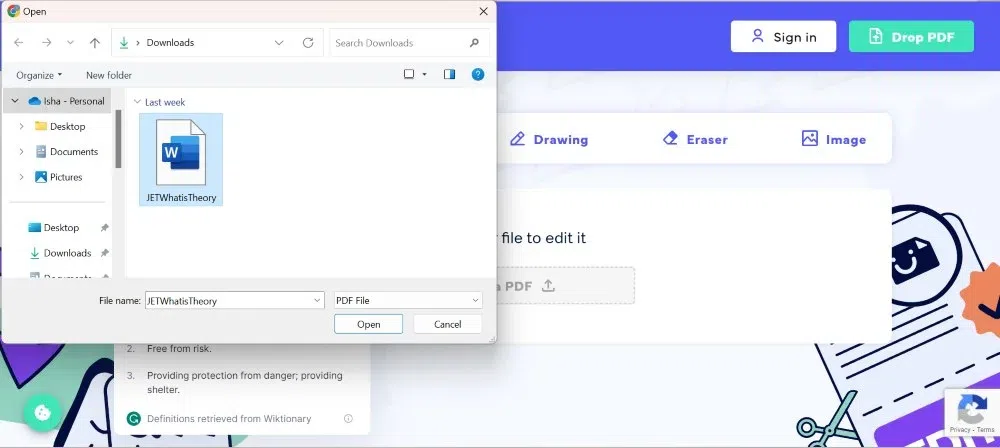
Now scroll down to find the “Import a PDF” or “Update a PDF” option. Click on it and choose the file from your computer or mobile phone.
Select Your Document:
Step 3:
After the files are imported, the user will be allowed access to the PDF editor tools. They can make the needed changes with their help.
Step 4:
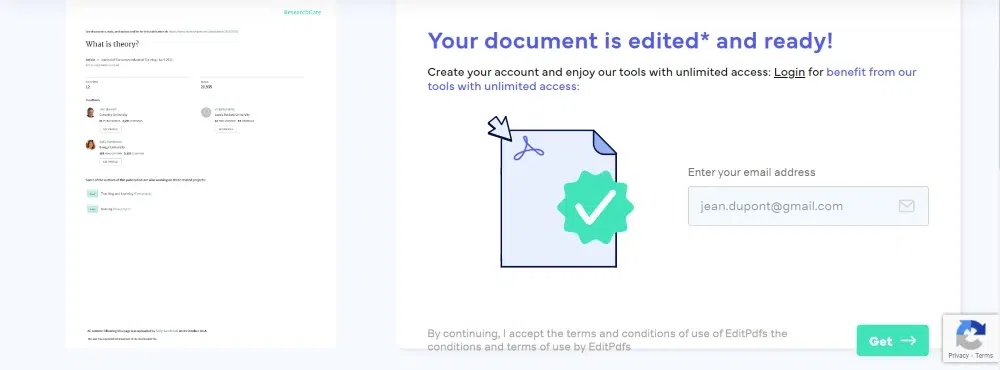
Lastly scroll down to the “Export a File” or “Download” button to save the edited PDF file to your computer or mobile phone.
Every website has a personalized interface. Follow the guide and use it accordingly. For example, on some websites users needs to compulsorily register or enter email in order to receive the downloaded file.
Mac comes with primary installed in-built editors like Preview that also assist Mac users in editing PDFs for free. The application offers a limited set of tools like adding, deleting, and moving pages within or from one PDF to another.
Step 1:
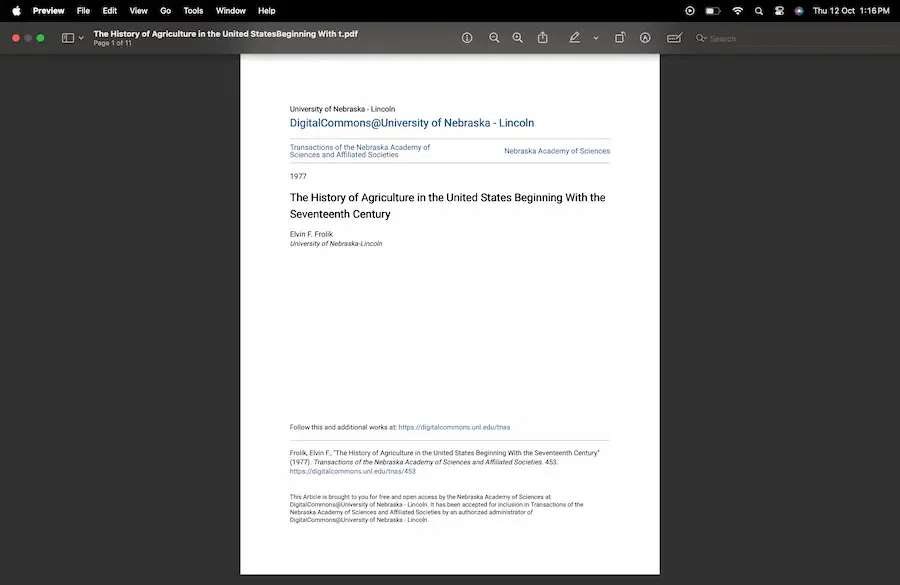
Open the Preview app on your Mac device. Then open the PDF you need to edit.
Step 2:
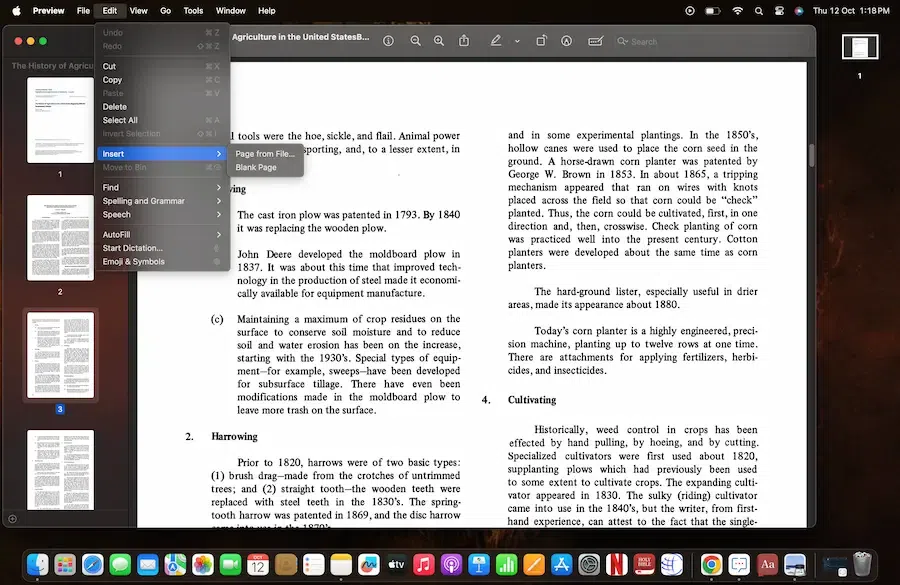
To add a page: select the page before which you want to enter the new page. Then go to Edit > Insert. It will allow you to choose the page from File or enter a blank page.
Step 3:
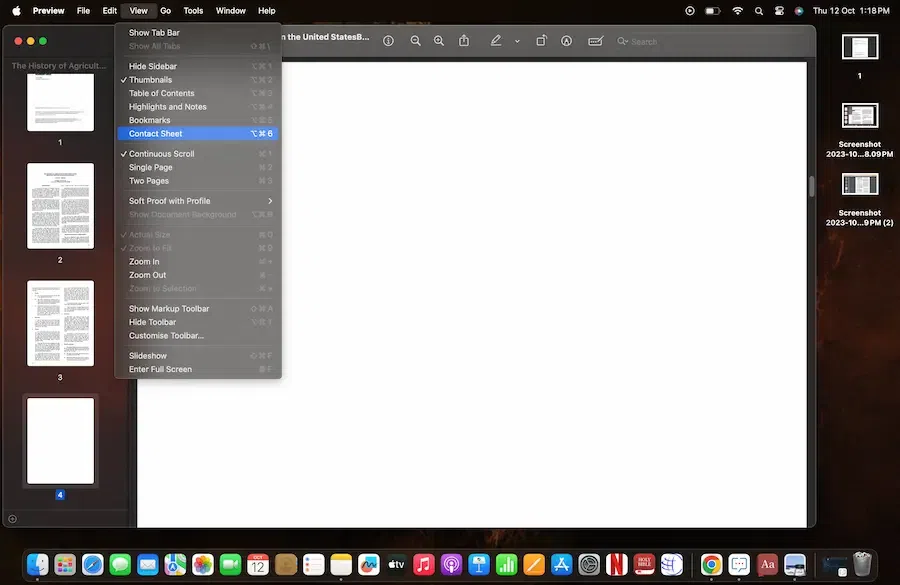
To delete a page: First choose View and then click on Thumbnail followed by Contact Sheet. Now select the page or pages you intend to delete and click on the delete key on your keyboard.
Note: On deleting the page from the PDF all the annotations on the page will be deleted as well.
Step 4:
To move a page within the PDF: Choose View> Thumbnails and then click on Contact Sheet. Now select the page and drag it to the new location.
Step 5:
To move a page from one PDF to another: Follow step 4 in each PDF and then drag the PDF images from one PDF to another.
Let's learn how to edit PDF files on Windows. Mainly, there are two prominent ways to edit a PDF file on Windows:
Step 1:
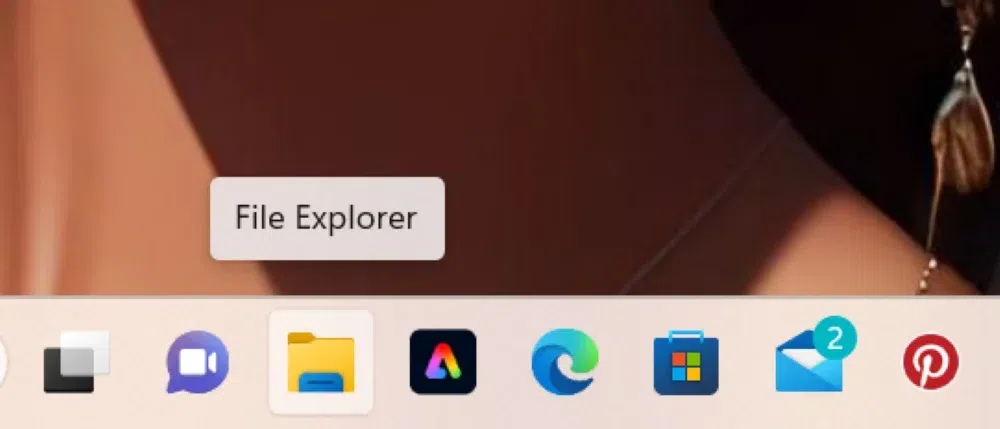
First and foremost, download and launch a PDF editor on Windows. Make sure the editor supports your current browser.
Step 2:
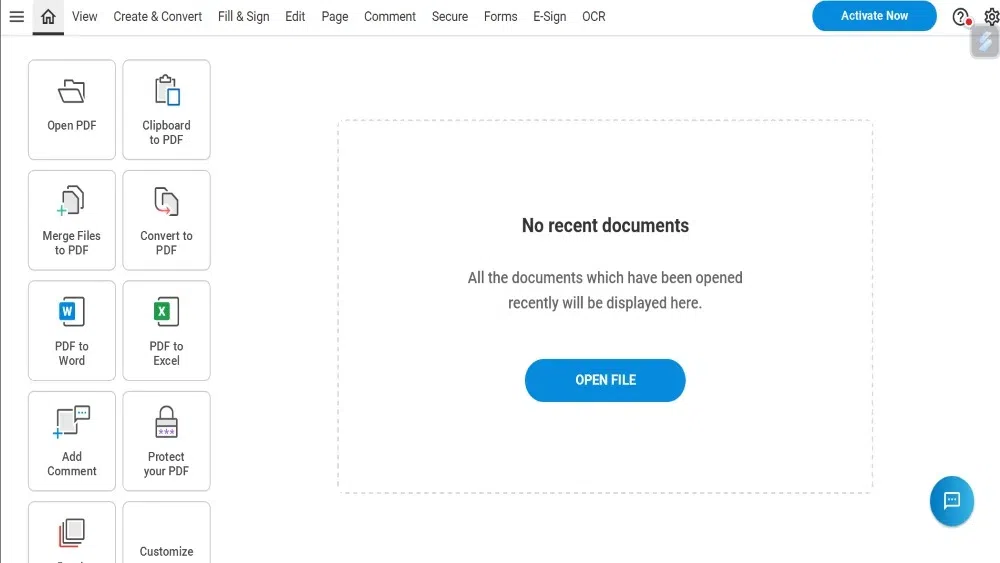
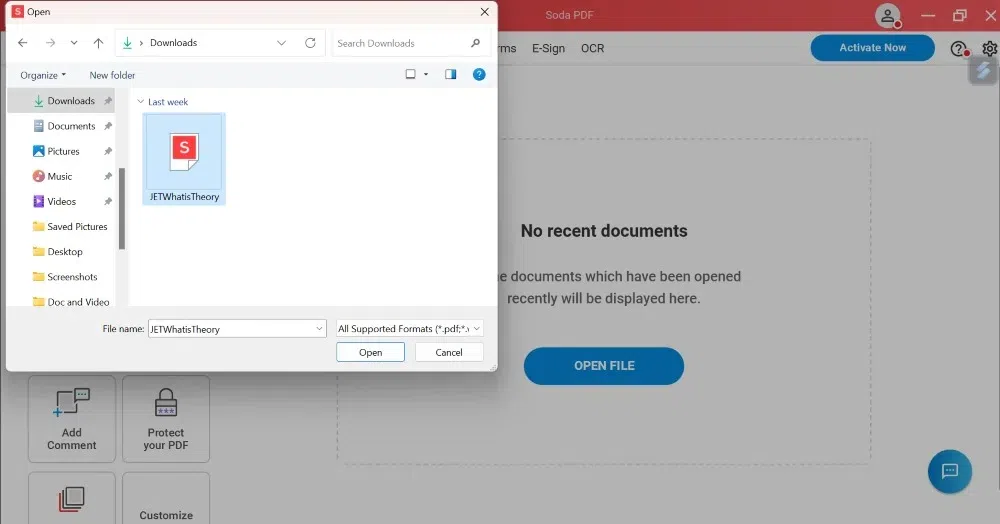
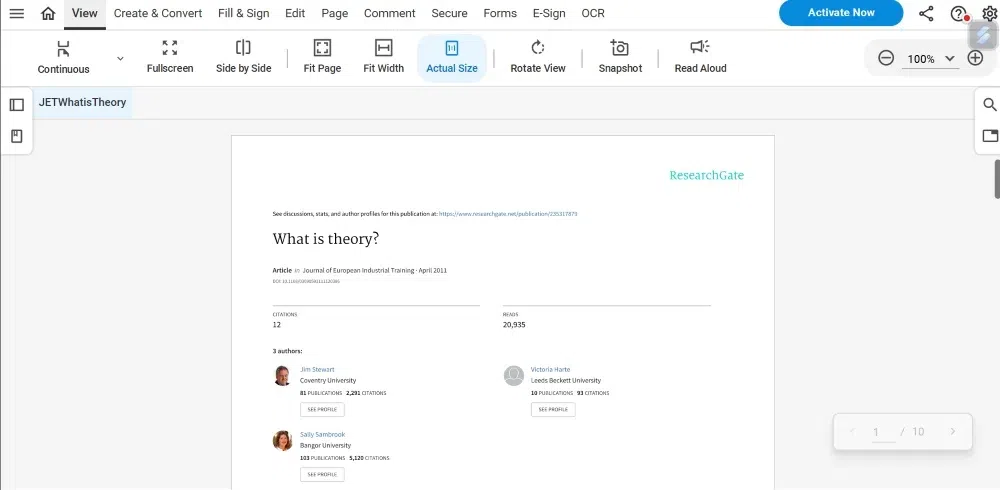
Click on “Open File” and choose a document from your computer that you have to edit.
👁 Open file from your computer
Select a Document:
Step 3:
The document will then be ready for editing. Use the provided tools to add, delete, shift, rotate, etc. the pages in the PDF.
👁 Make the required changes in the PDF file
Step 4:
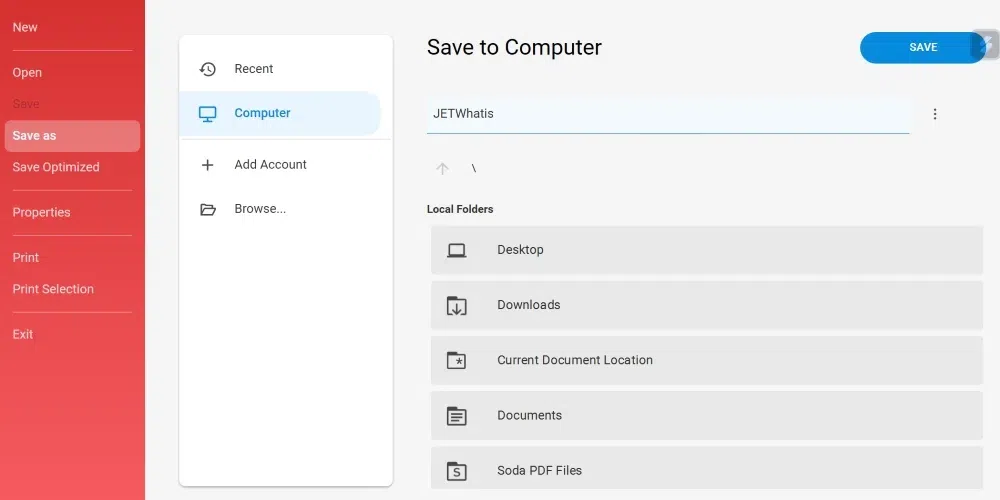
Finally, go to “Save As” and name the file before clicking on the Save button.
These PDF editors are available for free or at a premium plan. For some apps, limited features are available for free along with premium features at a cost.
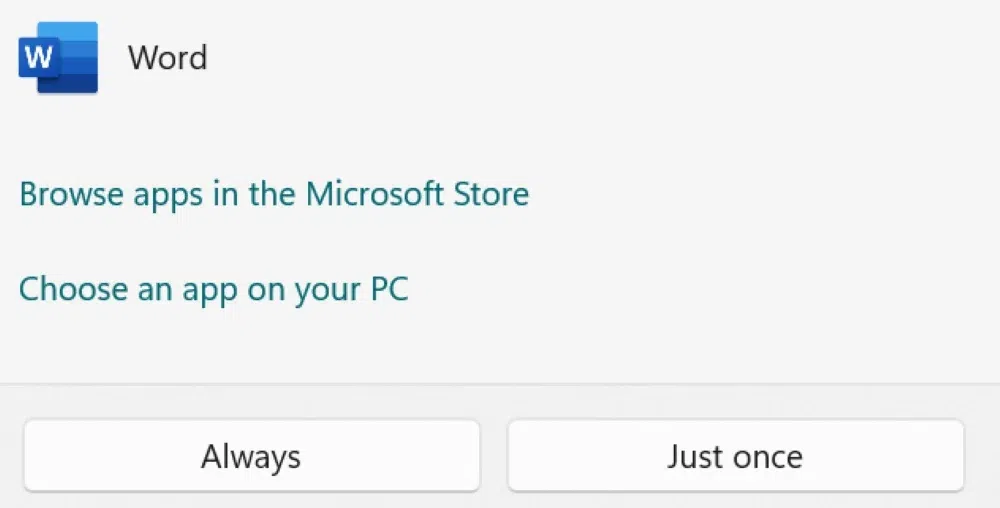
If you’re wondering how to edit a pdf in Word, first open the pdf in Word. This works best for PDF in Word format since the image format may get disturbed.
Step 1:
Go to the File and open the PDF you want to edit.
Step 2:
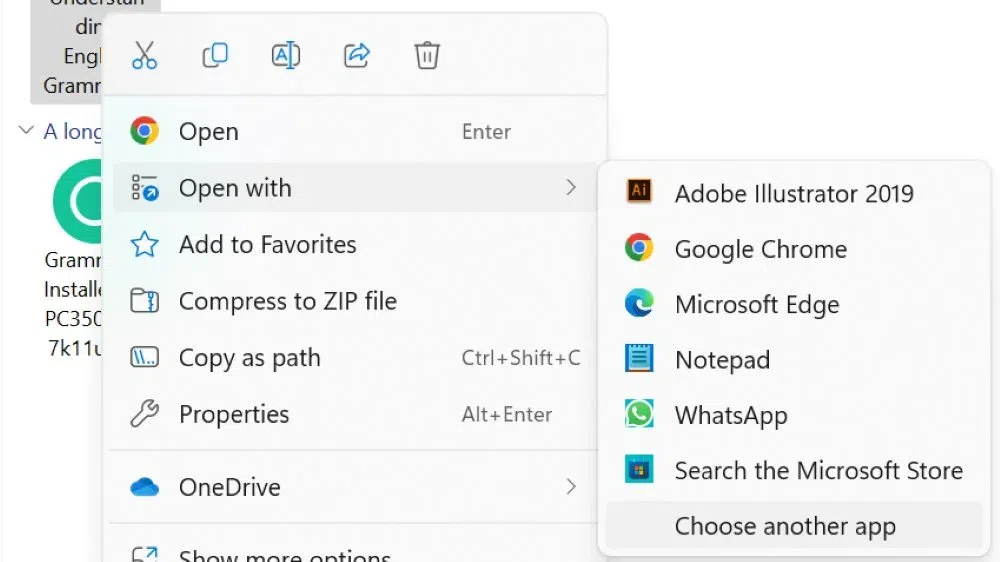
Find the PDF and open the file with Word Doc.
Step 3:
Word will make a copy of the PDF and convert the format of the content in a way that it can display.
👁 Allow the Word Editing and Convert the Format
Step 4:
Now you can make the needed changes and save the changes as Word Docs or PDFs.
Step 5:
In the Save menu, choose the document type in the Save As and select OK to complete the procedure.
1. Online editing is comparatively easy to use, even without prior experience in PDF editing.
2. PDF editor online offers a wide range of tools and features to edit including the ability to add, edit, and delete text, images, and shapes as well as insert tables and charts, and create and manage hyperlinks, comments, and annotations.
3. They can be accessed from anywhere at any time with the help of an internet connection making them ideal for more remote work and collaboration.
4. There are many PDF editors free or with affordable subscription plans. Making them cost-effective a cost-effective option for individuals.
5. These platforms also offer security features to protect user documents like password protection and encryption.
With the consistent upgrade in technology finding tools to solve a problem has become easier. Fixing PDFs has been a big hassle for quite some time but today there are hundreds of PDF tools available online for free and paid to help users overcome this problem. Users can access tools from anywhere at any time with or without the internet. Through the mentioned steps, any user can edit their PDF document in Windows, Mac, or any other device.