|
VOOZH | about |
|
VOOZH | about |
Google Chrome is one of the most popular browsers on the internet. It has several exciting features, including the Reader Mode feature. The Google Reader feature is hidden in Chrome. So, if you are someone who wants to use this feature, then this article is for you.
In this article, we will discuss the step-by-step approach you need to follow to use Hidden Reading mode in Google. Let's first understand What is Google Chrome Reader Mode.
Google Chrome Reader Mode is a feature that simplifies web pages, removing clutter like ads and distractions. It presents the main content of the page in an easy-to-read format, making articles and texts more accessible and pleasant for users.
It enhances the reading experience by focusing on the essential information, improving readability, and reducing visual noise on websites.
Step 1:Open Google Chrome Type chrome://flags/ in the search bar and hit Enter.
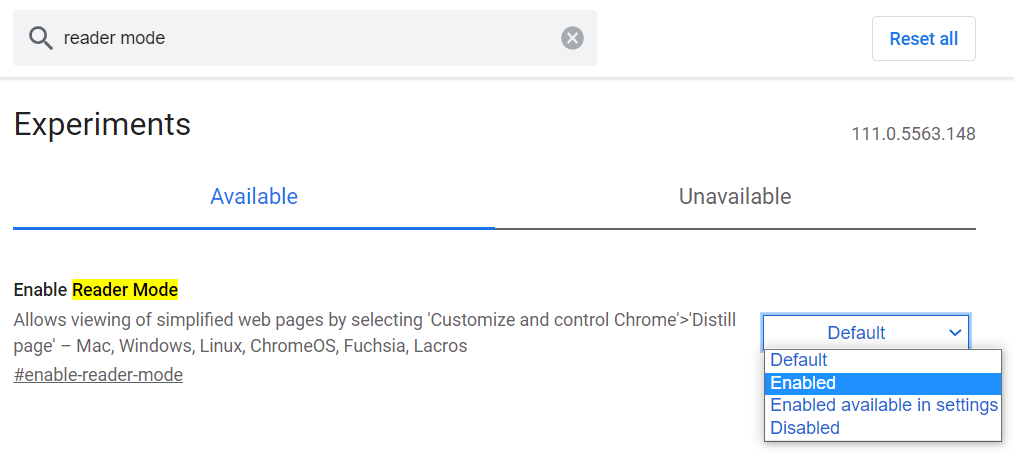
Step 2: The below page will appear. Now, type Reading Mode in the search bar and hit Enter.
Step 3: The Enable Reader Mode feature will pop up. Click on the dropdownmenu on the right side and select Enabled option to proceed.
👁 Use Google Chrome's Hidden Reader Mode - step 2Step 4: Click the Relaunch button at the bottom right corner of your screen.
👁 Use Google Chrome's Hidden Reader Mode - step 3After Chrome is relaunched, navigate to any webpage to use Google Chrome Reading Mode. So let's see How to use Google Chrome Reading Mode step by step.
Step 1: Open any webpage you want to be read.
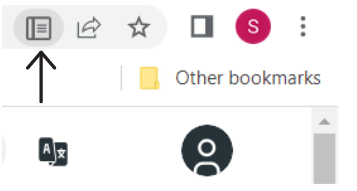
👁 Use Google Chrome's Hidden Reader Mode - step 4Step 5: Notice this icon at the top right corner of your screen. This is the reader mode icon. Click on it to enable it.
👁 ImageStep 6: Once enabled, the icon will turn blue.
👁 ImageStep 6: After that, all the extra stuff on the page will disappear enabling you to read easily the content in the Ad-free and less clustered space.
👁 Use Google Chrome's Hidden Reader Mode - step 5In our case, the page we see above was converted into the below version. The below page looks much more simplified and focused on the actual content.
Reader mode in Chrome declutters webpages by removing all the extra elements that they offer. These elements can include advertisements, nav bars, buttons and more. Thus, the actual content becomes more noticeable. Here are some Features of Google Chrome Reader Mode.
In this article, we have gone through the step-by-step approach to enable Google Chrome Reader Mode. So, the next time you open a webpage, apply reading mode to it and enjoy the simplified version!