|
VOOZH | about |
|
VOOZH | about |
Archiving emails in Gmail is a great way to keep your inbox organized without deleting important messages. However, finding these archived emails can sometimes be a bit tricky. Whether you need to revisit an old conversation or retrieve important information, knowing how to find archived emails in Gmail is essential. This article will walk you through the steps to locate archived emails in Gmail, ensuring you can retrieve archived emails quickly and efficiently whenever needed.
👁 How-to-Find-Archived-Emails-in-GmailIn Gmail, email archiving involves moving specific emails from your main inbox to a separate folder known as the "All Mail" folder. Archiving an email is different from deleting it because archiving keeps the email stored in your Gmail account, along with all its attachments and labels, i.e. it transfers the less urgent or already dealt with emails to a different storage location while still keeping them easily accessible. Archiving emails is a clever way to declutter your inbox without deleting crucial information. Yet, the process of locating those archived emails can sometimes prove elusive.
Now, before we dive into the depths of Gmail's archive, let's quickly revisit the different ways archiving emails can be a lifesaver.
Go to the browser and open your Gmail account by logging in.
In your inbox sections, go to the email that you want to put in archive section.
Click on the 'Archive' icon, (i.e.) the icon with a downward-pointing arrow, or just press 'E' on your keyboard.
Go to the browser and open your Gmail account by logging in.
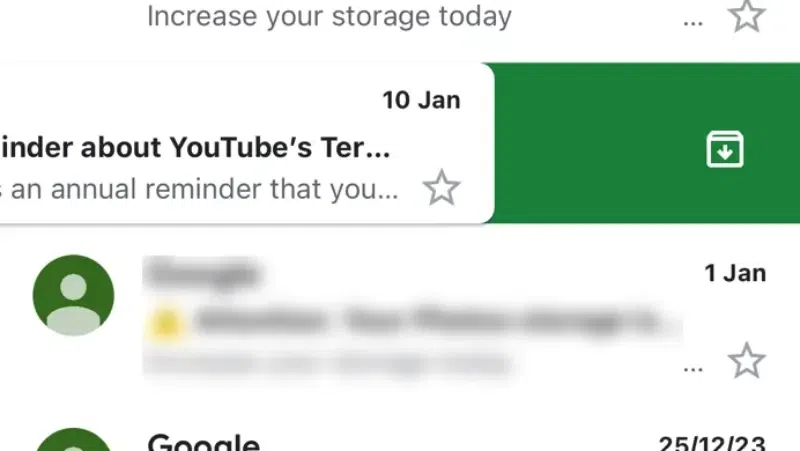
Find the mail that you want to archive in your inbox and then you can swipe it either left or right depending on your settings.
NOTE: The swipe actions can be customized in the settings by following:
Settings -> General Settings -> Swipe Actions -> (Change left or right swipe action)
You can also archive the required mail by clicking on the archive icon as in the above mentioned browser method.
We can retrieve the archived emails the using three methods:
Let’s see all the methods in detail.
The most direct way is to locate the email by using the search bar that is present right on top of your Gmail window.
Open your Gmail account and go the search bar located at the top on the screen. Click on the search bar.
You can simply search and use the operator “in all” to ensure that all your emails are accessible to the search (and not just the unarchived ones in your inbox).
Furthermore, there are other advanced methods of searching for situations where you can’t rely only on keywords. You can conduct specific searches based on your requirements.
Open your Gmail account and go the search bar located at the top on the screen. Click on the search bar.
You can also combine two or more operators to conduct a thorough search.
For example: To find archived emails from Akash Gera received after January 1, 2023, you would enter into the search bar.:
in:all from:Akash Gera after:2023/01/01
Unclear on what operator to use where and how? Gmail has made your work easier by creating an advanced search bar, built like a template to conduct advanced searches. Click on the filter icon for template.
Otherwise, you can also employ the following search options that come underneath the search bar when you are searching using keywords.
👁 How-to-Archive-an-Email_pic5-(1)
The in all search operator or the Search: All Mail condition in the advanced search all point to one thing: the All Mail folder, contrary to what most people think, your inbox is not the only place that holds your emails.
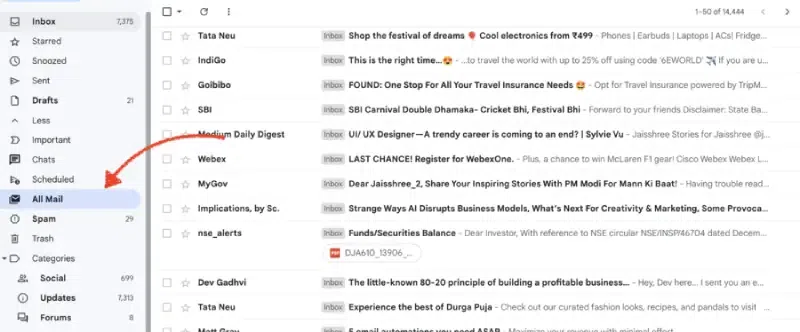
Open gmail account and locate the all mails tab in the left menu.
Clicking on the “All Mail” tab on your menu bar leads you to a storage area of All your emails regardless of their labels. The unarchived ones have the “inbox” tag on them (indicating that they are present in the inbox) while the archived ones don’t.
‘All Mail’ holds all your emails in one place and this method can be used to access archived emails on both the app and the browser.
In Gmail, Labels are an organizational tool that categorizes and manages your emails based on specific keywords.
By default, there exist three labels or categories for every Gmail account:
An additional two – Updates and Forums – can be added from the settings or by clicking the ‘Manage Labels’ option if required.
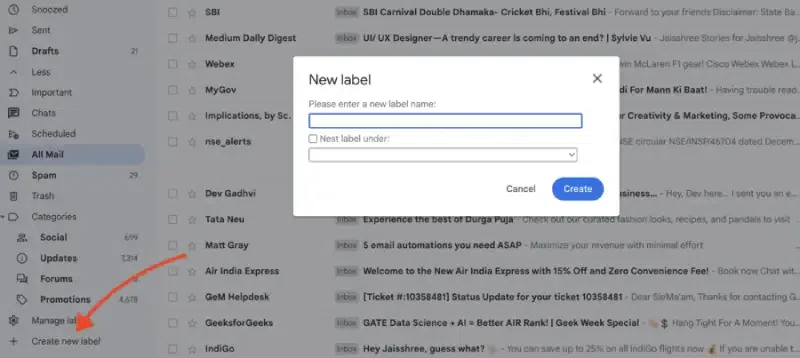
In the same way, you can also custom-make your labels by directly clicking on the ‘Create new Label’ option on the bottom-left of your menu bar and use it to organize existing emails as well as ones that you might receive in the future based on the sender, size, subject, keywords, etc.
You can also use this method to create your own “Archived” Label to access all your archived emails in one place.
Knowing how to find archived emails in Gmail can save you time and ensure you always have access to important information. By following the steps outlined in this guide, you can easily locate archived emails in Gmail and retrieve archived emails whenever necessary. Keeping your inbox organized while maintaining access to all your messages is key to managing your communications effectively.





.webp)

.png)