|
VOOZH | about |
|
VOOZH | about |
If the Keyboard Wrong Character appears on an external keyboard, you can think of replacing it. But what about the Laptop Integrated Keyboard? In such cases, we need to use some tricks to resolve the problem.
👁 How-to-Fix-Keyboard-Typing-Wrong-Characters-in-Windows
In this article, we will discuss a few handfuls of effective methods to resolve Keyboard Wrong Typing on Windows.
Table of Content
To fix the Typing Issue problem of the Keyboard, the following methods can be used. We will start by checking the Keyboard language on the device.
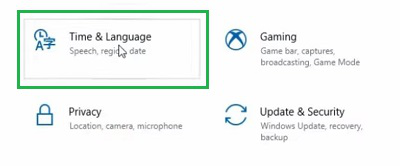
Step 1: Open the Settings & click on the Time & Language option.
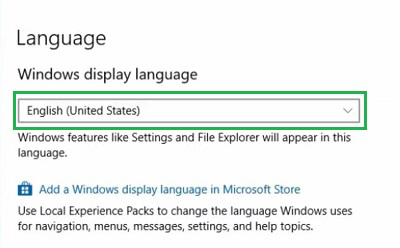
Step 2: In the Language section, check the enabled language. If it is English, then no need to make any other changes. Otherwise, set it to the English language.
Hence, we have successfully fixed the Keyword Typing issue by setting the device language as English.
Check whether the Numlock is disabled or not. If it is enabled, then press it one time & again check the performance of the Keyboard. If the issue is resolved, then the problem is arising from the Numlock.
Hence, we have successfully fixed the Keyword Typing Wrong issue by disabling Numlock.
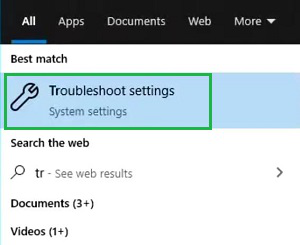
Step 1: Search for Troubleshoot in the Search Bar & go with the best option.
👁 3--Search-Troubleshoot-Option
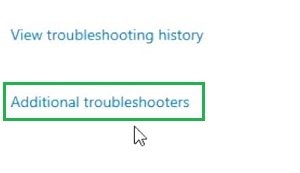
Step 2: Select Additional Troubleshooter.
👁 4--Select-Additional-Troubleshooter
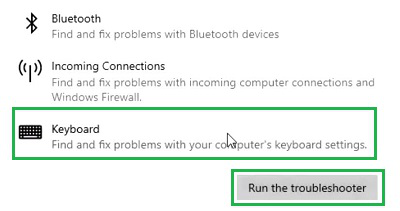
Step 3: Expand the Keyboard option by clicking it. Then, select Run Troubleshooter.
Hence, we have successfully fixed the Keyword Typing Wrong issue by running the Keyboard Troubleshooter.
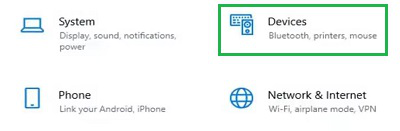
Step 1: Open Settings & go to the Devices.
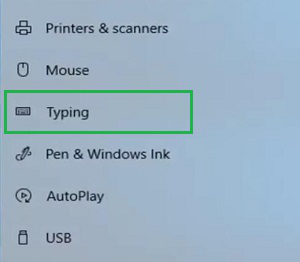
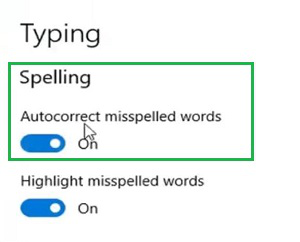
Step 2: Click on the Typing option in the left panel.
Step 3: Check whether the Auto Correct is enabled or not. If enabled, Disable it by clicking on the Button.
Hence, we have successfully fixed the Keyword Typing Wrong issue by disabling the Auto Correct Spelling option.
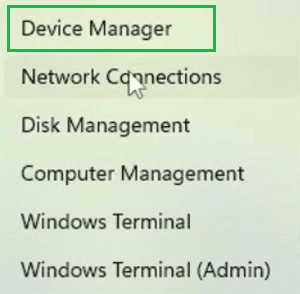
Step 1: Right-click over the Start Menu & go for the Device Manager option.
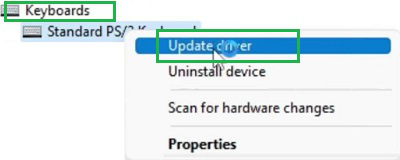
Step 2: Expand the Keyboard & right-click over the Keyboard option. Select the Update Driver option.
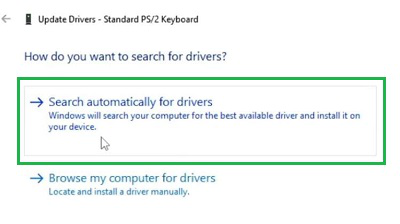
Step 3: Select Search Automatically For Drivers.
👁 11--Search-Automatic-For-Driver
Hence, we have successfully fixed the Keyword Typing issue by updating the Keyboard Driver.
So, these are the simple methods you can perform to resolve the Keyboard issue you are facing. After performing all of these methods, if still the problem exists, you have to rush to any technician to resolve it as it might be a hardware-related issue. Or you have to switch to a new keyboard to fix the issue in that case.