 |
VOOZH | about |
|
VOOZH | about |
The On-Screen Keyboard in Windows is a valuable accessibility tool that allows users to input text using a virtual keyboard displayed on the screen. This feature is particularly useful for individuals with physical disabilities or for those who encounter problems with their physical keyboard. In this guide, we will explain how to enable, access, and use the On-Screen Keyboard on various versions of Windows, including Windows 7, 8, 10, and 11.
Table of Content
Step 1: Go to the Settings from the Start Menu.
👁 Use-the-On-Screen-Keyboard-on-Windows11_1
Step 2: Navigate to Personalize > Taskbar > Touch Keyboard.
👁 Use-the-On-Screen-Keyboard-on-Windows11_2
Step 3: Under Touch Keyboard option, select the "Always" option from the dropdown menu.
Note: Pressing the keyboard icon on the taskbar turns the On-Screen Keyboard On and Off.
👁 Use-the-On-Screen-Keyboard-on-Windows11_3
Step 4: You can also customize this keyboard from Personalize > Taskbar > Text input > Theme
👁 Use-the-On-Screen-Keyboard-on-Windows11_4
Step 1: Right-click on the Taskbar and enable the "Show Touch keyboard button" from the context menu.
👁 Use-the-On-Screen-Keyboard-on-Windows10_1-(1)
Step 2: You will see an icon appearing on the Taskbar. Click on it to open the utility.
👁 Use-the-On-Screen-Keyboard-on-Windows10_2
Hence you have successfully enabled On-Screen Keyboard.
👁 Use-the-On-Screen-Keyboard-on-Windows10_3
Alternatively, navigate to Settings > Ease of Access > Keyboard. You will see a toggle button named On-Screen Keyboard. Turn it on. The utility will pop up on your screen.
👁 Use-the-On-Screen-Keyboard-on-Windows10_4
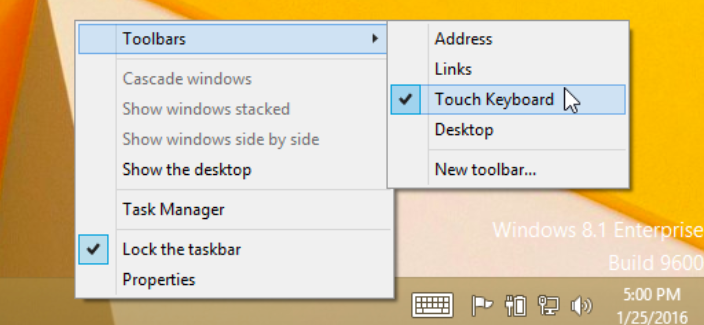
Step 1: Right-click on the Taskbar, go to Toolbars, select Touch Keyboard. Now, click the keyboard icon on the Taskbar to open the On-Screen keyboard.
👁 Use-the-On-Screen-Keyboard-on-Windows8_1
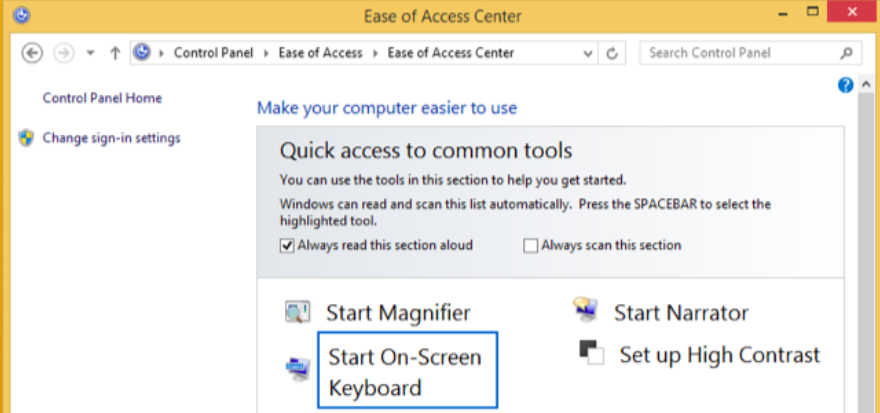
Alternatively, navigate to Control Panel > Ease of Access > Ease of Access Center. You will see a Start On-Screen Keyboard option. Click on it to open the utility.
👁 Use-the-On-Screen-Keyboard-on-Windows8_2
Step 1: Click on Start, navigate to Accessories > Ease of Access, and open the On-Screen Keyboard utility.
👁 Use-the-On-Screen-Keyboard-on-Windows7_1
Hence you have successfully enabled on-screen keyboard.
👁 Use-the-On-Screen-Keyboard-on-Windows7_2-(1)
The On-Screen Keyboard is a versatile and essential tool for many Windows users, providing an alternative way to input text when a physical keyboard is not available or functional. By following the steps outlined in this guide, you can easily enable and use the On-Screen Keyboard on Windows 7, 8, 10, and 11. Whether you need it for accessibility reasons or as a temporary solution, this feature ensures you can continue to use your computer effectively.


.png)



.png)