|
VOOZH | about |
|
VOOZH | about |
Over time, temporary files in Windows 10 can accumulate and take up valuable disk space, potentially slowing down your system. These files are usually created by applications for short-term use but are often left behind after the task is completed. Knowing how to delete temporary files in Windows 10 is a quick and effective way to free up space and improve system performance.
In this guide, we'll explore automated and manual methods to delete temporary files safely and efficiently.
Temporary files may seem harmless, but over time, they accumulate and consume valuable disk space. Regularly deleting these files not only improves your system’s performance but also protects your privacy and security.
Here are the key benefits of deleting temporary files:
Deleting temporary files ensures that your system doesn't hang due to unnecessary space occupied by temporary files in your system. So delete these temp files and keep your system cool. Here we have segregated the methods of deleting temp files into automated and manual methods. So go ahead and try these methods and improve your PC's performance now.
These methods involve system configuration changes that remove temp files from your Windows regularly. Once you make these changes, your system will delete these temp files periodically when accumulated over time.
Step 1: Open Settings by pressing Win + I.
Step 2: Go to System > Storage.
Step 3: Now click on “Temporary files", under the “Local Disk (C:)” section.
👁 LightboxStep 4: Check the boxes for the types of files you want to remove.
Step 5: Click “Remove files” to clear the cache.
👁 method-1-delete-temporary-files-using-system-settingsStep 6: Click on “Continue”
Microsoft has included disk cleanup as a part of your Windows 10 that will enable you to get rid of temporary and cached files from your PC.
Step 1: Type “Disk Cleanup” in the search bar.
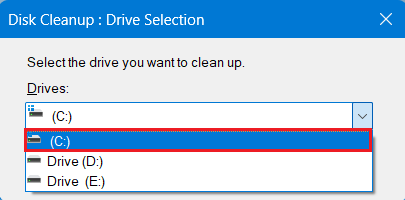
Step 2: Now select the drive you want to clean up and click “OK.”
👁 method-2:-delete-temporary-files-using-disk-cleanup-tool
Step 3: Check the box next to file you want to delete, Click “OK” at the bottom.
👁 method-2:-delete-temporary-files-using-disk-cleanup-tool
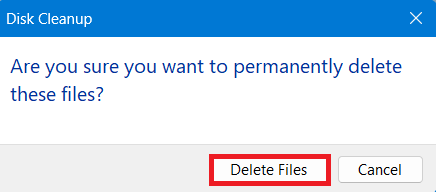
Step 4: A Dialogue box to confirmation will appear claiming to permanently delete files from your PC. Click "Delete Files"
👁 method-2:-delete-temporary-files-using-disk-cleanup-tool
Alternatively, you can perform Disk Cleanup Using Powershell Scripts to delete temp files or recycle bin data
Unlike automated methods these methods don't remove temp files on regular basis. Manual methods are performed explicitly. Here we have provided four different methods to delete temp files from your Windows PC.
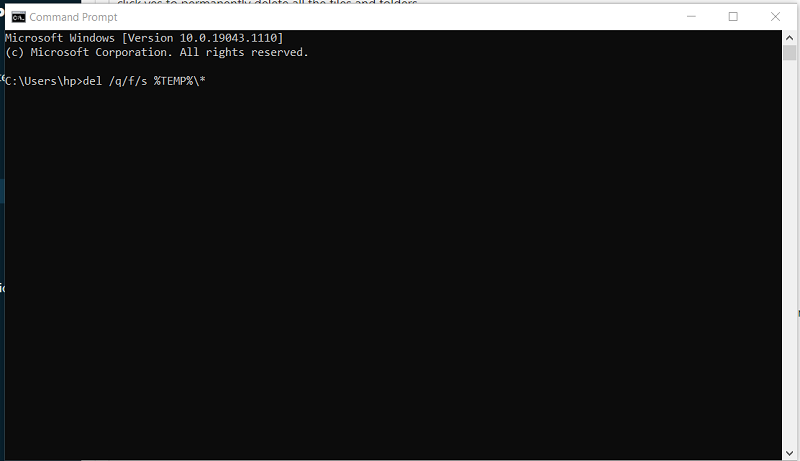
To delete the temporary files from the command prompt:
del /q/f/s %TEMP%\*👁 method-1-delete-temporary-files-using-cmd
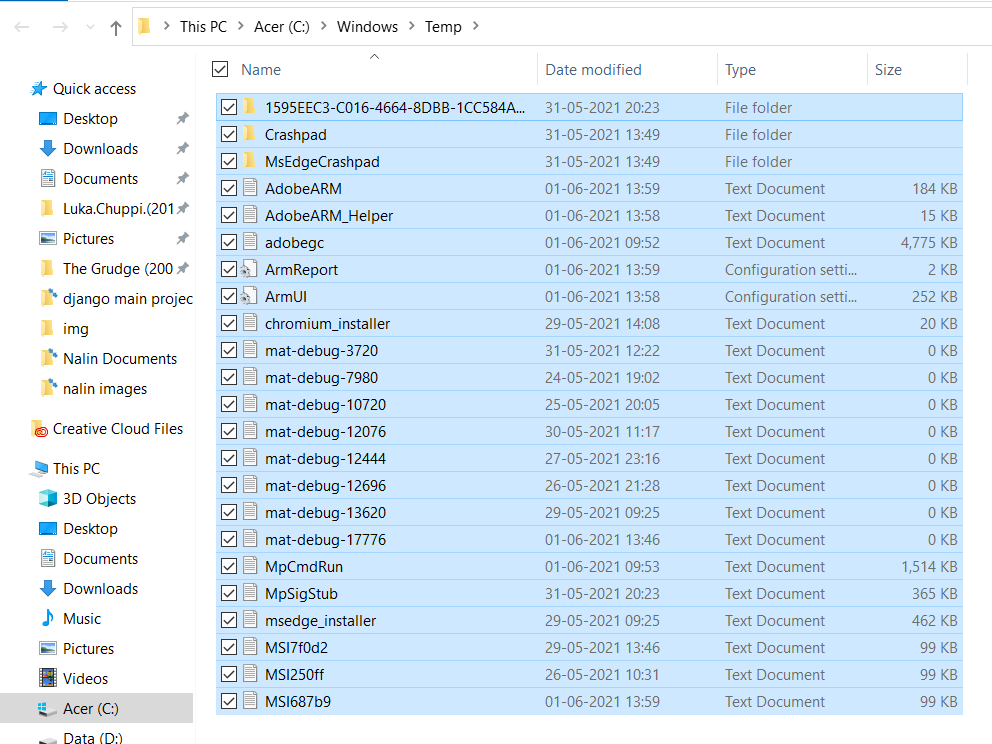
To delete all the temporary files follow these simple steps:
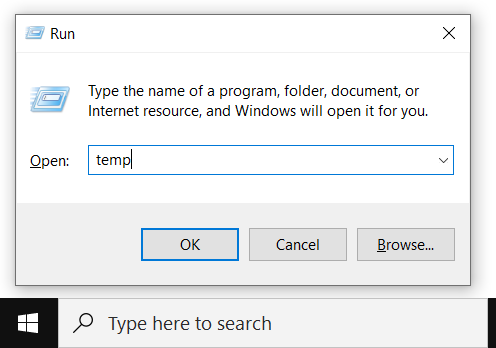
Step 1: Press the Windows key + R to open the Run command. Then type "temp" in the search field and press OK.
Step 2: Now, select all temp files using ctrl + A and then press delete.
There are some local temporary files into your system, you can delete these specific files using following steps:
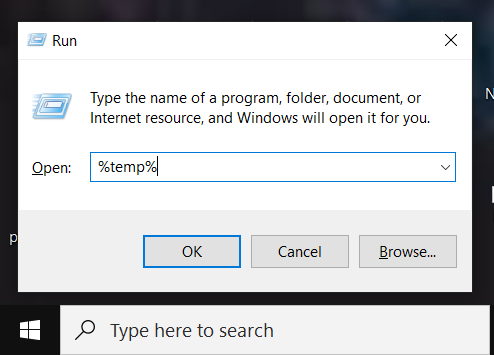
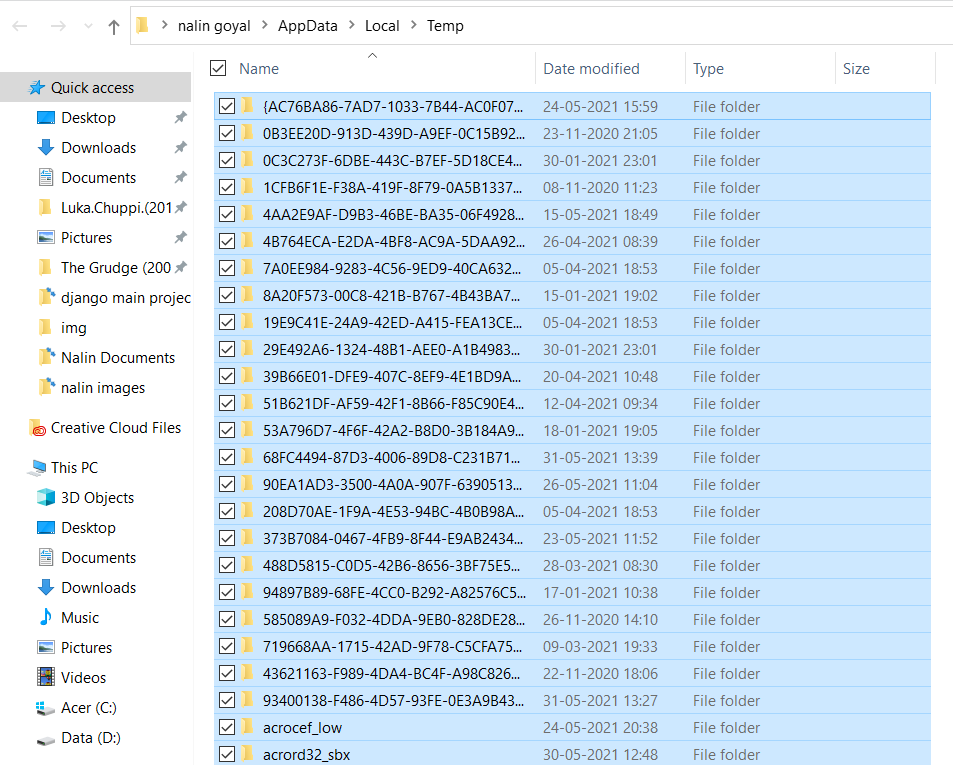
Step 1: Press the Windows key + R to open the Run command. Then type "%temp%" in the search field and press OK.
Step 2: Now, select all local temp files using Ctrl + A and then press delete.
To delete the local temporary files using Prefetch follow the below steps:
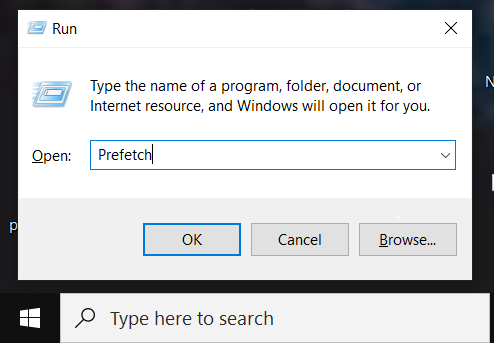
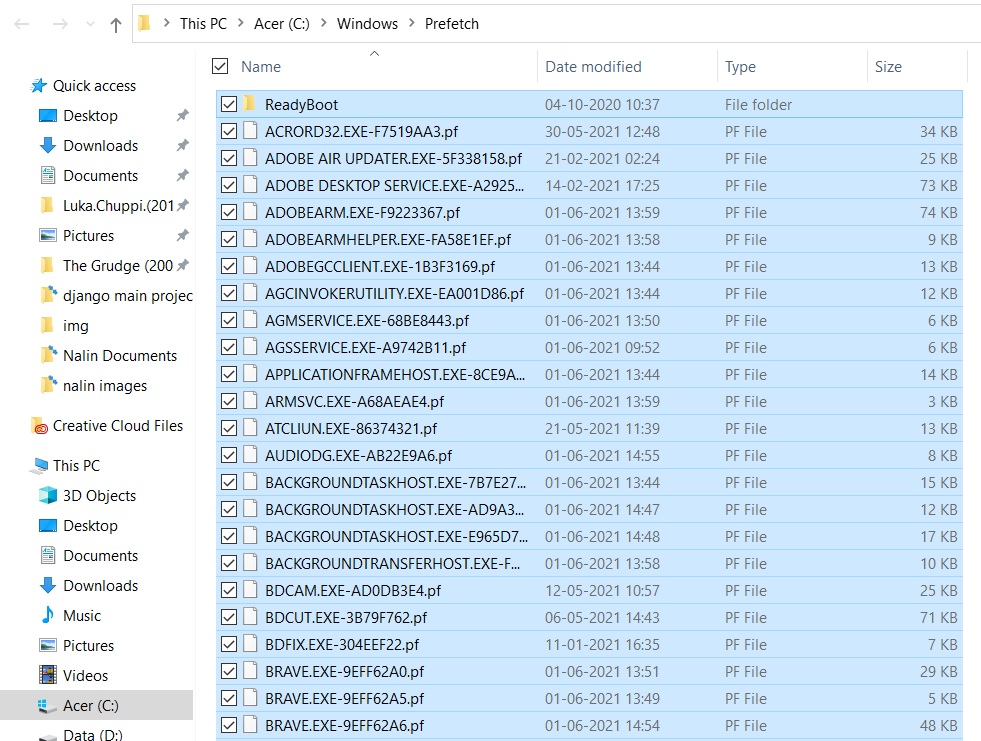
Step 1: Press Windows key + R to open the Run command. Then type "Prefetch" in the search field and press OK.
Step 2: Now, select all prefetch files using ctrl + A and then press delete.
Finally, delete all the files from recycle bin too. All temporary files are deleted, and now you are good to go!!
Temporary files are generated in various segments of application programs. Even after deleting all visible temporary files, browser cache often remains unnoticed. Is it important to clear browser cache? The answer is yes! It's essential to regularly clear these hidden files as they occupy significant space in your system. So don't overlook the browser cache; cleaning it helps maintain system performance by freeing up storage space and ensuring a smoother experience. Regularly cleaning up browsers cache helps to speed up internet browsing speed.
There are different Browser Cache Stored in Your System like stored data from websites, like images, pages, your saved passwords and other browsing activities are stored to speed up future visits. These Cached data are stored in specific folders on your system.
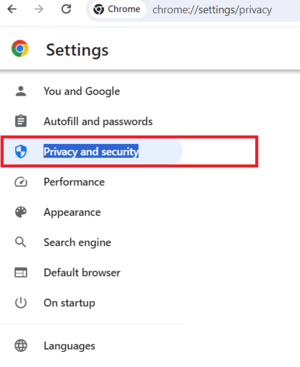
Step 1: Open your browser and Go to Settings > Privacy and security
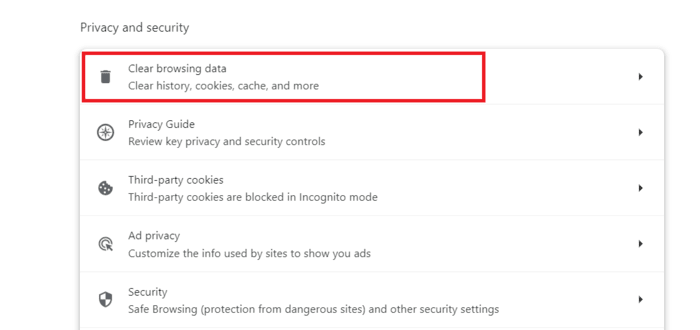
Step 2: Select "Clear Browsing Data".
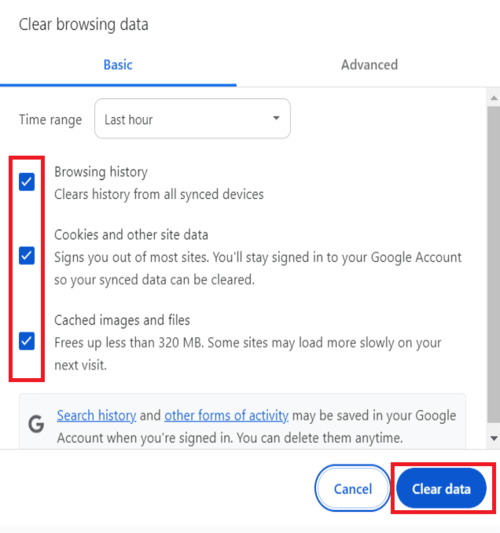
Step 3: Check the box as per your preference and hit "Clear Data" to remove the cache.
Regularly clearing browser cache helps maintain privacy and ensures updated content.
Alternatively, you can clear your Browser Cache using run command
Regularly deleting temporary files in Windows 10 is an important maintenance task that can help keep your system running smoothly. Whether you use the built-in Disk Cleanup tool, manually delete files from the Temp folder, or automate the process with Storage Sense, these methods will ensure that your system remains clutter-free. By following the steps outlined in this guide, you can easily clear temp files in Windows 10 and enjoy a more responsive computer.


.png)