|
VOOZH | about |
|
VOOZH | about |
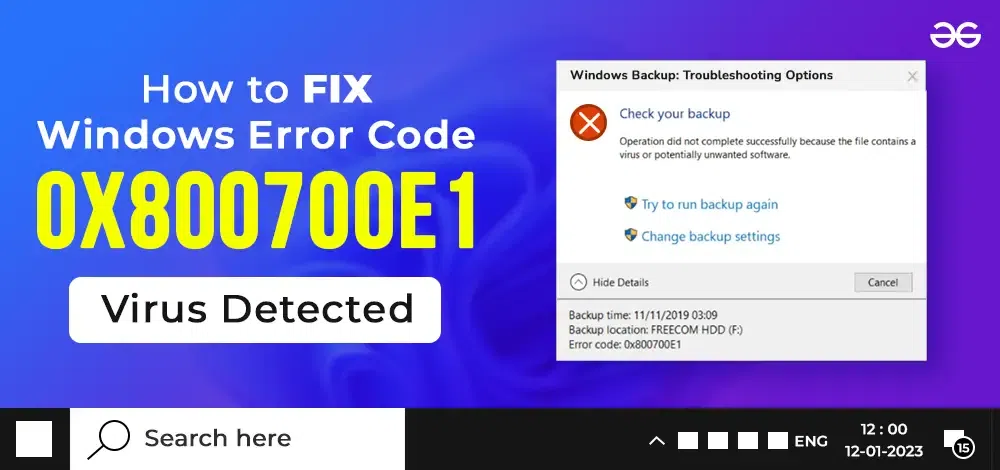
One of the important errors is Windows Virus Error which is marked with the Error Code 0x800700E1. While performing the backup on the device or sharing any file, the Virus Detection Error prompts and halts the execution to get completed.
👁 How-to-fix-Windows-Error-Code-0x800700E1-Virus-Detected
In this article, we will discuss a handful of methods to overcome the Error Issue 0x800700E1 on the Windows operating system.
Table of Content
For fixing Virus Error 0x800700E1 on Windows, the following methods can be executed. We will start by removing the latest backup from the device.
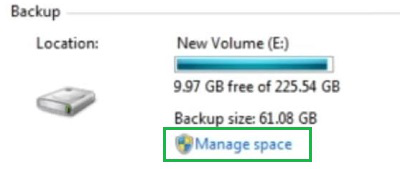
Step 1: Open the Control Panel and go to Backup and Restore. Now, click on Manage Space.
Step 2: Select the View Backup option.
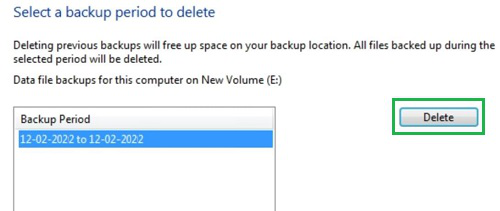
Step 3: Select Delete to completely remove the last successful backup from the device.
Hence, we have successfully resolved the Error Issue 0x800700E1 on Windows by removing the latest backup.
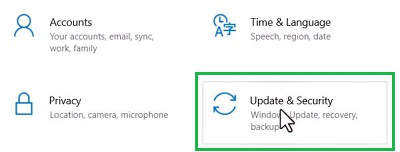
Step 1: Open Settings & go to Update & Security.
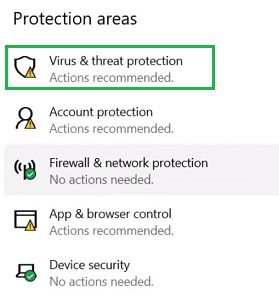
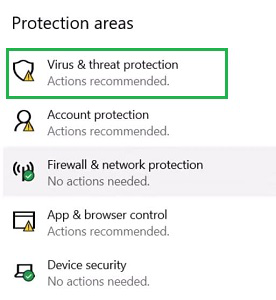
Step 2: Click on Virus & Threat Protection.
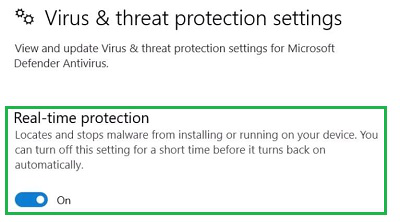
Step 3: Scroll down & disable the Button under the Real-Time Protection section to turn off the Windows Defender.
Hence, we have successfully resolved the Error Issue 0x800700E1 on Windows by disabling Windows Defender.
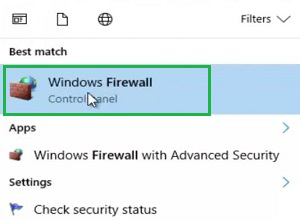
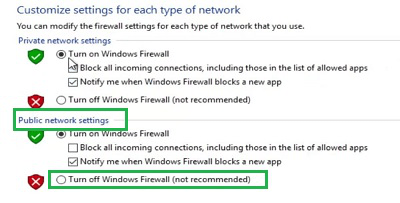
Step 1: Search for the Windows Firewall on the Search Bar. And go with the best option.
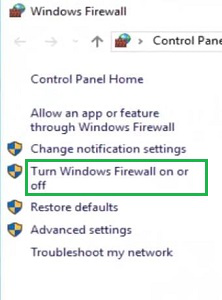
Step 2: On the left-hand side, find the option Turn Windows Firewall On or Off. Click on that.
Step 3: Under the Public Network Settings, click on the Button to turn off the Windows Firewall.
Hence, we have successfully resolved the Error Issue 0x800700E1 on Windows by disabling Windows Firewall.
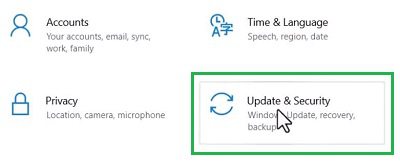
Step 1: Open Settings and click on the Update & Security option.
👁 10--Select-Update-&-Security
Step 2: Now, select the Virus & Threat Protection.
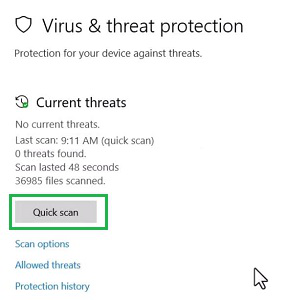
Step 3: At the very beginning of the new window, click on the Quick Scan button to find and fix the viruses on the device.
Hence, we have successfully resolved the Error Issue 0x800700E1 on Windows by performing a Virus Scan.
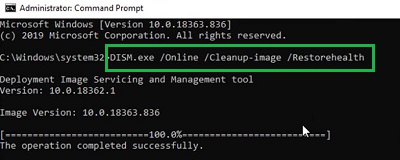
Step 1: Open the Command Prompt & execute the following command first. It will repair the Disk and Drivers on the device where some virus issues might persist.
Command: DISM.exe /Online /Cleanup-Image / Restorehealth
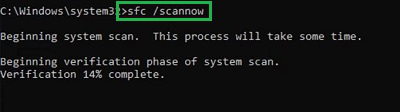
Step 2: After executing the above command, it is time to work on the next command. The following command is used to verify the changes that have been made with the above command. And it will finalize the operation.
Command: sfc /scannow
Hence, we have successfully resolved the Error Issue 0x800700E1 on Windows by checking Disk & Drivers.
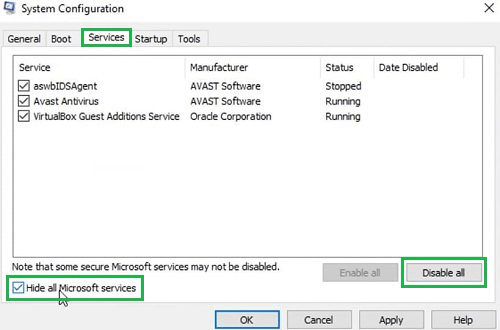
Step 1: Open System Configuration & move to Service Tab. Under the service tab, first, click on the Hide all Microsoft Service option. Later, click on the Disable all button.
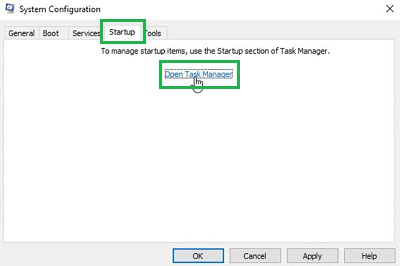
Step 2: Now, go to the Startup Tab & click Task Manager to open it & disable all applications there.
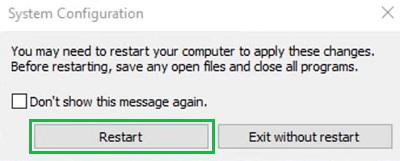
Step 3: A popup window will appear. Click on the Restart Now button to perform the Clean Boot to remove every kind of virus.
Hence, we have successfully resolved the Error Issue 0x800700E1 on Windows by performing Clean Boot.
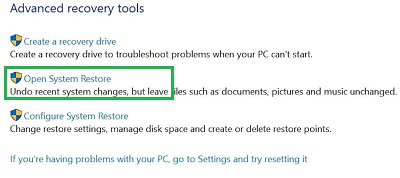
Step 1: Open the Control Panel & click on the Recovery option. Then, go for the Open System Restore.
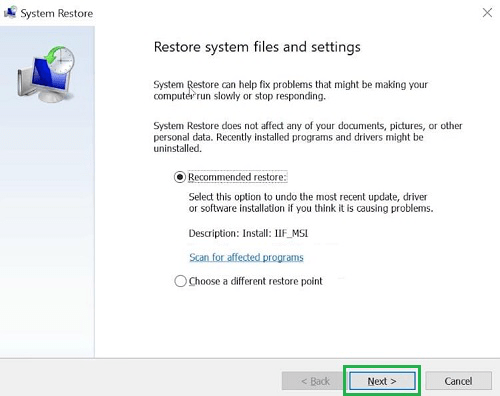
Step 2: Click on Next without making any changes.
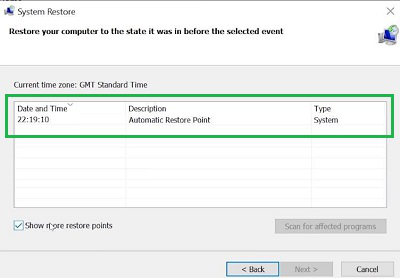
Step 3: Select the default restore button present there.
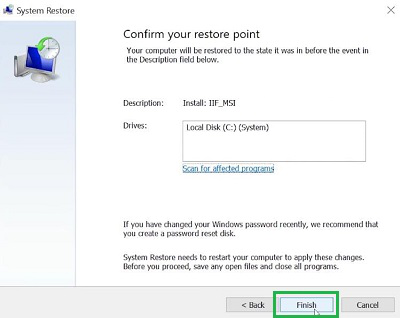
Step 4: Click on the Finish button to start the System Restore.
Hence, we have successfully resolved the Error Issue 0x800700E1 on Windows by performing System Restore.
So, these are the simple methods you can execute one by one to resolve the Error Issue 0x800700E1 for the presence of the potential virus. We would like to advise you to follow all the methods without skipping anyone. Otherwise, the problem will not be restored permanently & it will again prompt such a message.