|
VOOZH | about |
|
VOOZH | about |
If you have recently switched to any Mac devices after using the Windows PC for a long time, you should want to Get Chrome Passwords to Safari. The Chome is the default & most used browser on Windows devices. In such cases, you have to use Safari Import Operation to receive all the bookmarks along with the passwords on your new browser.
👁 How-to-import-Chrome-passwords-to-Safari-on-iPhone-and-Mac
In this article, we will discuss a few handfuls of methods required to Transfer Chome Data to Safari on both Mac & iPhone.
For sharing Chrome Passwords to Safarion Mac, we should use the following methods. We will first discuss the method for the newcomer on the Safari Platform.
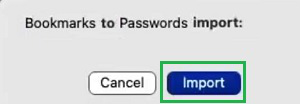
If you have opened Safari for the first time, you should probably receive a prompt message which will say "Bookmarks To Passwords Import". You just click on the Import button to receive all the data from different browsers. The Apple ID will be used to get the bookmarks & passwords associated with different browsers within a few minutes.
Hence, we have successfully imported Chrome Passwords to Mac Safari for the New Users.
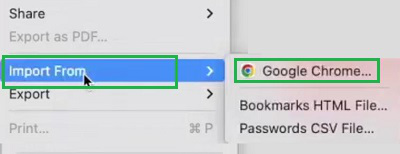
Step 1: Open the Safari Browser & click on the File option. Now, select ImportFrom & click Google Chrome.
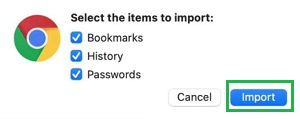
Step 2: Click Import to move ahead to receive all data.
Hence, we have successfully imported Chrome Passwords to Mac Safari using the Import Feature.
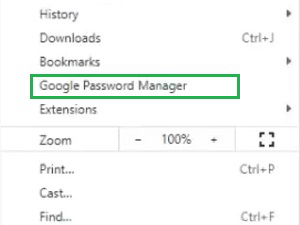
Step 1: Open Google Chrome on the device & go for the Google Password Manager.
👁 4--Select-Google-Password-Manager
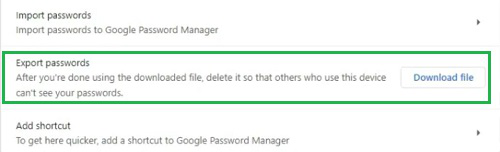
Step 2: Click on the Download File button after the Export Password section. Download the CSV file on the device.
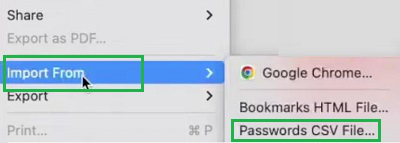
Step 3: Open the Safari Browser & click on the File option. Now, select the Import From option & click on the option Passwords CSV File. And then select the downloaded CSV File.
Hence, we have successfully imported Chrome Passwords to Mac Safari using the CSV File option.
To receive Chrome Passwords to Safari on iPhone, the following methods should be used. We will first discuss the method using the iCloud service.
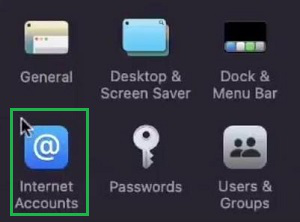
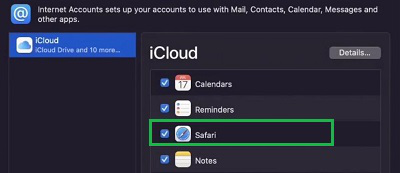
Step 1: Open System Preferences & click on the Internet Accounts.
Step 2: In the iCloud Section, make sure the Safari is enabled. In this way, the imported passwords to the Safari Mac will get synced to iCloud. And later, it will be available on iPhone as well.
Hence, we have successfully imported Chrome Passwords to iPhone Safari using the Mac Device.
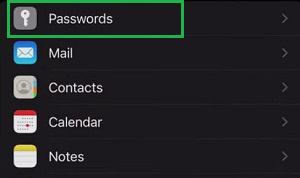
Step 1: Go to the Settings & select Passwords.
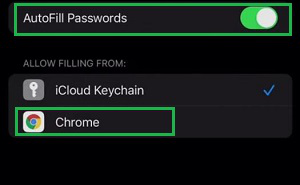
Step 2: Under the Autofil Passwords enable it & make sure to mark the Google Chrome as well.
Hence, we have successfully imported Chrome Passwords to iPhone Safari using Autofill Passwords.
So, these are the simple methods you can execute on both Mac and iPhone to get all of your saved data on Chrome to the Safari browser. Based on the Mac device you are using, the method should be used & picked. Now, you are good to go for browsing to a new browser exclusively made for Apple devices.