|
VOOZH | about |
|
VOOZH | about |
Ubuntu Desktop is a well-known operating system that comes with a Linux environment. It's developed with a graphical user interface and can run on various devices, including personal computers and cloud-based systems. When you install Ubuntu Desktop, it typically includes a standard kernel and comes with several pre-installed applications.
It's important to note that Ubuntu Desktop is tailored for use on physical devices like laptops and desktop computers. It's not suitable for servers due to its graphical interface, which consumes more resources than a server-oriented operating system. If you're interested in obtaining Ubuntu Desktop, consider downloading the latest version, which as of now is Ubuntu Desktop Version 22.04. This article will guide you through the necessary steps for installing Ubuntu Desktop on your device smoothly, without encountering any issues.
Table of Content
Ubuntu Desktop is a user-friendly version of the Linux Operating System, it is designed for computers and laptops. It comes with providing the GUI that built on top of the Ubuntu Linux distribution, facilitating a desktop environment with pre-installed applications. This Ubuntu Desktop comes with software that are useful for daily needs such as web browsing, email, multimedia, etc.
Ubuntu Linux is a widely used common operating system. It is an open-source software that comes with Debian architecture. It is well known for its stability, security, and extensive software repositories. It facilitates coming in various version editions for applying for various use cases including Ubuntu desktop for personal computers. It has good community support with its large community of users and developers it receives regular updates and support making it as a popular choice for beginners and experienced users alike.
The following are the reasons for why the ubuntu is so popular:
Ubuntu offers a user-friendly interface making for easy accessible for both beginners and advanced users. It comes with straight forward installation and facilitates with pre-packaged applications which are essentials for everyday use.
It is known for its stability and reliability. It provides a dependable operating system for desktops, servers and cloud environments.
It has a vast and active community of users and developers who can contribute to its development. It comes with offering the a wealth of documentation and resources.
The following are the points that discuss who can use the Ubuntu desktop Operating System:
To Download & Install Ubuntu Desktop on any device, follow the steps that are mentioned below for a smooth installation process. Let us start with the Ubuntu Desktop ISO File Configuration.
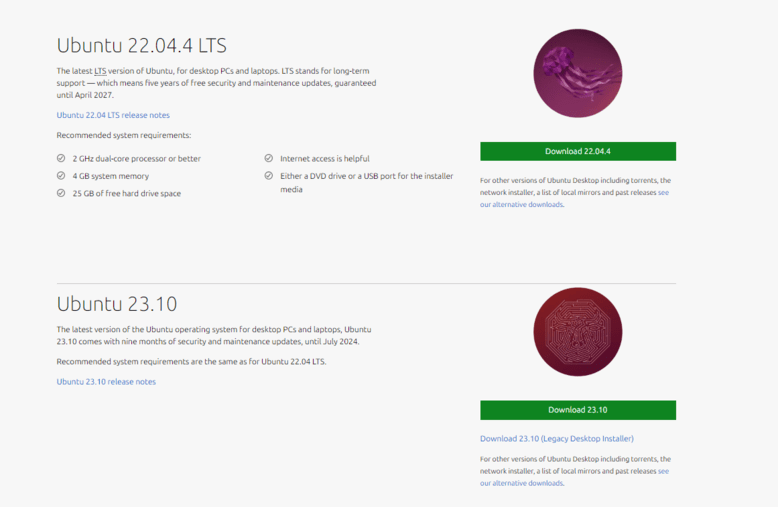
Browse to the Official Ubuntu Page & save it to a memorable location. We will use the 22.04 LTS release which has a new Ubuntu Desktop installer and will be added to the future Ubuntu releases.
For installing Ubuntu Destop from usb, we need to write downloaded ISO to a USB Stick to create the installation media.
We''ll use rufus which runs on windows to boot the USB. To perform the same operation we can use balenEtcher which is available for Linux, windows, Mac OS.
Now, click on Close.
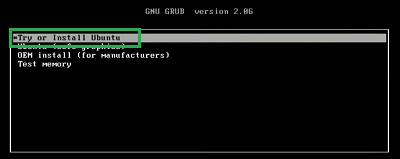
Note: The F12 key is often used to access the boot menu, but sometimes Escape, F2, or F10 can also do the job. If you're not sure which key to use, keep an eye out for a quick message when your computer starts up. This message will usually tell you which key you need to press to open the boot menu.
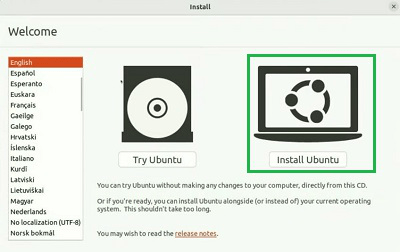
After the installer has started up, you'll be asked to select your preferred language.
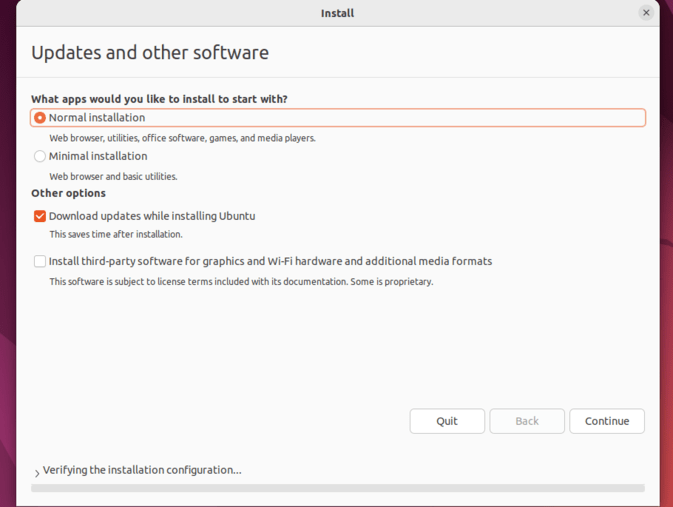
- When installing, choose between Normal and Minimal installation. Minimal is great for smaller drives or fewer pre-installed apps.
- In Additional Options, select updates and third-party software for better device support and performance.
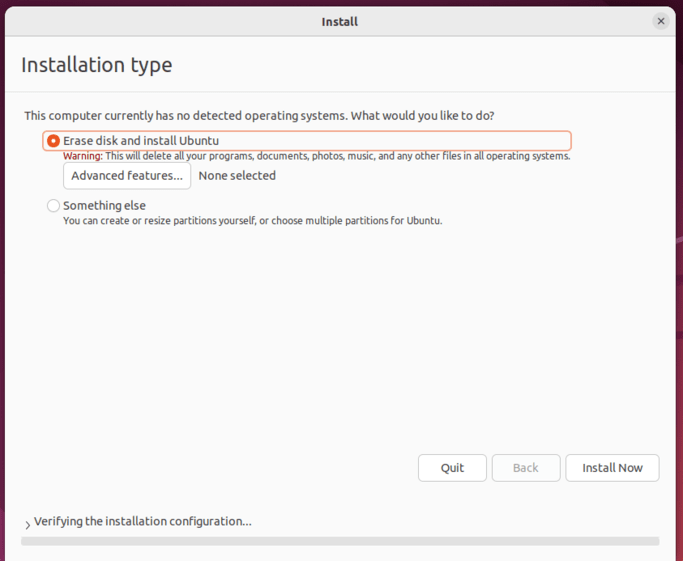
- On this screen, you can set up your installation. If you want Ubuntu to be the sole operating system on your hard drive, choose "Erase disk and install Ubuntu."
- If your device already has another operating system, you'll get options to install Ubuntu alongside it instead of replacing it.
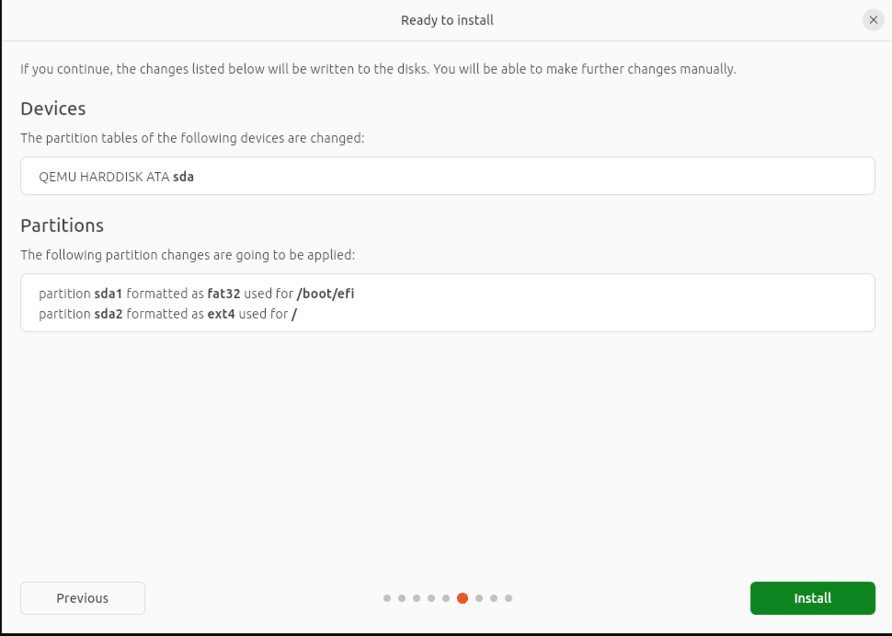
- No matter which option you choose, clicking "Next" will lead you to a summary of your installation settings.
- This allows you to review your configuration before proceeding with the installation by clicking "Install."
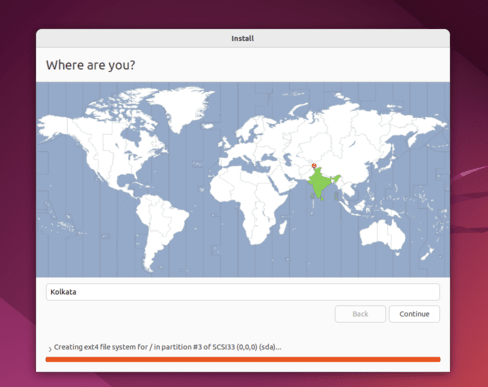
- Choose your location and timezone on the map screen, then click "Continue". If you're connected to the internet, this information will be detected automatically.
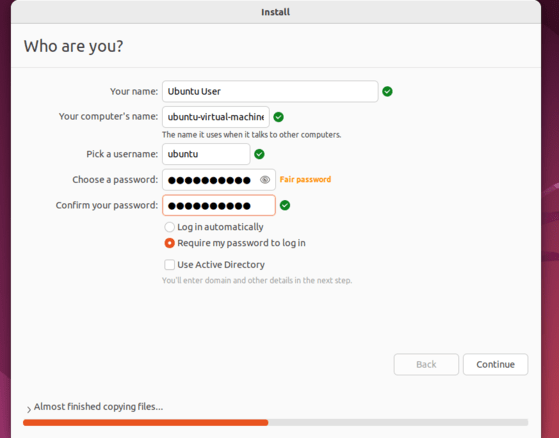
- Here, you'll enter your name and your computer's name for network identification. Next, create a username and a strong password.
- You can opt for automatic login or password requirement. If you're using your device while traveling, it's advisable to keep "Require my password to log in" enabled.
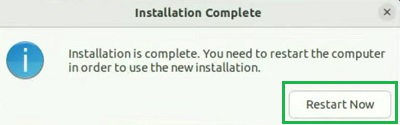
After the installation finishes, you'll be asked to restart your machine. Just click on "Restart Now."
From the above discussion, we might clear the Ubuntu Desktop 22.04 Installation Process. The Ubuntu Desktop Installation is not that much of complicated process.
However, you have to be careful while making the Bootable USB Drive for the Ubuntu Desktop. Otherwise, it could create a problem. If you want to know more about the Ubuntu Desktop, you can check the article Interesting Facts about Ubuntu.
The following are the differences between Ubuntu and Linux:
Aspect | Ubuntu | Linux |
|---|---|---|
Definition | Ubuntu is a specific linux distribution that is based on debian. | The core kernel and its system keep on varying based on the distributions that are built upon. |
User Interface | It provides a user-friendly interface GUI (GNOME by default) | It varies widely; Some distributions have a command line only. |
Ease of Use | It is designed for ease of use, ideal for beginners | It depends on the distribution; Some of them are more user-friendly than others. |
Package Management | It uses apt and deb as its package managers. | Different distributions use different package managers (e.g., PRM, Pacman ) |
Support and Community | It has a large, active community with extensive documentation | It varies by distribution, It has overall strong community support for Linux |
The following are the advantages of using Ubuntu Desktop:
The following are the disadvantages of using Ubuntu Desktop:
Article Title | Article Link |
|---|---|
How to Install Ubuntu on VirtualBox? | |
How to Install GUI on Ubuntu Server? | |
How to Install Apache Server in Ubuntu? |
In conclusion, installing Ubuntu Desktop is a straightforward process that offers a user-friendly experience. By following the step-by-step guide provided in this article, you can smoothly install Ubuntu Desktop on your device. Remember to download the latest version, Ubuntu Desktop Version 22.04, for the best performance and features. With Ubuntu Desktop, you'll have access to a reliable operating system with a graphical interface, suitable for personal computers and laptops. So, don't hesitate to begin your Ubuntu Desktop installation journey today!

.png)
.png)