|
VOOZH | about |
|
VOOZH | about |
Running Windows applications on Linux is easy with Wine, a compatibility layer that lets you install and use Windows software without a virtual machine. Wine translates Windows API calls into Linux-compatible ones, enabling many EXE programs to run smoothly on Linux systems. This guide will show you how to set up Wine and use it to run Windows apps seamlessly.
Characteristics of Wine:
To install Wine on Linux, you use your distribution’s package manager. On Ubuntu and Debian-based systems, Wine can be installed directly using APT. Here’s the correct step-by-step process:
Step 1: Update package lists
Open the Terminal and run:
sudo apt update
Step 2:Install Wine
Install the standard Wine package:
sudo apt install wine
Optional (recommended for full compatibility), install additional support tools:
sudo apt install wine64 wine32
After installation, verify Wine version:
wine --version
Before running EXE files, it’s recommended to configure Wine so it can set up a Windows-like environment.
Step 1: Open Wine Configuration
Run:
winecfg
This will:
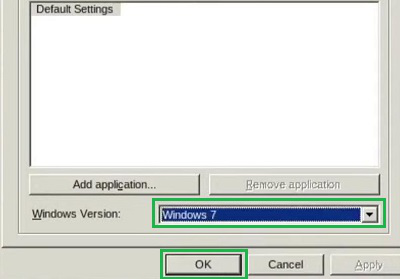
~/.wine/)Step 2: Set Windows Version
In the Applications tab:
This helps ensure better compatibility for specific Windows programs.
Step 1: Download the Windows EXE or MSI file
Step 2: Run the Windows installer with Wine
wine your-app-installer.exe
Step 3: Follow the Installer Steps
Wine will open a Windows-style installation window.
Click through the installer exactly as you would in Windows.
After installation:
~/.wine/drive_c/Program Files/ or Program Files (x86)/To launch an installed Windows app:
wine "path-to-app/appname.exe"
Or use the shortcut created in your system menu if available.
Also Read