Log management is the process of collecting, storing, analyzing, and rotating logs. It helps administrators keep track of system events efficiently while ensuring that old logs are safely archived or removed.
In simple terms, logs help you:
Monitor system performance: Detect issues early.
Ensure security: Track login attempts or suspicious activity.
Maintain compliance: Meet audit requirements.
Troubleshoot errors: Trace system or application failures.
Log Management Tools in Linux
Linux provides several built-in tools to manage logs effectively:
syslog: The standard for logging system messages.
rsyslog: An enhanced version of syslog with better performance and filtering.
journald: Part of systemd, responsible for structured log storage and retrieval.
logrotate: A tool for managing log file rotation, compression, and archiving.
Common Log Files in Linux
Logs are usually stored under the /var/log/ directory.
/var/log/syslog: General system messages and events.
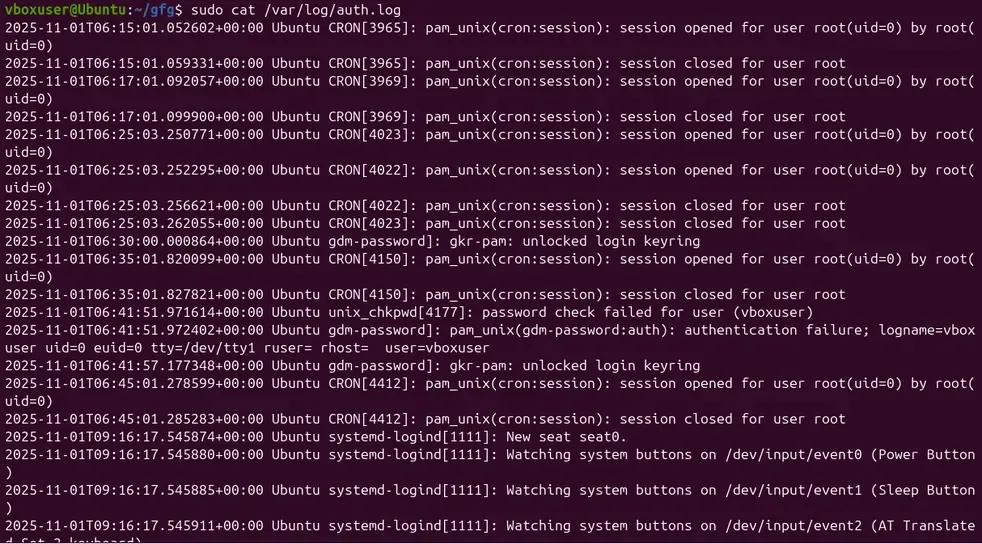
/var/log/auth.log: Authentication and login-related events.
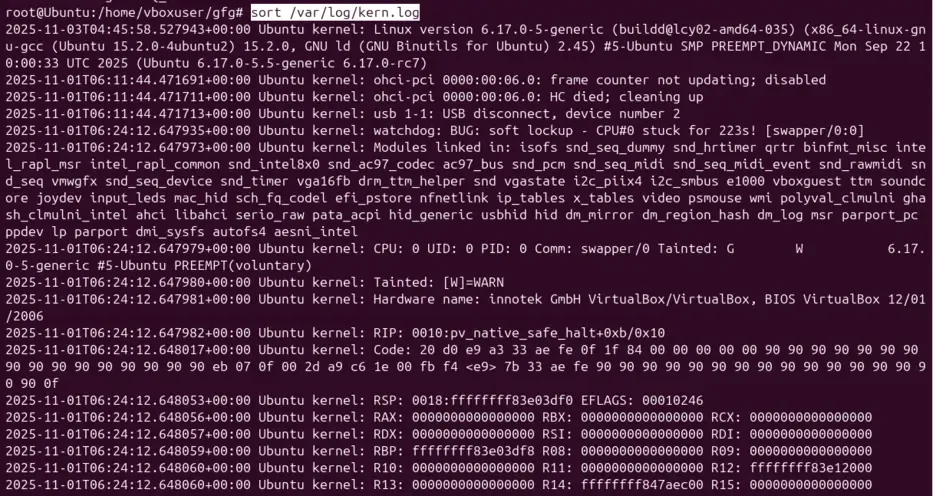
/var/log/kern.log: Kernel-related messages.
/var/log/boot.log: Boot-time messages.
/var/log/dmesg: Hardware and kernel ring buffer messages.
Managing Logs in Linux
The Log Files in Linux stores critical information of the device. If you can Manage Linux Log Files, some confidential background information will come in your hand. Log Managing in Linux can be classified as an expert-level activity on Linux. There are few Linux Commands present to Manage Logs in Linux efficiently.
Methods to Manage Logs in Linux
To Manage Linux Logs, the following commands can be used one by one as necessary.
System Startup & Kernel Version Info: You can see lines that display the Linux kernel version, build information, and system hardware details (like VirtualBox BIOS and CPU info).
Hardware & Driver Messages: It shows messages related to hardware like USB devices, CPU, memory, sound cards, PCI devices, etc. Example: “USB disconnect, device number 2” means a USB device was removed.
Kernel Warnings or Errors: Some lines show warnings like “BUG: soft lockup” or “Tainted: [W]”, which indicate system issues or unexpected behavior detected by the kernel.
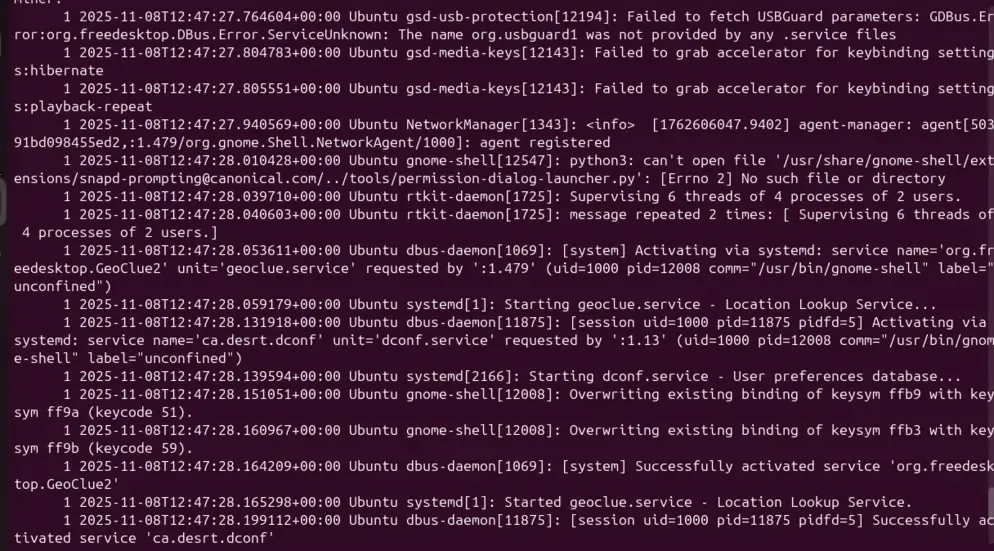
Method 4: Manage Logs in Linux using UNIQ Command
Show only unique lines (removes duplicates). Works best after sort.