|
VOOZH | about |
|
VOOZH | about |
Log monitoring in Linux involves tracking, viewing, and analyzing system log files in real time to detect unusual behavior, troubleshoot problems, or ensure system stability. It helps administrators proactively identify issues before they impact system performance or security.
The following log files are commonly monitored in Linux systems and are located in the /var/log directory:
| Log File | Description |
|---|---|
| /var/log/syslog | Records general system activity logs. |
| /var/log/auth.log | Contains authentication and login attempt information. |
| /var/log/kern.log | Logs kernel-related messages. |
| /var/log/boot.log | Stores boot-time events and errors. |
| /var/log/dmesg | Contains hardware and driver initialization messages. |
| /var/log/cron.log | Stores scheduled task execution details. |
| /var/log/secure | Tracks security-related messages and sudo activities. |
| /var/log/messages | General system messages (used in Red Hat-based systems). |
Linux provides several built-in commands to view and monitor logs effectively. Below are the most commonly used tools and examples.
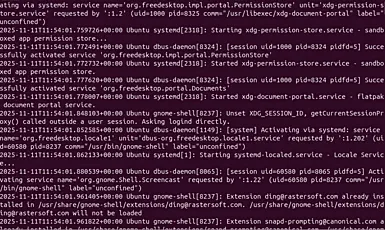
Displays the full contents of a log file at once.
Command:
cat /var/log/syslogOutput:
Explanation:
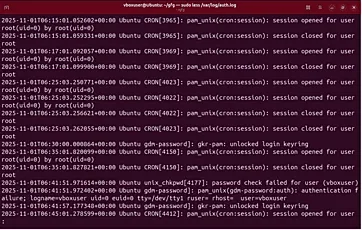
Used to read large log files conveniently, one screen at a time.
Command:
sudo less /var/log/auth.logOutput:
Explanation:
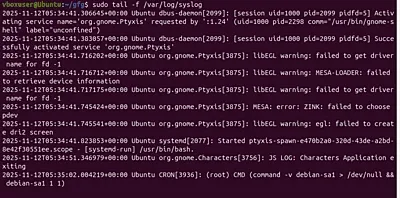
Displays live log updates as new entries are written.
Command:
sudo tail -f /var/log/syslogOutput:
Explanation:
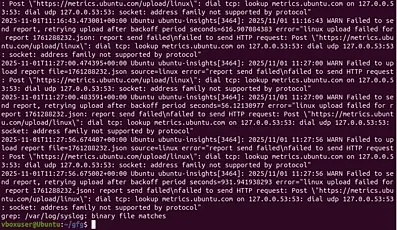
Searches for specific keywords or patterns in log files.
Command:
sudo grep "error" /var/log/syslogOutput:
Explanation:
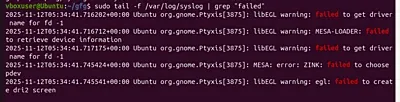
Monitors logs in real time while filtering for specific events.
Command:
sudo tail -f /var/log/syslog | grep "failed"Output:
Explanation:
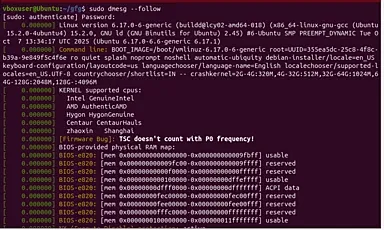
Displays kernel-related messages such as hardware events or driver issues.
Command:
sudo dmesg --followOutput:
Explanation:
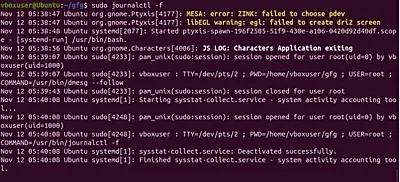
Accesses system logs managed by systemd’s journal.
Command:
sudo journalctl -fOutput:
Explanation:
For more advanced and automated monitoring, Linux provides several powerful tools and utilities.
Manages and rotates log files to prevent them from consuming too much disk space.
Command:
sudo logrotate /etc/logrotate.confExplanation:
Creates custom log entries from the command line or scripts.
Command:
logger "Backup completed successfully"Explanation:
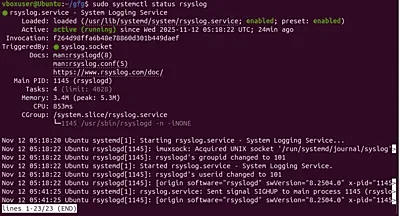
An enhanced system logging service that forwards or stores logs centrally.
Command:
sudo systemctl status rsyslogOutput:
Explanation:
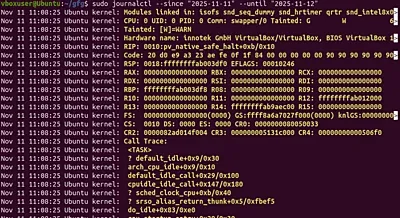
Systemd-based log viewer with extensive filtering and query options.
Command:
sudo journalctl --since "2025-11-11" --until "2025-11-12"Output:
Explanation:
| Aspect | Static Monitoring | Real-Time Monitoring |
|---|---|---|
| Description | View stored logs after events occur | View logs as they happen in real time |
| Tools Used | cat, less, grep | tail -f, journalctl -f, dmesg --follow |
| Use Case | Post-incident analysis | Live system or application monitoring |
| Performance Impact | Minimal | Slightly higher (continuous updates) |