|
VOOZH | about |
|
VOOZH | about |
Mounting apps on your taskbar can simplify your work process, ensuring commonly used programs are readily reachable. In this article, we'll discuss about how to pin apps to the taskbar in Windows 11, enabling you to access them swiftly by bypassing the Start menu.
To Add Apps to the Taskbar of Windows, the following guidelines should be used. We will start with the operation on that very application.
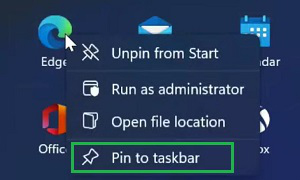
Click on the Windows Key, and the series of apps will be present. Right-click on the app to go for the Pin to Taskbar option.
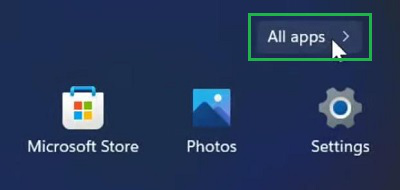
Step 1: In the Start Menu, click on the All Apps option.
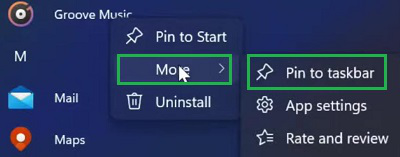
Step 2: Now, select the App. Right-click on it & go for the More option. Now, select the Pin to Taskbar option.
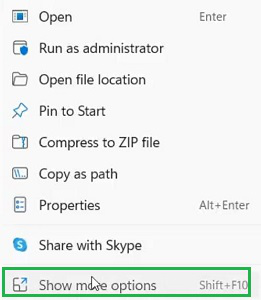
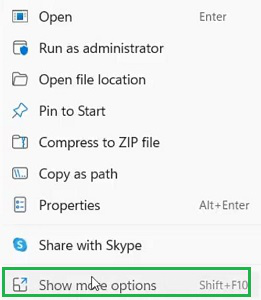
Step 1:Right-click on the application file & go for the Show More Options.
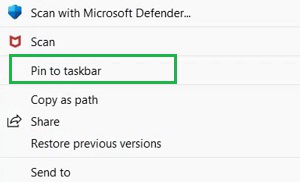
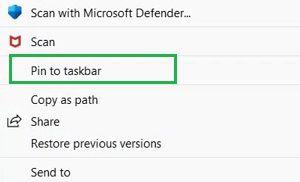
Step 2: Click on Pin to Taskbar.
Congratulations! These are the simple methods needed to Join Apps to Taskbar on Windows 11.
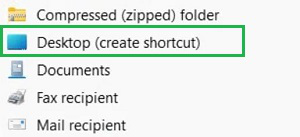
Step 1: To Pin Folders, Files, and Drivers, right-click on it & go to the Desktop (Create Shortcut)section.
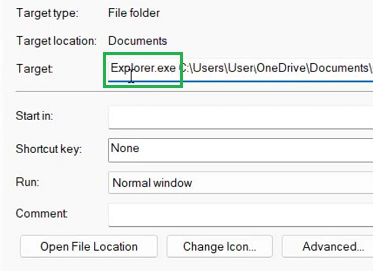
Step 2: On the created shortcut open the Properties option. And add Explorer.exe at the beginning of Target.
Step 3: Now, on the created shortcut, right-click. Go for the Show More Options.
Step 4: Go for the add apps to taskbar ''Pin to Taskbar'' option.
Step 1: To Pin Webpage on Taskbar, browse to the webpage. Open More Tools & then go to Create Shortcuts.
Step 2: On the prompt, click on the Checkbox. Select the option Create.
In Conclusion, Personalizing your taskbar in Windows 11 by adding apps is an easy but efficient method to boost efficiency. With just a few mouse movements, you can position necessary apps close by and enhance the tidiness of your work area.