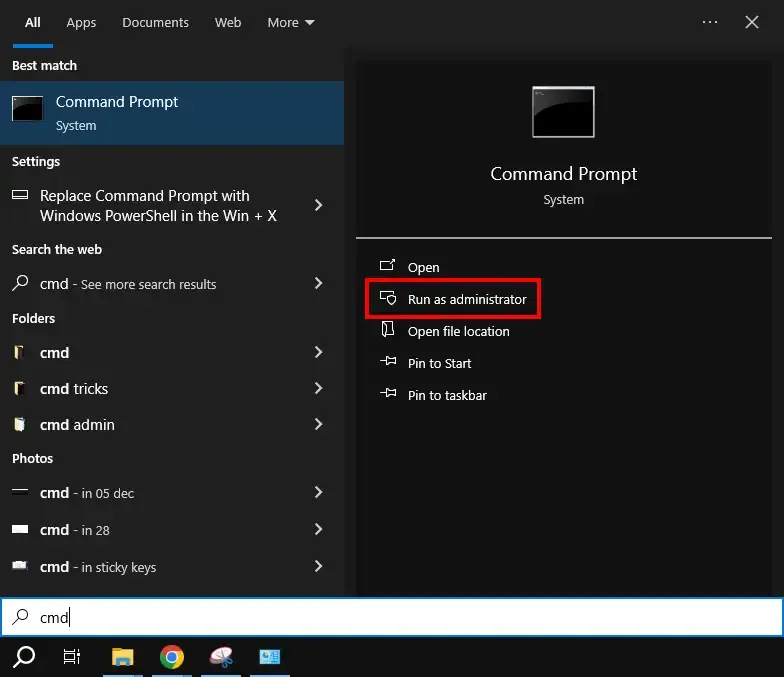
Executing PowerShell scripts from the Command Prompt (CMD) is a common task for developers and system administrators, essential for automation and integration.
1. How to Enter the PowerShell Mode in Command Prompt
PowerShell offers advanced scripting capabilities, while CMD provides a convenient interface for triggering these scripts. Here's how you can do it.
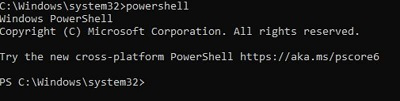
Once you enter the command line, simply type "PowerShell" and hit the enter button.
Note: Once you run "PowerShell" in the command line, you'll notice that new line will now starts with "PS" which indicates that Windows PowerShell is active now.
2. Execute PowerShell Scripts from CMD using PowerShell Command
If you are getting errors from the above process, the following command could be a relief. Execute the command like it is mentioned to get details without any error.
You can also pass arguments to the PowerShell script using command line. Here's an example:
Input:
param (
 [string]$Name,
 [int]$Age
)
Write-Host "Hello, $Name! You are $Age years old."
Output:
👁 output44 Run PowerShell script from the command line with parameters
4. Run Inline PowerShell Commands
This method is suitable where instead of creating a script file, run inline commands from command line PowerShell. Here's an example for better understanding:
5. Run PowerShell Script from Command Line as Administrator
You will be required to have an administrator access to run certain scripts. Here's an example of a script that requires elevated privileges:
Input:
powershell -File "C:\Scripts\example.ps1"
Output:
👁 mailbox Run PowerShell script from command line with parameters to configure Exchange Mailbox
Running a PowerShell script from Command Line with parameters is a straightforward process that can enhance your ability to manage tasks and automate processes efficiently.
3. Tips & Tricks: Run PowerShell Scripts
1. Always use "Alias"
Run PowerShell script to create a batch (.bat) file using command prompt:
@echo off
powershell -File "C:\Scripts\example.ps1"
2. Log Script Output
Ensure to redirect output to a file for debugging:
3. Use Windows Task Scheduler for Script Automation
You can also use Windows Task Scheduler to automate the running PowerShell scripts with parameters. Navigate it via Start > Control Panel > Administrative Tools > Task Scheduler.