|
VOOZH | about |
|
VOOZH | about |
Setting up OK Google on iOS and Android allows you to use Google Assistant with just a voice command. Whether you're an iPhone user or an Android enthusiast, enabling OK Google can significantly enhance your hands-free experience. This article will walk you through the steps to set up OK Google on iOS and activate OK Google on Android. By following these instructions, you can quickly enable OK Google and start using voice commands to get things done more efficiently.
Table of Content
Google Assistant as the name suggests, is utilized to ask questions and get things done. It is a built-in app in the device that makes it easier to complete tasks, viz finding a shop, searching directions, or making phone calls.
It helps users perform specific tasks using voice commands and does that using NLP (natural language processing). It can engage in a two-way conversation, can schedule any event, or even control smart devices in the home.
Ok, Google is available in multiple languages like French, German, English, Spanish, and even Indian languages like Hindi, Gujarati Marathi, Malayalam, and Tamil. etc.
Most of android devices come with a pre-installed app but in case the device doesn't have one, it can be downloaded from Playstore.
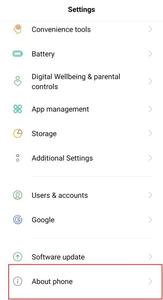
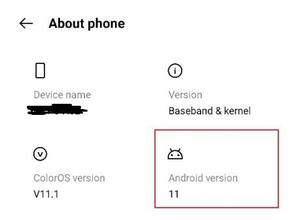
Requirement 1: Check the Android Version
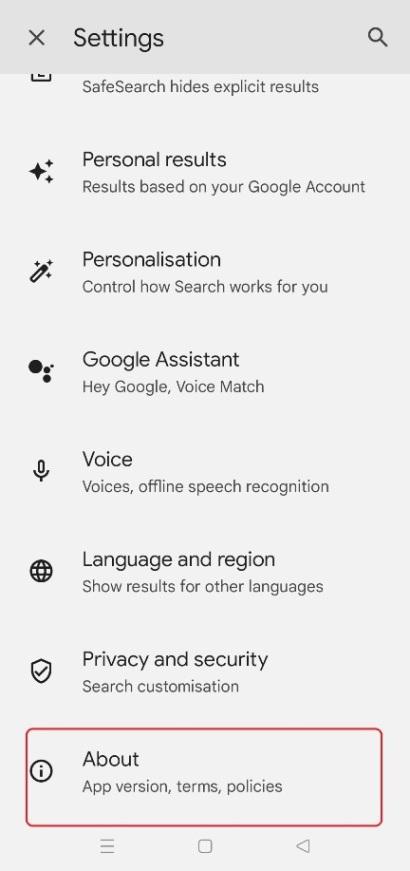
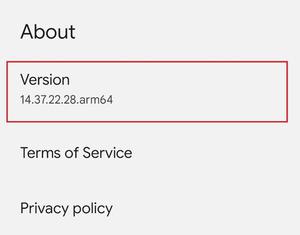
Requirement 2: Check the Google App Version
Requirement 3: Check for Google Play services
Requirement 4: Screen Resolution
Requirement 5: Language Support
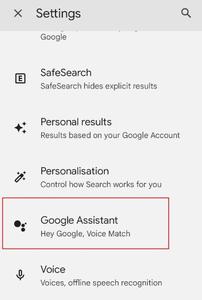
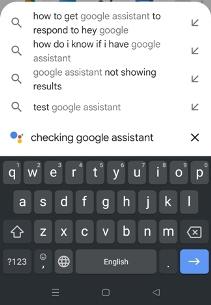
Step 1: Launch the Google app. On the left corner, click on profile picture and select settings. Tap on Google assistant
👁 Screenshot_2023-10-25-15-42-36-31_680d03679600f7af0b4c700c6b270fe7
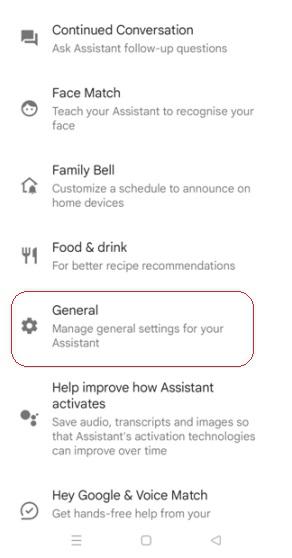
Step 2: Click on General
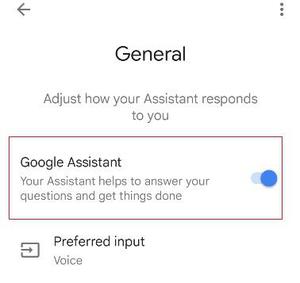
Step 3: Toggle the google assistant.
👁 Screenshot_2023-10-25-15-42-57-68_680d03679600f7af0b4c700c6b270fe7
Method 1: To Set up Google Assistance in Android
👁 Screenshot_2023-10-25-15-43-14-37_92b64b2a7aa6eb3771ed6e18d0029815
Method 2: To Set up Google Assistance in Android
👁 Screenshot_2023-10-25-15-44-16-52_680d03679600f7af0b4c700c6b270fe7
Method 3: To Set up Google Assistance in Android
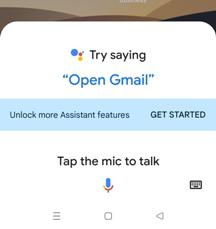
Now, everthing is setup, you just need to activate google assistance to start communicating with it. lets see how.
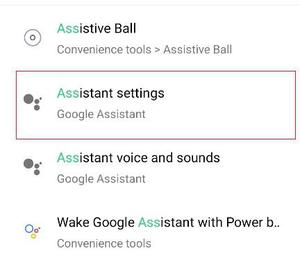
Step 1: On android phone , open Assistant settings.
👁 Screenshot_2023-10-25-15-45-19-88_c269bce7be08f98da9640039739b3cb0
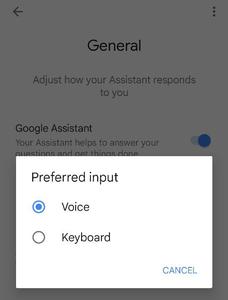
Step 2: Go to General Tab and tap on Preferred Input.
👁 Screenshot_2023-10-25-15-45-45-77_680d03679600f7af0b4c700c6b270fe7
Step 3: Click on keyboard to type question or command . Click on voice if question or command is to be given in audio format.
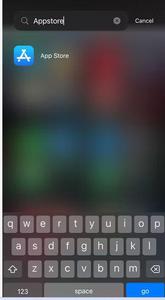
iPhones doesn't have pre installed app since apple devices have its own similar feature of native voice assistance ,viz Siri . However it can be downloaded from the Apple app store. The feature though doesn't work on apple devices as good as in android phones. Also there is no way to toggle or wake up the assistant in iOS the same way it could have been done in android.
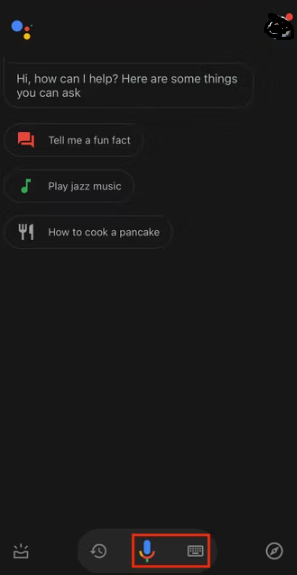
Step 1: Open the Google Assistant app and say "Ok Google" or " hey Google.
Step 2: Alternatively we can tap on the keyboard icon or mic icon.
Step 3: In the Home screen ,tap on mic icon in the Google search widget
Lets now check out to How to Set Up 'OK Google' on other devices like TV, smart watches, etc.
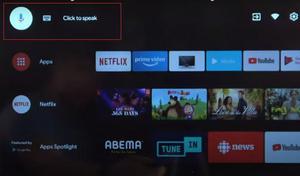
Android device must have recent updates and apps along with the latest assistant app. Google Assistant works on smart TV that requires following requirements these requirements are:
Step 1: Connect the TV to the WIFI network
Step 2: Open the Google assistant app on the device and say, "Setup my assistant device
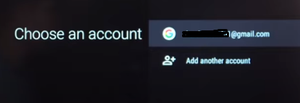
Step 3: Sign in to google account (some devices require sign in at the beginning of the setup while others allow to chose anytime after setup
Step 4: Follow on Screen instructions
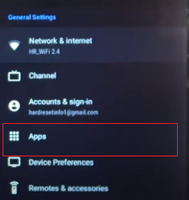
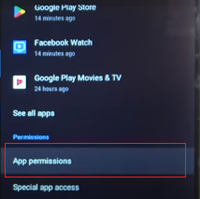
Step 5: Go to settings and click on Apps
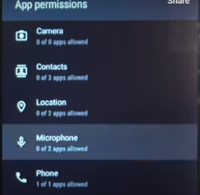
Step 6: Check the app enabled permissions
Step 7: Enable the microphone permissions
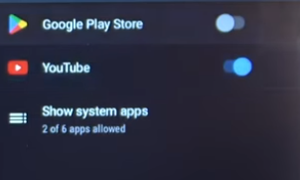
Step 7: Enable the permission for Youtube by toggling the button.
Install the app from Playstore or update the app if pending
Step 1: Open Google Assistant -> Get started
Step 2: Follow on screen instructions
Step 3: Swipe right on home screen and scroll
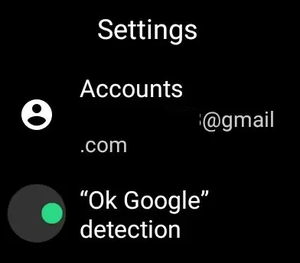
Step 4: Tap on settings
Step 5: Enable "OK Google" toggle button
Step 6: Say "Ok Google " and it will activate the assistant
Google assistant comes with a variety of features that helps the end user ease their day to day activities smoothly and efficiently. Following are few of them:
Google Assistant's voice recognition feature enables users to interact with their devices using natural speech. It accurately transcribes spoken words into text, allowing users to perform tasks, ask questions, and control functions on their devices hands-free, enhancing the overall user experience through seamless voice-based interactions.
By following the steps outlined in this guide, you can easily set up OK Google on iOS and Android devices. Whether you're using an iPhone or an Android phone, enabling OK Google enhances your device's functionality, allowing for hands-free assistance. Regularly using OK Google voice command setup can make your daily tasks more manageable and improve your overall smartphone experience.