|
VOOZH | about |
|
VOOZH | about |
Windows 11 is packed with modern features and a sleek interface, but one of the most basic yet essential tasks every user needs to know is how to properly shut down their computer.
In this blog, we’ll explore 9 easy and effective ways to shut down Windows 11 from traditional methods to advanced shortcuts. These techniques will ensure you can power off your device seamlessly, no matter the situation. Whether you're looking for a quick shutdown option or need to troubleshoot a frozen system, this guide has you covered.
👁 9-ways-to-Shut-Down-Windows-11
Let’s explore the 9 different ways to shut down Windows 11 properly, ensuring you can power off your device efficiently and safely, no matter the situation.
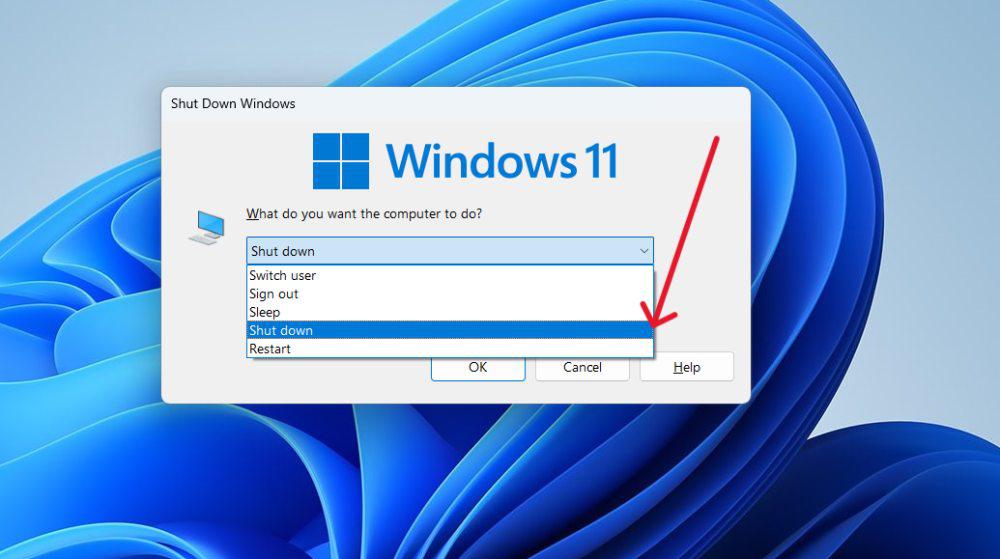
Want to shut down your Windows 11 PC quickly? You can do it using just your keyboard! By pressing Alt and F4 at the same time, you can use the shut down shortcut key windows. It's an easy way to shut down laptop with keyboard without needing to click around.
👁 How-to-Shut-Down-Windows-11-Using-the-Keyboard
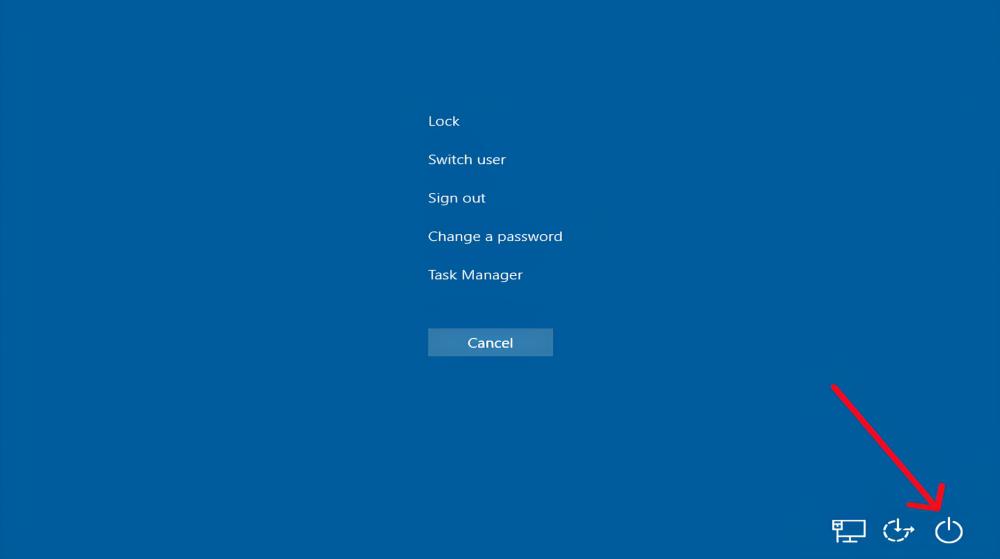
This is a handy shut down laptop with keyboard method that utilizes Windows 11 shut down shortcut keys. Pressing Ctrl+Alt+Delete brings up a menu where you can select the option to shutdown windows, making it a simple and efficient way to power off your PC.
👁 How-to-Shut-Down-Windows-11-With-Ctrl-Alt-Delete
If you're at the sign-in screen, you can completely shut down your laptop using these steps:
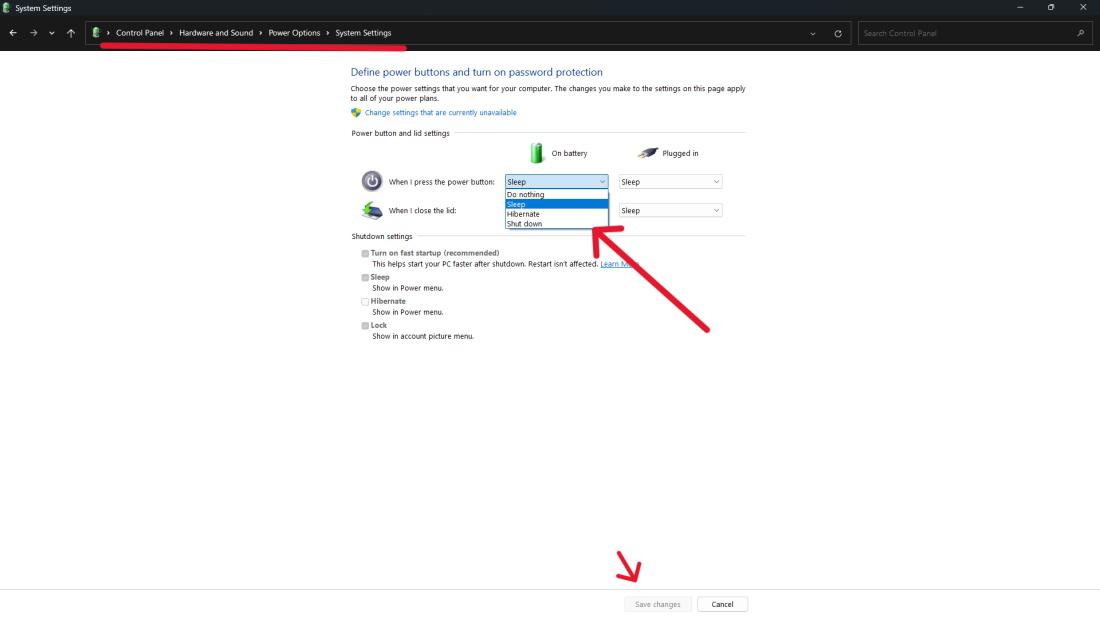
This method is as simple as pressing the power button on your device to initiate the completely shutdown windows process. It's one of the most traditional methods of shutting down windows 11, ensuring a quick and hassle-free shutdown experience.
Control Panel\Hardware and Sound\Power Options\System Settings👁 ow-To-Shut-Down-Windows-11-Using-the-Power-Button
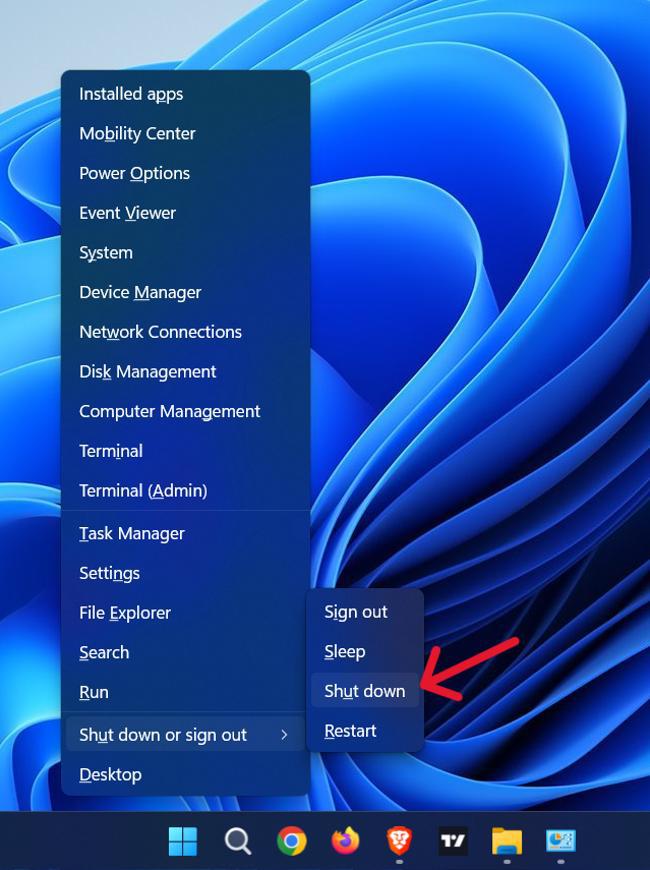
Access the Power User Menu by pressing the Windows key + X, then select the "Shut down or sign out" option to power off your system swiftly. Here are the following Steps for you to follow:
👁 How-To-Shut-Down-Windows-11-With-the-Power-User-Menu
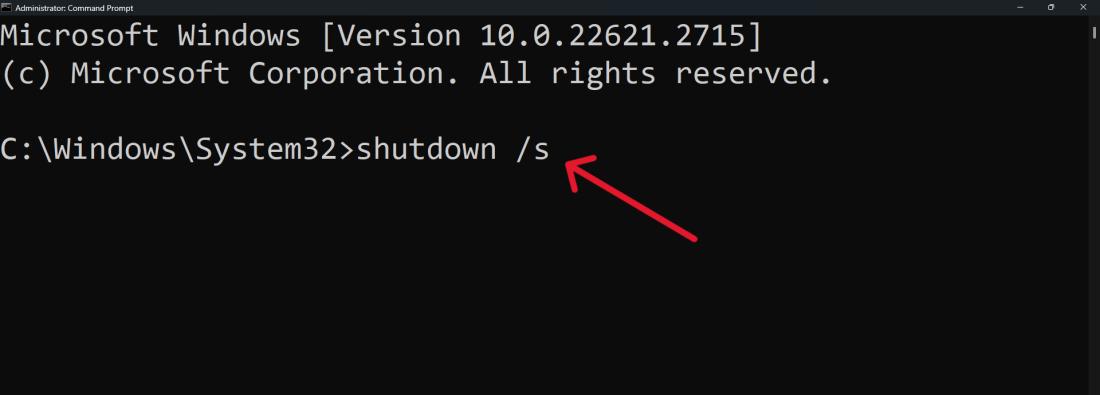
Using Command Prompt offers a streamlined method for shutting down Windows 11 with precision. Here are the following Steps for you to follow:
Step 1: Opne CMD (Command Prompt.)
👁 How-To-Shut-Down-Windows-11-Using-Command-Prompt
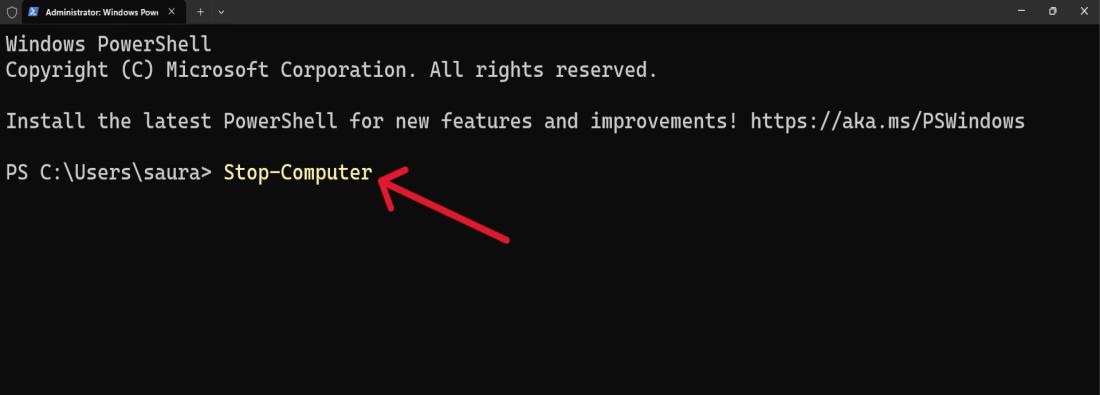
This method allows you to completely shutdown Windows using a command-line interface. While it may seem a bit technical, it's actually quite straightforward. With just a few simple commands, you can initiate a shutdown process in Windows 11 directly from PowerShell.
Stop-Computer
👁 How-To-Turn-Off-Your-Windows-11-With-PowerShell
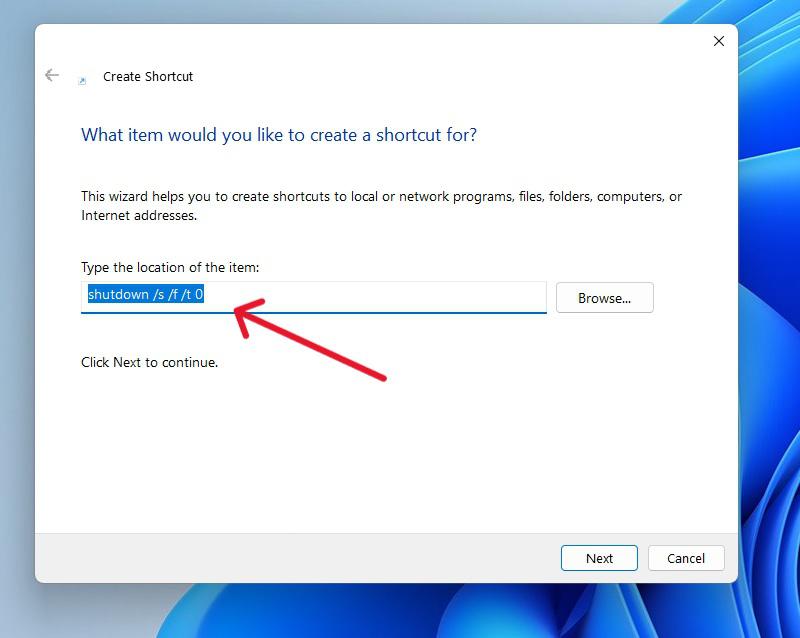
You can do this shutdown windows by adding a shutdown shortcut key! This method provides a convenient option for completely shutting down windows 11 without having to navigate through menus. Follow these simple steps to create a shortcut key for shutting down windows 11 right from your desktop.
👁 How-to-Add-a-Shutdown-Button-to-the-Windows-11-Desktop
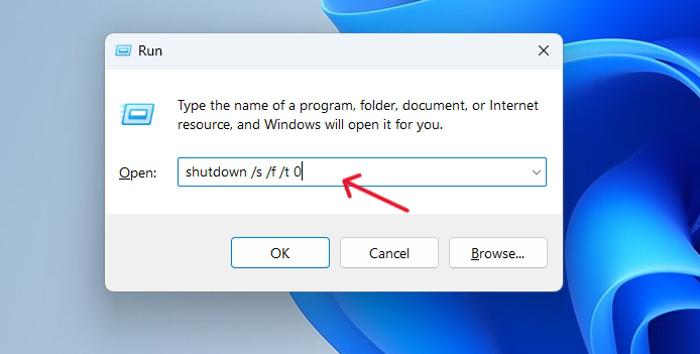
Use the Run dialog! Press Windows key + R, type "shutdown /s /t 0", and hit Enter. It's a simple shortcut for shutting down Windows 11. Here are the following steps for you to follow:
👁 How-To-Turn-Off-Windows-11-Laptop-By-Using-the-Run-Dialog-Box
Now that you're familiar with the 9 different ways to shut down Windows 11, you can choose the method that best fits your needs. Whether you prefer the traditional Start menu approach, a quick keyboard shortcut, or a command-line shutdown, Windows 11 provides versatile options to turn off your device. Knowing these various methods can help you navigate different scenarios and shutdown your PC efficiently.