|
VOOZH | about |
|
VOOZH | about |
Safe Mode is a built-in troubleshooting environment in Windows 10 and 11 that loads only essential drivers and services. It helps you diagnose software errors, driver conflicts, malware issues, and boot problems. This guide explains all reliable methods to start Windows in Safe Mode, along with clear steps for normal Safe Mode, Safe Mode with Networking, and Safe Mode with Command Prompt.
Quick Commands:
- Safe Mode:
bcdedit /set {current} safeboot minimal- Safe Mode with Networking:
bcdedit /set {current} safeboot networkRestart after applying any command.
To Launch Windows on Safe Mode, the following guidelines should properly be used. Let's understand all methods in detailed steps along with their screenshots.
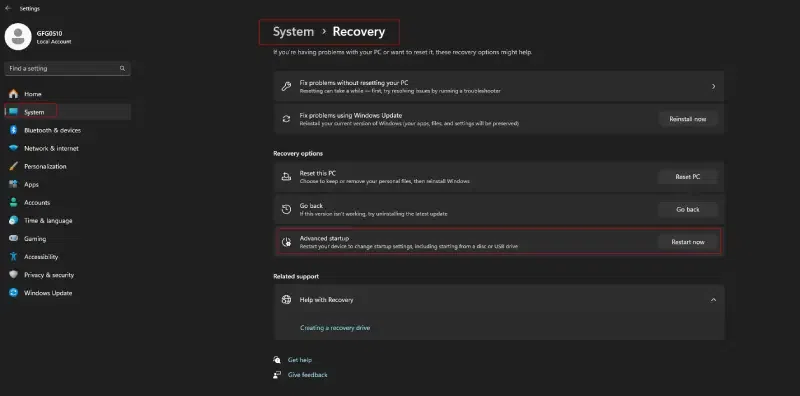
The first method to boot your Windows 10/11 PC in the Safe Mode is by using te Windows Settings Menu (typically the basic mode). Let's check out the detailed steps to perform this action:
Step 1: Open Settings
Step 2: Open Recovery Options
Step 3: Navigate to Troubleshoot
Step 4: Open Startup Settings
Step 5: Choose Safe Mode
Press:
select any of these option as per your need and your Windows 10/11 PC will enter into the Safe Mode.
You can perform a Safe Mode in Windows using the System Configuration. Here's what need to do to perform this action:
Step 1: Open System Configuration
Step 2: Enable Safe Boot
Step 3: Choose Safe Mode Type
Step 4: Restart
To exit Safe Mode: Uncheck Safe boot in msconfig and restart.
Windows Power Menu option can be a good choice for beginners whether it's Windows 10 or 11, it fits on both Windows OS. Here's what needs to be done:
Step 1: Open Start Menu → click Power.
Step 2: Hold Shift and click Restart.
Step 3: Select Troubleshoot.
Step 4: Go to Advanced options > Startup Settings > Restart.
Step 5: Choose one of the Safe Mode options:
Note: A physical keyboard is required on the Startup Settings screen.
Use only if your PC is not booting normally.
Step 1: Interrupt Startup
Step 2: Select Troubleshoot.
Step 3: Go to Advanced options > Startup Settings > Restart.
Step 4: Choose your Safe Mode option (4/5/6).
Important:Forced shutdowns may harm system files. Use this only when necessary.
If you face difficulty while performing the above methods, you may try using a Bootable USB or recovery drive to perform a Safe Mode booting in Windows 10 or 11. Here's a detailed break down for performing it:
Step 1: Insert a bootable USB or recovery drive.
Step 2: Restart and enter BIOS/UEFI (F2, F12, ESC, or DEL).
Step 3: Boot from the USB/Recovery drive → select Troubleshoot.
Step 4: Go to Advanced options > Startup Settings > Restart.
Step 5: After restarting, select the appropriate Safe Mode option by pressing:
Also Read: